Submissions and evidence (admin view)
When a chapter submits a compliance requirement, what actually shows up in the reviewer queue depends on the requirement's tracking type, the submission type the chapter chose, and what they attached. This page covers what national admins see on the receiving end, how files are handled, and what to look for in the review.
For the officer/member side of submitting evidence, see Compliance submissions. For the multi-tier approval logic, see Multi-tier approval.
What a submission looks like in the reviewer queue
Every submission opens as a card showing:
- Header: requirement title, submission type badge (Event / Document / Link / Text / Attestation / Form), and submission date.
- Submitter: full name of the chapter member (or officer) who submitted.
- Type-specific content: see the next section.
- Notes: free-form notes the submitter included.
- Evidence: file links, attachments, or external URLs.
- Review actions: Approve and Reject buttons with a notes field, gated by your role and the current tier.
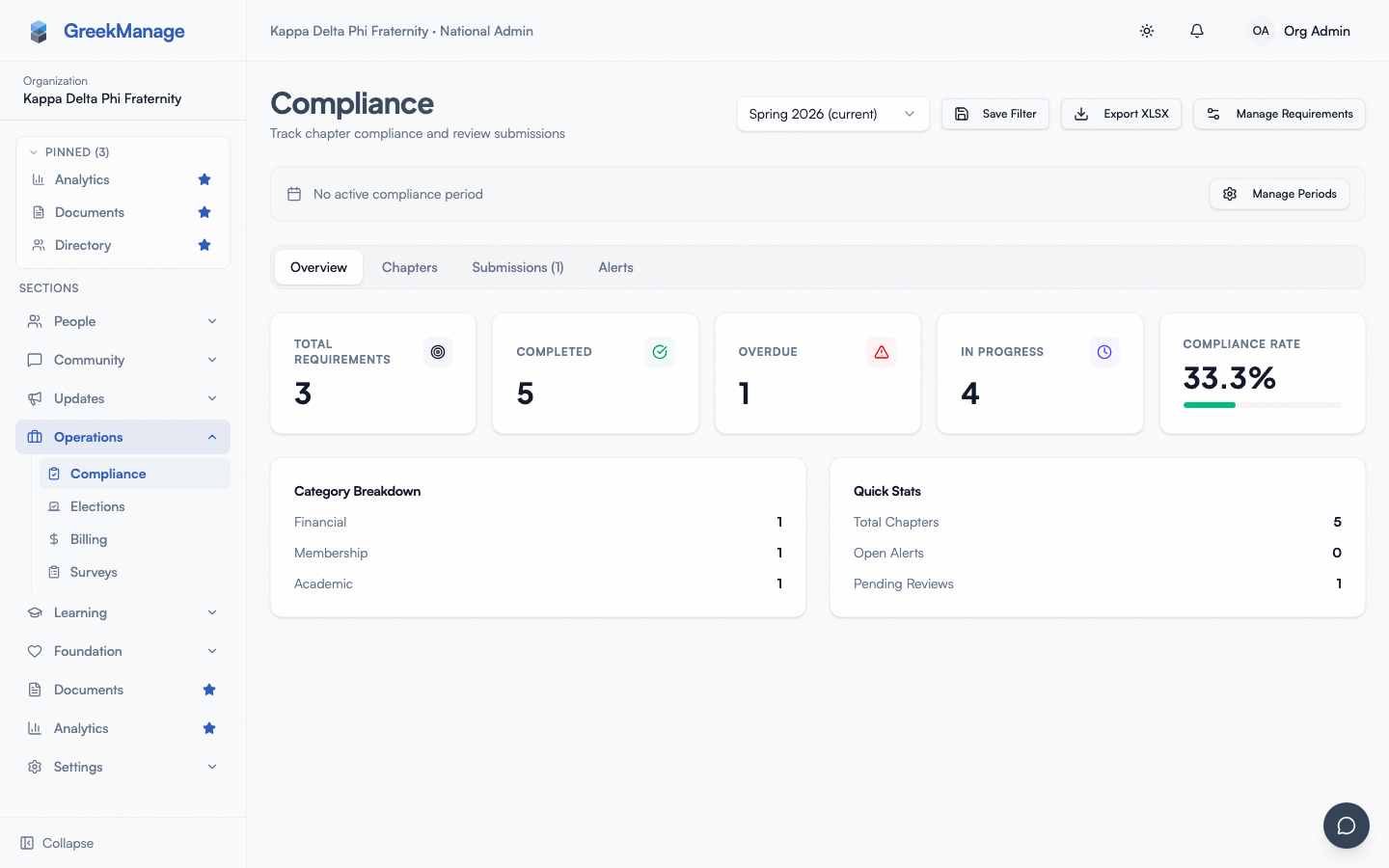
Cards live in two places — the Submissions tab on the org compliance page (a flat list of everything pending) and inside the chapter dashboard's expandable requirement rows (the drill-down view).
 a submission review card with evidence, notes, and approve/reject controls
Evidence types
What the card surfaces depends on the submission type the chapter chose. There are six:
Event
The chapter is reporting that they did a thing — a service event, an educational program. The card surfaces:
- Event title (e.g., "Spring Service Day at the food bank").
- Description — what the event was.
- Attendees — typically a free-form list of names or a count.
- Optional file attachments (sign-in sheets, photos, flyers).
Events are the most common submission type for count-tracked requirements ("5 service events per semester"). Each approved event submission moves the chapter one closer to their target.
Document
A single file upload. The card surfaces:
- File name and file size.
- A View file link that streams the file inline through the platform (the underlying storage URL is not exposed to your browser — see "File handling" below).
- Optional notes.
Use this for one-and-done items: a signed contract, an annual policy upload, the year's audited financial statement.
Link
An external URL pointing to evidence that lives somewhere else — Google Drive, Dropbox, a public page. The card surfaces the link and the optional notes. You click through to view; the platform doesn't fetch or cache the linked content.
Links are convenient but harder to audit because the external resource can be deleted, moved, or have its permissions changed without the platform knowing. Prefer Document uploads when you can.
Text
A free-form text submission. The card just shows the text. Useful for short attestations or self-reports that don't fit a structured form.
Hard to audit at scale — there's no way to roll up free-form text into a report. Use sparingly.
Attestation
An acknowledgment-only submission — no file, no text, just "yes, I did this." Pair with templates that have Requires evidence submission unchecked.
Use for "I have read and agree to the chapter advisor policy" — items where the act of submitting is itself the evidence.
Form
Structured answers matching the template's form schema. The card renders each field with its label and value. Multi-select fields appear as a list; checkboxes as Yes/No; member-picker fields as resolved member names.
Forms are the highest-value submission type for reporting. The XLSX export has a dedicated Form Submissions sheet that flattens every field across every submission into columns, so you can pivot and chart cleanly. See Reports, exports, and audit logs.
File handling
Files attached to submissions go through a few layers:
Two attachment paths
There are two ways files end up on a submission: an inline file stored directly on the submission record (used when the chapter picks Document type) and any number of additional attachments uploaded as separate records. Both are visible on the review card with filename, type, and size.
File type validation
When a file is uploaded, the platform inspects its actual content (magic bytes, not just the extension) and checks the MIME type against an allowlist:
- Images: JPEG, PNG, GIF, WebP
- Documents: PDF, Word (.docx), Excel (.xlsx), PowerPoint (.pptx), legacy Word/Excel
- Data: CSV, plain text, ZIP
A file disguised as a PDF but actually a .exe will be rejected at upload time. A legitimate file with the wrong content-type header also fails.
Size cap
Uploads cap at 25 MB per file. Larger files have to be hosted externally and submitted as a Link, or split across multiple attachments.
How files reach you
Clicking a file link hits an authenticated download endpoint on the platform, not the raw storage URL. The platform authenticates the request (cookie on web, header on mobile), looks up the attachment, and streams the file back. The underlying object-storage URL is never exposed; a reviewer removed from the org loses access to files immediately. Native mobile clients get the same protection.
Retention
There is no automatic deletion of submission files. They live as long as the submission record lives, which is as long as the chapter's compliance status row lives. When a period closes, those records become read-only but remain in storage indefinitely.
If your org's storage configuration (MinIO, S3, etc.) has a lifecycle policy, that policy still applies — but it's enforced at the storage layer, not by the platform. See Storage configuration.
Form data in detail
When a submission has structured form answers, the review card renders each field with its label and value: member-picker fields show resolved member names, multi-select fields show the list of options, checkboxes show Yes / No, numeric and date fields show the raw value.
If the form schema has been edited since the chapter submitted (which is risky — see Templates and requirements), the card renders fields still in the current schema. Orphaned answers persist for audit but aren't shown in the UI.
The reviewer's job at the org tier
When you're reviewing at the org tier (the final tier before approval), the questions to ask:
- Did the chapter actually do the thing? Compare the evidence against what the requirement asks for.
- Is the evidence sufficient? A photo of a sign-in sheet is better than a free-text attestation. A signed contract is better than a screenshot of a signature.
- Did the prior tiers do their job? If the chapter tier and regional tier already approved, you can lean on their review notes. If they didn't review yet and you're auto-escalating, you're doing all three reviews at once.
- Are the review notes from earlier tiers consistent with what you see? If the chapter officer wrote "looks good" but you see a typo'd date, push back.
When you approve, the requirement flips to Approved and counts toward the chapter's compliance rate. When you reject, leave notes — the chapter has to resubmit and they need to know what to fix.
Bulk review — and why there isn't one
There is no bulk-approve button today. Each submission is reviewed individually. The reasoning: a "bulk approve" button on compliance evidence undermines the whole point of having reviewers. Approve-then-resubmit cycles are slower than approve-once-correctly, so the workflow optimizes for the latter.
For backlog management, the drill-down dashboard's expandable rows are the fastest path — open a chapter, expand each requirement, review submissions inline, move to the next chapter.
Common rejection scenarios
- Missing attendees on an Event submission — ask for the sign-in sheet.
- Wrong file uploaded — ask for the correct artifact.
- Form fields left blank — chapters can edit and resubmit.
- Permission-locked external link — ask for a viewable link or a file upload.
Tips
- Push for forms over text. Structured submissions become the XLSX export; free text doesn't.
- Don't approve without reading. The cascade exists because evidence quality matters. Speed-clicking approve defeats the purpose.
- Use review notes liberally on rejections. A two-sentence note saves a follow-up email.
- Drill into the chapter, not the global queue. The expandable rows let you review a chapter's submissions in context — easier than jumping between unrelated submissions on the global tab.
Related
- Compliance program overview
- Templates and requirements
- Multi-tier approval
- Chapter dashboards
- Reports, exports, and audit logs
- Compliance submissions (officers)
- Storage configuration
Last verified against v0.62.1.