Custom fields
Custom fields let you collect data on member profiles that GreekManage doesn't include by default — pledge class, big-little assignment, T-shirt size, emergency contact, etc.
Open custom fields
Org → Settings → Custom fields.
You'll see all fields configured for your org, with type, visibility, and required status.
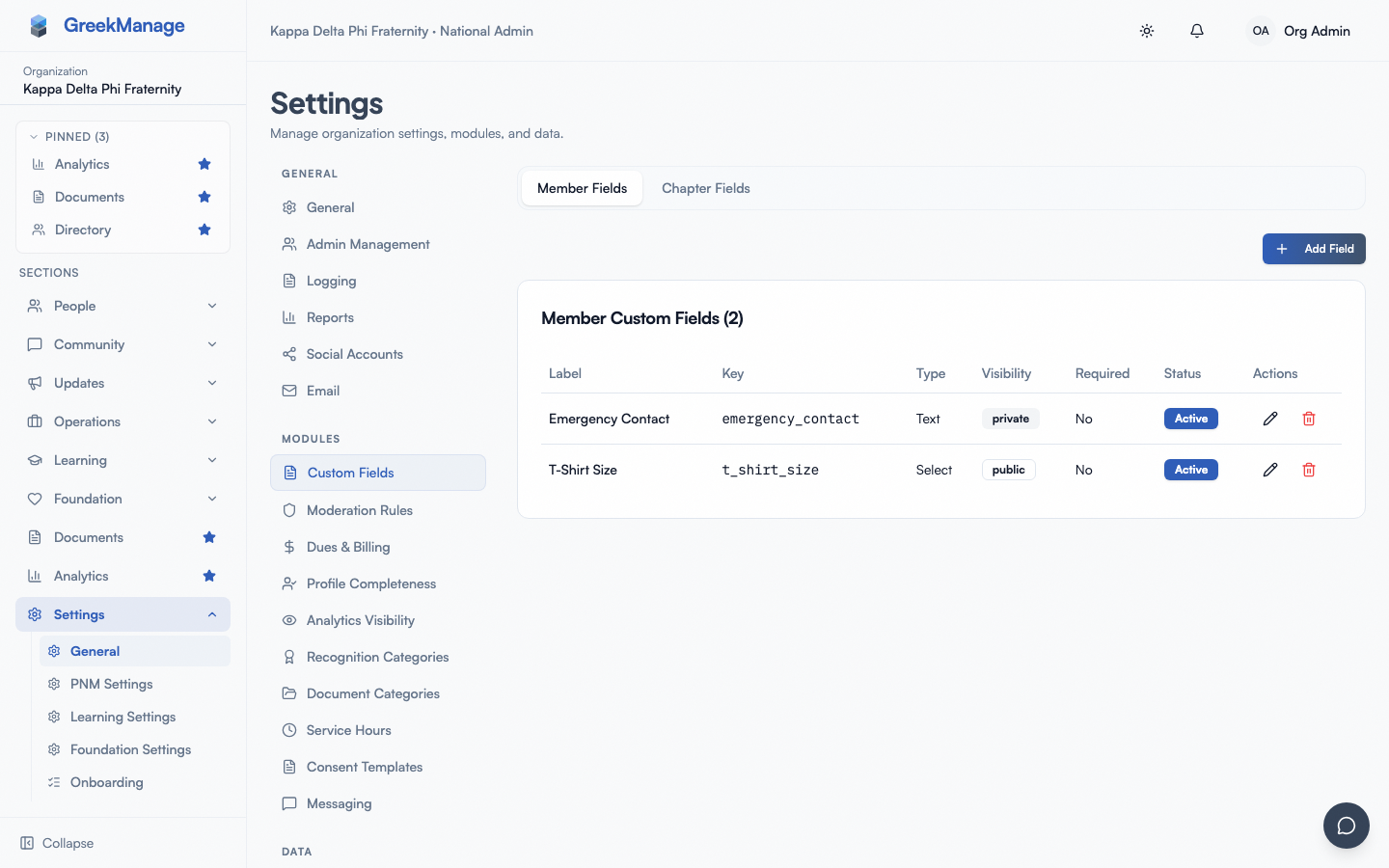 The custom fields list.
Create a custom field
- Click New field.
- Set:
- Label (what members see — e.g., "Emergency contact")
- Name — a slug used as the machine-readable key (e.g.,
emergency_contact) - Type — Text, Number, Date, Boolean, Select, Multi-Select
- Scope — Member or Chapter (chapter-scoped fields show on chapter detail's Custom Data tab)
- Visibility — Public (visible on profile) or Private (staff-only)
- Required — toggle on for required fields
- For Select / Multi-Select, list the options.
- Click Save.
The field appears immediately on every member profile (or chapter detail, for chapter-scoped fields).
Edit or remove a field
- Open the field from the list.
- Click Edit to change label, options, visibility.
- Click Delete to remove the field.
Reordering
Fields have an integer order you can adjust to control how they appear in the profile editor.
Required fields and the completeness score
Mark a field Required to make it count toward the Profile Completeness score for members. Org admins configure weighting via Org → Settings → Profile Completeness (the org's ProfileCompletenessConfig).
Use cases
| Field | Type | Visibility |
|---|---|---|
| Pledge class | Text | Public |
| T-shirt size | Select (S, M, L, XL, XXL) | Public |
| Dietary restrictions | Multi-Select | Public |
| Notes (staff-only) | Text | Private |
| Emergency contact phone | Text | Private |
| Chapter-level event budget | Number (Chapter scope) | Public |
Note: visibility is two-tier (Public or Private), not a four-tier "member sees / officer edits / admin-only" matrix. Emergency-contact-style fields should use Private to keep them out of the member-facing profile.
Tips
- Start with the minimum. Add fields as you find you need them, not preemptively.
- Use slugs carefully. Once a field's
nameslug is set and referenced by import or report tooling, renaming it breaks those integrations. - Mark sensitive fields Private. Emergency contacts, medical info, financial info shouldn't be visible to peers.
Related
Last verified against v0.62.1 (2026-05-10).