Chapter invoices & generation
A chapter invoice is a bill issued to one chapter for one billing period, itemized by member type. Once generated, an invoice’s line items are immutable — they snapshot the rates and member counts at the moment of issue.
This page covers how invoices get created (both scheduled and manual), the four states an invoice moves through, how overdue detection works, and how to export the entire invoice ledger to XLSX.
Open the billing overview
Org → Billing.
You’ll land on the Billing Overview page with one large card titled Chapter Invoices. Above the table you have:
- Status filter — All, Unpaid, Partial, Paid, Overdue
- Period filter — All Periods, or any specific period from the dropdown
- Generate Invoices button
- Export button
The table itself lists chapter, period, total, balance due, status badge, due date, and a per-row View action.
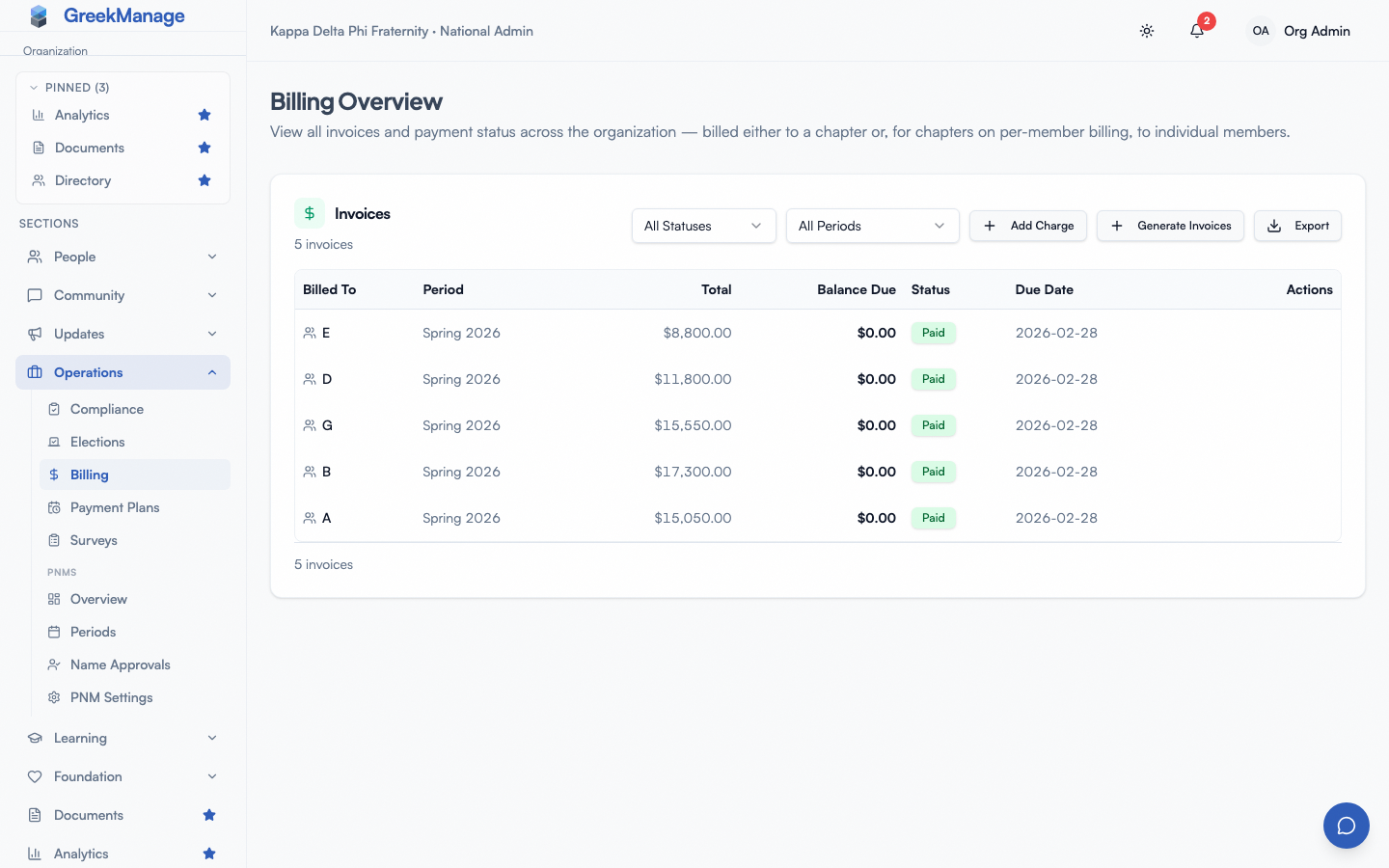 Dues billing invoices
Scheduled generation
Invoice generation runs as a nightly job at 5:00 AM UTC every day. The job finds every billing period whose invoice date is today, confirms the org has the Operations module enabled, and confirms dues rates exist for that period (skipping with a log warning otherwise). It then iterates every active chapter and — for each chapter that doesn’t already have an invoice for the period — counts active members per bucket (Undergraduate, Associate, Officer), builds line items, creates the invoice, and notifies the chapter’s officers.
A chapter is skipped if an invoice already exists for the same period, so the cron is safe to re-run.
Default invoice dates by cadence:
| Cadence | Auto-generation date(s) |
|---|---|
| Per Semester | Aug 1 (Fall), Jan 1 (Spring) |
| Annual | Aug 1 |
These dates are set when the period is generated and can’t be edited through the admin UI in v0.62.1.
Members who transferred chapters
A member who transferred chapters is billed for the transfer term once, by the chapter they left. The receiving chapter’s run skips them for that term, whether it bills members individually or as a chapter, and starts billing them the next term. Regenerating either chapter’s invoice for that term keeps the member counted by the old chapter.
Manual generation
You can also generate invoices on demand:
- Click Generate Invoices on the Billing Overview.
- Pick a billing period from the dropdown in the dialog.
- Click Generate.
This bypasses the invoice-date check entirely. It’s the right tool for:
- A period whose invoice date already passed but didn’t run (rare, but possible if the worker was down).
- A chapter you onboarded mid-period that needs to be brought current.
- A re-run after fixing a configuration issue (e.g., you set rates after the auto-cron skipped your org).
Manual generation refuses to run if no rates are configured for the selected period (No dues rates configured for this billing period. Set rates first.). It also skips chapters that already have an invoice for the period, so you can’t create duplicates. The dialog reports how many invoices were created.
There is no manual single-invoice creation form. Generation always runs against the full active-chapter list scoped to one period at a time. For a one-off bill for one chapter, run the manual generator — it will skip every chapter except the new one.
The four invoice states
GreekManage uses four statuses, no more:
| Status | Meaning |
|---|---|
| Unpaid | Issued, no successful payment recorded yet. |
| Partial | At least one successful payment is recorded but balance due is still greater than zero. |
| Paid | Balance due is zero; one or more successful payments cover the total. |
| Overdue | Was Unpaid or Partial, and the due date passed before the balance hit zero. |
There is no Draft state. Invoices are created in unpaid and become visible immediately to chapter officers. There is no separate Issued state — issuance and creation are the same event.
There is no Refunded invoice status. Reversing a charge directly in the processor’s dashboard doesn’t change the invoice’s status in GreekManage — the platform does not webhook-listen for refund events on individual invoices. The one refund path GreekManage does support is scoped to chapter account credit (see below), which refunds unused credit rather than reopening a specific invoice.
How status transitions actually happen
- Unpaid → Partial. A successful payment webhook arrives with an amount less than the balance due. The platform writes a
PaymentRecord, decrements the balance, sets status topartial. - Unpaid → Paid or Partial → Paid. A successful payment brings the balance to zero.
- Unpaid → Overdue or Partial → Overdue. The overdue cron (see below) catches the invoice past its due date.
All status transitions originate from one of two automated sources: payment webhooks or the overdue cron. There’s no manual “mark paid” button in the admin UI — payment must be recorded via the processor.
Overdue detection
A second nightly job runs at 6:00 AM UTC every day and flips invoices to overdue. The criteria:
- Status is
unpaidorpartial - Due date is strictly before today
- Balance due is greater than zero
All matching invoices are updated in a single query per org. After the bulk update, the job sends an overdue notification to chapter officers for invoices that became overdue yesterday — meaning today’s first cron run after the due date triggers the notification, not every subsequent day. Officers are notified once.
The notification is both in-app and email (subject to each officer’s notification preferences), with a “Pay Now” call-to-action linking back to the invoice detail page. The notification body shows the balance due and the original due date.
Operational caveat: the notification path filters strictly to invoices whose due date equals yesterday. If a cron run is missed entirely, invoices still flip to overdue on the next successful run, but the officer notification will not fire — the status is correct, the alert is silent. The invoice is still findable in the Overdue filter on the billing overview.
Payment notifications reach national too
When a chapter pays a chapter-billed invoice — or a payment fails — every active
org admin is notified, alongside the chapter’s own officers. The admin
notification says which chapter paid and how much (“Alpha paid $250.00 on Fall 2026
Dues”), reports the remaining balance, and links to the invoice under
/org/billing/invoices/<id> rather than to the chapter’s copy.
Two things this deliberately does not do:
- Member-billed invoices never notify org admins. A member paying their own dues is between them and their chapter; broadcasting it to national is the same disclosure the platform already refuses to make to that member’s chapter officers.
- You are not told twice. An org admin who is also an active officer or president of the paying chapter already receives the chapter-side notice and does not get a second copy.
It rides the existing Payment received and Payment failed preference rows, so an admin who has those muted stays muted. In-app, email and push all follow whatever that admin already chose.
When a chapter pays more than it owed
Two payments can be started against the same invoice at once: two payment windows, or a card payment completed while you record the chapter’s cheque. Each is checked only when it starts, so the processor can take both.
GreekManage records both and the invoice reads Paid. The extra stays a payment on that invoice; it is not turned into account credit.
Every active org admin gets an Overpayment notification naming the chapter, what it paid, and how much more than the balance due that was. Refund the extra from your payment processor’s dashboard; GreekManage does not refund it for you.
Like the other payment notices, it follows the Payment received preference and is not sent for a member-billed invoice.
Manual invoice actions
From Org → Billing you can: filter by status and period, view invoice detail (line items, payment records — processor and offline — due date, snapshot), generate new invoices, regenerate a single invoice against current membership, record an offline payment, and export to XLSX.
You cannot create a single hand-built invoice for one chapter, edit an existing invoice’s line items or total in place, or send a manual reminder. Handle those out-of-band: absorb ad hoc adjustments via a discount, and contact chapters directly for reminders.
Recording an offline payment
When a chapter pays by mailed cheque or cash, record it against the invoice so the balance reflects it. Open the invoice from Org → Billing and choose Record offline payment. The button appears on any invoice that is not voided and still has a balance due.
- Amount — at most the current balance due. Full balance fills it in for you.
- Reference (optional) — free text such as a cheque number or deposit slip.
Only national admins can record an offline payment, and each one is recorded under your name. A payment for less than the balance leaves the invoice Partial; one for the full balance marks it Paid, exactly as a processor payment would. The payment appears in the invoice’s Payment History as Offline, followed by its reference — chapter officers see the same row on their copy of the invoice. A recorded offline payment cannot be reversed from the app.
Regenerating an invoice
A recurring dues invoice’s line items are snapshotted at generation time — if a chapter’s membership changes afterward (a member joins, leaves, or changes status), the invoice does not update automatically. The invoice detail page shows a banner when the chapter’s current active-member counts differ from the invoice’s snapshot, along with a Regenerate Invoice button.
Regenerating one invoice:
- Voids the existing invoice for that chapter and billing period.
- Creates its replacement, priced from the chapter’s current active member counts and the same dues rates.
- Carries forward any payments already recorded and any active (non-voided) discount onto the replacement invoice — payment history isn’t lost or duplicated.
- If the new (lower) total is already fully covered by what was carried forward, the excess becomes chapter account credit rather than a negative balance.
A member who transferred out keeps counting toward the invoice of the chapter that billed their transfer term, so regenerating that invoice doesn’t drop them. Regenerating a transferred member’s own invoice prices them at the member type the old chapter billed them as.
Regeneration only ever touches the one invoice you chose — it never affects other chapters’ invoices, even for the same billing period. It’s available for recurring dues invoices only; ad hoc charges are voided directly instead (see above). A voided invoice shows a banner linking to the invoice that replaced it.
Chapter account credit
When regenerating an invoice would otherwise leave it overpaid (member count dropped after payment was collected), the difference is recorded as account credit for that chapter instead of a negative balance. This credit is chapter-scoped, not a refund by default:
- It auto-applies to the next invoice issued for that chapter — whether that’s the next recurring dues invoice or a new ad hoc charge — reducing its balance due until the credit is used up.
- An org admin can instead manually refund some or all of the unused credit to the chapter’s original payment method, from the invoice detail page’s Chapter Account Credit card. This calls the org’s configured payment processor directly (Stripe today) and requires a prior successful payment to refund against.
Every credit issuance, application, and refund is recorded as its own ledger entry — the available balance shown is always derived from that ledger, never a hand-edited number.
XLSX export
Click Export on the Billing Overview to dump every invoice in the org to XLSX. The export runs as a background job; the button returns immediately while the file is built server-side.
The workbook has two sheets:
- Invoices. Invoice ID, chapter, period, status, issued, due date, total, balance due.
- Line Items. Invoice ID, chapter, period, member type, count, rate, subtotal.
The file is written to the platform’s media storage. In v0.62.1 the export action returns the task ID — picking the file up requires platform-admin access to the storage backend. If you need this regularly, ask your platform admin to surface a download link. This export was introduced in v0.23 and is still the only data-out path for the invoice ledger.
Invoice receipts vs Foundation tax receipts
When a chapter pays an invoice, the platform records the payment and updates the invoice status. There is no separately generated PDF “invoice receipt” emailed to officers — the source of truth is the invoice detail page, which shows payment records, amounts, methods, and timestamps. If a treasurer needs a printable record, save/print the detail page from the browser.
This is intentionally different from Foundation tax receipts (under Foundation → Tax Receipts), which are real PDFs generated for IRS Section 170(c) purposes and emailed to donors. Operations dues are not charitable contributions, so they don’t generate tax receipts.
Chapter dashboard navigation
Once invoices exist, chapter officers see them under their own Chapter → Billing page (read-only — see the cross-link below). Org admins should document the billing program internally so officers know what to expect when an invoice appears.
Tips
- Run the manual generator anytime you change rates after a missed auto-run. The platform won’t re-attempt a date-based generation after the day passes — manual is the only path.
- Check Unpaid + Partial filters together when reconciling. Status filters are mutually exclusive, so a one-at-a-time scan is the way to inventory open balances.
- Pull the XLSX export before officer transitions. A fresh export gives the incoming treasurer a clean baseline.
- Watch out for the overdue notification gap. If GreekManage’s background processing is delayed around a due date, run a manual reconciliation pass: filter to Overdue, check officer activity, and contact chapters whose invoices flipped silently.
Related
- Dues configuration & billing — overview of the two-tab settings page
- Billing periods & cadence — periods drive invoice dates
- Dues rates by member type — rates drive line items
- Payment processor configuration — required for payments to actually post
- Chapter billing (officers) — read-only officer view
- Permissions matrix
Last verified against v0.62.1 (2026-05-10).