Payment processor configuration
The payment processor is what lets chapter officers actually pay an invoice online. Until you connect one, invoices are generated and tracked, but the “Pay Now” action on the chapter side has nowhere to send money.
GreekManage supports four processors. Credentials are entered directly — there is no OAuth Connect flow for Operations dues. (The Foundation module has a separate, independent Stripe integration for donations, configured under Foundation Settings.)
Open the Payment Processor tab
Org → Settings → Dues & Billing → Payment Processor.
You’ll see four processor cards in a grid: Stripe, Braintree, Square, PayPal. A badge in the top-right shows the current connection status (e.g., Stripe Connected or Not Configured).
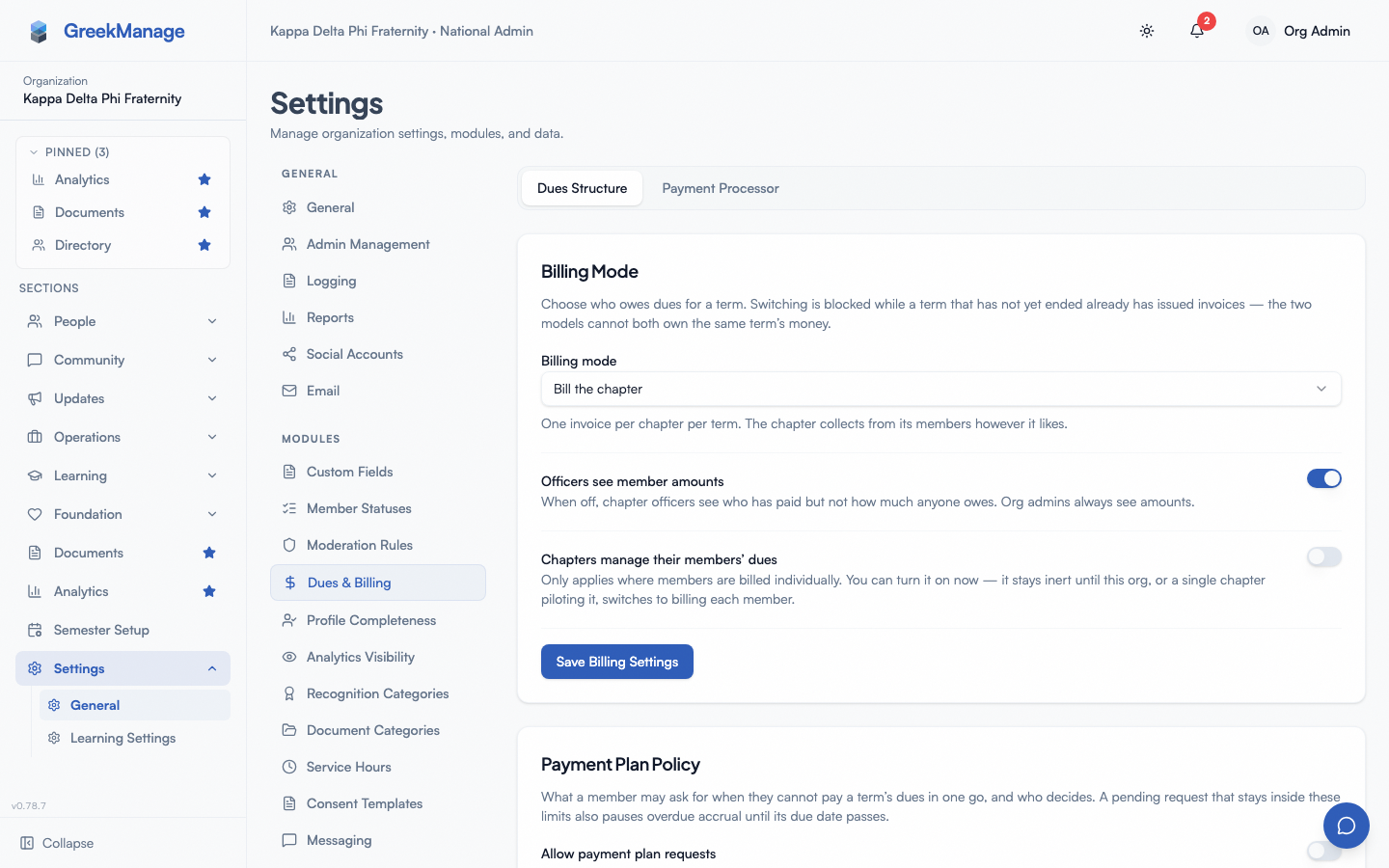 Dues billing payment processor
Supported processors and required credentials
Each processor requires its own set of credentials. The fields you’ll see when you select a processor card:
Stripe
- Publishable Key (e.g.,
pk_...) — used by the chapter-side pay page - Secret Key (e.g.,
sk_...) — used server-side; treated as a secret - Webhook Signing Secret (e.g.,
whsec_...) — required. Stripe dues payments are recorded only when Stripe’s signed payment notification arrives, and GreekManage accepts it only if it matches this secret. Copy it from the webhook endpoint you register (below). Once one is saved, a later edit may leave this field blank to keep it.
Braintree
- Merchant ID
- Public Key
- Private Key (secret)
- Environment —
sandboxorproduction
Square
- Application ID
- Access Token (secret)
- Location ID
- Webhook Signature Key (secret)
Square has no separate Environment field. The Application ID decides it. An id starting sandbox-sq0idb- uses Square’s sandbox for both the card form and the charge. Any other id (production ids start sq0idp-) uses production. So all four values must come from the same environment in your Square Developer Dashboard. A sandbox application id with a production access token fails validation.
PayPal
- Client ID
- Client Secret (secret)
- Webhook ID
- Mode —
sandboxorlive
Fields marked secret hide their values behind an eye-toggle in the form so you can paste them in without leaving a plaintext trail on screen.
How credentials are stored
Once you save, the credential bundle is encrypted at rest with the platform’s Fernet encryption key. The encrypted blob lives in a single column on the processor record; no decryption happens except when GreekManage needs to call the processor (validation, intent creation, webhook signature check). The credentials are never returned through any API — even an admin GET on the processor config returns the type and a validated_at timestamp, not the secrets themselves.
This is why re-entering credentials is the only way to rotate them. There’s no edit-in-place for an individual field; updating any credential means resubmitting the full bundle for the chosen processor. The one exception: leaving Stripe’s Webhook Signing Secret blank keeps the secret already saved.
The validation flow
Saving credentials is not a blind write. When you click Validate & Save, GreekManage calls the processor with the credentials you provided and only persists them if the processor confirms they’re valid.
The validation each processor performs:
- Stripe: looks up your Stripe account with the secret key.
- Braintree: generates a client token using the merchant ID, public key, and private key.
- Square: fetches the configured location using the access token.
- PayPal: requests an OAuth2 client-credentials token using client ID and client secret.
If validation succeeds, the credentials are encrypted, written to the org’s processor record, and the validated_at timestamp is stamped. The connection status badge on the page flips to the processor’s name followed by “Connected” in green.
If validation fails, you’ll get an inline error message describing what the processor returned — typically something like:
Stripe authentication failed: Invalid API Key providedBraintree authentication failed: ...Square validation failed: NOT_FOUND(when the location ID doesn’t match the account)PayPal authentication failed: invalid credentials
No partial state is written on failure — the previous processor configuration (if any) remains untouched, and validated_at is not updated.
Required fields are enforced before validation
Each processor has a minimum required set checked before the platform even attempts the live call:
- Stripe:
publishable_key,secret_key,webhook_signing_secret(a blank secret on an edit keeps the one already saved) - Braintree:
merchant_id,public_key,private_key - Square:
application_id,access_token,location_id - PayPal:
client_id,client_secret
If any of those are blank, you get a Missing required fields: ... error without a live call.
Square’s webhook_signature_key and PayPal’s webhook_id are not in the minimum required set, because those processors record a payment when the chapter pays rather than from a webhook. The platform will let you save without them — but their incoming webhook events (refunds, failures) will then be rejected as unverified. Configure them as part of initial setup.
Fee pass-through
There is no fee pass-through toggle in v0.62.1. Processor fees come out of whatever amount settles to your bank — the platform doesn’t add a surcharge to invoice totals to cover Stripe’s percentage, and there’s no UI to enable that behavior. Chapters pay the invoice amount; you receive that amount minus the processor’s standard fees.
If you need to recover processor fees, build them into the dues rates themselves (e.g., add a 3% buffer to the Undergraduate rate).
Switching processors
When a processor is already connected and you click a different processor card, you’ll see a confirmation dialog: Switch Payment Processor?
Switching payment processors will clear the current configuration. Any saved credentials for the current processor will be removed.
Confirming the switch resets the credential form and lets you enter the new processor’s credentials. Until you successfully validate and save the new processor, the encrypted credentials for the old processor remain on the record — the switch dialog warns about clearing, but the database row is updated in-place on the next successful save, not on dialog confirm.
Practical consequences of switching:
- In-flight payments on the old processor still flow. Webhooks already in transit hit the same webhook URL; the platform looks up the processor record by org and processor type, so as long as the org still has a record matching the old type, those events resolve normally. Switching the type field replaces the record, so any pending old-processor payments may stop reconciling.
- Existing invoices stay valid. Invoices don’t reference the processor; only payment intents and webhooks do. When a chapter clicks Pay Now after a switch, the hosted payment form renders against the new processor.
There is no archive of historical processor configurations. The active processor is the configured processor, full stop.
Connection status and error states
The status badge at the top of the Payment Processor tab is computed from one signal: does a processor record exist for the org, and does it have a non-null validated_at? You’ll see:
- Not Configured — no processor record exists.
- <Processor> Connected — a record exists with a
validated_atset. - Red “Stripe payments are not being recorded” warning — the connected Stripe processor has no webhook signing secret, so GreekManage refuses every payment notification Stripe sends. Chapters can still pay, but their invoices stay unpaid. To fix it, enter the signing secret together with your publishable and secret keys and save.
There is no continuous health check. Once you’ve validated, the connection is considered good until you re-save. If the processor later revokes or expires your API key, that won’t change the badge — you’ll discover it through failed payment attempts at the chapter level. To re-validate without changing anything, just re-paste the same credentials and click Validate & Save.
Common error states beyond initial setup:
- Invalid credentials after rotation. You rotated the key on the processor side without updating GreekManage. Validation calls fail; payment intents fail. Fix: re-save with the new key.
- Expired keys. Same symptom, same fix.
- Webhook misses. Webhook events arrive but get rejected because the signing secret on the GreekManage record doesn’t match the secret on the processor side. Symptoms: chapter officers see a payment succeed in the processor’s dashboard but the invoice in GreekManage stays unpaid. Fix: update the webhook secret in the processor settings and re-save it here.
- Payment succeeds but the invoice stays unpaid — and the secret is correct. Before chasing the secret, check the endpoint URL registered on the processor. If it points at the bare domain rather than the full
/api/payments/webhook/<org_id>/<processor_type>/path, the event never reaches the API at all. Distinguish the two: a signature mismatch is delivered and answered400by the API, whereas a wrong URL is answered405by the frontend (or200with an HTML body). The processor’s webhook delivery log shows which.
When a webhook signature fails to verify, the platform returns a 400 to the processor — most processors retry several times with exponential backoff. If you fix the secret within the retry window, the missed event reconciles automatically.
Tips
- Use sandbox first. Configure Braintree with
environment: sandboxor PayPal withmode: sandbox, test a full charge-to-webhook flow, then switch to production credentials. - Store webhook secrets the same day you create the endpoint. A webhook endpoint configured on Stripe with no signing secret saved here means every event is rejected. The platform never trusts an unverified webhook.
- Rotate keys on a calendar. Processors usually let API keys live indefinitely, but rotating annually (especially around officer transitions) reduces blast radius.
- Don’t share credentials between Operations dues and Foundation. Foundation has its own processor configuration under Foundation → Settings. Using the same Stripe account for both is fine, but configure each side independently.
Related
- Dues configuration & billing — overview of the Dues & Billing settings page
- Chapter invoices & generation — what officers see once the processor is live
- Payouts & reconciliation — Stripe deposits broken down into the payments behind them
- Foundation Stripe webhooks — separate Stripe integration for donations
- Chapter billing (officers)
- Permissions matrix
Last verified against v0.63.46 (2026-06-30). Stripe dues payments actually charge v0.63.44; shared charge spine v0.63.45; Braintree/Square/PayPal dues processors v0.63.46.