Billing periods & cadence
A billing period is the window of time a single set of dues rates applies to — for example, “Fall 2026” or “2026-2027”. Every invoice GreekManage generates is anchored to exactly one billing period, and the period determines the invoice date, the due date, and which dues rates apply.
This page explains how periods get created, how the two cadence options shape them, when a new period appears automatically, and what closing a period actually means in practice.
Open the Dues Structure tab
Org → Settings → Dues & Billing → Dues Structure.
The Billing Period dropdown under Dues Rates lists every period the platform has generated for your organization, ordered with the most recent first.
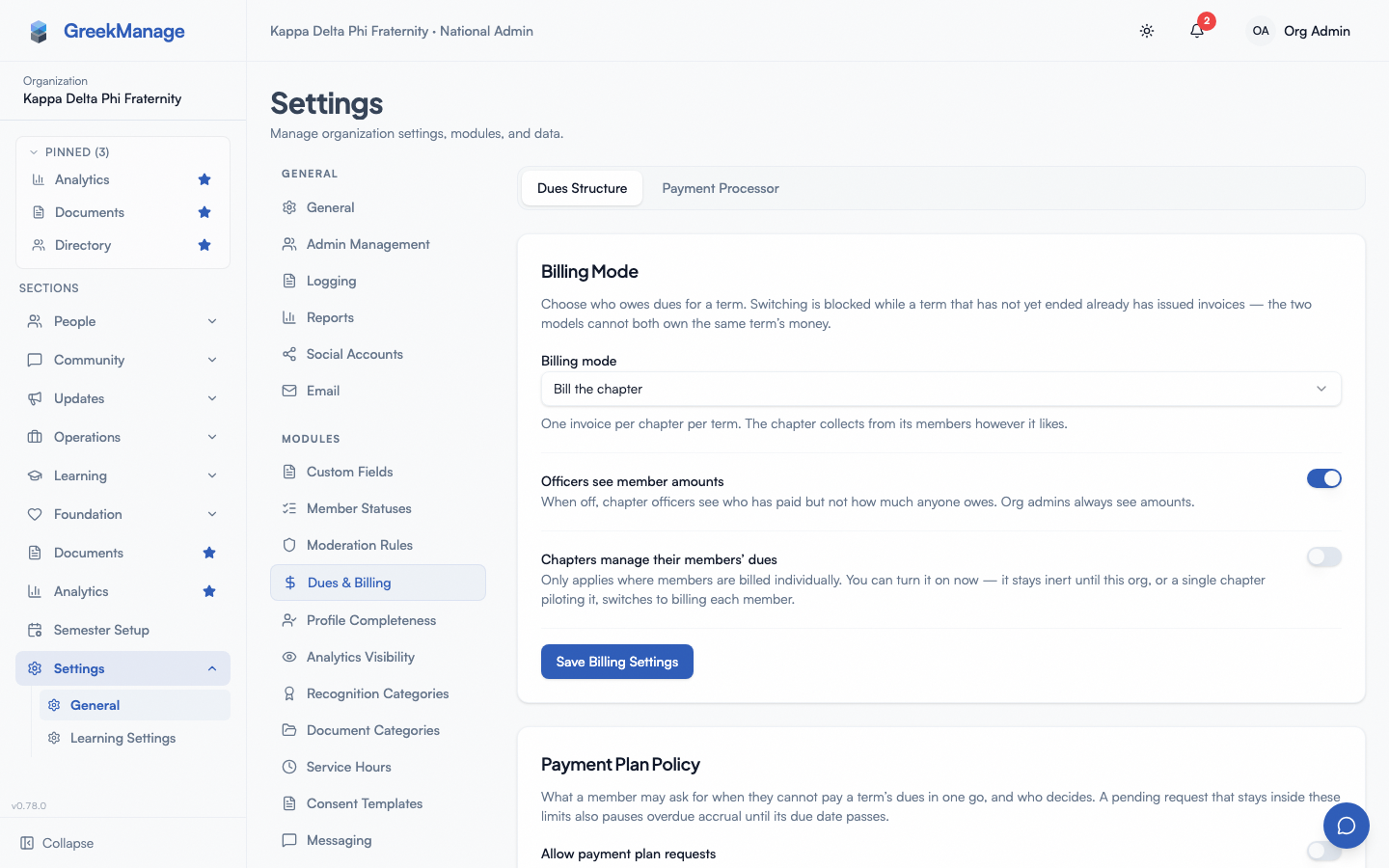 Dues billing periods
The two cadence options
GreekManage supports two billing cadences. The Dues Structure tab presents them as radio buttons:
- Per Semester (Fall + Spring)
- Annual (Aug – Jul)
There is no monthly cadence and no quarterly cadence. There is no per-chapter cadence override — every chapter in the organization is billed on whichever cadence the org has selected.
Per Semester
When the org is on the per-semester cadence, each academic year produces two periods:
| Period label | Window | Invoice date | Due date |
|---|---|---|---|
| Fall <year> | Aug 1 – Dec 31 | Aug 1 | Sep 1 |
| Spring <year+1> | Jan 1 – May 31 | Jan 1 | Feb 1 |
So the 2026-2027 academic year would produce Fall 2026 (invoiced Aug 1, due Sep 1) and Spring 2027 (invoiced Jan 1, due Feb 1).
Annual
When the org is on the annual cadence, each academic year produces one period:
| Period label | Window | Invoice date | Due date |
|---|---|---|---|
| <year>-<year+1> | Aug 1 – Jul 31 | Aug 1 | Sep 1 |
So selecting annual for the 2026-2027 cycle produces a single 2026-2027 period invoiced Aug 1 with a Sep 1 due date.
How periods are generated
You don’t create periods manually. GreekManage generates them automatically whenever the dues configuration is touched.
Three things trigger generation:
- First visit to the Dues Structure tab. The first time anyone opens Org → Settings → Dues & Billing for your org, GreekManage creates an initial dues settings record (defaulting to per-semester). This kicks off period generation in the background.
- Saving a cadence change. Switching from per-semester to annual (or back) immediately generates the periods that match the new cadence.
- Re-saving the same cadence. Any save of the Dues Structure tab — even with no change — triggers a regenerate pass.
Each pass generates the current academic year plus the next two in advance. So on a per-semester org, you’ll typically see six upcoming period rows in the dropdown (Fall + Spring × three academic years); on annual, three rows.
Periods are only created if a period with the same label doesn’t already exist, so re-saving is safe — it tops the list up, it doesn’t duplicate.
Period naming conventions
Labels are generated for you and you cannot rename them. The format is:
- Per Semester:
Fall 2026,Spring 2027,Fall 2027,Spring 2028, … - Annual:
2026-2027,2027-2028, …
The label is the human-readable handle that shows up everywhere — invoice lists, rate history, billing exports, officer dashboards. Period labels are unique per organization, which is what prevents accidental duplicates.
Active vs prior periods
There is no explicit “active” or “closed” flag on a billing period. A period’s state is implicit from its dates:
- Upcoming. Today is before
start_date. No invoices for this period yet (unless an admin manually generated them — see below). - Active. Today falls between
start_dateandend_date. Invoices for this period have been generated and are tracked. - Prior. Today is past
end_date. The period still exists in the dropdown, rate history, and exports — it’s just historical.
You can keep editing dues rates on any period (active or prior) at any time. The Dues Rates card lets you re-select any period from the dropdown and update its rates.
When a new period auto-creates vs requires manual click
GreekManage will create the period records automatically — both on first dues-settings visit and on any cadence save. You don’t have to click anything to make next semester’s period appear in the dropdown.
However, invoice generation is a separate step. There are two paths:
- Scheduled. A nightly task runs at 5:00 AM UTC each day. If a period’s invoice date equals today, the task auto-generates invoices for every active chapter against that period — provided rates have been set.
- Manual. You can also generate invoices on demand from Org → Billing → Generate Invoices. Pick the period, click Generate. This bypasses the date check, so it’s the right tool for backfilling a missed window or running off-cycle bills.
The manual path enforces the same guard: if no dues rates are configured for the chosen period, generation refuses with No dues rates configured for this billing period. Set rates first.
If you change cadence after invoices have already been issued for a period, those invoices keep their original cadence and aren’t reissued.
Closing a period
There is no “close period” button. A period is effectively closed when:
- Its end date has passed.
- Every chapter’s invoice for that period is paid or written off (a paid invoice has a zero balance and status
paid). - You’ve moved on to setting rates for the next period.
Prior periods remain in the dropdown so you can pull historical rates, reconcile late payments, or run the Export action from the billing overview to dump invoices and line items to XLSX.
What does not happen when a period passes:
- Invoices don’t auto-archive.
- Rates don’t get locked. You can still edit a prior period’s rates if you need to correct a record.
- Chapter invoice status doesn’t roll up to a period-level state.
If a chapter still owes money after the due date, a separate overdue cron flips that invoice to overdue — the period stays untouched.
Tips
- Re-save dues settings annually. Even on a stable cadence, opening Dues Structure each August and clicking save (or just confirming the cadence) extends the runway and ensures next year’s periods exist before the August 1 invoice cron tries to fire.
- Don’t switch cadence mid-academic-year. If you’re billed Fall 2026 on the per-semester cadence and then flip to annual in October, you’ll have a Fall 2026 invoice plus a brand-new 2026-2027 annual period in the dropdown. Reconcile the Fall 2026 invoices first.
- Use the manual Generate button for one-off chapter rolls. A chapter that activates mid-period won’t get auto-invoiced until the next scheduled run. Generate from the billing overview to bring them current immediately.
Related
- Dues configuration & billing — top-level overview of the two-tab settings page
- Dues rates by member type — how rates work per period
- Chapter invoices & generation — what happens once a period’s invoice date arrives
- Chapter billing (officers) — read-only officer view of invoices and balances
- Permissions matrix
Last verified against v0.62.1 (2026-05-10).