Dues rates by member type
A dues rate is the dollar amount one member of a given member type owes for a single billing period. You set rates once per period, and the invoice generator uses them to bill each chapter according to its current roster.
GreekManage uses three member types — no more, no less — and rates are configured per organization, per period, per type. There are no chapter-level rate overrides.
Open dues rates
Org → Settings → Dues & Billing → Dues Structure → Dues Rates.
The Dues Rates card sits below the Billing Cadence selector and above Rate History.
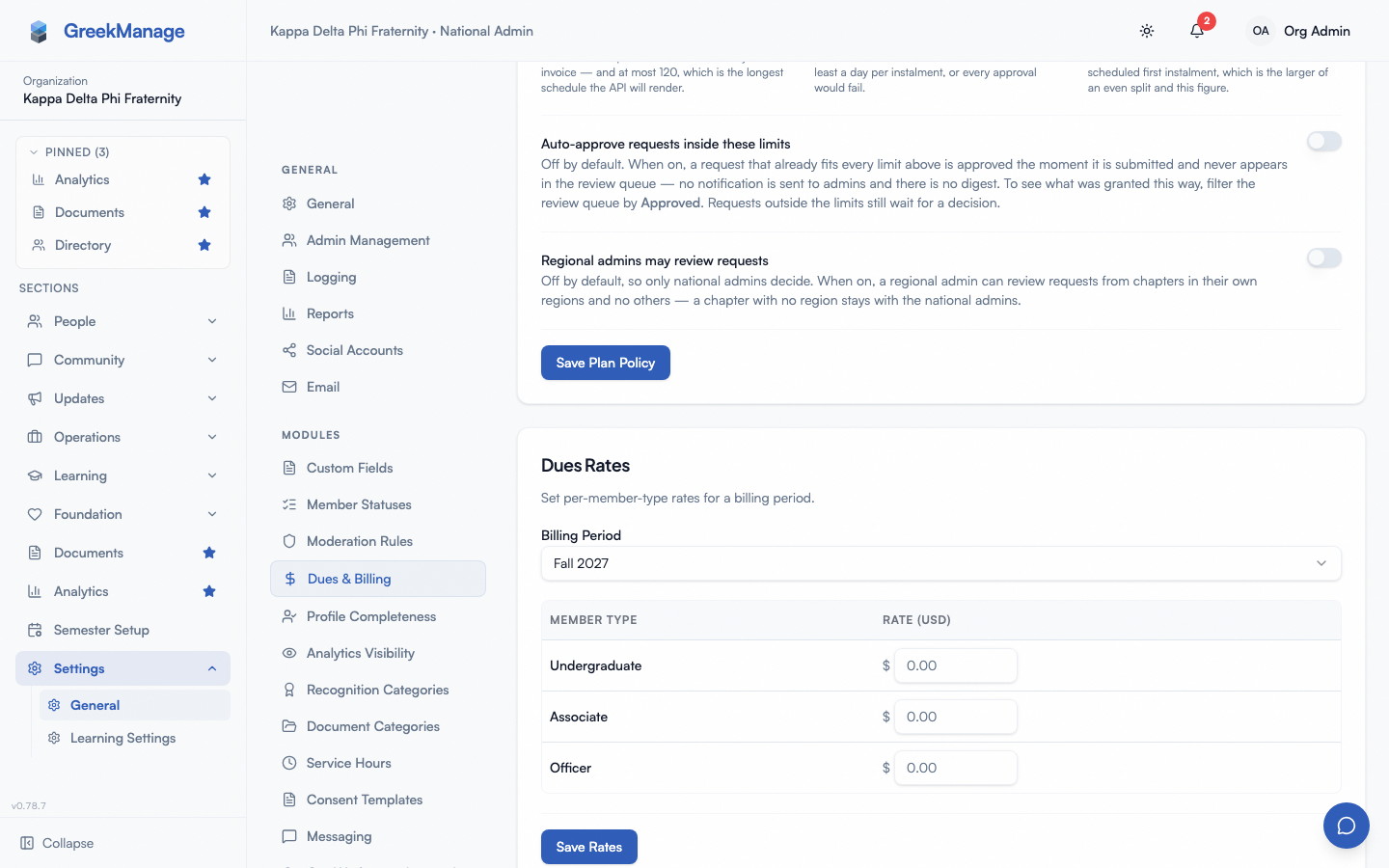 Dues billing rates
The three member types
GreekManage bills these three buckets only:
| Member type | Who’s in this bucket |
|---|---|
| Undergraduate | Active members whose membership status is undergrad. Most of your roster. |
| Associate | Active members whose membership status is associate — typically pinned-but-not-initiated or otherwise non-collegiate active. |
| Officer | Any active member whose role is officer or president, regardless of lifecycle status. |
Two things to notice:
- Officers are billed at the officer rate, not their lifecycle rate. If an undergraduate member is also a chapter officer, the invoice generator counts them once — as an officer — at the officer rate. There’s no double-billing, and there’s no setting to opt out of this.
- Alumni, new members, and other lifecycle statuses are not billed. Only the three buckets above generate line items. If your org collects alumni dues, that traffic flows through Foundation, not Operations dues.
There is no “New Member” rate type and no per-pledge-class rate. If you need pledge-specific dues for a single semester, set the Associate rate for that period and leave the Undergraduate rate at the active member amount.
Setting rates for a period
- Pick a Billing Period from the dropdown. Only periods the platform has already generated appear here — see Billing periods & cadence for how those get created.
- Enter dollar amounts in the three input fields: Undergraduate, Associate, Officer. The platform stores rates in cents internally; the UI accepts USD with two decimals.
- Click Save Rates.
You’ll see a green “Rates saved” confirmation on success, and the new values appear in the Rate History card below. Saving is idempotent — if you re-enter the same number, it’s still recorded as a new history row (with a fresh timestamp and “set by” attribution).
You can leave any rate at 0.00 if you don’t bill that bucket. A zero rate produces no line item on the invoice (the generator skips buckets with a zero rate or zero member count), so you won’t get cluttered “0 × $0.00” rows on chapter invoices.
Rate history vs current rate
The platform records every save as a new history row, including:
- Member type
- Rate (USD)
- Period the rate applies to
- Cadence the period was on at the time
- Email of the admin who saved it
- Timestamp
The Rate History card shows this list in reverse chronological order. The “current rate” for a given period is just the most recent row for that (period, member type) pair — saving a new rate doesn’t delete the old one, it supersedes it.
Use the history view to:
- Reconstruct what a chapter was charged. Match the period label on an invoice line item to the rate active at the time the invoice was issued.
- Audit who changed what. Every row carries the admin email and timestamp.
- Catch unintentional resets. If a rate accidentally got bumped to a wrong value and re-saved back, both rows are visible in the trail.
There is no way to delete a history row from the UI. Mistakes get corrected by saving the right value again.
Editing a rate mid-period
Editing a rate does not retroactively re-bill chapters whose invoices have already been generated. Once an invoice is created, its line items are immutable — they snapshot the rate that was in effect at the moment the invoice was generated. The generator copies rate_cents onto each line item at creation time and the underlying record will refuse any later update attempt.
So in practice:
- If you raise the Undergraduate rate from $300 to $350 before the period’s invoice date (or before someone clicks Generate Invoices manually), every chapter is billed $350 per undergraduate when invoices issue.
- If you raise it after invoices have already been issued for the period, those existing invoices still reflect $300. Newly generated invoices in the same period — say, a chapter you onboard mid-semester and run Generate Invoices for separately — will use $350.
If you need to apply a corrected rate to an already-issued invoice, the workaround is to handle it out-of-band: refund through your payment processor and reissue, or absorb the difference. There is no “regenerate invoice” or “apply new rate to existing invoice” action in the admin UI.
This is why the Rate History trail matters — it lets you prove which rate applied to which invoice cohort.
How rates flow into invoices
When a period’s invoice date arrives (or you click Generate Invoices manually), the generator:
- Looks up rates for the period. If no rates are configured for any of the three buckets, generation is skipped for that period across the entire org. You’ll see a warning in operational logs but no UI error.
- For each active chapter, counts members in each bucket using the snapshot rules described above.
- Produces one line item per bucket that has a non-zero count, with
count × rate = subtotal. - Sums subtotals to the invoice total and sets the balance due to the same amount.
- Records the count breakdown in a
member_snapshotfield on the invoice, so you can see “we billed for 23 undergrads, 4 associates, 3 officers” even if the roster changes later.
If a chapter has zero active members in every bucket, the generator produces no invoice for that chapter for that period — the count check is per-bucket, but an entirely empty chapter is skipped.
What rates are not
A few things the rate system does not support, despite how some other platforms work:
- No per-chapter rate override. Every chapter pays the same rate per bucket.
- No proration. A member who joins mid-period is billed at the full rate for the period they’re billed in.
- No automatic rate carry-over. Saving rates for Fall 2026 does not auto-populate Spring 2027. You set rates per period, and the platform doesn’t infer “same as last semester.”
- No bulk-apply. There’s no “copy rates from Fall 2026 to Spring 2027” button. Pick the new period in the dropdown and re-enter the values.
- No effective-dating within a period. A rate change always applies forward — to invoices generated after the save — and never replaces a snapshot already written to an invoice line item.
Tips
- Set rates before the invoice date passes. The invoice cron runs at 5:00 AM UTC. If you wait until August 1 to set Fall rates, the cron may have already skipped your org for that day’s run — use the manual Generate Invoices button to catch up.
- Mirror the previous semester until you decide otherwise. Most orgs leave rates flat semester-to-semester. When you pick the new period in the dropdown, glance at Rate History for the prior period, copy the numbers in, save.
- Coordinate officer-rate changes with chapter elections. If officers pay a discounted rate and an officer transitions out mid-period, they stay billed at the officer rate for that period — the snapshot is taken at invoice generation time.
Related
- Dues configuration & billing — overview of the Dues & Billing settings page
- Billing periods & cadence — how periods are generated and named
- Chapter invoices & generation — how rates become invoice line items
- Chapter billing (officers) — officer-side read-only view
- Permissions matrix
Last verified against v0.62.1 (2026-05-10).