Elections — positions and candidates
A GreekManage election is structured as positions (e.g., President, VP of Finance) with candidates under each one. This page covers how to add and order positions, how candidates and their statements work, and exactly what you can — and cannot — change once voting starts.
This page assumes the election itself already exists. See Elections — authoring an election first.
Open the position list
From Org → Elections, open the draft election you just created. The detail view shows the election’s window, status, eligibility, and a Positions section.
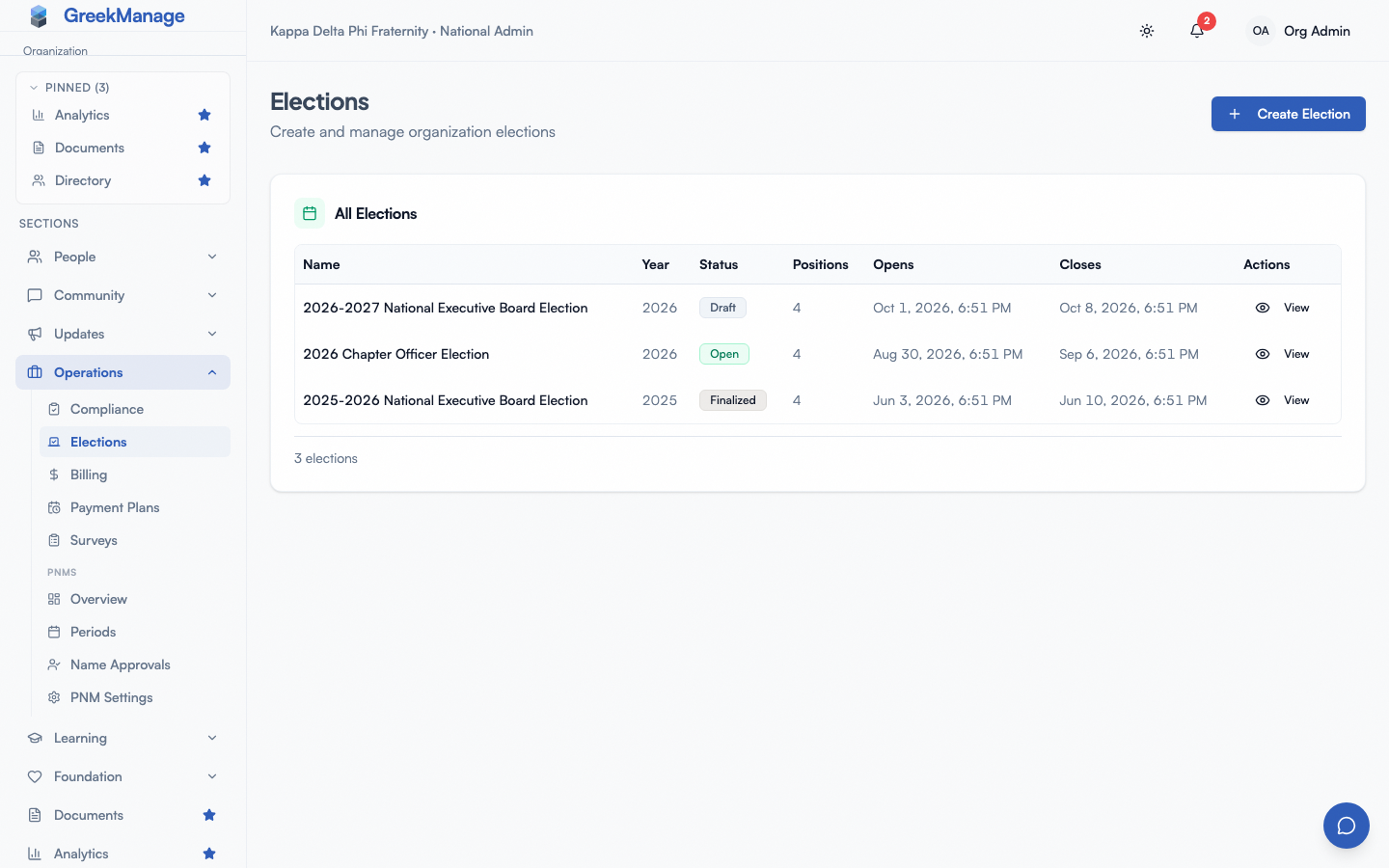 the positions section on an election detail
Add a position
Click Add position and fill in:
- Title — exactly what voters will read on their ballot. Examples: “President,” “VP of Finance,” “Member-at-Large (Seat 1).” Be specific; voters won’t have any other context.
- Order — the position’s position on the ballot, as an integer (0 first). If you don’t set it explicitly, GreekManage adds new positions with an order of 0, which means they all sort together — set the order yourself for any ballot with more than one position.
There is no per-position description, no per-position eligibility (eligibility is set on the election as a whole — see the authoring page), and no concept of seats or vacancies. Each position is a single vote: every eligible voter casts one ballot entry per position, and the candidate with the most votes wins.
If your organization elects “two members-at-large” or “three at-large seats,” model that as multiple positions (“Member-at-Large (Seat 1),” “Member-at-Large (Seat 2)”) and run them as separate single-winner races. There is no “vote for up to N” mechanic.
Reorder positions
Reorder by editing each position and adjusting its order number. Positions sort ascending by order on the ballot.
Add a candidate
Open a position and click Add candidate.
- Member — pick from your organization’s roster. The candidate must be a member of one of your organization’s chapters. Alumni and inactive members count; potential new members and disaffiliated members do not, and nobody from another organization can be added. Pick people you’ve actually confirmed are running.
- Bio text (optional) — the candidate’s statement, as plain text. This is shown directly below the candidate’s name on the ballot. There is no formatting (no bold, links, or images), no word limit enforced by the platform, and no review or approval workflow. What you save is what voters read.
- Nominated by (optional) — the member who nominated this candidate. This is recorded for audit and historical-record purposes; it is not shown to voters. The nominator must also be a member of your organization.
A member can only appear once per position — GreekManage rejects a duplicate candidacy with a constraint error. The same member can be a candidate for two different positions in the same election (for example, if your bylaws allow a person to run for two seats), but they must be added as two separate candidate records.
There is no candidacy method beyond admin entry. GreekManage does not have a “self-nominate” flow, a “candidacy application” form, or an approval queue. You enter the candidate slate from whatever nomination process your organization runs outside the platform.
Statement format
Candidate statements (the bio text field) are plain text. Best practices that emerge from the format:
- Keep it short. Ballot screens are scannable. Aim for 50–150 words.
- Lead with the candidacy pitch, not biography. Voters want to know what this person will do, not their full résumé.
- Avoid markup. Asterisks and brackets render as literal characters.
- No links. A URL in the bio text will not be clickable.
If your organization’s bylaws require a longer formal statement, link to it in the candidate’s bio — voters can paste the URL into a new tab — but the practical experience is that very few voters do that. The bio they read on the ballot is what most votes are based on.
Edit a position or candidate
While the election is Draft, you can:
- Edit a position’s title and order
- Edit a candidate’s member assignment, bio text, and nominated-by reference
- Delete any position (cascading to its candidates)
- Delete any candidate
The moment the election transitions to Open (either by reaching its opens-at time or by manual publish), all of this locks. Trying to edit a position or candidate on an Open or Finalized election returns an error like “Only draft elections can be updated.”
Removing a candidate after voting started — what really happens
This question comes up every election cycle. Verified behavior in v0.62.1:
You cannot remove a candidate from an Open or Finalized election. The candidate-delete endpoint rejects the request with a “draft only” error.
This is intentional. The candidate’s record is referenced by every vote cast for them — both in the Vote table and in the VoteAuditLog. Removing the candidate would either orphan those votes or delete them, and either outcome would invalidate the audit trail.
If a candidate withdraws after voting opens, the platform has no graceful way to handle it. Your practical options:
- Communicate the withdrawal outside the platform. Email your voters, post in your forums, post in chapter group chats.
- Let the election run as-is. Voters who already voted for the withdrawn candidate will see their vote counted in the final tally. The “winner” of that position would mechanically be the withdrawn candidate; you handle the actual succession question through your organization’s bylaws.
- Close the election early and run a corrective one. This is heavy-handed but it’s the only platform-supported reset path.
Plan for this risk by confirming candidate availability in writing before you publish the draft. Treat the moment of publishing as the point of no return on the slate.
Delete a position after voting started
Same rules. Deleting a position is not allowed once the election is Open or Finalized.
A practical workflow
A reliable authoring flow for a complete election:
- Create the election as a Draft with the right name, year, dates, and eligibility list.
- Add every position in the order you want them on the ballot.
- Add candidates to each position. Save bios you’ve cleared with the candidates themselves.
- Use the admin preview to look at the ballot the way voters will see it. (The preview is available on the election detail page for admins.)
- Confirm with your election committee that the slate is final.
- Publish. From this moment, the slate is locked.
The combination of “Draft is fully editable” and “Open is fully locked” is by design. Once you’ve shipped a ballot to voters, the ballot they see is the ballot of record.
Related
- Elections — authoring an election
- Elections — results and live tracking
- Voting in elections (members)
- Permissions matrix
Last verified against v0.63.51 (2026-07-01). “Nominated By” real-member picker (writes a user UUID, renders the nominator’s name) shipped v0.63.51.