Org bulletins authoring
Org bulletins are the announcement layer for your organization. They appear on the dashboard for every member, sit above the social feed, and stay until they expire or are retired. This page covers everything a national or regional admin needs to compose, publish, target, and retire a bulletin.
What an org bulletin is
A bulletin has these pieces:
- Title — appears in bold on the dashboard card.
- Rich-text body — a WYSIWYG editor with headings, bold, italic, lists, links, inline images, and @mentions. Stored as HTML.
- Hero image URL (optional) — a banner image displayed with the bulletin.
- Region (optional) — null means org-wide; set means scoped to that one region.
- Pinned flag — pinned bulletins surface first on the dashboard.
- Published flag — only published bulletins are visible to members.
- Published-at timestamp — set automatically when a bulletin flips from draft to published.
- Expires-at date (optional) — after this date passes, the bulletin disappears from member dashboards but stays in the admin list with an "Expired" badge.
There are no per-chapter targeting fields and no draft-collaboration tools.
Who can author
Bulletin creation is restricted to national admins and regional admins of the organization. National admins can create org-wide or any-region bulletins; regional admins typically scope theirs to the region they administer. Members, chapter officers, foundation admins, and other roles cannot create, edit, or delete bulletins.
Open the bulletins page
Go to Org → Bulletins. You'll see a table of every bulletin attached to the organization, sorted pinned-first then newest-first. Columns show title, status (Draft, Published, or Expired), pin indicator, region (or "All" for org-wide), creator, publish date, and per-row actions.
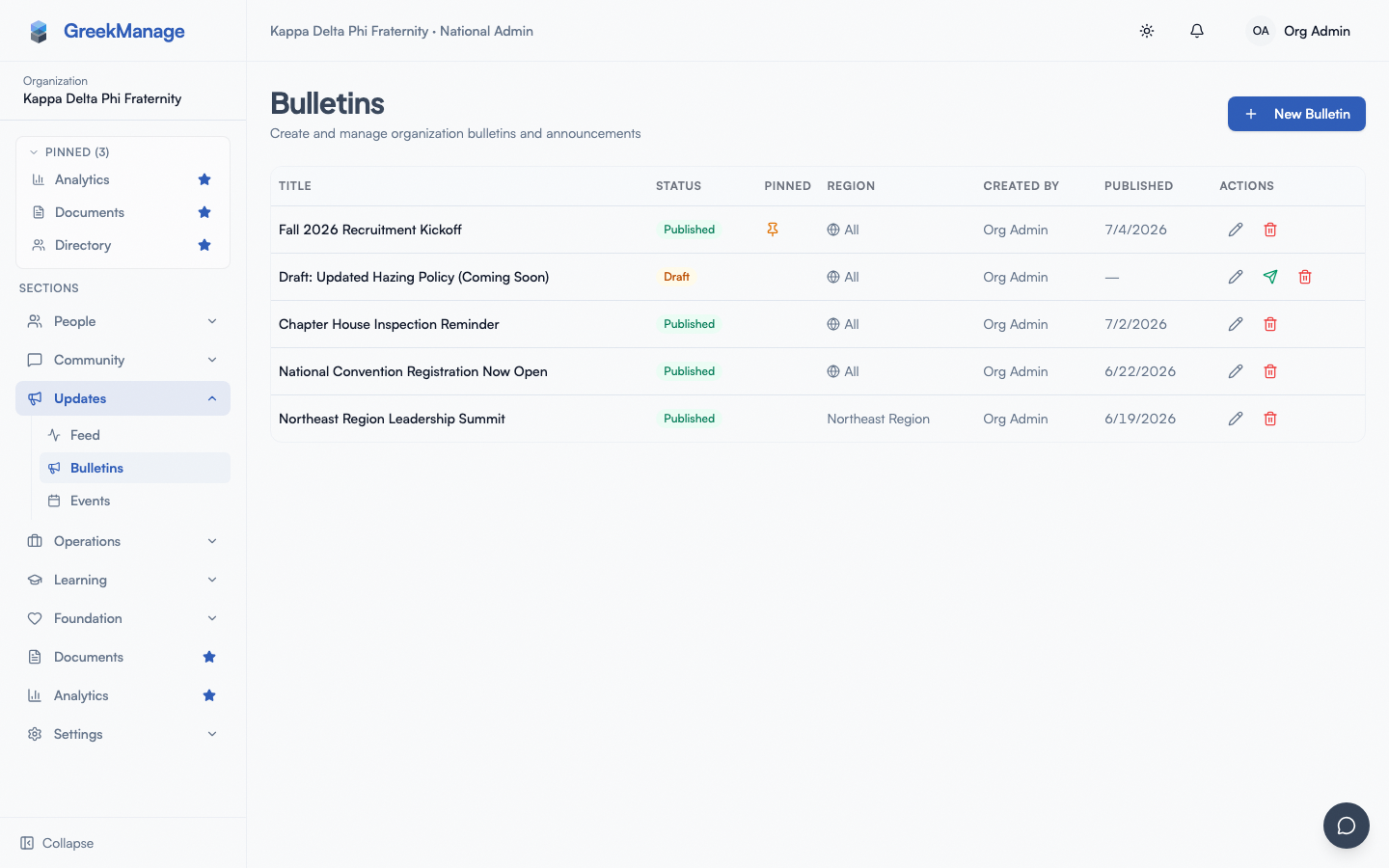 org admin bulletins page showing list with status badges and action buttons
Create a bulletin
- Click New Bulletin. A dialog opens with the composer.
- Fill in:
- Title (required).
- Content — the rich-text editor. Format with the toolbar (bold, italic, headings, lists, links, inline images).
- Hero image URL (optional) — a banner-style image displayed with the bulletin.
- Region (optional) — pick a region to scope, or "All regions (org-wide)" to leave it unscoped.
- Pinned — toggle on to pin to the top of the dashboard.
- Publish immediately — toggle on to publish on save. Off saves as a draft.
- Expiry date (optional) — when the bulletin should disappear from member dashboards.
- Click Create.
If Publish immediately is on, the bulletin is live and the publish timestamp is set. Otherwise it sits as a draft visible only to admins.
Publish a draft
A draft bulletin shows a green paper-plane icon in the actions column. Click it to publish — the bulletin becomes visible to members on their dashboards immediately and the publish timestamp is stamped to now.
There's no scheduled-publish-at-a-future-time in v0.62.1. You can save a draft today and click publish next Tuesday, but you can't queue an auto-publish.
Edit, retire, or delete
- Edit — Click the pencil icon (or anywhere on the row). The composer reopens with existing values. Changes are live on save; members see the new body on their next dashboard load.
- Retire by expiry — Edit and set the expiry date to today. The bulletin disappears from member dashboards but stays in the admin list with an "Expired" status, preserving the history.
- Delete — Click the trash icon. The bulletin is removed permanently. Prefer expiry over deletion when you want to keep a record.
How members see bulletins
Bulletins surface on the dashboard. The layout is:
- The pinned bulletin (if any) appears as a featured card at the top of the announcement section, with a "Pinned" badge, byline ("National HQ" for org-wide or "Regional" for region-scoped), and a content preview.
- Up to three additional bulletins appear in a horizontal scrolling row beneath the pinned card, newest-first.
The same banner appears on the org, region, and chapter dashboards — the page filters down to bulletins visible to the viewing member based on their role and region. Only published, non-expired bulletins reach members.
Region targeting
Use the Region dropdown:
- A bulletin with no region (the "All regions (org-wide)" option) is visible to every member of the organization.
- A bulletin scoped to a region is visible to members whose chapter belongs to that region and to the regional admin for that region.
Chapter-level targeting is now supported (v0.63.29) — pick a specific chapter from the scope dropdown to publish a chapter-only bulletin visible to members of that chapter and chapter / regional / national admins. Multi-region targeting is still not supported: to reach two regions with the same content, create two bulletins.
Pinning
Pinning lifts a bulletin to the featured slot at the top of the dashboard banner. Only one bulletin shows in the featured slot at a time (the dashboard picks the first pinned bulletin, newest-first); other pinned bulletins fall through to the regular feed. Use pinning sparingly — unpin older bulletins when you ship a new one that deserves the top slot.
Bulletins vs. forum posts
Bulletins are one-way announcements: no thread, no comments, no replies. They appear on the dashboard and stay until expiry. Use them for hard news (officer elections, dues deadlines, retreat dates, policy changes).
Forum posts are discussion starters: they live in a specific forum, members can react and comment, and they don't surface on the dashboard. Use them when you want feedback. A common pattern is to post a forum thread for dialogue, then publish a bulletin that links to it.
What's deliberately not built
- No future-dated auto-publish. Drafts stay drafts until manually published.
- No chapter-level or multi-region targeting.
- No email delivery. Org bulletins are dashboard-only.
- No analytics on bulletin reads (who opened, how many).
- No author-collaboration workflow (no draft review, comments, or approval step).
Related
- Dashboard tour
- Foundation bulletins — the email-blast feature for donor and member audiences
- Module: Foundation — donor-targeted communications
- Permissions matrix
- Engage moderation overview
Last verified against v0.63.39 (2026-06-26). Chapter-scoped targeting shipped v0.63.29.