Engage moderation rules
Org admins author regex moderation rules that auto-flag posts and comments across all Engage forums. Posts caught by a rule (and posts manually reported by users) land in a moderation queue for review.
Deep dives for each surface: Moderation rules editor · Flagged content queue · Bulletins authoring
Open moderation rules
Org → Settings → Moderation Rules.
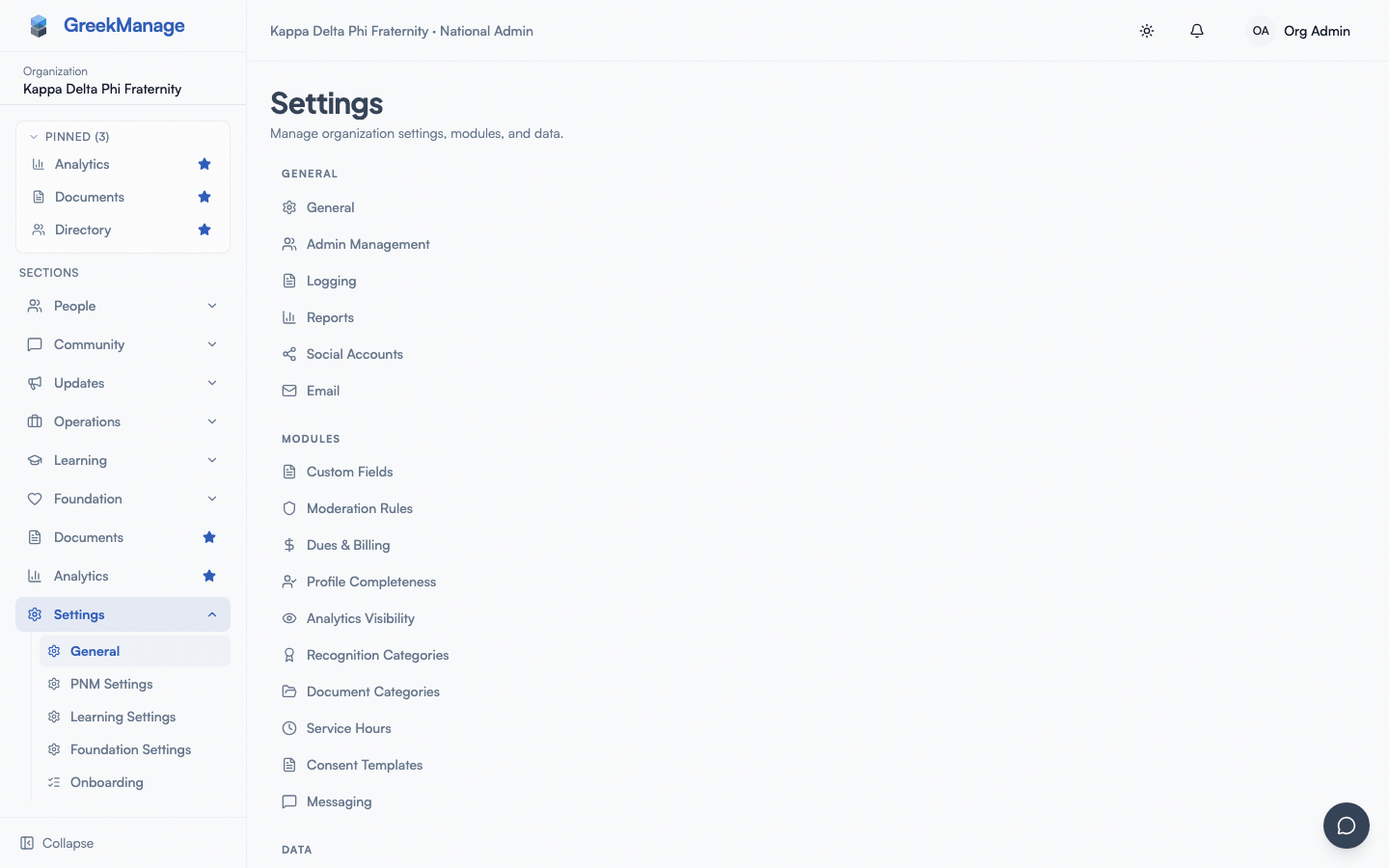 The moderation rules editor.
Add a rule
- Click Add Rule.
- Set:
- Name — a human-readable label (e.g., "Profanity Filter")
- Pattern — a regular expression matched against post and comment content. The form validates the regex before allowing save.
- Reason — optional text shown when the rule fires (helps moderators understand why something was flagged)
- Save. The rule is created with
is_active = trueby default.
When content matches the pattern, a ContentFlag is created with source = auto and status = pending. Manually reported content creates a flag with source = user.
Edit, disable, or delete a rule
Each rule row has Edit and Delete actions. To temporarily disable a rule without losing it, set is_active to false on the rule (via API today; UI editing covers name / pattern / reason).
Review the flag queue
Pending flags appear in the org moderation queue. For each flagged post or comment:
- Approve — content stays visible; flag is resolved.
- Remove — content is removed; flag status moves to
removed.
Each action is recorded against the flag (resolver + timestamp).
What's not built today
- The current rule model is a single regex pattern per rule. There are no separate keyword / link / attachment / rate-limit / watchlist rule types, no allow/block/warn action choices per rule, and no per-user watchlist feature.
- There is no org-level setting for "max posts per hour" or "max @mentions per post" — moderation is post-hoc via regex + flag queue.
- There is no chapter-level override that lets a chapter tighten the rules independently of org defaults.
Tips
- Test your regex carefully. A greedy pattern can flag huge amounts of legitimate content. The form validates that the regex parses, but it doesn't simulate matches.
- Use a clear reason. Moderators triaging the queue benefit from knowing why something was flagged.
- Iterate on real data. Pull a sample of pending flags weekly and tune patterns based on false positives.
Related
Last verified against v0.62.1 (2026-05-10).