Events (admin view)
Events live at Org → Events when you sign in as a national or regional admin. The page shows every event in your organization — chapter-authored and org-wide — with filters, RSVPs, check-ins, and edit/cancel controls. This page covers what an admin can do that a chapter officer can't, and how org-wide events differ from chapter events.
What an event is
Every event carries:
- Title and description.
- An event type — Social, Philanthropy, Meeting, Rush, Professional, Community Service, Fundraiser, or Other.
- An optional chapter assignment. If the event is org-wide, this is blank.
- An optional location (free-text string).
- A start time and end time (both required).
- A mandatory flag that surfaces a yellow "Mandatory" badge to members.
- An optional max attendees cap.
- An optional budget number.
- A cancelled flag with a free-text cancellation reason.
Events also carry RSVPs (Attending, Not Attending, Maybe) and check-ins (one boolean per attending RSVP), which are added by members on their own dashboards and by officers/admins during the event.
Open the events page
Org → Events. The page lists every event in the organization, newest first by start time. Each row shows:
- Title and the chapter name (or nothing if org-wide)
- Type badge with a category-specific color
- Date and time
- Location
- An RSVP rollup in the format
attending / maybe / not_attending - Status — Mandatory, Cancelled, or Optional
- A delete button (only visible to admins)
A type filter at the top of the page lets you narrow to one of the eight event types.
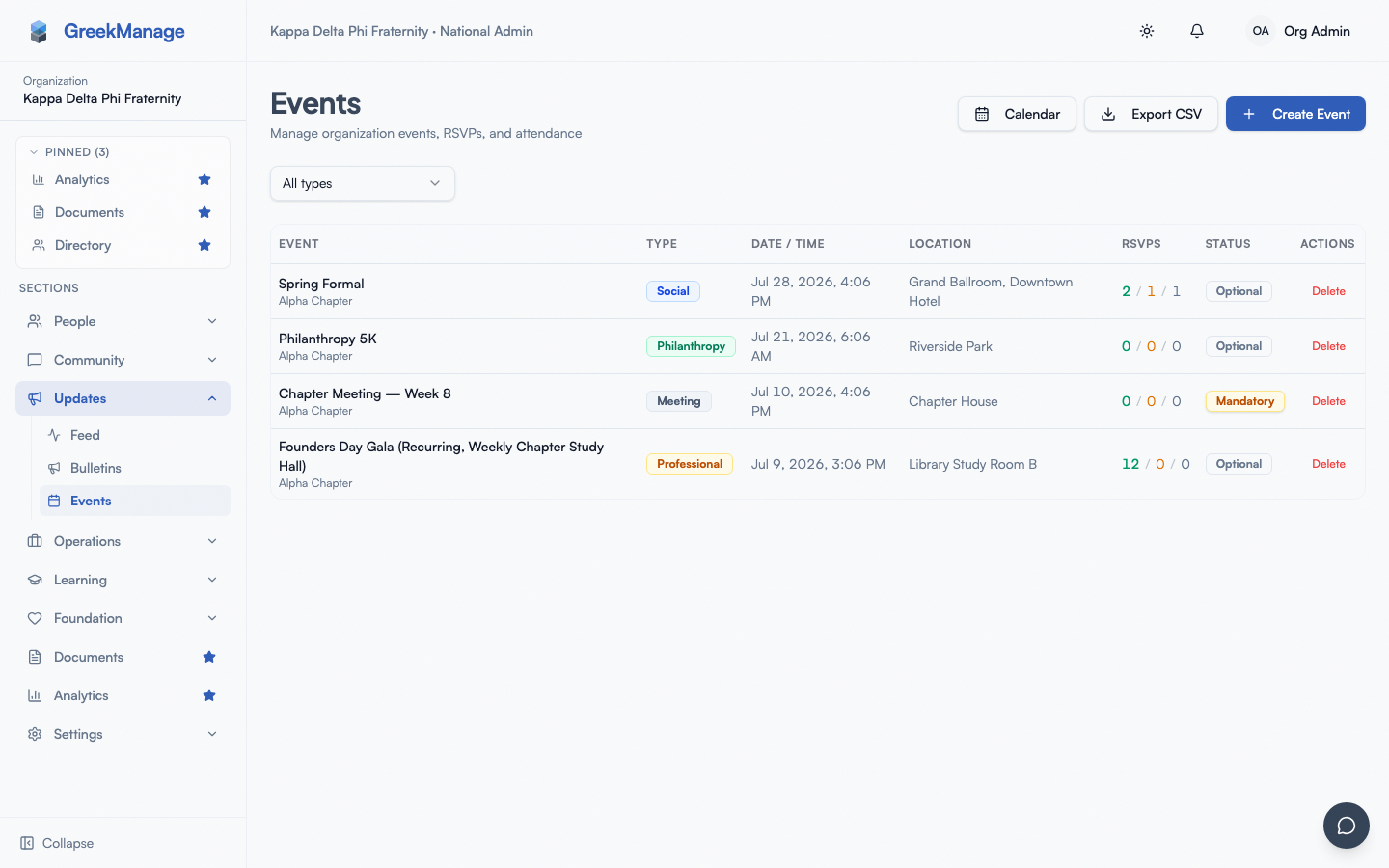 org events list showing the type filter, the RSVP rollup column, and the mandatory and cancelled status badges
Create an org-wide event
- Click Create Event in the top-right.
- Fill in the form:
- Title (required).
- Description (optional, plain text).
- Event Type (required, pick from the eight categories).
- Chapter — leave on "All chapters (org-wide)" to make the event org-wide, or pick one chapter to scope it.
- Location (optional).
- Start time and end time (required, both
datetime-local). - Max attendees (optional, numeric).
- Budget (optional, numeric in dollars).
- Mandatory event toggle.
- Repeats (optional) — see Recurring events below.
- Click Create Event.
When you leave the chapter dropdown on the "All chapters" option, the event is created without a chapter assignment. It will appear on every chapter's events list and every chapter's dashboard. When you pick a single chapter, the event behaves like a chapter event authored by that chapter's officers — visible only to that chapter.
If the event's chapter and time range overlap another event, saving surfaces a conflict warning — see Conflict detection below. It never blocks the save.
Recurring events
Recurring events shipped in v0.65.17. The Repeats control appears at the bottom of the create/edit form, below the Mandatory and Eligible-for-service-hours toggles, but only on the origin event (the one you're authoring from scratch or that itself carries the recurrence rule):
- Repeats dropdown — "Does not repeat" (default), Daily, Weekly, or Monthly.
- Every N day(s)/week(s)/month(s) — an interval field once a frequency is chosen.
- Days of week — for Weekly, a row of Mo–Su toggle chips (defaults to the weekday of the start time).
- Ends — Never, On a specific date, or After a number of occurrences.
- A live preview line ("Repeats every week on Tuesday...") confirms the rule before you save.
Saving materializes each occurrence as its own Event row (start/end time, RSVPs, and check-ins are all independent per occurrence) up to a rolling 90-day horizon; a nightly job extends the horizon so a weekly series never runs out of future instances. Each materialized instance points back at the origin event and cannot carry its own recurrence rule — opening an instance in edit mode shows "This is one occurrence of a recurring series. Recurrence can only be changed on the original event." instead of the Repeats control.
Editing a series. Opening any event that's part of a series (the origin or an instance) in edit mode adds an Apply changes to choice above the form:
- This event only
- This and following events
- All events in the series
Start and end time changes always apply only to the event you're editing, regardless of scope — cascading a time change would otherwise collide every occurrence onto the same date. Every other field (title, description, location, mandatory, max attendees, budget, chapter, cancellation) cascades to the chosen scope.
Deleting a series. The row-level Delete action only removes the single row you clicked — there's no "delete this and following" or "delete whole series" scope picker for deletion. To remove an entire series in one step, delete the origin event; deleting it cascades at the database level and removes every remaining materialized instance along with it.
Conflict detection
Conflict detection is warn-only (decision 25.3) — it never blocks a save. It triggers on create and edit whenever the event has a chapter assigned and its start/end time overlaps another non-cancelled event in that same chapter. Org-wide events (no chapter) aren't checked, since there's no chapter to compare against.
When a conflict exists, a "Schedule conflict(s) detected" callout appears after you save, listing each overlapping event's title and time range with the line "This time overlaps with N other chapter event(s). You can still save."
Edit any event in the org
Clicking any row opens the event detail dialog. The detail dialog shows full event metadata, a four-column RSVP summary (Attending / Maybe / Not Attending / Waitlisted counts), and the full RSVP roster with check-in toggles.
Click Edit Event to swap the dialog into edit mode. The same form you used to create appears, pre-filled with the event's current values. You can edit every field, including the chapter assignment — converting an org-wide event into a chapter event or vice versa. If the event is part of a recurring series, you'll also see the Apply changes to scope picker described in Recurring events above.
You can edit events authored by chapter officers too. Officers will see the change reflected on their own chapter's events list.
Cancel an event
The detail dialog has a Cancel Event button in the footer for any event that is not already cancelled. Clicking it flips the cancelled flag to true and stamps a default cancellation reason ("Cancelled by admin"). The event row immediately shows a red "Cancelled" badge.
Cancelled events still appear in the list and on the chapter dashboards — they are not hidden. The intent is to preserve the history so a chapter that planned around the event can see the cancellation explicitly rather than the event silently vanishing. To customize the cancellation reason, edit the event and overwrite the reason field directly.
Check in attendees
In the event detail dialog, the RSVP roster table has a Check In action button next to each attending member who has not checked in yet. Clicking it stamps a check-in timestamp; the column flips to a green check mark on save.
There is no walk-in support — only members who RSVP'd with status Attending have a Check In button. If someone shows up without RSVP'ing, ask them to RSVP from their phone and then check them in, or have an officer add an RSVP on their behalf from the chapter view.
Pull a report across chapters
Click Export CSV in the top-right of the events list (next to Create Event) to download event_attendance.csv. The export honors whatever type filter is currently applied, so "every philanthropy event last semester" is just: set the type filter to Philanthropy, narrow with your own date range externally if needed, and export.
The CSV is one row per RSVP (not one row per event), with columns: Event Title, Event Type, Chapter, Start Time, End Time, Member Name, Member Email, RSVP Status, Waitlist Position, Checked In, Checked In At. That shape makes it straightforward to pivot to "attendance count per event" or "RSVP status per member" in a spreadsheet.
If you need something the export doesn't cover directly:
- Use your browser's find-in-page to filter by chapter name or location string on the events list itself.
- Click into each event to see the RSVP totals and check-in roster interactively.
Subscribe to a calendar feed (ICS)
Two ICS feeds exist, both unauthenticated bearer-token URLs (no login required by the calendar app) covering non-cancelled events from one day in the past to 180 days out:
- Chapter feed. Open a chapter's detail page (Chapters → the chapter) and switch to the Calendar Feed tab. The Chapter Calendar Feed card shows a copyable subscription URL and a Reset URL button that invalidates the old link (use this if the link leaked). This tab is visible to national admins, regional admins, and that chapter's officers.
- Personal feed. Every signed-in user — admins included — has their own feed covering every chapter they belong to. Find it under Account Settings → Subscribe to Calendar (full URL + Reset URL), or click the Subscribe to Calendar button inside any event's detail dialog for a one-click copy of the same URL.
Paste either URL into Apple Calendar, Google Calendar, or any app that supports calendar subscriptions. See Events & RSVPs for what this looks like from a member's side.
How members see events
Members see events on their own Chapter → Events page (or on the org-wide list if the org has surfaced it on the dashboard). The page is read-mostly: members can change their own RSVP status, see the event time and location, and read the cancellation reason on a cancelled event. They cannot create or edit events.
A mandatory event shows a yellow Mandatory badge on the row. Members are expected to RSVP "Attending" or "Not Attending" — the platform does not auto-enforce, but officers can use the badge as a signal during attendance review.
Mobile differences
The admin events table on phones drops to a horizontally-scrolling layout — the title, type, and date columns stay visible by default, and you swipe horizontally to see the RSVP rollup and actions. The event detail dialog and the create/edit form scroll vertically; the date/time pickers use the native iOS / Android pickers.
What chapter officers see that you don't
A chapter officer sees only their own chapter's events, including org-wide events that target their chapter. They can:
- Create events that are scoped to their own chapter (the chapter field is locked to their chapter on the create form).
- Edit events authored within their own chapter.
- Cancel events within their own chapter.
- Check in attendees at events within their own chapter.
They cannot:
- See another chapter's events.
- Edit or cancel an event you created at the org level (the buttons are hidden).
- Convert a chapter event to an org-wide event.
- Set up a recurring event or export attendance to CSV — the chapter officer's create form doesn't include a Repeats picker or an Export CSV button. (They can still reach the Calendar Feed tab on their own chapter's detail page.)
If an officer asks you to scope an org-wide event down to just their chapter, do that yourself from the org admin view by editing the event and setting the chapter field.
Errors and edge cases
- End time before start time. As of v0.63.17 the form blocks this on the client and the serializer rejects it server-side. Submissions with
end_time <= start_timereturn a clear validation error. - Cancelled events still appear in lists. This is intentional. Cancelled is a status, not a delete. Use Delete in the row actions to remove an event entirely.
- Chapter dropdown set to "All chapters (org-wide)" stores
null(v0.63.17). Previously the literal string"all"could leak through to the backend; that path is fixed and the dropdown's "All chapters" selection always serializes tochapter = null. - Max attendees IS enforced (v0.63.17), but as of v0.65.17 it no longer rejects the RSVP outright — an "Attending" request that would push the count past the cap is silently converted to Waitlisted instead (with a position number), and the member is auto-promoted to Attending if a spot later opens up. Older events that already exceeded the cap on data migration are grandfathered in — only new RSVPs see the gate.
- Editing a chapter event's chapter field reassigns it. If a chapter officer asks why their event vanished, check whether you (or another admin) edited and reassigned the chapter.
Troubleshooting
- "I created an org-wide event but it's not showing on every chapter's dashboard." Check the event in the admin list. If the chapter column shows a chapter name, the event was scoped to that chapter, not org-wide. Edit and set the chapter dropdown back to "All chapters (org-wide)".
- "A chapter officer says they can't see an event I authored." Confirm the event is org-wide (no chapter) or is assigned to that officer's chapter. Officers do not see events from other chapters.
- "The RSVP rollup is stale." The rollup updates when the page is refreshed. Reload the events list to refresh counts.
- "I cancelled an event but the chapter dashboards still show it." Cancelled events still surface, with a red Cancelled badge. To hide it entirely, delete the event.
What's deliberately not built
- No event-level photo album link or live chat thread.
Related
Last verified against v0.65.23 (2026-07-05). End-time validation + RSVP cap enforcement + chapter "all" → null fix shipped v0.63.17; recurring events, conflict detection, CSV export, ICS feeds shipped v0.65.17.