Foundation Admin — onboarding
You’ve been granted the Foundation Admin role and the Foundation module is enabled on your org. This walkthrough takes you from a blank slate to a working public donation page accepting a test transaction.
What you’re building
A donor on your public donation page should be able to:
- Pick a campaign
- Enter a card (or Apple Pay / Google Pay)
- Get an emailed receipt with your foundation’s name, EIN, and tax-deductibility statement
Everything below works toward that.
The first 30–60 minutes
1. Open Foundation Settings
In the sidebar, click Foundation → Settings. You’ll land on a page with four cards: General Configuration, Funds, Receipt Template, and Payment Processor.
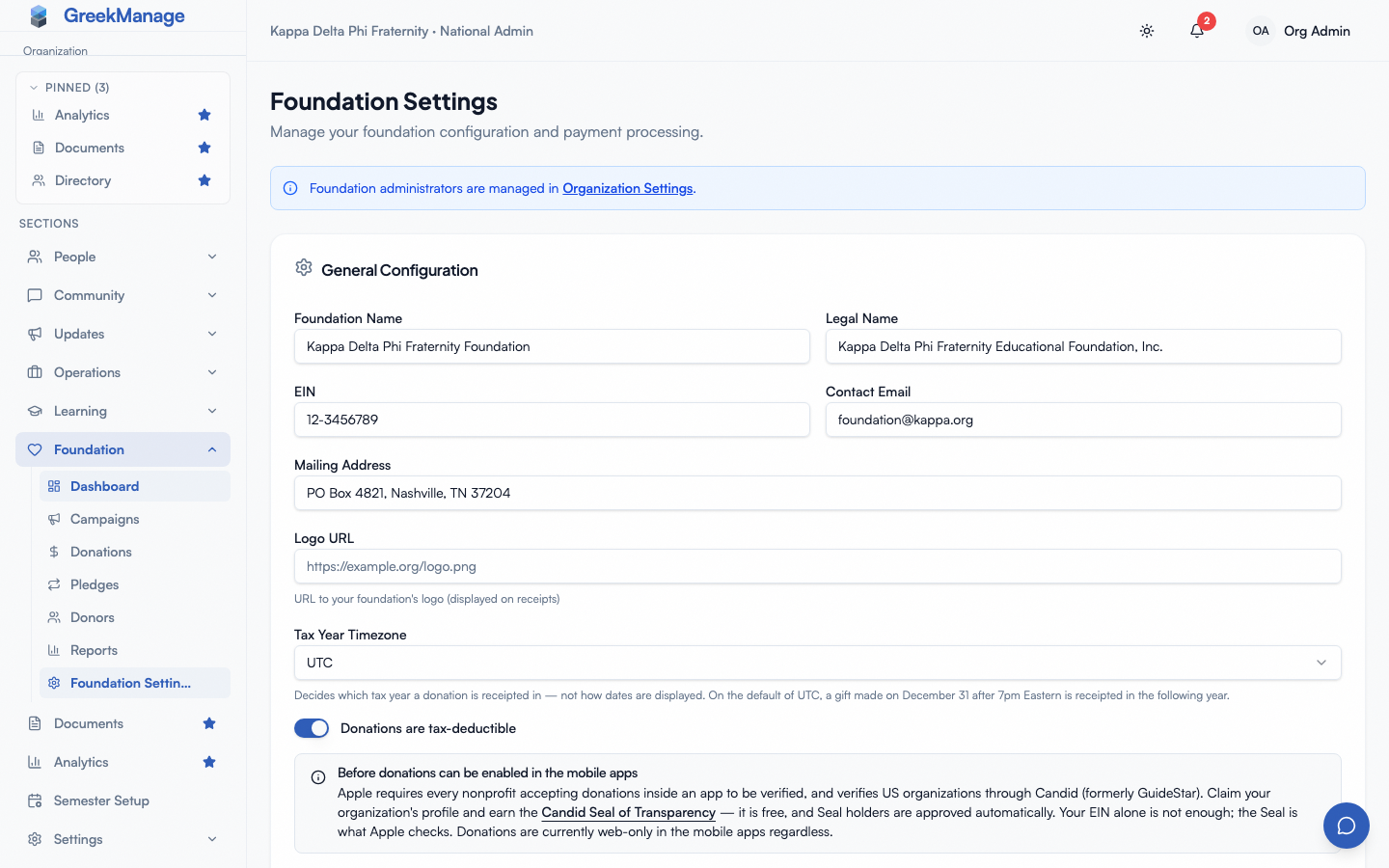 Foundation Settings landing with the General, Payment Processor, and Receipt Template cards.
2. Fill in General Configuration
This is what appears on receipts and public donation pages. Fill in:
- Foundation Name — the display name (often distinct from the org, e.g., “Alpha Educational Foundation”)
- Legal Name — the legal entity that issues receipts
- EIN — your 501(c)(3) tax ID (format: XX-XXXXXXX)
- Mailing Address — appears on receipts
- Contact Email — donor-facing reply-to
- Logo URL — shown on receipts and public pages
- Tax Deductible — leave on for a 501(c)(3); turn off if you’re not
- Tax Year Timezone — the zone that decides which tax year a donation is receipted in
Save.
3. Configure your Stripe processor
Still on the Settings page, scroll to the Payment Processor card. You’ll paste in:
- Secret key — your Stripe secret key (starts with
sk_…) - Webhook signing secret — your Stripe webhook secret (starts with
whsec_…) - Publishable key — your Stripe publishable key (starts with
pk_…)
You’ll also see a Fee pass-through toggle. Decide now:
- Off — your foundation absorbs Stripe’s fee. The donor sees the amount they entered; you get that amount minus ~3%.
- On — donors can opt to cover the fee. The public donation page shows a “cover processing fees” checkbox; if checked, the charge is grossed up so you receive the full donor-intended amount.
Save. The processor is stored encrypted at rest and the key is never echoed back to you in plaintext after save.
Payment Processor card with Stripe key fields
4. Point your Stripe webhook at GreekManage
In your Stripe dashboard, add a webhook endpoint that points at your GreekManage instance. The exact URL depends on your deployment; ask your platform admin if you’re not sure — it’s a per-foundation endpoint, not a global one. Make sure the webhook signing secret you pasted into the Payment Processor card matches the secret Stripe shows you for that endpoint, and that the endpoint is subscribed to payment_intent.succeeded, payment_intent.payment_failed, and customer.subscription.* events.
5. Customize the receipt template (optional, recommended)
The third card on Settings is Receipt Template. The defaults are a working, IRS-compliant receipt, but you’ll usually want to add at minimum:
- An organization tagline (“Supporting [chapter] members since 1968”)
- A thank-you message in your voice
- A custom note with anything specific to your foundation
You can hit Reset to defaults at any time. Save.
6. Create your first fund
A fund is a designation donations are pooled into — “Scholarship Fund,” “General Fund,” “Building Campaign.” Most orgs start with a single General Fund.
Open Foundation → Settings and, in the Funds card, click New Fund:
- Name — e.g., “General Fund”
- Slug — short, URL-safe; used internally
- Description — what donors are giving toward
- Is default — check this so it’s the fallback designation for any donation that doesn’t specify a fund
- Goal (optional) — annual fundraising target
Save.
7. Create your first campaign
A campaign is a fundraising effort with a public page, a goal, suggested amounts, and an end date. Open Foundation → Campaigns → New campaign:
- Name — e.g., “Annual Fund 2026”
- Fund — pick the fund you just created
- Slug — used in the public URL (
/donate/[foundation-id]/[campaign-slug]) - Description — markdown is supported; this is the body of the public donation page
- Goal — the dollar target
- Start date / End date — the public window. Campaigns auto-close on the end date.
- Hero image — banner shown on the public page
- Suggested amounts — e.g.,
25, 50, 100, 500 - Visibility — Internal keeps the campaign off the public page; Public gives it one once it is Active. Start with Internal while you get the copy right.
New campaigns start as Draft: no public page and no donations until you activate them.
8. Run a test donation
Before you share anything, donate to yourself through a throwaway campaign.
- Create a second campaign named “Test campaign”, on the same fund, with Visibility set to Public. A test donation needs a campaign that is both Active and Public: for an Internal campaign the public page and the donation form return 404, so a test through one cannot work.
- Open it from Foundation → Campaigns and click Activate Campaign. If Slack or Discord posting is set up with a “campaign launched” rule, activating a public campaign posts it there, so run this test before you add that rule.
- In a new private/incognito window, so you’re not signed in, open its public page:
https://<your-site>/campaign/<foundation-id>/test-campaign. The campaign’s page does not show this link yet. The foundation ID is the ID in the webhook URL on the Payment Processor card (step 4), andtest-campaignis the slug made from the name. - Donate $1 with one of Stripe’s test card numbers (
4242 4242 4242 4242, any future expiry, any CVC) — only if your processor is in Stripe test mode. If your keys are live, donate a small real amount you’ll refund later. - Confirm:
- The donation appears under Foundation → Donations within a few seconds (the webhook updates the status)
- You received a receipt email at the donor email you used
- The receipt shows your foundation name, EIN, and the tax-deductibility statement you configured
- The campaign’s “raised” total ticked up
If any of those don’t happen, the webhook is the most common culprit — double-check the URL and signing secret in your Stripe dashboard.
9. Refund the test donation
In Foundation → Donations, open your test donation and refund it. The refund flows back through Stripe and updates the donation status to Refunded. Then click Close Campaign on the test campaign so it stops taking donations.
10. Launch your campaign
Once the test passes, open your real campaign, set Visibility to Public and save, then click Activate Campaign. Its public page is now live — share the link, built as in step 8 from your campaign’s slug.
What you can defer
Things you don’t have to set up on day one:
- Bulletins on campaigns — short updates that appear inline on the public page (“We just hit 50%!”). Add these once a campaign has real momentum.
- Recurring pledges — the public page supports them automatically once your processor is configured, but you don’t need to do anything to enable them.
- Annual tax receipts — automated; GreekManage generates and emails annual statements every January 15. Customize the template only if the default doesn’t fit your wording.
- Donor tags and notes — useful for major-donor segmentation, but not day-one work.
- Reports — start producing useful data only after a few weeks of donations.
Foundation Editors
If you also need to grant edit access to staff or volunteers who shouldn’t touch the payment processor or see donor records, give them the Foundation Editor role from Settings → Admin Management. Editors can create and edit funds and campaigns and draft bulletins. They cannot see donors, donations, recurring pledges or tax receipts, refund a donation, send a bulletin, change the foundation’s settings or processor, or assign roles. There’s no separate onboarding page for editors — they can follow steps 6, 7 and 10; everything else needs a Foundation Admin.
What’s next
- Foundation reference — deep-dive on campaigns, donor CRM, bulletins, reports, and tax receipts
- Module: Foundation — what the module includes at a glance
- Reports & exports — exporting donation data for accounting
Last verified against v0.62.1 (2026-05-10).