Foundation bulletins
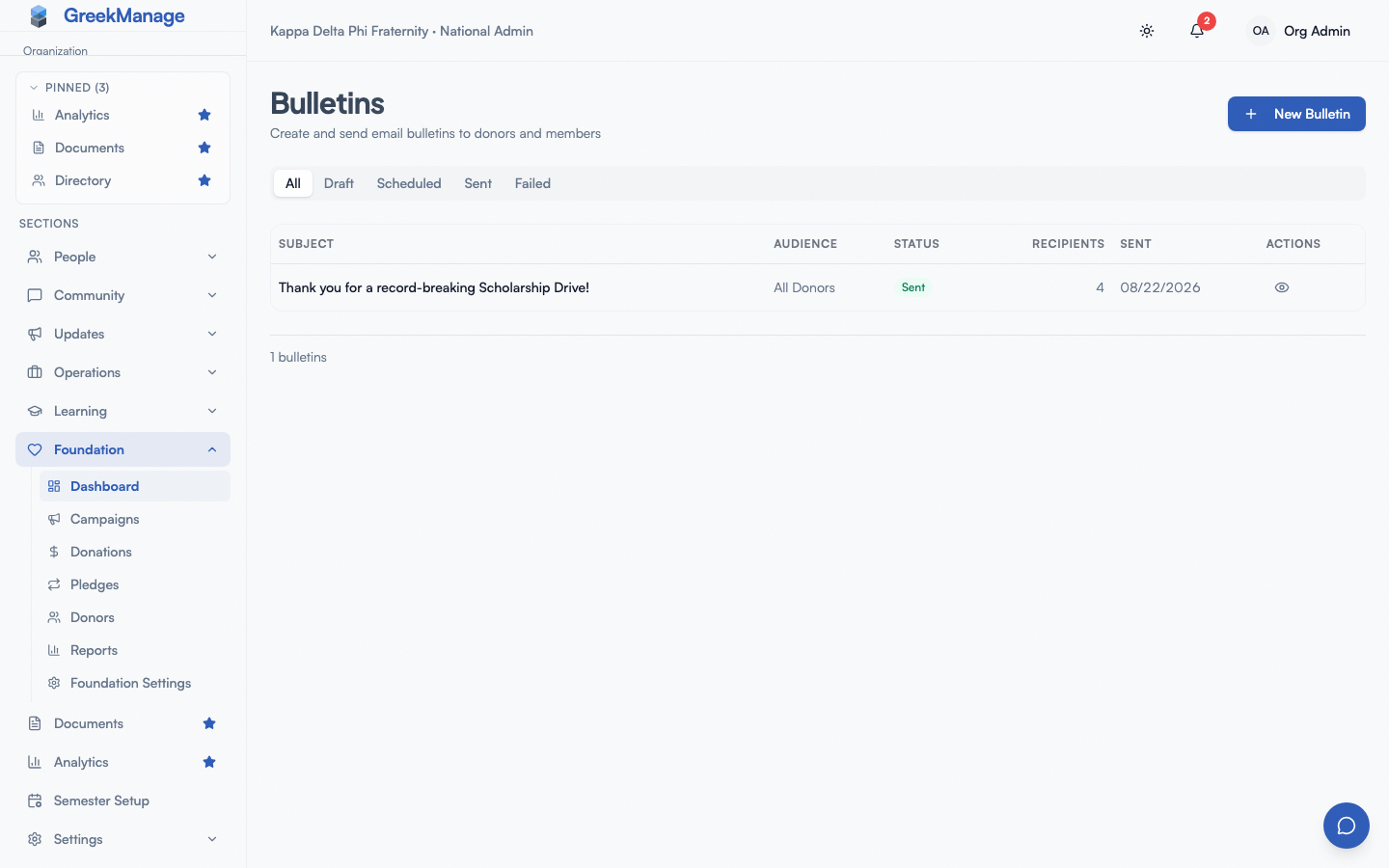
A bulletin is an email blast sent from your foundation to a specific audience — all donors, recurring donors, donors of a specific campaign, or all members of your organization. Bulletins live at Foundation → Bulletins and are the canonical way to send a foundation-branded message to a known group of recipients.
What a bulletin is
Each bulletin carries:
- A subject — the email subject line
- An HTML body — the email content (HTML accepted directly; see “Composing” below)
- An audience — which set of recipients to resolve at send time
- An optional campaign attribution — required when the audience is Campaign Donors
- A status — Draft, Scheduled, Sending, Sent, or Failed
- An optional scheduled-at timestamp — set when the bulletin is scheduled for future delivery
Once a bulletin is sent (or fails), per-recipient delivery records are created, one per recipient, each with their own delivery status.
The four audiences
Pick one when you create the bulletin. The audience is resolved at send time, not at compose time — so a bulletin sent next week to “All Donors” will include any new donors who came in between draft and send.
All Donors
Every donor record attached to your foundation, regardless of whether they have ever made a successful donation. This is the broadest audience and the one you will use most often for thank-yous, year-end summaries, and major campaign announcements.
Recurring Donors
Only donors who currently have at least one Active recurring pledge. This is the audience to use for messages aimed at your committed monthly-giver community — pledge anniversaries, behind-the-scenes updates, sustaining-donor perks.
Campaign Donors
Donors who made a Completed donation to a specific campaign. When you pick this audience, a campaign dropdown appears; you must pick a campaign for the bulletin to send. Useful for follow-up messages to people who gave to a specific drive — “Thank you for supporting the Scholarship Drive; here’s where the money went.”
Organization Members
Every active member of your organization, regardless of donation history. This audience pulls from the membership roster and is useful for member-facing messages from the foundation — for example, “Reminder: Annual Fund kicks off Monday.”
The audience size for each option is not displayed before send. If you need to know your reach, the recipient count is recorded on the bulletin after send and visible on the Sent row.
The five statuses
Draft
The bulletin is composed but not scheduled or sent. Drafts are editable, deletable, and never reach a recipient.
Scheduled
The bulletin is set to send at a future date and time. The schedule is honored by the platform’s background worker. Scheduled bulletins are editable — but if you edit one, also reconfirm the schedule, because the body and audience are loaded at send time.
Sending
A transient state. The bulletin’s send task has been queued; recipients are being resolved and emails are going out in batches of fifty.
Sent
The bulletin has finished sending. The total recipient count, success count, and failure count are recorded. Sent bulletins are read-only; you can view them but not re-send or edit. To send a similar message again, compose a new bulletin.
Failed
The bulletin’s send task crashed before completion (database error, mass mail provider outage, etc.). This is rare but the row remains in the Failed filter so the admin team can see what went wrong. The bulletin is read-only at this point; compose a new one to retry.
Composing a bulletin
From Foundation → Bulletins, click New Bulletin.
 New Bulletin dialog with subject, body, and audience fields
Subject
The email subject line. Required. Keep it short and donor-friendly — assume mobile preview pane.
Body
A TipTap rich-text editor (v0.63.12) — same component as the Org bulletins authoring surface. Standard toolbar (bold, italic, lists, links, headings) emits sanitized HTML; the server runs the output through nh3 before saving. The previous plain HTML textarea is gone. For reference, the underlying HTML tags the editor produces include:
<p>Paragraph text.</p><strong>Bold</strong>or<b>Bold</b><a href="https://example.com">Link text</a><br />for line breaks<ul><li>Bullet</li></ul>for lists<img src="https://your-cdn.example.com/image.png" alt="alt text" />for inline images
The HTML is sent as-is in the html_message part of the email; a plaintext fallback is generated automatically when you save (or you can edit it through the API).
Audience
Pick one of the four audiences. If you pick Campaign Donors, a Campaign dropdown appears and you must pick one before the bulletin can save. Other audiences do not need an attribution.
Save as Draft / Send Now / Schedule
Three action buttons sit at the bottom of the dialog:
- Save as Draft — saves the bulletin in Draft status and closes the dialog. Available to Foundation Admins and Editors.
- Schedule — clicking this reveals a date-and-time picker; pick a future moment and click Confirm Schedule. Available to Foundation Admins only. The bulletin saves in Scheduled status; the background worker will pick it up at the scheduled time.
- Send Now — sends the bulletin immediately (after a final confirmation dialog showing the audience and resolved recipient count). Available to Foundation Admins only.
Editing a draft or scheduled bulletin
Click the pencil icon on a Draft or Scheduled row to open the edit dialog. You can change the subject, body, audience, and (for campaign-donor bulletins) the campaign. Save your changes.
Drafts can also be sent immediately or scheduled from the edit dialog. Scheduled bulletins re-saved without changing the schedule keep the original send time; if you change the body or audience, the new content will go out at the original schedule time.
You cannot edit Sent, Sending, or Failed bulletins — the dialog is read-only and only the View action is available.
The Send Now flow
Clicking Send Now opens a confirmation dialog:
Are you sure you want to send this bulletin? This will send to N recipients and cannot be undone.
The recipient count shown is the count recorded on the bulletin record so far (zero for a brand-new draft; the resolved count for a scheduled one that has already been resolved). The audience is shown.
Click Send Now in the confirmation to commit. The bulletin’s status flips to Sending, the send task is queued in the background, and the dialog closes.
The send task resolves the audience, dedupes recipients by email address (case-insensitive — a donor whose email matches a member email is hit once, not twice), batches the recipients in groups of fifty, and sends each one. After every batch, per-recipient delivery records are updated. After the final batch, the bulletin flips to Sent with the final success and failure counts.
Delivery tracking
Each bulletin tracks per-recipient delivery state. Recipients can be in one of four states:
- Pending — the recipient record exists but the email has not yet been attempted.
- Sent — the email was handed off to the mail provider successfully.
- Failed — the mail provider rejected the message at send time (bad address syntax, etc.).
- Bounced — reserved for future use; the platform does not currently process bounce notifications back into this state.
The bulletin row in the table shows the total recipient count, and clicking the View icon on a Sent row shows the success and failure totals.
If you need per-recipient detail (who specifically failed), it is available via the bulletin’s recipients endpoint in the API — a UI surface for this is planned but not yet exposed.
Email sender
Bulletins send from your foundation’s Contact Email (set in Foundation settings). If Contact Email is blank, the platform default sender is used. Use a real inbox — donors will reply.
Audience resolution edge cases
A few quirks worth knowing:
- Donors with no email are skipped silently. Your foundation should not have many of these; every record created through the public donate form has an email.
- Duplicate emails across audiences are deduped. A donor who is also a member, sent to with the Organization Members audience, gets the bulletin once.
- Anonymous flag on donor records does not suppress bulletins. The anonymous flag affects public donor lists only; the donor still receives any bulletin their email matches.
- Inactive members are excluded from the Organization Members audience by status — only members in active or platform-access-eligible statuses receive the bulletin.
Tips
- Test on yourself first. Add yourself as a one-row “donor” via a test donation, then send a one-off bulletin with the All Donors audience to see the formatting render on real mail clients. Delete the test donation afterward (if it’s in test mode) or refund it (live mode).
- Schedule for the right moment. Donor email open rates peak Tuesday through Thursday mornings. Use the schedule feature to land at 9 AM in your donors’ timezone rather than the moment you happen to finish writing.
- Use Campaign Donors for thank-you sequences. A targeted “Thank you for supporting the Scholarship Drive — here’s the impact” to just that campaign’s donors hits harder than the same message blasted to All Donors.
- Keep the HTML simple. Hand-rolled HTML in the textarea is brittle. Stick to paragraphs, headings, basic lists, and a few links; avoid heavy inline styling, embedded CSS, or complex tables.
Limitations to be aware of
- No A/B testing or split sends today.
- No open-rate or click-rate tracking on bulletins.
- No drag-and-drop email layout builder — the TipTap editor covers inline formatting but not column / template-based layouts.
- No template library — every bulletin starts blank. (Workaround: keep a “template” draft and duplicate it via copy/paste.)
- Bounces and unsubscribes are not yet wired back into recipient state.
Related
- Foundation overview — module reference.
- Foundation settings — Contact Email used as the sender.
- Foundation donations and donors — the donor base bulletins draw from.
- Foundation campaigns — campaigns referenced by the Campaign Donors audience.
- Permissions matrix — who can save versus send.
Last verified against v0.63.39 (2026-06-26). TipTap rich-text editor shipped v0.63.12.