Foundation campaigns
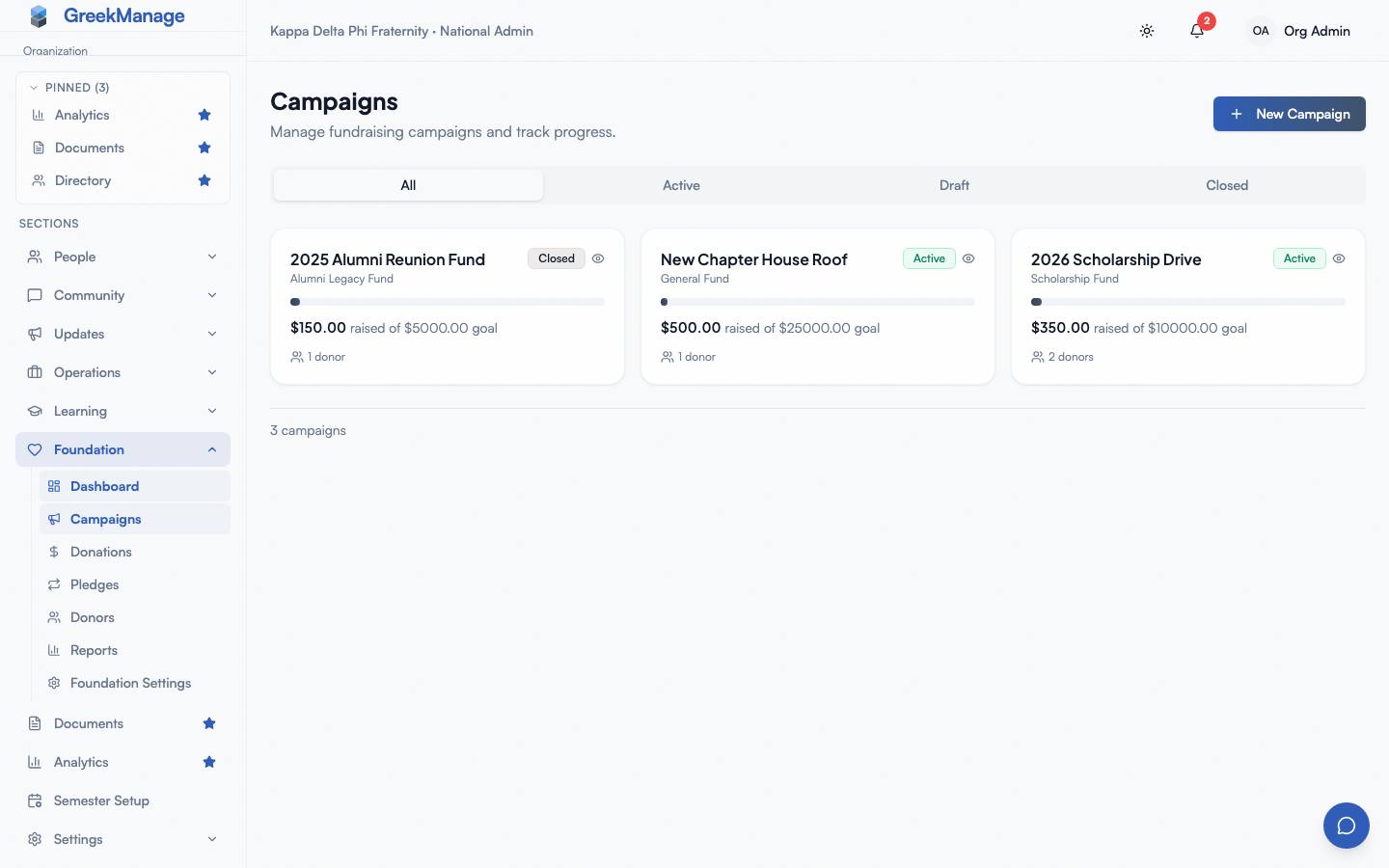
A campaign is a fundraising effort attached to a single fund, with a goal, an optional date window, and either an internal or public audience. This page covers the full lifecycle of a campaign — from draft through close — and how each setting affects what donors and admins see.
Campaign anatomy
Every campaign has:
- A name — shown in admin lists and on the public page
- A slug — URL-safe identifier used in the public donation URL; auto-generated from the name but editable
- A fund — the bucket donations flow into (every campaign must point at one fund)
- A goal — optional dollar target; if omitted, the campaign tracks a running total with no progress bar
- A description — free-form text shown on the public page
- A hero image URL — optional large image at the top of the public page
- A suggested amounts list — preset donation buttons on the public page, e.g.,
$10,$25,$50,$100 - A status — Draft, Active, Paused, or Closed
- A visibility — Internal or Public
- An optional start date and end date
Two read-only fields are also maintained by the system: total raised (sum of completed donations) and donor count (unique donors who have given).
The four statuses
A campaign moves through four states. Status drives where the campaign appears, whether it accepts donations, and whether it can be edited.
Draft
Newly created campaigns start in Draft. Drafts appear in the admin Campaigns list under the Draft filter, but the public page returns 404 even if visibility is set to Public — Draft never accepts donations.
Use Draft to stage a campaign: get the copy right, line up the hero image, confirm the goal with stakeholders, then click Activate Campaign on its page when you are ready. Activate applies only to a Draft, and it does not change visibility: an Internal campaign stays off the public page once it is Active.
Active
An Active campaign with Public visibility is reachable at its public URL and accepts donations. If it has Internal visibility, the public URL still returns 404 but the campaign is the default target when a logged-in admin creates a manual donation.
This is the only status where donations flow.
Paused
Paused is a soft-stop. The campaign no longer accepts donations from the public page (it returns 404 just like Draft and Closed), but the admin record is preserved and the campaign can be flipped back to Active at any time. Use Paused for short pauses — for example, when you discover a typo mid-campaign and want to fix it without taking the page down permanently.
Status buttons sit in the campaign detail header: Draft → Activate Campaign, Active → Pause Campaign, Paused → Resume Campaign, and Active or Paused → Close Campaign. Only these moves are allowed (any other returns 400), and the edit form never changes the status. The buttons disappear once the campaign reaches the terminal Closed state.
Closed
Closed is the terminal state. The public page returns 404, donations are rejected, and the edit form on the campaign detail page is hidden — once Closed, the campaign is read-only.
You reach Closed in one of three ways:
- Click Close Campaign on the campaign detail page (Active or Paused campaigns; Foundation Admins and Editors)
- The nightly auto-close task runs and the campaign has an
end_datein the past - Call the campaign’s close action through the API (
POST /api/foundation/campaigns/<id>/close/). An edit that sets the status is refused.
Closing a campaign never deletes donations or refunds anything — it only stops new donations from coming in. A Draft cannot be closed, because it never ran; it stays out of donors’ sight as long as it is a Draft.
Visibility: internal vs public
Visibility is independent of status. A campaign can be Active + Internal (admins use it internally to attribute manual donations but no public page) or Active + Public (anyone with the URL can donate).
Internal
Internal campaigns are invisible to the public — the public donation endpoint returns 404 for them regardless of status. They exist for tracking purposes:
- A board-restricted “Founders Circle” giving program where admins manually log gifts
- A staff-side ledger for grants you received that you want to attribute to a specific fund
- A holding pen for a campaign you are not ready to expose yet
Public
Public campaigns are reachable at their public URL when they are Active. The page renders the name, description, hero image, progress bar (if a goal is set), suggested amounts, and a donate form.
Public URL
The public campaign page lives at a deterministic URL based on the foundation ID and the campaign slug. Format:
https://your-deployment.example.com/campaign/{foundation_id}/{campaign_slug}The Donate Now button there opens the donation form at /donate/{foundation_id}/{campaign_slug}. A campaign’s page in the app does not show this link yet. The foundation_id is the ID in the webhook URL on the Payment Processor card in Foundation → Settings (Foundation Admins see it). The campaign_slug is made from the campaign’s name when it is created: lower case, with hyphens (2026 Annual Fund becomes 2026-annual-fund). Slugs are unique within a foundation, so a second campaign with the same name gets -2.
Share this URL by email, on your chapter website, in Instagram bio links, or wherever your donor channel lives. The page is live once the campaign is both Active (click Activate Campaign) and Public. Activating an Internal campaign does not publish it, and neither does making a Draft Public.
 public campaign donation page rendered in a browser
Creating a campaign
From Foundation → Campaigns, click New Campaign.
- Enter a name — for example, “2026 Annual Fund.”
- Pick a fund from the dropdown. Every campaign must belong to one fund; donations to this campaign roll up into that fund’s lifetime total.
- Set a goal in dollars. Leave blank for a no-goal campaign that just tracks running totals.
- Add a description. This shows on the public page exactly as you write it — line breaks preserved, no rich-text formatting today.
- Pick a visibility — Internal for a staging draft, Public when you are ready to share the URL.
- Optionally set a start date and end date. The end date is critical if you want auto-close to fire (see below).
- Click Create Campaign. The new campaign appears in Draft status.
After creation, the campaign appears in the list as a Draft. Open it, and when it is ready click Activate Campaign. To take donations through the public page it must also be Public: set Visibility to Public in the edit form and save, before or after activating.
Editing a campaign
Open the campaign from the Campaigns list to reach the detail page. It shows the live stats; then, for Foundation Admins and Editors, the Edit Campaign form; then, for Foundation Admins only, a Recent Donations panel with the campaign’s ten newest gifts. That panel names donors, and donor details stay with Foundation Admins, so editors and everyone else see the campaign without it.
Campaign detail page with stat cards and the Edit Campaign form.
Editable fields on Active and Draft campaigns:
- Name
- Fund
- Goal
- Visibility
- Start date and end date
- Description
The slug is set at creation and is not editable from the UI — if you need to change it, contact support or recreate the campaign. The total raised, donor count, and status are system-managed and not directly editable from the form (the status changes only through the Activate, Pause, Resume and Close buttons and the nightly auto-close; the API refuses an edit that changes it).
Closed campaigns are read-only. Once a campaign is Closed, the entire edit form is hidden and you can only view its history.
Auto-close on end date
Every day at 1:00 AM server time, GreekManage runs an automated task that scans every Active campaign across every foundation. Any campaign with an end_date in the past (strictly less than today’s date) is automatically flipped to Closed.
Some implications:
- If you set an end date of
2026-06-30, the campaign will auto-close in the early hours of2026-07-01. - Auto-close does not send a notification. If you need a final tally email, schedule a bulletin to land just before the end date.
- A campaign with no end date will never auto-close — it stays Active indefinitely until you close it manually.
- Auto-close only flips status. It does not refund donations, send receipts, or generate reports.
Closing manually vs auto-closing
The two paths reach the same terminal state and behave identically afterward. Choose based on whether you have a hard deadline:
- Manual close — best for short-fuse campaigns (“we hit our goal early, let’s wrap”), board-driven sunsets, or any campaign without a fixed end date.
- Auto-close via end date — best for time-boxed campaigns (“Annual Fund 2026, January 1 through June 30”). Set it and forget it; the system will close it on schedule.
You can also combine the two — set an end date as a safety net, and manually close earlier if needed.
What does not happen on close
A few common misconceptions:
- Donors are not notified. The public URL just starts returning 404.
- Recurring pledges attributed to the campaign continue to bill. Recurring pledges live independently of campaigns; closing a campaign does not cancel its associated pledges. See recurring pledges for how to handle this.
- Existing donations and receipts are untouched.
- The campaign remains visible to admins in the Campaigns list under the Closed filter, and the detail page is still reachable for historical reporting.
Tips
- Stage in Draft. Get the description, hero image, and suggested amounts right before you flip to Active. Drafts are invisible to donors and to other admins who do not look at the Draft filter.
- Use Internal for ledger campaigns. If your foundation receives grants or large gifts off-platform, create an Internal campaign per source so the totals show up in your reporting without ever creating a public URL.
- Always pick a start and end date for time-boxed campaigns. It makes auto-close work and it shows a “days remaining” countdown on the detail page.
- Don’t delete — Close. Closing preserves the historical record. Delete is for campaigns you created by mistake and want gone from the list entirely.
Related
- Foundation overview — module reference.
- Foundation Admin onboarding — first campaign in 30 minutes.
- Foundation donations and donors — what happens after a donation lands.
- Permissions matrix — who can do what.
Last verified against v0.63.39 (2026-06-26). Pause / Resume action buttons shipped v0.63.20.