Foundation donations and donors
Once your foundation starts accepting money, two pages become the centerpieces of your daily work: Donations and Donors. They look at the same data from two angles — Donations is row-per-transaction, Donors is row-per-person — and they share filter and export tooling. This page walks through both and explains the dedup behavior that quietly stitches your donor list together over time.
Donations page
Reach this page at Foundation → Donations. It is the canonical ledger of every donation attempt — successful, pending, failed, or refunded — across every campaign in your foundation.
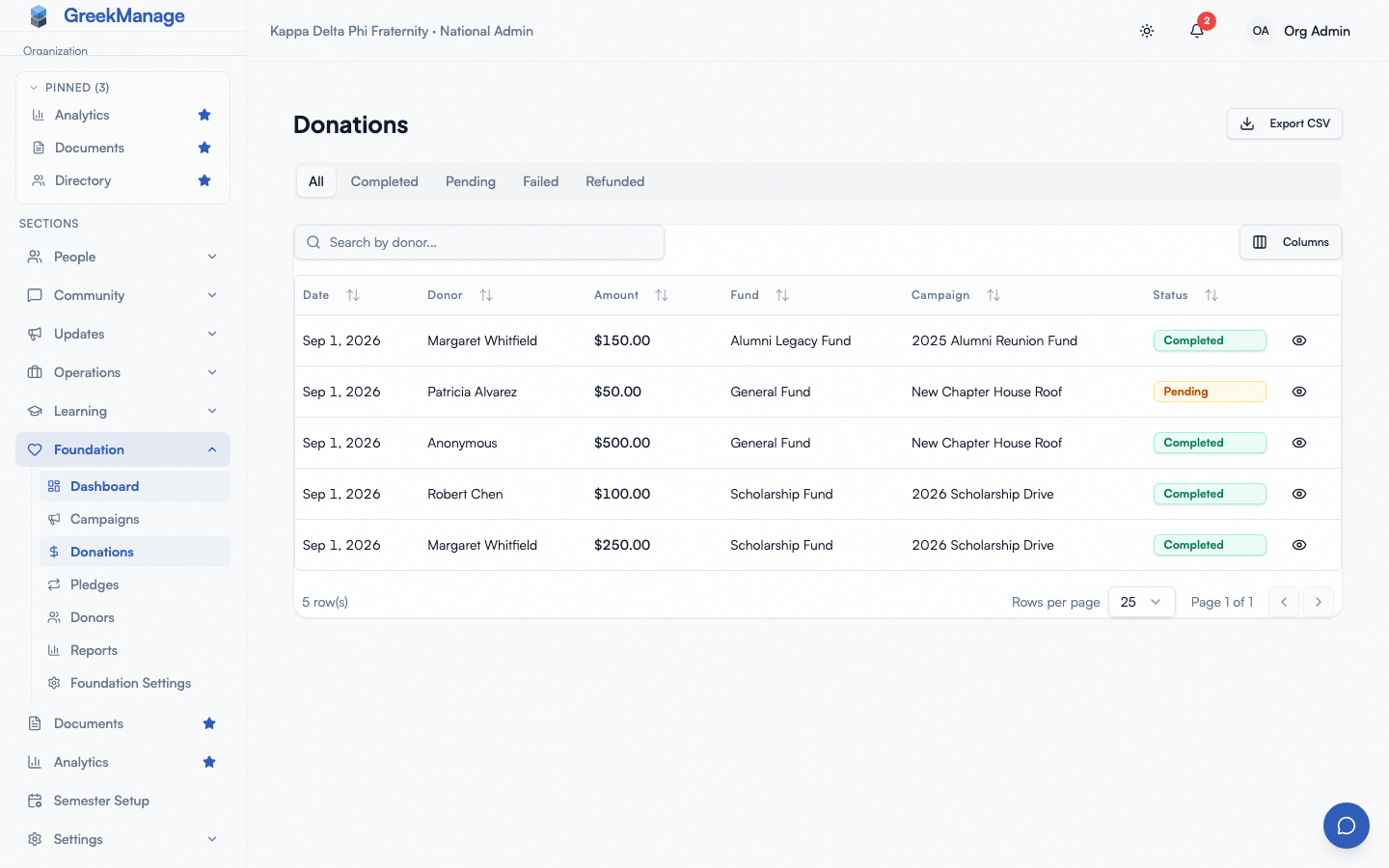 Foundation Donations page with status filter tabs and donor search.
Status filter tabs
Across the top of the table are five tabs: All, Completed, Pending, Failed, Refunded. Click any tab to filter the list view. Note — see the “Export to CSV” section below for the export’s known behavior, which doesn’t follow the tab filter.
What each status means:
- Completed — the charge succeeded and Stripe confirmed it via webhook. Counts toward fund and campaign totals. Receipt has been triggered.
- Pending — the payment intent was created but Stripe has not yet confirmed the charge. Most donations sit here for less than a second; if you see Pending lasting more than a few minutes, the donor likely abandoned the payment form or there is a webhook delivery problem.
- Failed — Stripe rejected the charge (declined card, fraud filter, expired card, etc.). The donor saw an error on the public page.
- Refunded — a Foundation Admin issued a refund via Stripe. Donor totals, fund totals, and campaign totals were decremented when the refund cleared.
There is a fifth state the tabs do not list, because it is not a separate status:
- Partially Refunded — part of the donation was returned but not all of it. The donation’s status stays Completed (so it still counts toward totals and still appears under the Completed tab), and the badge reads “Partially Refunded” with the returned amount beside it. A partial refund cannot be issued from this UI — see Refunds — but one issued in the Stripe dashboard flows back through the
charge.refundedwebhook and shows up here.
Donation rows
Each row shows the donation date, the donor’s display name (or “Anonymous” if the donor checked the anonymous box on the public page), the amount, the fund, the campaign (if attributed to one), and the status. Click any row to open the detail dialog.
A partially refunded donation shows a “Partially Refunded” badge with the amount returned underneath it (for example, “$15.00 refunded”), so it is distinguishable at a glance from both an untouched donation and a fully refunded one.
Donation detail dialog
The detail dialog surfaces everything attached to a single donation:
- Donor name and email
- Amount, fee, and net amount (
net = amount - fee; when the donor opted to cover the fee the amount is already grossed up, sonetcomes out at the gift the donor chose) - Refunded amount, if any part of the donation has been returned — shown as “$15.00 of $50.00” on a partial refund
- Currency
- Fund and campaign
- Status
- Date
- Whether the donor covered fees
- Refund timestamp and reason, if refunded
- Notes — either donor-provided (“In memory of …”) or admin-added internal notes
Two action buttons sit at the bottom of the dialog:
- Resend Receipt — appears whenever a receipt has been generated for the donation. Re-queues the receipt email task; the donor receives a fresh copy with the same receipt number.
- Refund — appears only on Completed donations. Opens a confirmation dialog before issuing the refund. Refunds go through Stripe; once Stripe acknowledges the refund, the donation flips to Refunded and the donor, fund, and campaign totals are decremented.
Search and sort
Above the table, a search box filters by donor name. Column headers are sortable. Pagination is fixed at 25 rows per page; use the search and status filters to narrow the list before browsing.
Export CSV
Click Export CSV in the header to download the currently-filtered Completed donations as a CSV. Columns:
Date, Donor Email, Donor Name, Amount ($), Fund, Campaign, Fee ($), Net ($), Receipt #The CSV export honors the currently-selected Status tab as of v0.63.12. If you’re on the All tab, every status is exported; on Pending, only Pending; etc. (Previously the export always returned Completed only regardless of tab — that asymmetry is fixed.)
Donors page
Reach this page at Foundation → Donors. It is the people view: every unique email that has ever donated to your foundation gets a row here, regardless of how many donations they have made.
Foundation Donors page with search box and Member column
What is a donor
A donor is uniquely identified by the combination of foundation and email address. Donors are created automatically — there is no “add donor” button on the donors page, because every donor record comes into being either when someone donates through the public page or when an admin creates a donation on their behalf. (See “Manual donor entry” below.)
The donors page is a read-only directory plus search.
Member vs guest
The Member column shows a green check or a dash. A green check means this donor’s email matches an active member of your organization (or any of their verified secondary emails). The system links the donor record to the underlying user account automatically the first time a match is found, including retroactively after the fact if the email becomes verified later.
What counts as “active member” for linking: anyone with a membership in the foundation’s organization whose status is one of undergrad, associate, alumni, active_alumni, lifetime_alumni, or inactive. Members in prospect, interested, or other pre-affiliation statuses are not auto-linked.
Donor detail dialog
Click a row to open the detail dialog. You see:
- Contact: name, email, phone, address
- Whether they are a member or a guest
- Lifetime stats: total donated, donation count, first donation date, last donation date
- Recent donations (up to ten)
- Active recurring pledges (if any)
Donors marked as anonymous on individual donations still appear here under their real name; the anonymous flag is per-donation and only affects what shows on the public donation page (not what admins see).
Search
The search box filters by name and email substring. There is no tag system today, no notes field, and no custom-fields support for donors — donors are an emergent record, not a managed one.
Guest-donor dedup
This is the silent feature that makes the Donors page useful over time. When a donation comes in through the public page, the platform looks up whether a donor record already exists for the foundation + email combination:
- If yes, the existing donor is reused. The donation attaches to that donor, and the donor’s lifetime stats update. Empty contact fields on the donor record are backfilled from the donation form if the new donation provides them (e.g., if the donor record had no phone but the new form filled in a phone, it sticks).
- If no, a new donor is created with the form data and the donation attaches to it.
Email matching is case-insensitive — Jane@Example.com and jane@example.com collapse into one donor.
What dedup does NOT do
- It does not merge donors across email addresses. If Jane donates once as
jane@example.comand once asjane.smith@example.com, you get two donor records. There is no merge tool in the UI today. - It does not cross foundations. Each foundation has its own donor namespace; even on the same platform, the same email can be two different donor records under two different foundations.
- It does not retroactively reconcile when a name changes. The donor’s name on the record reflects what was submitted on the most-recent donation only when fields were previously empty; existing name fields are not overwritten by subsequent donations.
Member linking
In parallel with dedup, every donation also tries to link the donor to a user account. The link is one-way: a donor record carries an optional user reference. The link is established by email lookup against the User table and the verified-email table, scoped to memberships in the foundation’s organization.
The link matters because:
- The Members module shows a “Donations” tab on the member detail page when the donor is linked, surfacing the member’s giving history in their member profile.
- The donor portal — accessible to authenticated users at
/foundation/my-donations— pulls history via the user link, not the donor email, so unlinked donors cannot see their history even if they create an account later. - Reporting and analytics roll up giving by member when the link exists.
If a guest donor matches a member later (e.g., they were not a member when they donated but joined later), the link is established on their next donation — but historical donations made before joining are not automatically re-linked.
Manual donor entry
There is no “add donor” form on the donors page today. To record an off-platform gift (check, cash, grant), you have two practical options:
- Use the public donation page yourself — go to your campaign’s public URL, fill in the donor’s name and email, enter the amount, and complete the test/live charge. This is the official path for new donor records. If your processor is in test mode you can simulate the gift; if in live mode the donor’s card or your foundation’s card will actually be charged.
- Use the API directly — for bulk imports of historical gifts, contact GreekManage support. This is not exposed in the UI.
Adding a manual donor entry form is on the roadmap; track the issue in your platform’s project tracker.
Refunds
To refund a donation:
- Open Foundation → Donations.
- Click the donation row to open the detail dialog.
- Click Refund, then Confirm Refund in the confirmation dialog.
The platform calls Stripe to issue a full refund — partial refunds are not supported through the UI. Stripe processes the refund (usually instant for cards, 5-10 business days to land on the donor’s statement), fires the charge.refunded webhook back to the platform, and the donation flips to Refunded.
When the refund completes:
- The donor’s lifetime total is decremented by the donation amount and donation count is decremented by one.
- The fund’s total raised is decremented.
- The campaign’s total raised is decremented (if the donation was attributed to a campaign).
- The donation’s
refunded_attimestamp is set and the optional reason you typed is stored.
A refunded donation row remains in the Donations table under the Refunded filter — refunds preserve the audit trail.
Partial refunds
The platform cannot issue a partial refund; the Refund button always refunds in full. A partial refund issued directly in the Stripe dashboard does flow back, though: the charge.refunded webhook records the returned amount on the donation, and because the donation was not refunded in full its status stays Completed.
Those donations show a “Partially Refunded” badge with the returned amount, on the Donations table, the detail dialog, a member’s donation history on their profile, and the member’s own My Donations page. Reconciling against Stripe, remember that a partially refunded donation sits under the Completed tab, not Refunded.
Tips
- Use the email search. It is faster than scrolling, and donor records are keyed by email so you will always find the right row.
- Export Completed donations monthly. The CSV is the easiest way to hand finance the running totals without giving them platform access.
- Treat anonymous donations carefully. Donors who tick “anonymous” expect their name not to appear in donor lists or thank-you bulletins. Use the per-donation
is_anonymousflag to decide what to publish. - Reconcile refunds separately. The Completed-only CSV does not include refunds, so if you are reconciling against Stripe’s monthly statement, pull the Refunded filter too.
Related
- Foundation overview — module reference.
- Foundation campaigns — campaigns donations roll up into.
- Foundation tax receipts — per-donation and annual receipts.
- Foundation recurring pledges — managing Stripe-backed pledges.
- Permissions matrix — who can refund, export, or view donors.
Last verified against v0.63.39 (2026-06-26). CSV export honors selected Status tab as of v0.63.12.