Inviting admins
Org admins manage admin permissions. There are three admin tiers: org, regional, chapter.
Add an org admin
- Open Org → Settings → Admins.
- Click Invite admin.
- Choose:
- Existing GreekManage user — search by email; pick from results.
- New user — enter their email; they’ll get a welcome email to set a password.
- Set a title (optional but recommended): “Executive Director”, “Membership VP”, etc.
- Click Send invite.
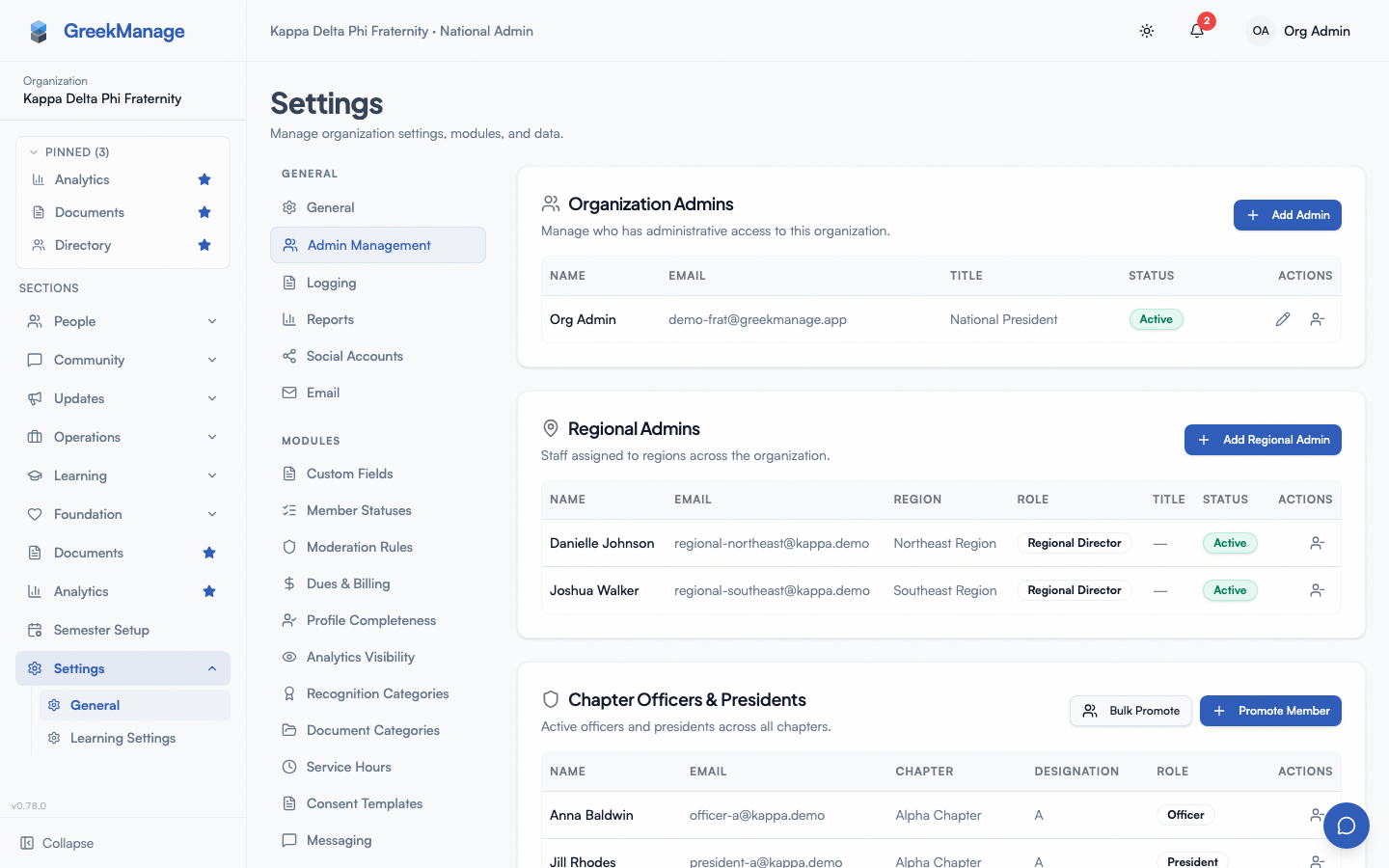 Org admin invitation form.
The new admin receives an email. After accepting, they get full org admin permissions.
Add a regional admin
- Open Org → Regions → [region].
- Click Admins tab.
- Click Add regional admin.
- Search for the user.
- Choose role:
- Regional Director — primary contact, full regional permissions
- Coordinator — secondary; same permissions
- Advisor — read-only across the region
- Set a title.
- Save.
A regional admin can only see chapters in their assigned region.
Add a chapter officer
This is usually done by the chapter itself, but org admins can also do it:
- Open Org → Members → [member].
- Click Edit → Role.
- Choose Officer or President.
- Save.
The promotion takes effect immediately.
To promote one member (or several at once) without leaving Settings, use Org → Settings → Admins → Promote Member or Bulk Promote:
- Pick the chapter.
- Type a name or email into the search box. In Promote Member, matching members appear in a list directly beneath the box; click one and they show as a chip you can clear with the ×. If nobody matches, the list says so. In Bulk Promote, the search narrows the roster of checkboxes below it. Either way the search runs across the chapter’s whole roster, not just the page on screen, so you don’t have to page through a large chapter to find someone. Members who already hold a role, can’t hold one, or are you aren’t offered in Promote Member.
- Pick the member (or tick several, in Bulk Promote), choose the role, and confirm.
Selections you have already ticked in Bulk Promote are kept while you search for the next person.
If one of the members you picked can’t be promoted — they’ve since gone inactive, or another admin changed their role while you were choosing — Bulk Promote still promotes everyone else and then tells you how many of the selected members it could not update. The Chapter Officers list refreshes either way, so what you see after the dialog closes is what actually saved. If none of them could be updated, the dialog stays open with your selection intact so you can adjust it and try again.
Remove an admin
- Open Org → Settings → Admins.
- Find the admin in the Organization Admins, Regional Admins, or Chapter Officers & Presidents table (Regional and Chapter Officer removal can also be done from the relevant region’s or chapter’s own page).
- Click the remove icon on their row.
- Confirm the dialog.
- Org admins and regional admins are deactivated (
is_active = false) rather than deleted — they keep their account and any chapter membership, but lose admin permissions. - Chapter officers / presidents are demoted straight back to regular Member — this only changes their chapter role, it doesn’t remove them from the chapter roster. To remove someone from the chapter entirely, use the member table on the chapter’s own page instead.
The user keeps their account either way.
Reactivate an admin
Deactivated a wrong or removed a person by mistake? Both org admins and regional admins can be reactivated:
- Open Org → Settings → Admins.
- Find the admin in the Organization Admins or Regional Admins table — their row shows an Inactive badge.
- Click the reactivate (power) icon on their row.
- Confirm the dialog.
Their admin permissions are restored immediately. Platform admins can do the same for any org’s admins from Platform → Admins → Organization Admins.
Chapter officers/presidents don’t need this — since demotion just resets their chapter role to Member, use Promote Member or Bulk Promote to re-promote them at any time.
Audit trail
Every admin invitation, promotion, and deactivation is logged. Open Org → Settings → Logging to review the audit log and filter by event type.
Account security for admins
Admins (and any user) can register a passkey (WebAuthn / FIDO2) for stronger sign-in than password alone. The enrollment prompt appears after login if no passkey is registered; admins can also enable passkeys from Account Settings → Security. There is no platform-enforced 2FA requirement — passkeys are opt-in per user.
Tips
- Always have at least 2 org admins. If your only admin loses access, you’ll need platform-admin help to recover.
- Use titles. They appear on profiles and make it clear who does what.
- Audit annually. Old admins with stale access are a security risk — remove anyone who hasn’t signed in for 6+ months.
Related
Last verified against v0.65.37 (2026-07-15).