Assignment rules
An assignment rule is a piece of automation that says: “When a member’s status changes to X, enroll them in course Y with a deadline N days out.” Rules are the difference between a national admin who manually assigns hazing prevention to every new pledge and one who sets it up once and forgets it.
This page covers rule creation, how the trigger fires, what the rule does (and doesn’t) let you target, and the mechanics of bulk enrollment expansion behind the scenes.
What a rule does
A rule has exactly four things on it:
- Course. Which course gets assigned.
- Trigger statuses. A list of membership status values. When a member’s status changes to any one of these, the rule fires.
- Due days after trigger. How many days the member gets from the trigger date to complete the course. Default 30. Zero means “no deadline.”
- Required. Whether the resulting enrollment is required (default true). Required vs. optional shows up in the member’s My Learning view and affects how the dashboard counts compliance.
There is also an Is active toggle on each rule. Inactive rules don’t fire but stay in your list for reference, so you can pause automation without deleting the rule and its history.
What a rule does not let you target
Rules are deliberately narrow. The only condition surface is trigger on membership status. Specifically, there is no:
- Chapter filter. You cannot make a rule fire for “new pledges at the Beta chapter only” while ignoring other chapters. If a rule’s course is national-scope and the trigger status matches, every chapter’s members trigger it.
- Region filter. Same reasoning — rules are org-wide automation, not regional.
- Custom-field filter. You cannot trigger on “members where major = Engineering” or any other custom data. Custom fields are descriptive; they don’t drive enrollment.
- Audience targeting. There’s no “trigger only for pledges joining after October” or “trigger only for officers.” A pledge is a pledge.
- Time-based trigger. Rules fire on a status transition, not on the calendar. If you need “annually recurring training,” see Compliance program — that’s the right tool for time-based requirements.
If you need any of the above, use a manual assignment instead (see below), or scope the course itself to a chapter/region so the rule only enrolls members of that scope.
Create a rule
Navigate to Org → Learning → Assignment Rules.
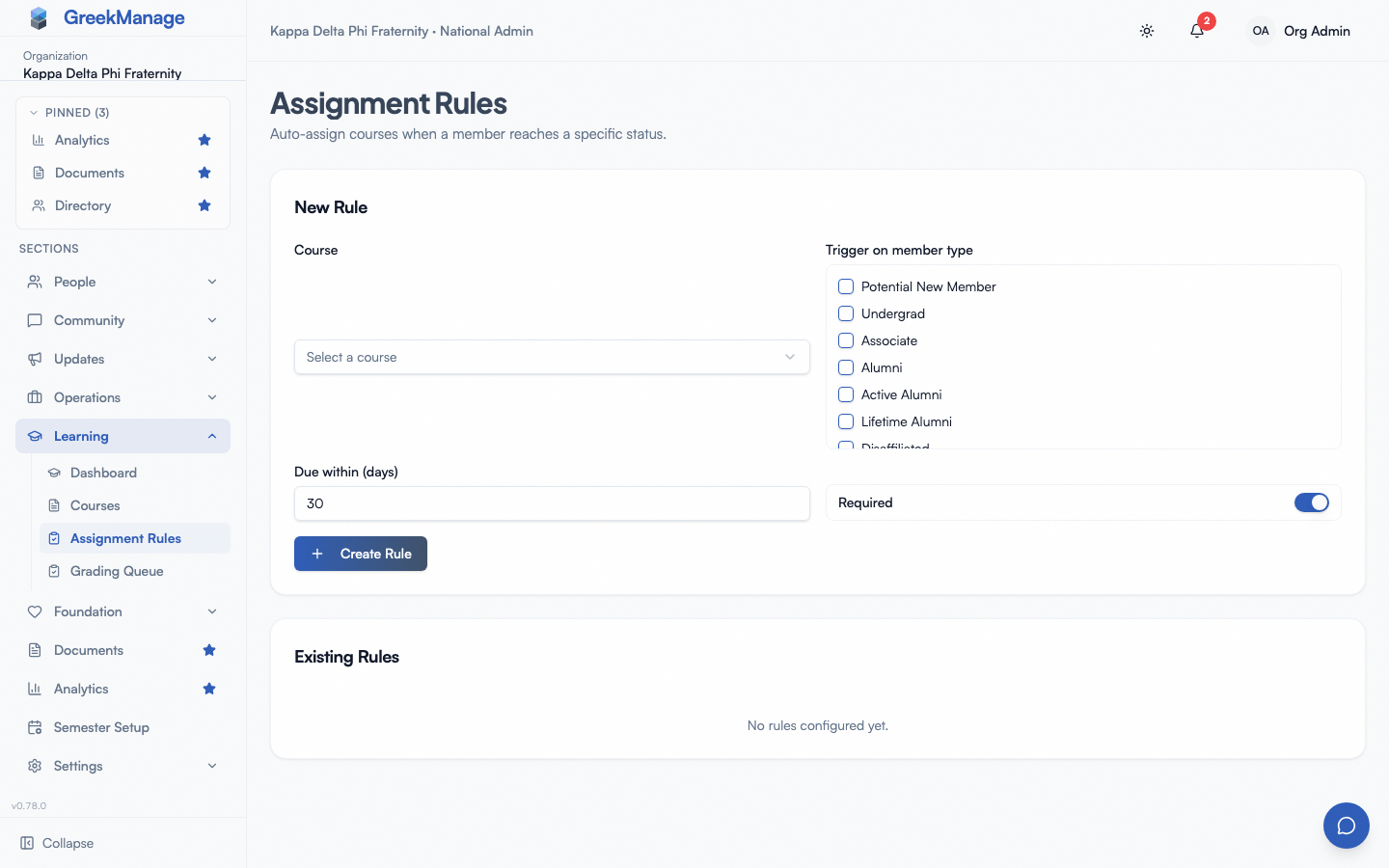 the ‘New rule’ form above the existing rules table
- Click New rule.
- Course. Pick the course. Only courses in your org appear in the dropdown.
- Trigger on member type. Tick one or more membership statuses. Common picks:
- Pledge / New Member for new-member education.
- Active for ongoing training.
- Alumni for post-graduation onboarding (rare but supported).
- Officer if you have a transition-onto-officer-track course. (Note: this triggers on the status
officerif your org uses that as a status; if officer is a role rather than a status in your data model, see the role-targeting note below.)
- Due within (days). How many days from the status transition does the member have. 30 is a sensible default. Use 0 for “no deadline” — the assignment lands as required but with no countdown.
- Required. Leave on for compliance-style training. Turn off for “we recommend this” courses.
- Click Create Rule.
The rule is now active. The next time any member in the org transitions to one of the trigger statuses, the platform creates an enrollment for that member with the configured deadline.
How the trigger fires
The rule does not retroactively enroll people whose status is already at the trigger value when you create the rule. It fires forward only — on status changes going forward.
So if you create a rule today that says “trigger on pledge,” every member who becomes a pledge from this moment on gets the course. Existing pledges who were already pledges before the rule existed are not auto-enrolled. If you want to onboard the existing population, follow up with a manual bulk assignment (see below).
When a member’s status changes (via the status change approval flow, a bulk import, or a direct admin edit), the platform:
- Commits the status change.
- Looks up every active rule in the member’s organization whose trigger statuses include the new value.
- For each matching rule, checks whether the member already has an enrollment for the rule’s course. If they do, skips (no duplicate enrollment). If they don’t, creates a new enrollment with
due_date = now + due_days_after_trigger. - Fires a “course assigned” notification to the member so they see it in their feed.
This runs as a background task right after the status change commits, so the status change itself is never slowed down by enrollment fan-out.
Status changes that go through approval
Most status changes in GreekManage flow through an approval workflow. The rule fires on commit, not on request. So if a chapter officer submits a status change for a member and you have to approve it, the rule waits until you click approve before enrolling the member.
This is intentional — you don’t want a member auto-enrolled into compliance training based on a pending request that might be rejected.
Manual one-off assignments
For everything rules can’t do — assigning to one specific chapter, to a single member, to a region, or to an existing cohort that the rule didn’t catch — use the course’s Assign action.
Open the course, click Assign, and pick a target:
- Individual member — a single membership.
- Chapter — every active member of one chapter.
- Region — every active member across the chapters in one region.
- Organization — every active member in the entire org.
- By status — every member at one or more statuses (the same kind of cohort a rule would catch).
- By role — every officer or president (use this for “all chapter leadership must complete the new advisor training”).
- By officer position — everyone who currently holds one or more of your organization’s officer positions (“every Treasurer must complete Chapter Budgeting”). Only active positions are offered.
You set the target, the due date, the required flag, and optional notes. The platform then enrolls everyone in the target audience in a single background job — which matters for large orgs, because expanding “every active member of a 5,000-member org” into individual enrollments would block the request for many seconds if done synchronously.
Assigning by officer position
A position assignment keeps up with the seat, not just the people in it on the day you made it:
- Taking up the position enrolls them. When a chapter assigns a member to a targeted position, they are enrolled in the course straight away (if the learning module is enabled for your organization).
- Leaving the position keeps their training. Ending someone’s term does not remove or cancel their enrollment — they keep their progress and any certificate. They just stop counting toward that position’s training on its group page.
- Holding two targeted positions is one enrollment, not two.
- Only active members are enrolled, exactly as with the other group targets — an alumnus who still shows as a holder is skipped.
Instead of a fixed due date you can set Due days after taking the position: each holder’s deadline is that many days after the start date of their holding, so a treasurer elected in March and one elected in October each get the same 30 days. Editing that number later (the pencil on the assignment row) moves every current holder’s deadline and notifies them; past holders keep the deadline they had.
To see how each holder is doing, open the position’s group page (Settings → Officer Positions → [position]). With the learning module enabled it has an Assigned training column: 2/3 complete per holder, with overdue courses flagged.
The expansion job is idempotent: if you accidentally run the same bulk assign twice, members who already have an enrollment are skipped. No duplicates, no double-notifications.
Pausing a rule
Toggle a rule’s Active switch off. The rule stays in your list with all its settings intact, but it no longer fires on new status changes. Toggle it back on later if you want it back.
Use cases:
- Seasonal training. Turn the rule on at the start of recruitment, off when the new-member class is fully enrolled.
- Course transition. When you publish “Hazing Prevention 2027” and want to retire the 2026 version, deactivate the 2026 rule and create a new one for 2027.
Editing a rule
You can edit the Active flag inline from the rules table. To change the course, trigger statuses, due days, or required flag, you currently have to delete the rule and create a new one. There’s no inline edit for those fields today.
This matters because deletion is destructive (see below), so think before you delete a rule you’ll want to recreate.
Deleting a rule
Deletion removes the rule. It does not remove enrollments that the rule already created — those are independent rows that live on their own. Members who were already enrolled keep their enrollment, deadline, progress, and certificate. Future status transitions will simply not trigger this rule anymore.
If you need to roll back a rule’s effects, you have to delete the resulting enrollments manually or wait for them to complete naturally.
A worked example
A national admin running the same playbook every fall:
- Rule 1. Hazing Prevention 2026. Trigger:
pledge,new_member. Due days: 21. - Rule 2. Officer Conduct 2026. Trigger:
officer. Due days: 14. (Assumes officer is a status value. If officer is a role, use a one-off Assign by role on the course instead.) - Annual Title IX. Not a rule — annual recurrence belongs in compliance program. Link the course to the requirement and chapter dashboards update each cycle.
Related
Last verified against v0.62.1.