Learning authoring
Org admins build courses and assignment rules. Members consume what you create.
Deep dives for each Learning surface: Course authoring · Modules & lessons · Assessments & quiz types · Assignment rules · Grading queue · Certificates & completion · Org defaults
Create a course
- Open Org → Learning → Courses → New course.
- Set:
- Title (e.g., “Hazing Prevention 2026”)
- Description
- Cover image
- Estimated duration
- Scope — National (visible across all chapters) or Chapter-scoped
- Save and start authoring modules and lessons.
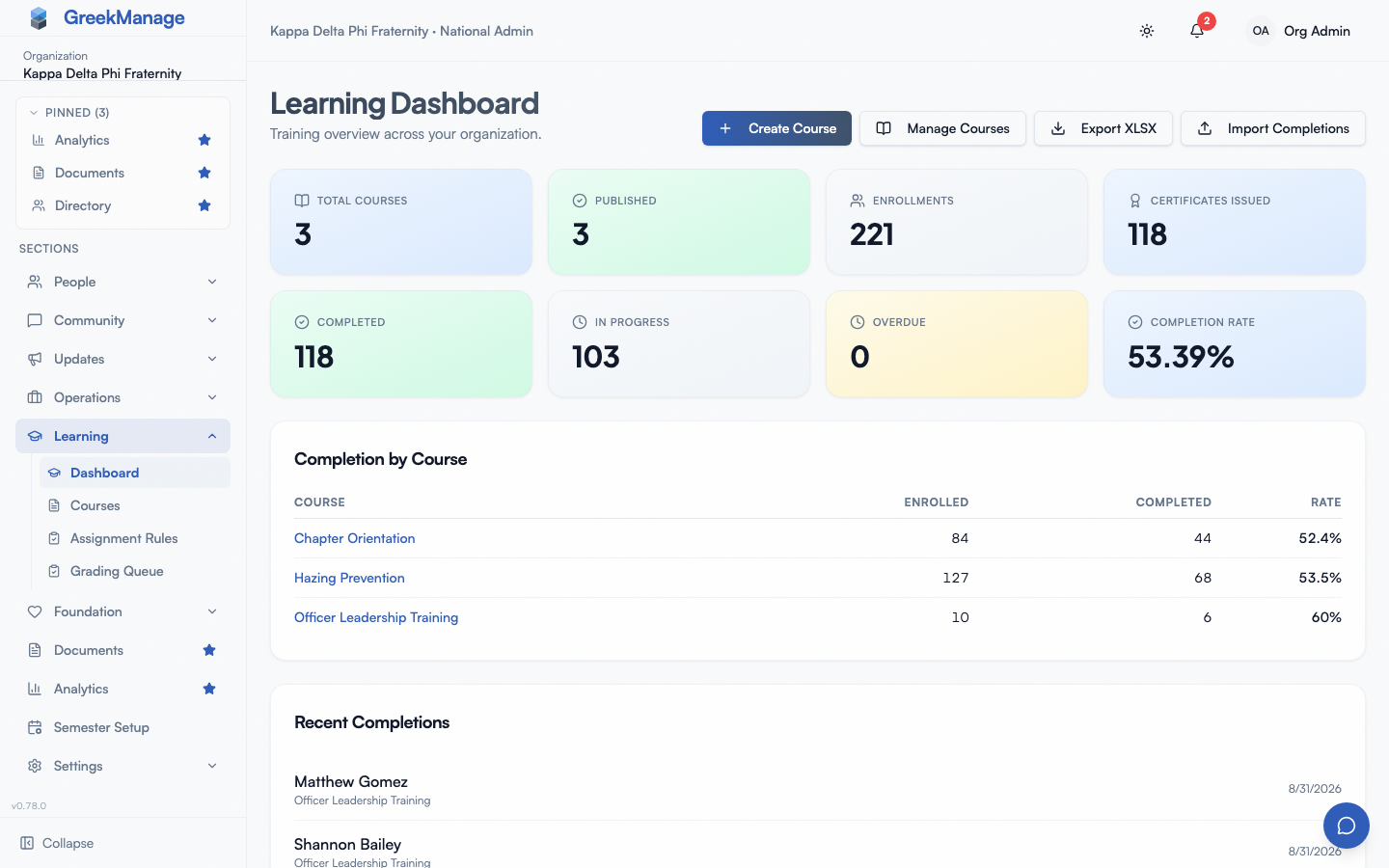 Course authoring with modules.
Modules and lessons
A course is organized as Course → CourseModule → Lesson. Each lesson has one content type:
- Rich Text — a formatting editor with bold, italic, bullet lists, and numbered lists
- Video (OEmbed URL — YouTube, Vimeo, etc.)
- Document (PDF, with PowerPoint conversion via LibreOffice for inline preview)
- Image
- External Link
Lessons have an is_required flag and an order. Drag-reorder is supported in the authoring UI.
Assessments and questions
Attach an Assessment to a module or directly to a course (used as the final assessment). Assessments have:
- Passing score percent (default 80)
- Max attempts (default 3)
- Shuffle questions toggle
- Time limit in minutes (0 = unlimited)
Question types:
- Multiple Choice (single correct option)
- True/False
- Multi-Select (multiple correct options)
- Short Answer (auto-graded by text match against an answer key you enter)
- Free Form (instructor-graded)
Each question has points and an optional explanation shown after submission. Add QuestionOption rows for choice-based questions and mark the correct one(s).
Every question row carries a type picker, so you can see at a glance whether a free-text question is Short Answer or Free Form — and convert between them without deleting and re-adding the question.
Short Answer answer keys
A Short Answer question is auto-graded, so it needs an answer key. Use Add Accepted Answer to list every response that should earn full points; a member’s answer matching any one of them scores the question. Matching ignores letter case and surrounding whitespace, but is otherwise exact — so list the realistic spellings and phrasings rather than relying on one canonical form.
If a Short Answer question has no accepted answers, the editor flags it and the auto-grader will not score it. Instead of marking every member wrong, the question is routed to the grading queue for manual review. When a question is genuinely open-ended, prefer Free Form — it is designed for human grading and needs no key.
Assignment rules
Auto-assign a course based on membership status changes:
- Open Org → Learning → Assignment Rules → New rule.
- Pick the Course.
- Set Trigger on statuses — one or more
Membership.Statusvalues. When a member’s status changes to any of these, the rule fires. - Set Due days after trigger (default 30).
- Set Is required (default true) and Is active (default true).
- Save.
That’s the entire condition surface: which course, which membership statuses trigger it, and how many days members get to finish. There is no rule-level audience filter by chapter, region, or custom-field value — scoping is via the course’s own scope (national vs. chapter).
Manual assignment
For one-offs, open the course and assign it directly to a target. CourseAssignment supports targets of type Individual Member, Chapter, or Region.
Changing a due date after the fact
Each row on the Assign page has a pencil icon. It opens an Edit due date dialog pre-filled with that assignment’s current deadline, so correcting a date no longer means deleting the assignment and creating it again.
What happens when you save a new date:
- Everyone already enrolled under that assignment and not yet finished (Not Started or In Progress) gets the new deadline, and an in-app notification telling them it moved. Members who have already completed the course keep their record as it stands.
- Their reminder history is cleared, so the 7/3/1-day reminders fire again against the new date and a course that had already been flagged overdue can go back to being on time.
- Pushing a date earlier can make people overdue immediately, and the hourly overdue sweep will act on that within the hour. Check the new date before saving.
Two things the dialog deliberately does not do:
- It will not change who is assigned. Target type, chapter, region and member stay fixed; changing the audience still means deleting the assignment and creating a new one, because a different audience has to be re-evaluated from scratch.
- It will not reach enrollments that are no longer linked to an assignment. Enrollments created by an assignment rule never had a link, and any assignment deleted in the past left its enrollments unlinked. Those members keep whatever deadline they were given.
If the assignment is scheduled against a term rather than an absolute date, the dialog edits days after the term’s start date instead of showing a date picker, and tells you the date that currently resolves to.
Grading
Auto-gradable questions (multiple choice, true/false, multi-select, short answer) are scored immediately. Free-form questions go to the grading queue: Org → Learning → Grading. Graders read the answer, assign a score, and add optional feedback. The member gets a notification with the result.
Certificates
When an enrollment reaches passing on the final assessment, a Certificate is generated. Members can download it from their My Learning view.
Org defaults
OrgLearningDefaults lets you specify which membership statuses get auto-assigned to every national-scope course in your org. Use this to enforce “every undergraduate must do all national training” without writing a rule per course.
What’s not built today
- No per-question performance dashboard. Aggregate completion / pass rates are available; per-question breakdowns are not surfaced in the admin UI today.
- No “minor vs. major edit” versioning workflow distinct from in-place edits. Published content edits affect new enrollments immediately; existing in-progress enrollments retain whatever they were viewing.
- No standalone “AI-assisted course authoring” feature. (AI Services covers chatbot, search, mentorship, and resume parsing — not course generation.)
Tips
- Start with shorter courses. A focused 10-minute lesson completes; a 90-minute monster doesn’t.
- Pilot a course on yourself before assigning. Walk through every lesson and every question type from the member view.
- Use multiple-choice over free-form when you can — auto-grading is much faster to operate.
Related
Last verified against v0.62.1 (2026-05-10).