Learning course authoring
A course is the top-level training unit in the Learning module. Members can only enroll in courses you have published. This page walks through creating one end to end — from a blank slate to a published course assigned to your chapters.
Who can author
Course authoring is intentionally scoped to people who set policy for the org as a whole:
- National admins can create courses at any scope (national, regional, or chapter) within their organization.
- Regional admins can create courses scoped to their region (and to chapters inside it).
- Chapter officers can take and grade courses but cannot create them. This is a deliberate v1 limit — chapter-author permissions are on the roadmap but not in the current release.
- Platform admins can author across every organization.
Authorship is recorded on the course. Once you save a draft, you and any admin at or above your tier can keep editing it; other admins at your tier cannot.
Open the courses workspace
Navigate to Org → Learning → Courses (or the equivalent path under your nav). You’ll see every course in your org — drafts you can keep working on, plus anything currently published.
 Courses list with Draft and Published badges and the New course button.
Click New course to start a fresh course.
Step 1: Set the basics
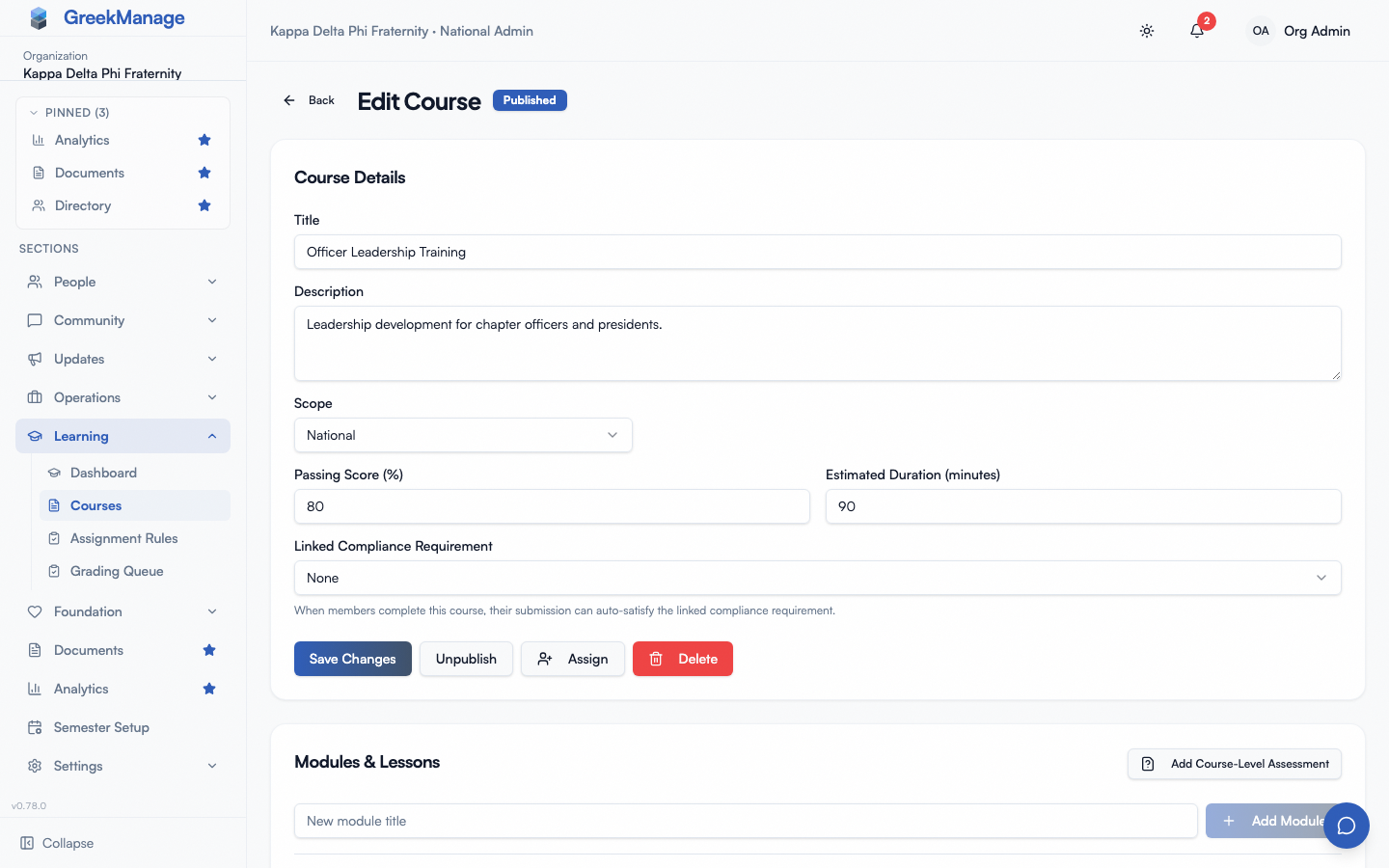
The course form captures everything a member needs to recognize the course before they enroll.
- Title. Short and descriptive. Use the year if the content is updated annually — “Hazing Prevention 2026” reads better than “Hazing Prevention” once you’ve published three versions.
- Description. A paragraph or two of context: who it’s for, what they’ll learn, roughly how long it takes.
- Cover image. Optional. A landscape image renders at the top of the course detail page; a square image renders next to the title in the course list.
- Estimated duration (minutes). Surfaces to members so they can plan time. This is informational only — the platform doesn’t enforce it.
- Passing score percent. Default 80. This is the course-wide passing threshold; individual assessments can override it.
- Scope. Pick one:
- National — visible to every chapter in your org.
- Regional — pick the region; visible to that region’s chapters only.
- Chapter — pick the chapter; visible to that chapter only.
- Compliance requirement (optional). Link this course to a national compliance requirement. When a member completes the course, a synthetic compliance submission is recorded against their chapter’s row for that requirement, so course completion can satisfy a compliance program automatically.
the course basics form with title, scope, and cover image filled in
Save the course. You’re now in Draft status — not visible to members, fully editable, and safe to iterate on.
Step 2: Structure the content
Inside the course editor, build out modules and lessons. See modules and lessons for the full breakdown of content types and ordering. The minimum a publishable course needs is:
- At least one module.
- At least one lesson inside that module, or one assessment attached to it.
This minimum is enforced: until the course holds a lesson or an assessment, Publish is disabled and reads “Add a lesson or an assessment before publishing.”, and the server refuses to publish it.
Add as many modules as the material requires. Most well-paced courses have three to seven modules with two to five lessons each.
Step 3: Add assessments
Attach an assessment to either a specific module (after the lessons in that module) or to the course itself (typically a final exam). See assessments and quiz types for question types, scoring, and time limits.
Step 4: Preview the course as a member
Before publishing, click Preview as member in the course editor. It opens the course exactly as a member’s player shows it, including while it is still a draft, with a Preview — not published banner across the top. Use it to catch:
- Typos in lesson titles or rich-text content.
- Broken video embeds or document previews.
- Lessons in the wrong order, or a module with nothing in it.
- Quiz questions that read badly or are missing answer options.
The preview is read-only and records nothing. Opening it does not enroll you, viewing lessons logs no progress, and there is no Mark complete. Quizzes open view-only: you see each question and its options as a member would, but you can’t select an answer or submit, and the answer key is not shown. To check which option is marked correct, or to try a time limit for real, use the quiz editor.
Back to editor returns you to the course editor.
Step 5: Publish
When you’re satisfied with the content, click Publish. A Publish this course? dialog asks you to confirm, and says who the course will be assigned to automatically if your org defaults auto-assign on publish. Confirming flips the course from Draft to Published and stamps the publish time. Members in scope can now enroll.
What happens on publish:
- The course becomes visible to members in scope.
- If you’ve configured org learning defaults with auto-assign on publish enabled, a bulk assignment is created targeting every member type you selected. This fires once per course — re-publishing a course later doesn’t re-trigger the bulk auto-assign.
- If the AI Services module is enabled with learning content indexing on, the course title, description, and rich-text lesson bodies are queued for embedding so the chatbot can answer questions about the course.
You can unpublish at any time. Unpublishing hides the course from new enrollments but does not affect existing enrollments — members already enrolled keep their progress and can finish the course.
Editing a published course
Edits to a published course apply immediately to anyone who hasn’t yet completed the course. There is no separate “draft revision” workflow — when you change a lesson’s rich-text content or swap a video URL, in-progress members will see the new content the next time they open that lesson.
This has two practical consequences:
- Minor edits are safe. Fixing a typo, updating a date, swapping a stale link — these never invalidate completion. Members who already completed the course keep their certificate.
- Structural edits can confuse in-progress members. Adding a new required lesson means members who were “98% complete” suddenly aren’t — they have to view and complete the new lesson before the course will mark them complete. Deleting a required lesson is the same in reverse: members who hadn’t yet seen that lesson will find their completion gate disappears.
If you need to roll out a major content update, the safest pattern is:
- Unpublish the existing course.
- Wait for in-progress enrollments to finish (or accept that they’ll be stuck on the old structure).
- Duplicate the course (clone the modules/lessons manually — there is no clone button today, so this is a copy job), edit the new copy, and publish it under a new title.
The roadmap includes a versioned “minor vs. major edit” workflow that pins existing enrollments to the version they started on, but it is not in the current release.
Deleting a course
Deletion is destructive. It removes the course, every module and lesson inside it, every assignment, every enrollment, and every quiz attempt. Certificates that were already issued are kept (they reference the certificate’s stored copy, not the live course), but the audit trail of who took which lesson when is gone.
Prefer unpublish for retiring a course. Delete only when the course was a test or genuinely shouldn’t exist anywhere in history.
Related
- Modules and lessons
- Assessments and quiz types
- Assignment rules
- Permissions matrix
- Learning authoring overview
Last verified against v0.62.1.