Grading queue
When a member submits an assessment that contains a Free Form question, the auto-grader scores everything it can and routes the rest to the grading queue. This page covers the grader’s workflow — what shows up, how to score it, what the member sees, and how deadline and overdue notifications fit in.
When something lands in the queue
The grading queue holds quiz attempts that:
- Have at least one Free Form question, or a Short Answer question with no answer key (see below).
- Have been submitted (the member finished the attempt).
- Have at least one answer with no points assigned yet.
Multiple-choice, true/false, and multi-select questions are graded the moment the attempt is submitted, so they never put an attempt in the queue and never ask you for a grade. They are still shown, read-only, under Auto-graded on the expanded attempt — the member’s pick, whether it was right, and the score it earned — because that is the context you read the free-form answers against. Short Answer questions are auto-graded too — but only when the author entered accepted answers for them.
Short Answer with no answer key. The auto-grader cannot score a question whose key is empty, so rather than mark every member wrong it hands the answer to you. These rows look and grade exactly like Free Form ones. Treat them as a signal: the question is misconfigured, and the durable fix is to add accepted answers in the course editor, or convert the question to Free Form if it was always meant for human grading.
Scope: who sees what
Each grader sees only the attempts they have authority over:
- National admins see every pending attempt across every chapter in their organization.
- Regional admins see attempts from members in chapters within their region.
- Chapter officers and presidents see attempts from members in their own chapter only.
- Platform admins see everything across every organization.
A regional admin can grade an attempt by a member in any chapter inside their region. A chapter officer cannot grade attempts from other chapters, even within the same region. This keeps the work distributed without leaking sensitive responses across chapter lines.
Nobody grades their own attempt. If you took a course quiz yourself, your attempt does not appear in your queue, and the platform refuses a grade on it — platform admins included. Another grader with authority over your chapter grades it: another officer, a regional admin or a national admin.
Open the queue
Navigate to Org → Learning → Grading.
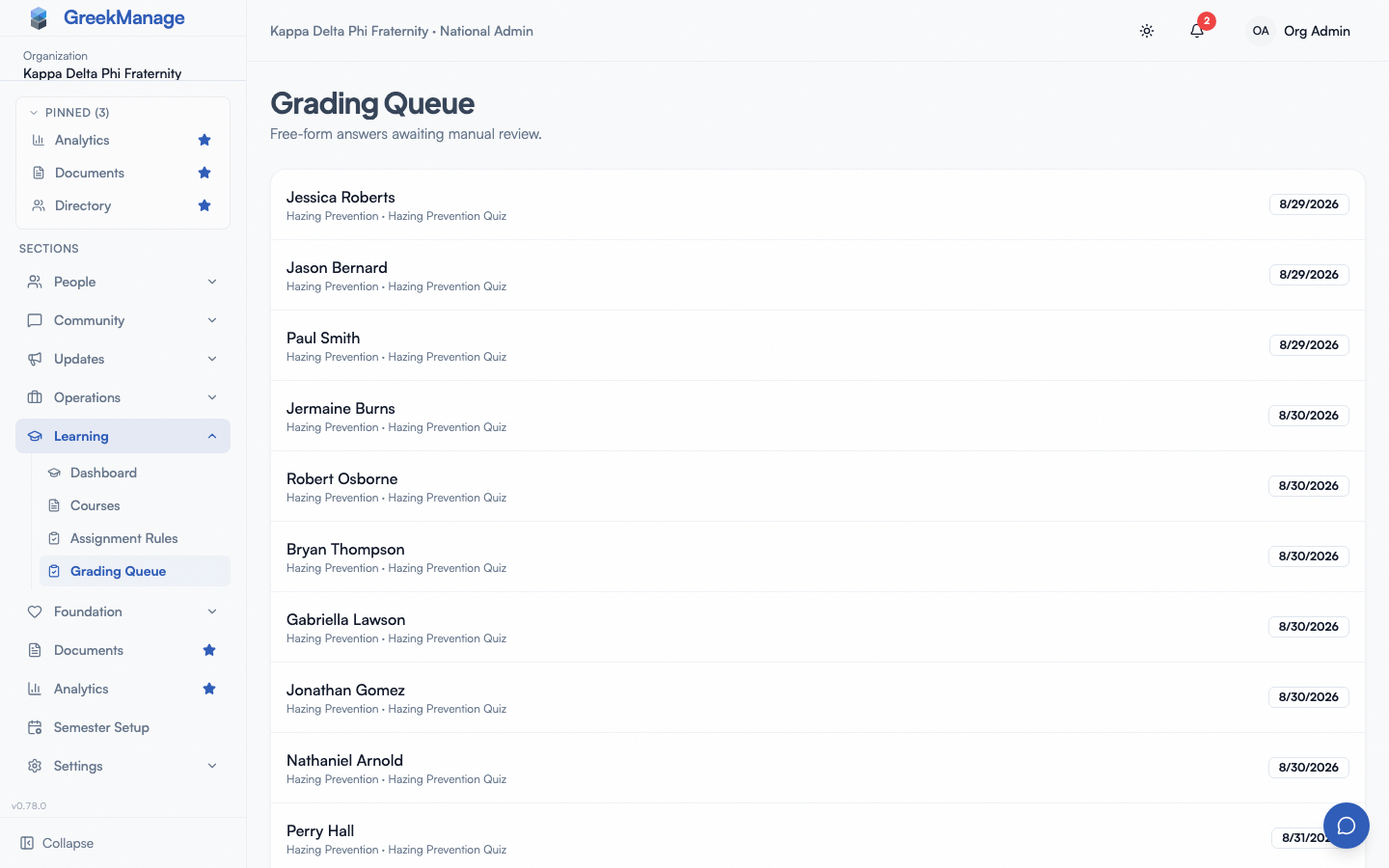 Grading queue with an expanded attempt — prompt, response, and points input.
You’ll see a list of pending attempts, each row showing:
- The member’s name.
- The course title.
- The assessment title.
- The date the attempt was submitted.
Click a row to expand it. The expanded view has two parts:
- The answers awaiting your grade — each Free Form question (and each Short Answer question with no answer key) on that attempt, the member’s typed response, the maximum point value, and a points input plus feedback field.
- Auto-graded — everything else on the attempt, read-only: the prompt, the options the member picked with a ✓ or ✗ against each, and the points the auto-grader awarded out of the question’s maximum. These carry no inputs, and the API refuses a hand-entered grade for them: the platform re-scores every auto-gradable answer from its answer key whenever anything on the attempt is saved, so a manual mark would be overwritten in the same request while your feedback stayed behind and went to the member.
Score an answer
For each answer awaiting your grade (the Auto-graded section has no inputs — see above):
- Read the prompt and the member’s response.
- Enter a point value between 0 and the question’s maximum. Decimals are allowed if you want partial credit (e.g., 3.5 out of 5).
- Optionally add Feedback — a short comment the member will see along with their score. Use this for “you nailed the main point but missed the policy citation” kinds of nuance.
- Click Save Grade.
Save Grade stays disabled until you enter a score, and clearing the field
disables it again. A blank box means “not decided yet” — it is never read as a
zero. Awarding no credit is a real grade, so type 0 and save; there is no way
to record one by accident.
The grade saves immediately. The attempt’s overall score is recomputed on the spot — the platform sums every graded answer’s points, divides by the total possible, and updates the attempt’s score percentage. If this was the last ungraded answer on the attempt, the attempt flips to fully graded.
You can grade multiple answers on the same attempt one at a time; each save is independent. You don’t have to grade them in any particular order.
Review graded attempts and override a short answer
The Graded tab lists fully graded attempts in your scope that contain a Short Answer question, newest first, with the score and verdict. Your own attempts are not listed.
Override a short answer when the answer key’s match was too strict for one member. For example, “Anti Hazing Policy” against a key of “Anti-Hazing” (see short answer keys).
- Open the attempt and find the short answer.
- Click Override score and enter a new score above the current one and no higher than the question’s maximum.
- Enter a Reason. It is required and is kept in the audit log.
- Click Save override.
The attempt re-scores at once. If it now passes and nothing else is outstanding, the course completes and the certificate follows. The row shows Adjusted by a grader with your reason. Override score also appears on a short answer with a key in an attempt that is still in the queue.
What “fully graded” means
An attempt has a is_graded flag that the platform manages. It works like this:
is_graded = falsewhile any Free Form answer is missing a score. The attempt’spassedflag is null (not “passed” yet, not “failed” yet) — the platform refuses to declare a verdict on a half-graded attempt.is_graded = truethe moment the last ungraded answer gets scored. The attempt’s overall percentage finalizes, thepassedflag is set based on whether it meets the passing threshold, and the grader’s identity is stamped on the attempt.
This matters because course completion is gated on a passing attempt — and the platform deliberately won’t mark the course complete until grading is finished. So a member can submit a final exam, see their auto-graded score immediately, but the “course completed” celebration waits for the grader.
When the last grade lands and the attempt passes, the platform re-evaluates the member’s enrollment. If every other required lesson and assessment is also done, the enrollment flips to Completed and the certificate generation job kicks off. The member sees the completion notification right away.
What the member sees
After the member submits their attempt:
- Auto-graded portion is visible immediately — they see which auto-graded questions they got right or wrong.
- Free Form questions — and any Short Answer question with no answer key — show “Awaiting grading” until you score them.
- Once you save the last grade, the attempt becomes fully graded. The member receives a notification with the overall result, sees their final percentage, and can read your feedback per question.
- If you raised a short answer, the member sees Adjusted by a grader next to it, with their latest score, when they reopen the quiz. They do not see who adjusted it or your reason.
- If they passed and that was the last gate, the course is marked complete and the certificate notification follows.
If they failed and still have attempts remaining (per the assessment’s max attempts), they can retake. If they’re out of attempts, the attempt stays failed; an admin would need to reset their attempt count for another try.
Filtering and sorting
The queue currently shows every pending attempt the grader has authority over, ordered by submission date oldest first — it is a FIFO work queue, so the member who has been waiting longest is at the top. There is no per-course filter or per-member search in the UI today — the queue is intentionally minimal, on the theory that graders should clear the queue rather than sort through it.
If you find your queue is unwieldy (more than a few dozen entries), the right move is usually to add more graders rather than build elaborate filters. Chapter officers are explicitly empowered to grade their own chapter’s Free Form answers so the workload distributes naturally.
Deadline reminders
The platform sends automatic reminders before an enrollment’s deadline:
- 7 days out. Members with an enrollment due in roughly a week get a “course deadline approaching” notification.
- 3 days out. A second reminder fires three days before the deadline.
- 1 day out. A final reminder on the day before due.
Each reminder fires at most once per enrollment per window — even if a worker run sweeps the same window twice, the dedup flags on the enrollment prevent duplicate notifications. The reminders are notification-only; they do not change the enrollment’s status, do not auto-extend the deadline, and do not loop in the officer.
These reminders are powered by a background job that runs hourly. There’s nothing for an admin to configure; the schedule is fixed.
Overdue enrollments
When an enrollment’s deadline passes without completion:
- The platform fires a course overdue notification to the member. They see it in their feed and (if email is configured) in their inbox.
- The platform fires the same overdue notification to every active officer and president in the member’s chapter. This is the escalation path — chapter leadership now knows one of their members is past due on required training.
- The enrollment stays open. The member can still submit and complete the course; the deadline becoming past does not lock them out, does not “expire” the enrollment, and does not auto-fail them.
The overdue notification fires exactly once per enrollment. Even if an enrollment sits 60 days past its deadline, you and the member don’t get a re-notification at day 30, day 45, etc. The single notification is the signal that something needs intervention; from there it’s a human conversation.
If you want enrollments to harden into an “expired” state at some point past the deadline, that’s a manual move today — open the enrollment and mark it expired. The platform’s bias is toward letting members finish late rather than slamming the door, on the assumption that completing the training late is still better than not completing it.
Common workflows
National admin clearing the queue weekly. Entries sort newest-first by default; start at the bottom with the oldest entries and work up.
Chapter officer reviewing your own chapter. Your queue is much smaller — just your chapter. Read responses for tone and content as much as strict correctness; a Free Form question is typically the “did this member actually engage” check.
Updating a grade you already gave. While the attempt is still in the queue, find the same answer and save a new grade — the latest save wins. Once it is fully graded it moves to Graded, where only a short answer with a key can be changed, and only upward.
A member’s attempt has sat ungraded for two weeks. That’s exactly what the overdue notification is for. If the member is past their deadline, they (and their officers) already got the overdue ping. Catch up the grading.
Related
Last verified against v0.62.1.