Modules and lessons
Once a course exists, you fill it with content. The structure is two layers deep: a course contains one or more modules, and each module contains one or more lessons (and optionally an assessment). This page covers how to use each lesson type, how ordering and required flags interact with completion, and the small but important conventions that keep a course consumable on phones.
Modules vs. the licensable “modules”
The word “module” is overloaded in GreekManage. Two distinct things share the name:
- Licensable modules — the products you enable per organization (Engage, Compliance, Learning itself, Foundation, etc.). These show up on the platform admin licensing page.
- Course modules — the section dividers inside a single Learning course. The Learning module ships with the concept of a course module.
Everywhere on this page, “module” refers to a course module unless explicitly noted.
Anatomy
Course
├── Module 1
│   ├── Lesson (rich text)
│   ├── Lesson (video)
│   └── Assessment (optional)
├── Module 2
│   └── Lesson (document)
└── Final Assessment (attached to the course, not a module)
A course can have any number of modules. Each module can have any number of lessons. An assessment can attach to either a module (after the lessons in that module) or directly to the course (typically as a final exam). See assessments for the assessment side.
Add a module
In the course editor, click Add module. Set:
- Title. Short — this shows up in the lesson list as a section header.
- Description. Optional. A one-liner that frames what the module covers.
- Order. Modules render top to bottom in the order you set. The first module is
order = 0.
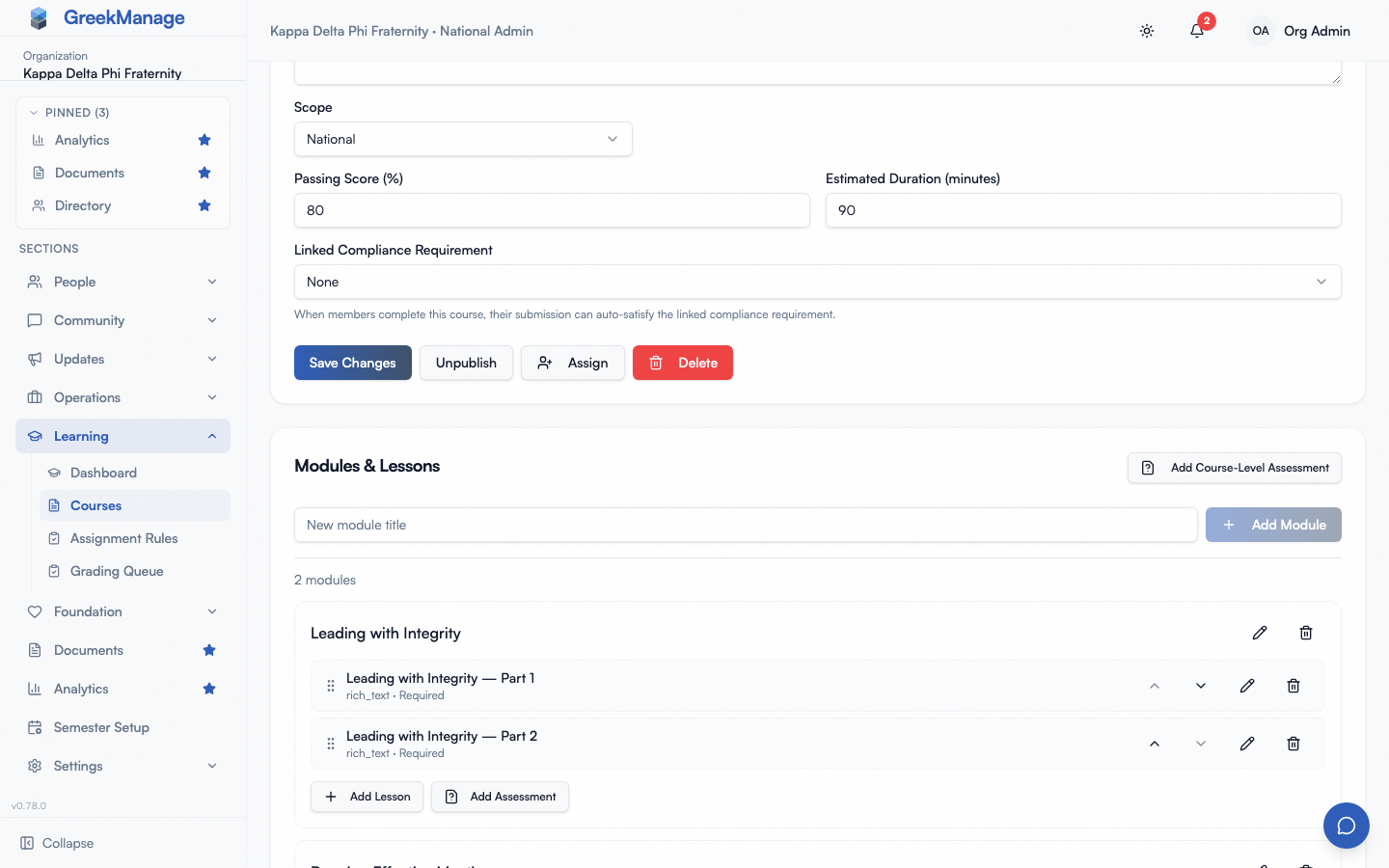 the inline ‘add module’ form
You can reorder modules by editing the order number on each one. Lower numbers render first.
Lesson content types
Every lesson is one of five content types. Pick the type when you create the lesson; you cannot convert a lesson from one type to another after creation — delete and re-create instead.
Rich Text
The default. The lesson body is a rich-text document. The editor’s toolbar offers bold, italic, bullet lists, and numbered lists; press Enter twice (or toggle the list button again) to leave a list. Best for written explanations, policy text, scripts, and walkthroughs that don’t need video.
The editor stores the document as structured JSON, so formatting survives intact across saves. If the AI Services module has learning content indexing enabled, the plain-text contents of rich-text lessons are included in the chatbot’s knowledge base, so members can ask “what does our hazing policy say about pledge events” and get a grounded answer.
Video
Embed a video via its public URL. YouTube and Vimeo are the most common sources, but any URL that supports oEmbed will render inline. Paste the share URL — the player handles the rest.
Practical notes:
- Use unlisted YouTube links if the content shouldn’t be discoverable. The lesson player will still embed it.
- Long videos (over 20 minutes) work but split poorly on phones. Consider chunking a one-hour talk into three 20-minute lessons.
- The platform does not host the video itself — if you take the video down at the source, the lesson plays back as an error.
Document
Upload a PDF or PowerPoint (.ppt or .pptx), up to 25 MB. Members see the document inline using the platform’s preview viewer. Each page fits the screen, with previous/next arrows, and Expand opens a near-full-screen viewer with zoom.
- PDF is the happy path. Inline preview works immediately on upload.
- PowerPoint files are converted to PDF in the background via LibreOffice. The conversion status flips from
pendingtoreadyonce the worker finishes (usually a few seconds). If conversion fails, the lesson falls back to a download link — members can still get the file, just not inline.
When you re-open a lesson that already has a file, the dialog names the attached file and offers a Download link, and the picker is labelled Replace. The file chooser itself always reads “no file selected” — browsers do not allow a file input to be pre-filled — so the Attached line, not the chooser, is what tells you whether a file is stored. Choosing a new file replaces the existing one; leaving the chooser empty and saving keeps it.
Word documents are not accepted — .doc/.docx are rejected on upload. Export to PDF first. (This page previously claimed Word was converted like PowerPoint; it never was.)
You can save a document lesson before choosing its file and attach one later by editing the lesson. Until a file is attached, members see the lesson with nothing to open.
Documents are stored in your organization’s storage backend (the same one you configured under storage config), so a per-org S3/MinIO bucket keeps your training content separate from other orgs.
Image
Upload a single image (PNG, JPEG, WebP). Useful for infographics, ritual diagrams, single-frame reference cards, and any content that’s faster to absorb visually than as a slide deck.
For step-by-step graphics, prefer a multi-page PDF over a giant image — PDFs paginate cleanly on phones.
External Link
A lesson that’s just a URL with a title. The lesson page renders a button that opens the link in a new tab. Use this for resources the platform shouldn’t try to host — your national website, a third-party LMS module, a public Notion page.
External-link lessons mark as viewed when the member clicks the button, since the platform can’t observe what they do off-site.
Lesson order
Lessons render top to bottom inside their module in the order you set. The first lesson in a module is order = 0. To reorder, drag the grip handle on a lesson row in the course editor — the platform updates the order numbers on every lesson in the module in a single transaction so they stay contiguous.
The order shows up to members in the same way as it does to you. Members are not forced to consume lessons in order (they can jump around), but completion is tracked per lesson, so the order is a guideline, not a gate.
Required vs. optional lessons
Every lesson has an Is required toggle. The default is on.
- Required lessons count toward course completion. A member can’t finish the course until every required lesson has a “completed” event recorded for it.
- Optional lessons still appear in the course and can still be viewed, but completing them doesn’t move the needle on overall completion. Use optional for supplementary reading, deep-dive videos, and bonus material.
A course that has zero required lessons and no assessments will technically complete the moment a member enrolls — there’s nothing to gate completion. If you want a course that’s truly “browse at your leisure” with no completion, leave it published but consider not assigning it.
Per-lesson completion tracking
The platform records two kinds of events per lesson, per member:
- Viewed — fired the first time a member opens the lesson. Subsequent re-opens append more
viewedevents to the log. - Completed — fired when a member explicitly clicks the “Mark complete” button at the end of a lesson, or when the player detects natural completion (e.g., reaching the end of a video).
Both event types are append-only — the platform never erases history. This means you have a full audit trail of who viewed what and when, which matters for compliance-linked courses.
A lesson is considered “done” for the purpose of course completion the first time a completed event lands. Repeated completions don’t change anything; the gate flipped on the first one.
Reordering, editing, deleting
- Reorder modules by editing the order field on the module form.
- Reorder lessons by dragging the grip handle in the course editor.
- Edit a lesson in place — content type can’t change, but title, body, required flag, and source URLs/files can.
- Delete a module — the modal warns you that every lesson inside it will also be deleted.
- Delete a lesson — also destroys any per-member view/completion events for that lesson. If the lesson was required, members who hadn’t completed it will see the completion gate disappear.
What’s not in scope today
- Conditional unlock. Every lesson is open from enrollment — there’s no “must complete lesson 1 before lesson 2 appears” gating. If you want sequencing, communicate it in lesson titles (“Step 1: …”, “Step 2: …”).
- Embedded interactive widgets. Lessons render their declared content type and nothing else; no iframes, no SCORM, no inline polls. External link is the escape hatch for off-platform interactivity.
- Lesson-level prerequisites across courses. A course is the unit of “you must finish X before Y” — see assignment rules for cross-course sequencing via status triggers.
Related
Last verified against v0.62.1.