Member XLSX / CSV import
For orgs migrating from spreadsheets, another platform, or onboarding a large pledge class, bulk import is the fastest way to load member data. GreekManage’s importer accepts XLSX (preferred — supports multiple sheets) and CSV, and uses AI to map your column headers to its canonical fields.
Open the import wizard
Org → Import Members (under the org settings / data management surface).
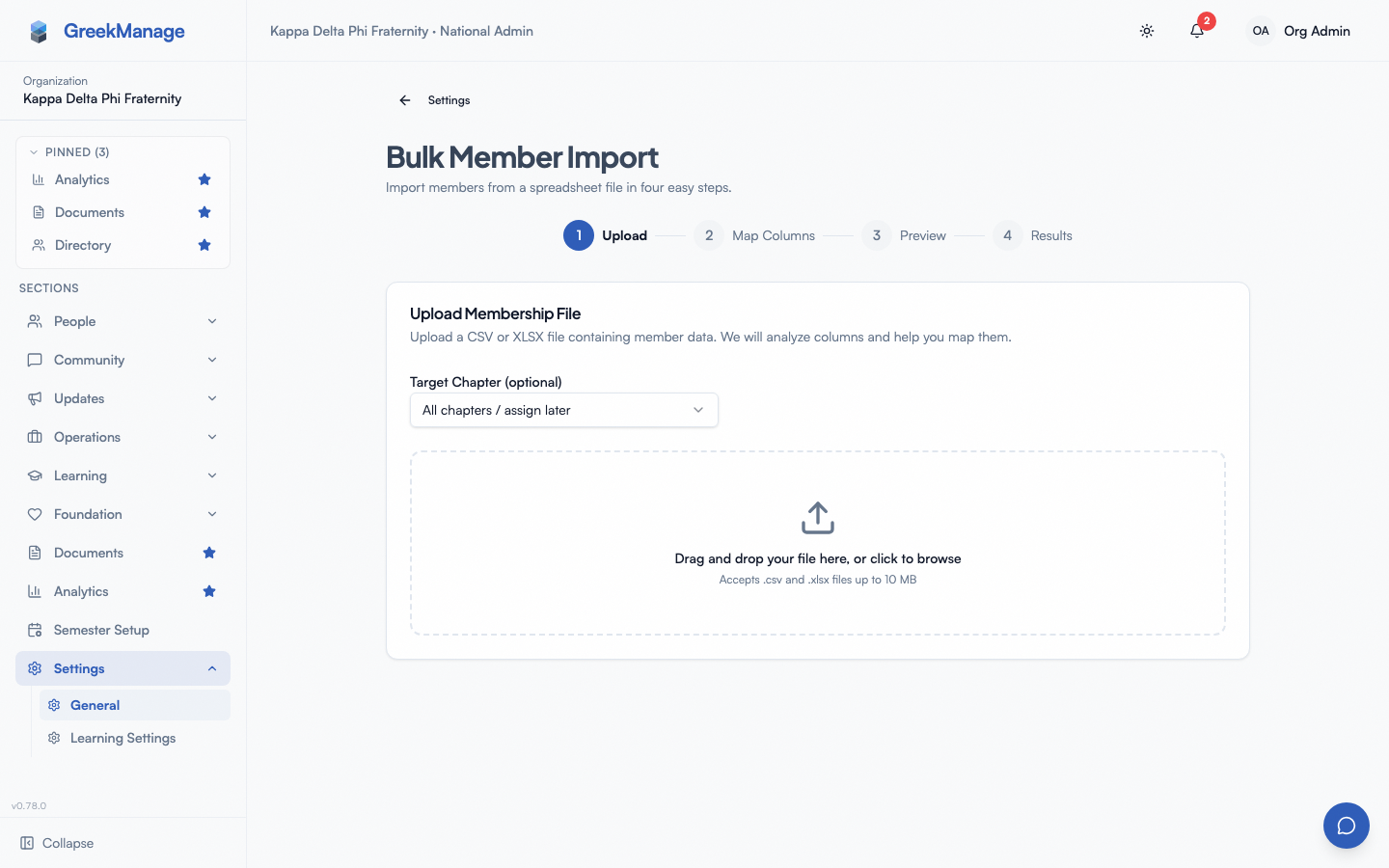 The bulk import wizard.
Step 1: Upload
Drag-and-drop an XLSX or CSV file onto the upload zone (or click to choose). Server-side limits:
- 5,000 rows total
- 5 sheets max per XLSX (each sheet processed; sheets with no data are skipped)
The wizard parses the file and shows detected sheets, headers, and a sample of each.
Step 2: Confirm the header row
The wizard shows the first 10 rows of each sheet as they appear in the file and preselects the row it thinks holds your column names, marked Suggested. If your file has a title or summary lines above the real header, select the right row (for example Row 6) and click Continue; rows above it are ignored. If the suggestion is right, just click Continue.
Step 3: AI column mapping
The importer uses an LLM to map each of your columns to one of GreekManage’s canonical target fields. Without an AI provider (or if the AI call fails), columns are matched by header name instead, and a file where nothing maps is stopped at this step rather than importing 0 members — see Without AI. Common targets:
- User:
email,first_name,last_name,phone_number - Membership:
chapter,status,role,joined_date,graduation_year,graduation_season,pledge_class,crossing_semester - Profile:
org_member_name,big,new_member_educator,school_attended,profession,company,employment_role,city,state,country,linkedin_url,personal_website,willing_to_mentor,open_to_connect - Academic:
major,minor(written to the member’s profile) - Degree:
degree,school— mappable but not yet persisted
Review the suggested mapping. You can adjust any column’s target or mark it as “skip”. For multi-sheet XLSX files you map columns per sheet.
Step 4: Preview and validate
The wizard validates:
- Required fields present (chapter, status, role at minimum per row)
- Chapter values resolve to existing chapters in your org
- Status / role values are valid enums
- Duplicate emails are detected
- Emails belonging to someone in a different organization (a membership in any status, or a current national/regional admin role there) are flagged as errors — a person belongs to one organization, and the import refuses that row (writing nothing for it) while the rest import
You’ll see per-row results: rows ready to import vs. rows with errors.
Inline error editing
For rows with errors, click into the row and edit the fields directly in the wizard — no need to fix the spreadsheet and re-upload. Save the corrections; the row is re-validated.
Step 5: Run
Click Run import. Processing happens in the background; you can leave the page and a notification will tell you when it’s done.
Email-optional placeholder accounts
Members without an email address can still be imported. The importer creates a placeholder user with an internal no-email-<random>@placeholder.local address. These accounts are directory-only — they have no login, no welcome email, and no password. When a real email is added later, the placeholder address can be replaced and the account upgraded to a real login.
This is useful for historical roster data where some members never had a recorded email.
Re-running an import
If you re-upload a file that includes existing members (matched by email):
- Existing members are updated with any new field values.
- New members are created.
- No members are deleted — even if they’re missing from the new file.
To remove members, do it manually (or via a bulk-deactivate workflow outside the importer).
Big-Little relationships
If you include big for each member:
- The importer resolves bigs after the main pass.
- If a member’s big is in the same import, both rows process correctly.
- If the big doesn’t exist, the relationship is skipped (logged in the import result).
You can re-run the import once all members exist to fill in any missed relationships.
Tips
- Pilot with a few rows first. Run a 5-row import end-to-end before loading 2,000 rows.
- Use XLSX for multi-sheet imports (one sheet per chapter, for example).
- Trust the AI mapping but verify. It’s usually right; double-check chapter and role/status columns specifically.
Related
Last verified against v0.62.1 (2026-05-10).