Member detail (admin view)
The member detail page is the canonical "everything about this person" surface. National admins see the most editable version: personal info, fraternal profile, lineage, status, custom fields, and a security section for password reset. This page walks the admin view section by section.
To open a member detail page, navigate from any list — Members, the chapter detail Members tab, search, the engage member directory — and click a name. The header shows the member's full name and primary email, plus a back button to return to the previous list.
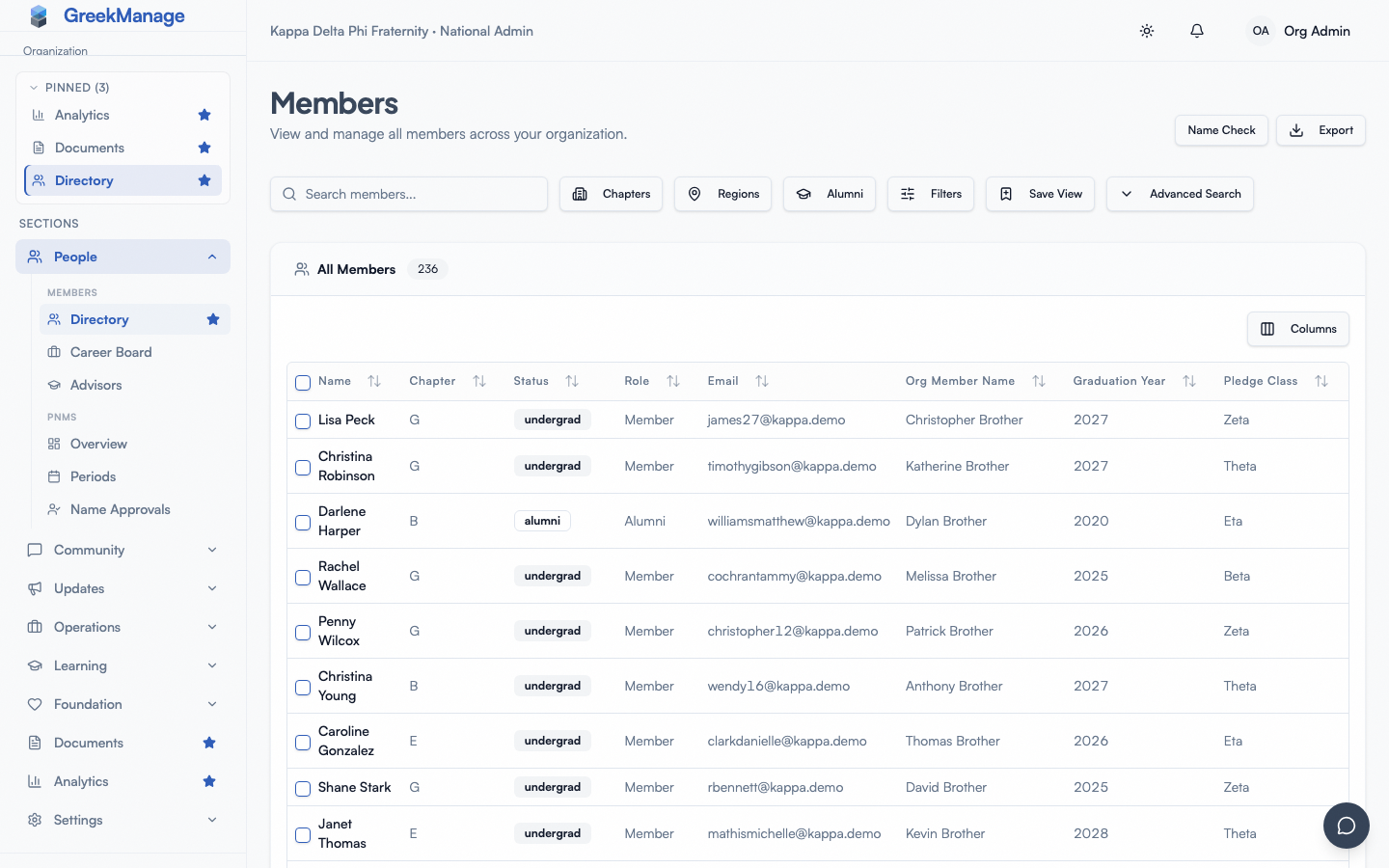 Member detail header with the member's name, primary email, and section navigation.
What you see
The page is a series of stacked cards, each representing a distinct surface. The order is roughly:
- LinkedIn link card — for the member's own use; you see it but cannot link on their behalf
- Personal Info — name, email, phone, bio, LinkedIn URL, school attended
- Member Emails — the secondary email management surface (admin-controllable)
- Security (admin only, not on own profile) — password reset entry point
- Fraternal Profile — org member name (line name), big brother, new member educator
- Work History, Certifications, Affiliations, Skills — read-only for admins viewing other members; self-editable
- Location & Networking — city, state, country, mentor availability, open-to-connect, personal website
- Education — degrees and majors
- Chapter Membership — status, joined date, pledge class, line number, crossing semester, crossing date, graduation term
- Custom Fields — values for any member-scoped custom fields your org has defined
- Donation history — only visible if you also have the foundation admin role
Fields you can edit
As a national admin viewing another member's profile, you can edit:
- Org member name (line name) — from the Fraternal Profile section
- Big brother — searchable picker; the change goes through the lineage approval workflow
- New member educator — searchable picker; direct edit, no approval needed
- City, state, country, mentor availability, open-to-connect, personal website — Location & Networking
- Degrees — add, edit, delete from the Education section
- Chapter status — Undergrad, Associate, Alumni, Active Alumni, Lifetime Alumni, Disaffiliated, Inactive
- Graduation term — a searchable "Fall 2026"-style picker, inline in the Chapter Membership section
- Joined date, pledge class, line number, crossing semester, crossing date — via an Edit Chapter Info form in the Chapter Membership section (click to reveal, Save/Cancel)
- Member-scoped custom field values — Custom Fields section
- Secondary email addresses — add and remove non-primary emails on behalf of the member. You cannot verify one; see below.
Adding an email for a member
An address you add is inactive until the member confirms it. GreekManage emails a 6-digit code to the address, and the member enters it from their own account under Settings → Email Addresses. Until then the row shows an Unverified badge and does nothing at all: it cannot be used to sign in, it cannot receive a GreekManage password reset, and it cannot receive provisioned account credentials.
:::info Why an admin can't just mark it verified A verified address is not a contact detail — it is a way into the account. It is accepted as a login identity, it is a valid target for the password-reset link on the public sign-in page, and it is where Workspace/M365 credentials get sent. If an administrator could mark one verified, then adding an address you control and then requesting a password reset to it would be a complete account takeover, invisible to the member.
The confirmation step is what removes that: the code lands in the new inbox, but redeeming it requires being signed in as the member, so it cannot be completed by whoever added the address.
This changed in v0.73.19. Addresses added before then were created verified and are unaffected. :::
If the member cannot reach the address you are adding, the address is the wrong one — adding it verified would not have helped them either, it would only have made the mistake invisible.
The member themself can edit a wider set on their own profile: personal info (name, phone, bio, LinkedIn URL, school attended), work history, certifications, affiliations, and skills. As an admin you can view those self-curated fields but not edit them on someone else's behalf — that's by design, because professional history and skill self-assertions are noisy if admins can edit them.
The member's chapter role (Officer, President, Member) is not editable from this page. Role changes happen under Settings → Chapter Officers — see "Officer promote/demote workflow" below.
Status changes from an admin's perspective
When an admin uses the status dropdown in the Chapter Membership section, the change is auto-approved and applies immediately. This is different from the officer flow, where status changes go through an approval cascade.
The dropdown shows seven options:
- Undergrad — the default for newly added members
- Associate — alternate active-member tier for orgs that use it
- Alumni — standard alumni; non-active
- Active Alumni — alumni who remain engaged; counted as alumni but eligible for alumni-tier features
- Lifetime Alumni — special tier (e.g. lifetime dues paid); long-term alumni
- Disaffiliated — platform access removed; member can no longer sign in
- Inactive — historical record preserved; reduced or no notifications
A tiny helper line below the dropdown reads: "To assign officer or president positions, use Settings → Chapter Officers." This is the easy-to-miss split that comes up below.
chapter membership card with the status dropdown open showing all seven options
Lineage: big brother and new member educator
The Fraternal Profile section is where you record a member's lineage. The two fields are:
- Big brother — the member's "big" in the org's family-tree lineage
- New member educator (NME) — the member who shepherded them through new-member education
The new member educator is a direct edit — you pick a member, save, done.
The big brother field is different. Changes to big brother go through the lineage approval workflow:
- You pick a new big in the search input and click Save Fraternal Info.
- If you're the national admin, the relationship is auto-approved on submit (you're the highest tier).
- If you're a regional admin or officer, your change goes into the lineage approvals queue for the next tier up to confirm.
Either way, the rest of the fields on the form save immediately. Only the lineage piece routes through approval. Toast notifications confirm whichever path the change took.
For the full Big-Little workflow including cycle detection and the React Flow visualization, see the family tree page — that page is also the admin entry point for managing big/little relationships at scale; per-member tweaks live here on the member detail page.
Officer promote/demote workflow
This is the friction point most new admins hit: the member detail page does not let you change someone's chapter role. You can change their status (undergrad, alumni, etc.) inline, but to make them an officer or demote a former officer back to member, you go to a different page.
The flow:
- Open Settings → Chapter Officers (this is org-scoped, not chapter-scoped — you'll see all officers across all chapters).
- Find the chapter whose officer roster you want to edit.
- Promote a member to Officer or President, or demote an existing officer back to plain Member.
The split exists because chapter status (a property of the membership) and chapter role (a property of the chapter's officer assignments) are tracked separately. This came up in v0.49.0 when the officer roles were generalized — the Settings surface was added at that point and the Member detail page was deliberately left as a status-only surface.
If you're brand new to the platform, expect to make this trip a few times before it becomes muscle memory. The Member detail page's status dropdown helper line is there specifically to redirect you.
Custom data entry
The Custom Fields card renders one input per defined member-scoped custom field for your org. Field types include text, number, date, boolean, and select.
To edit values, fill in the inputs and click Save Custom Fields. Saves are atomic — the whole record is replaced. If you want to clear a field, set it to empty and save.
If no member-scoped custom fields exist for your org, the card displays an empty state with a link to Custom Fields in Settings. Define fields there, then return to this page to enter per-member values.
Member Emails section
Members can have a primary email plus any number of verified secondary emails (used for SSO matching and as recovery addresses). As an admin you can:
- Add an email to the member's account — typed in directly; if the member should verify it, the system sends a verification link to that address; or you can mark it as admin-verified
- Remove a non-primary email — for cleanup or when a member has left an employer
- Set a new primary — usually only when the member explicitly asks
This works for any chapter member you administer. Chapter officers in the same chapter have the same capability for members of their chapter.
Security section: admin password reset
This card only appears when you're viewing another member's profile (not your own) and you're a national admin. Click Reset Password to choose between two options:
- Send password reset email — emails the member a one-time reset link
- Generate temporary password — generates a temporary password you can read out / paste in a secure channel; the member is required to change it on next login
Either path signs the member out of all current sessions, so they'll need to sign in again with their new credentials.
Use this when a member is locked out, has lost access to their primary email, or asks for help resetting from a chapter event. For self-service password reset, members go through the standard forgot-password flow on the sign-in page.
For regional admins, the same Security card surfaces, but their reset is scoped to members in chapters within their region.
What officers see that you don't
A chapter officer viewing this same page for a member of their own chapter sees:
- Personal info section (read for members other than themself)
- Member emails section (with add/remove for their chapter's members)
- Status change as a dialog with a request workflow, not the inline dropdown — officer-initiated status changes route to a national admin for approval
- Fraternal profile with big/little picker (changes go through approval)
- No security/password reset card
- Custom Fields card is read-only
For the officer-side view in detail, see managing chapter members (officer view).
What regional admins see
Regional admins see this page for any member in a chapter within their region. They have the same edit capabilities as a national admin for those members, including the password reset card scoped to their region.
Mobile differences
The page is fully responsive. Cards stack to a single column on phones. Forms render with native inputs; selects open as native pickers on iOS and Android. The big/little member search input collapses to a full-screen search modal on small screens. There are no biometric prompts or special permissions for the admin actions — standard authenticated session is enough.
Errors and edge cases
- The status dropdown is greyed out. You're either viewing your own profile (you cannot change your own status that way) or the membership has a pending status change request that needs to resolve in the approvals queue first.
- A big/little change "succeeded" but you don't see the big assigned. As an admin, the assignment is auto-approved and applies immediately. If the value didn't stick, look for a race with another simultaneous edit — refresh and try again. The 50ms race between the profile save and the big/little request is a known minor issue when typing fast through the form.
- You can't see the Security section even on another member's profile. Confirm you're signed in as a national admin (or a regional admin scoped to their region). The card is hidden for chapter officers and for plain members.
- The Custom Fields card shows fields but Save doesn't seem to work. Confirm at least one input has been changed; the Save button does not pop a confirmation. Look at the toast notification for success or failure.
- The "Send password reset email" path appears to do nothing. Check that the member has a deliverable primary email. The reset email is sent in the background; delivery delays can be a minute or so.
Troubleshooting
- You promoted a member to Officer but they still see the regular member sidebar. Have them sign out and back in. Officer role checks happen on session establishment.
- You demoted a member from Officer but their permissions still seem elevated. Same as above — sign-out-and-back-in is the fastest fix. Cached client state can lag behind a role change for the current session.
- Personal info is missing for a newly invited member. The member fills in their own personal info, work history, etc. on first sign-in. As an admin you can pre-populate name and email but the rest comes from the member.
- Donation history card is missing. That card only renders for users who hold the foundation admin role on the org. If you don't see it, you're not a foundation admin even if you're a national admin.
Related
- Chapter detail (admin view) — the chapter-level admin surface
- Managing chapter members (officer view) — the officer-side equivalent for their chapter's members
- Family tree — Big-Little lineage management at scale
- Bulk member XLSX import — when you need to set fields across hundreds of members at once
- Custom fields — defining member-scoped and chapter-scoped custom fields
- Permissions matrix — full role and capability matrix
Last verified against v0.62.1 (2026-05-11).