Onboarding templates
Onboarding templates are a plain, admin-authored member checklist — not an AI-generated feature. It rides the AI Services module's on/off switch purely for licensing and gating; nothing on this page involves the chatbot or an LLM.
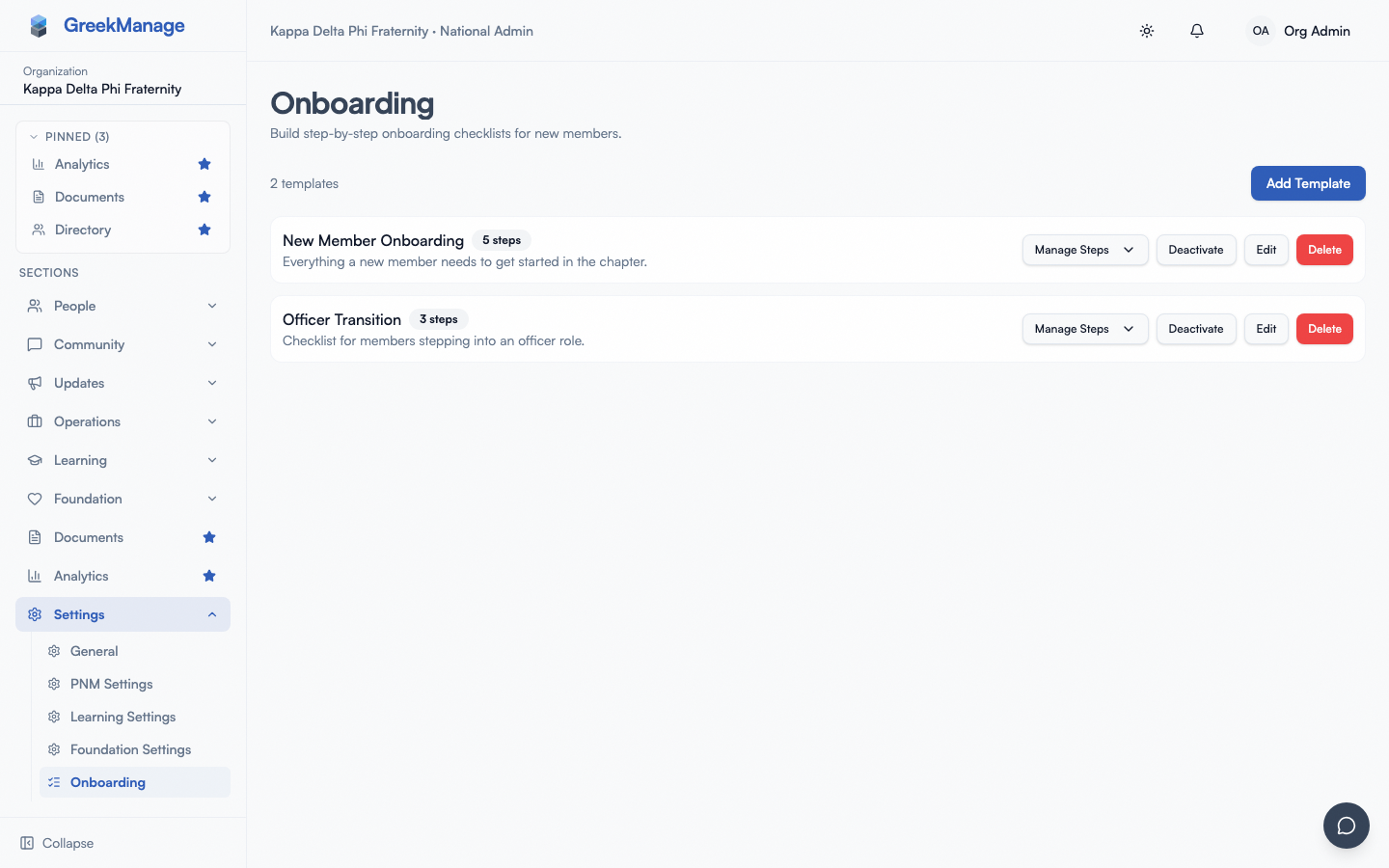 The Onboarding template authoring page.
What you see
Org sidebar → Onboarding (/org/onboarding, ListChecks icon, gated by the AI Services module). Page title "Onboarding", subtitle "Build step-by-step onboarding checklists for new members."
If the templates fail to load, you'll see one of two error states instead of the list — see Errors and edge cases below.
The templates list shows:
- A header reading "{N} template(s)" and an "Add Template" button.
- If you have no templates yet, an empty state: title "No onboarding templates yet", description "Create a template to give new members a step-by-step checklist.", with its own "Add Template" action button.
- Each template row: the title and optional description, an "Inactive" badge (row dimmed) if the template is deactivated, a "{N} step(s)" count badge, and buttons for "Manage Steps"/"Hide Steps" (expand/collapse), "Deactivate"/"Activate", "Edit", and "Delete".
Creating and managing a template
Click "Add Template" to open the "New Onboarding Template" dialog:
- Title — required.
- Description — optional, textarea, placeholder "Description (optional)".
- Order — optional number input.
- Active — toggle switch, on by default.
Click "Create" to save (the button reads "Creating…" while the request is in flight, and stays disabled while the title is empty). Editing an existing template opens the same dialog, retitled "Edit Onboarding Template", with a "Save" button ("Saving…" while pending).
Activate / Deactivate. Click the "Deactivate" or "Activate" button on a row to toggle is_active — this takes effect immediately with no confirmation dialog, and it's the switch that actually decides whether members can see the template (see Only one active template counts below).
Delete. Click "Delete" on a row, and confirm the browser dialog: "Delete this onboarding template and all its steps? This cannot be undone." This is exactly as destructive as it sounds — it's a real cascading delete, not a soft-delete. Deleting a template deletes every step under it, and every member's completion record for those steps, permanently.
Managing steps
Click "Manage Steps" on a template row to expand its steps panel (the button becomes "Hide Steps" while expanded). Inside:
- A header reading "Steps" and an "Add Step" button.
- An empty state if there are none yet: "No steps yet. Add one to get started."
- Each step row: ↑ / ↓ reorder buttons (disabled at the top/bottom of the list — these swap the numeric
orderfield between adjacent steps; there's no drag-and-drop), the step's title, a "Required" badge if the step is marked required, its optional description, an inline Required toggle switch (no confirmation), and "Edit" / "Delete" buttons.
Click "Add Step" for the "New Step" dialog:
- Title — required.
- Description — optional.
- Required — toggle, on by default.
There's no Order field in this dialog — a new step is silently placed after the last existing one (or first, if the template has no steps yet). Reorder afterward with the ↑/↓ buttons described below. Buttons are "Cancel" and "Add". Editing a step reuses the same fields under the title "Edit Step", with a "Save" button.
Deleting a step asks: "Delete this step?" — confirming cascades to delete that step and any member's progress record against it. That progress simply disappears from a member's checklist; it isn't recoverable.
Only one active template counts
If you mark more than one template Active at the same time, only one of them is actually shown to members — whichever comes first by query order. The others stay invisible to members even though they're flagged active. Keep exactly one template Active at a time to avoid confusing yourself about which checklist your members are actually working through. If you deactivate every template (or delete them all), members simply see no checklist at all.
Required is a label, not an enforcement
Marking a step Required only shows a "Required" badge to members — it has no gating effect. A member can mark every optional step done and skip every required one (or vice versa) and the checklist still reports "all complete" the same way either way; required and optional steps are counted identically. Use the badge to communicate priority, not to guarantee completion.
Errors and edge cases
- Onboarding disabled for this organization. Title "Onboarding is disabled", description "Onboarding is disabled for this organization. Enable it from AI Settings to use this feature." — this appears when the
ai_scope_onboardingtoggle is off (see What's exposed in AI Settings below). - Something else goes wrong loading templates. Title "Unable to load onboarding templates", description "Something went wrong loading onboarding templates. Try again later."
- Deleting is destructive. As covered above, deleting a template or a step is a real cascading delete of that data and any member's progress against it — there's no soft-delete or recovery path, and no warning beyond the confirm-dialog text quoted above.
What's exposed in AI Settings
Whether onboarding is scoped on for your org (the ai_scope_onboarding flag behind the "Onboarding is disabled" error above) is a real, working control — it's just not on this page. It's the "Onboarding Guidance" toggle in the AI Content Sources card at Org → Settings → AI Assistant, grouped under that card's "System signals & AI workflows" section alongside similar toggles for mentorship, notifications, and reports. Turning it off disables every onboarding endpoint for your org (templates, steps, and progress) with the "Onboarding is disabled" message above — this is a feature kill-switch, not a content-retrieval scope like the other toggles on that card. See AI Services — content scope for the full toggle rundown.
Related
- Onboarding checklist (members) — what your members see once you've published a checklist
- AI Services — content scope — the "Onboarding Guidance" toggle and its siblings
- Module: AI Services
Last verified against v0.65.25 (2026-07-05). AI Onboarding shipped v0.65.8; previously undocumented. Corrected an earlier assumption that ai_scope_onboarding had no UI control — it's exposed as the "Onboarding Guidance" toggle in the AI Content Sources card (confirmed directly against frontend/src/components/settings/ai-settings.tsx).