Org bulletins authoring
Org bulletins are the dashboard announcement layer for your organization. They surface on every member's home page, sit above the social feed, and stay until they expire or are deleted. This page covers what you need to compose, target, publish, and retire one.
What an org bulletin is
Each bulletin carries:
- A title that appears in bold on the dashboard card.
- A rich-text body composed in a WYSIWYG editor with headings, bold, italic, lists, links, inline images, and @mentions. The body is stored as HTML.
- An optional hero image URL that renders as a banner with the bulletin.
- An optional region target. Leave it blank to send organization-wide, or pick a single region to scope it.
- A pinned flag that lifts the bulletin to the featured slot at the top of the dashboard banner.
- A published flag. Only published bulletins reach members; drafts stay visible to admins only.
- A published-at timestamp that's set automatically the first time the bulletin flips from draft to published.
- An optional expiry date. Once it passes, the bulletin disappears from member dashboards but stays in the admin list with an "Expired" badge so you keep the history.
There is no chapter-level targeting and no per-member dismissal tracking. If a member sees a bulletin and you want to know they saw it, you'll need to follow up out-of-band.
Who can author
Org bulletin creation is open to national admins and regional admins. National admins can publish org-wide or any-region bulletins. Regional admins typically scope theirs to the region they administer. Chapter officers, foundation admins, members, and PNM admins cannot create, edit, or delete bulletins.
Open the bulletins page
Go to Org → Bulletins. You'll land on a table of every bulletin attached to your organization, sorted pinned-first, then newest-first. Columns show:
- Title
- Status (Draft, Published, or Expired)
- A pin indicator
- Region (or "All" for org-wide)
- The admin who created it
- Publish date
- Per-row actions (edit, publish, delete)
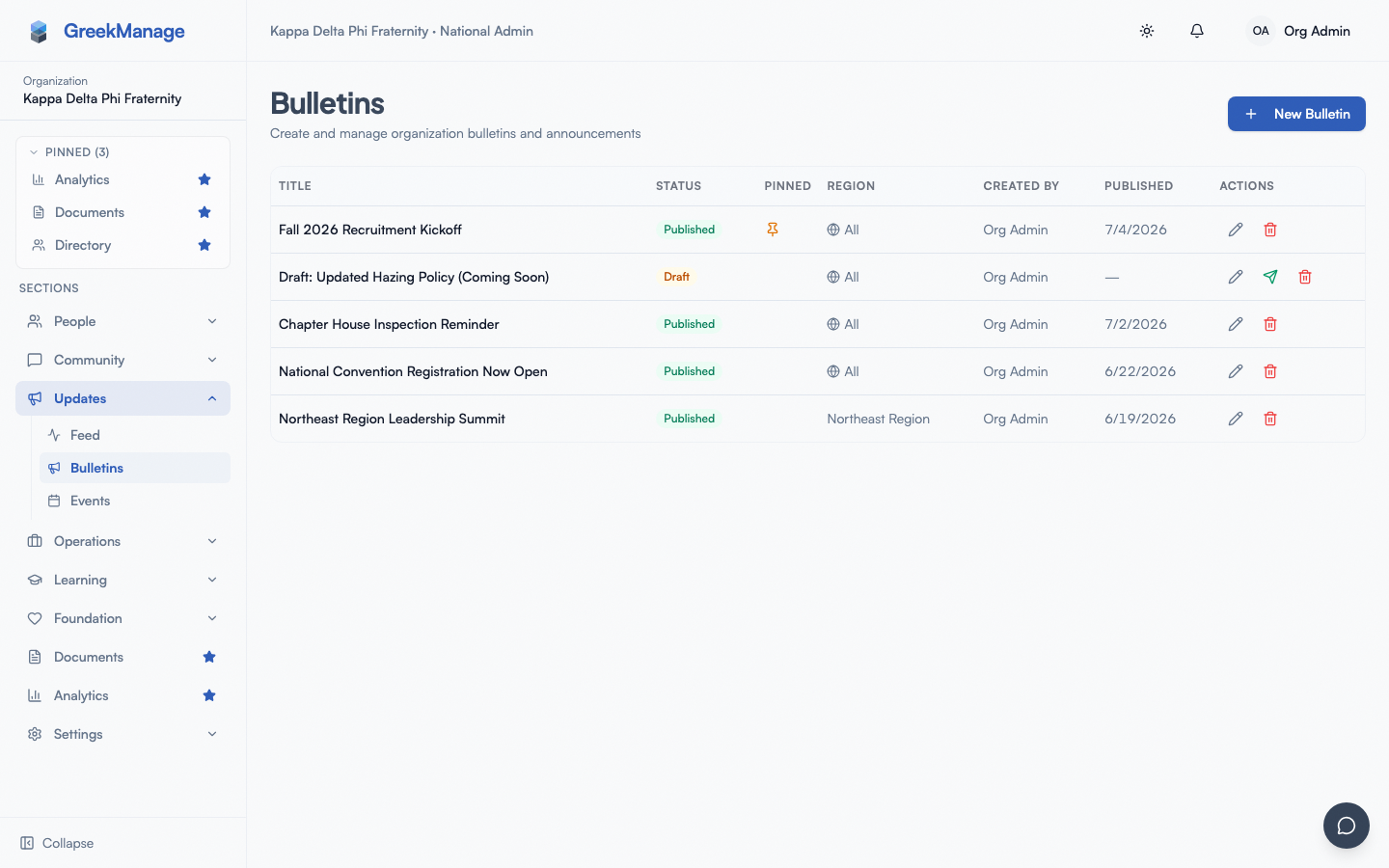 Org admin Bulletins page with the table, status badges, pin indicators, and per-row actions.
Create a bulletin
- Click New Bulletin in the top-right.
- A dialog opens with the composer:
- Title (required).
- Content — the rich-text editor. Use the toolbar for bold, italic, headings, lists, and links. Paste inline images or use the image button.
- Hero image URL (optional) — a banner image displayed with the bulletin.
- Region (optional) — pick a region from the dropdown, or leave it on "All regions (org-wide)".
- Pinned — toggle on to pin to the featured slot.
- Publish immediately — toggle on to publish on save. Off saves the bulletin as a draft.
- Expiry date (optional) — the day the bulletin should drop from member dashboards.
- Click Create.
If Publish immediately is on, the bulletin is live and the publish timestamp is stamped to now. If it's off, the bulletin sits as a draft and only admins can see it.
bulletin composer dialog showing the rich-text editor, region dropdown, pinned and publish toggles, and expiry date picker
Publish a draft
A draft bulletin shows a green paper-plane icon in the actions column. Click it to publish. The bulletin becomes visible on member dashboards immediately and the publish timestamp is stamped to now.
There's no future-dated auto-publish. You can save a draft today and click publish next Tuesday, but you can't queue an auto-publish for a specific date.
Edit, retire, or delete
- Edit — click the pencil icon, or anywhere on the row. The composer reopens with the existing values. Changes go live on save; members see the new body on their next dashboard load.
- Retire by expiry — edit the bulletin and set the expiry date to today (or any past date). The bulletin disappears from member dashboards on their next load but stays in the admin list with an "Expired" badge so the history is preserved.
- Delete — click the trash icon. The bulletin is removed permanently. Prefer expiry over deletion when you want to keep a record.
How members see bulletins
Bulletins surface on the dashboard in an Announcements section above the social feed. The layout is:
- The pinned bulletin (if any) appears as a featured card with a "Pinned" badge, a byline ("National HQ" for org-wide or "Regional" for region-scoped), and a content preview.
- Up to three additional bulletins appear in a horizontal scrolling row beneath the pinned card, newest-first.
The same banner appears on the org, region, and chapter dashboards. The dashboard filters down to bulletins that the viewing member should see based on their region. Only published, non-expired bulletins ever reach members.
If a member dismisses a bulletin in their head and moves on, that's the end of it — the platform does not track which members read which bulletins. Two members in the same chapter both see the same announcements until the bulletin expires.
Region targeting
Use the Region dropdown:
- A bulletin with no region (the "All regions (org-wide)" option) is visible to every member of the organization.
- A bulletin scoped to a region is visible to members whose chapter belongs to that region, plus the regional admin for that region.
There is no multi-region targeting and no chapter-level targeting. The smallest unit is one region. To reach two regions with the same content, create two bulletins.
Pinning
Pinning lifts a bulletin to the featured slot at the top of the dashboard banner. Only one bulletin shows in the featured slot at a time (the dashboard picks the first pinned bulletin, newest-first); other pinned bulletins fall through to the regular feed. Use pinning sparingly — unpin older bulletins when you ship a new one that deserves the top slot.
Bulletins versus forum posts
Bulletins are one-way announcements: no thread, no comments, no replies. They appear on the dashboard and stay until expiry. Use them for hard news (officer elections, dues deadlines, retreat dates, policy changes).
Forum posts are discussion starters: they live in a specific forum, members can react and comment, and they don't surface on the dashboard. Use a forum thread when you want feedback. A common pattern is to post the forum thread for dialogue, then publish a bulletin that links to it.
Mobile differences
On phones, the dashboard announcement banner stacks vertically. The pinned bulletin becomes a full-width card on top; the recent row scrolls horizontally with a swipe. Long bulletin bodies clip to three lines with a fade — members tap the card to read the rest. The composer is admin-only and is intended for desktop authoring; tapping New Bulletin on a phone works but the rich-text editor's toolbar is cramped.
What chapter officers see that you don't
Chapter officers do not author org bulletins, but they do see them. From a chapter officer's view, bulletins look identical to a regular member's view — there is no admin column, no edit action, no publish action. Officers can't reply, dismiss, or pin a bulletin. If they want to amplify it, they have to repost it themselves in a chapter forum.
Errors and edge cases
- A bulletin without a title won't save. The Create button stays disabled until the title field has content.
- An invalid hero image URL won't be validated up front. The form accepts any URL string; if the URL is broken, members will see a blank space where the banner should be. Test the URL in another tab before publishing.
- Expired bulletins can be edited. Setting a new expiry date in the future republishes them implicitly the next time a member loads the dashboard. If you want to truly re-launch an old bulletin, edit the body and bump the expiry forward.
- Deleting a published bulletin is irreversible. There's no trash or undo. If you might want to reuse the content, copy it out first.
Troubleshooting
- A member says they don't see a bulletin you published. Confirm the bulletin's status is Published, not Draft. Confirm the expiry date is in the future or blank. If the bulletin is region-scoped, confirm the member's chapter is in that region.
- The pinned bulletin isn't pinned on the member dashboard. The dashboard surfaces only the first pinned bulletin (newest-first). If you have several pinned bulletins, unpin the older ones.
- A regional admin can't see another region's bulletin. That's expected. Regional admins see org-wide bulletins plus their own region's bulletins. To create a bulletin for a different region, sign in as a national admin.
- The rich-text editor isn't loading. Reload the page. If the toolbar still doesn't appear, your network may be blocking the WYSIWYG asset bundle — try a different network or browser.
What's deliberately not built
- No future-dated auto-publish. Drafts stay drafts until manually published.
- No chapter-level or multi-region targeting.
- No email delivery. Org bulletins are dashboard-only.
- No analytics on bulletin reads (who opened, how many).
- No author collaboration (no draft review, comments, or approval step).
- No per-member dismissal — every member who is in the targeted scope sees the bulletin until it expires.
Related
- Dashboard tour
- Foundation bulletins — the email-blast feature for donor audiences
- Permissions matrix
- Engage moderation overview
Last verified against v0.62.1 (2026-05-11).