PNM Admin — onboarding
You're the national admin responsible for recruitment this cycle. Your job over the next hour is to take PNM from "licensed but empty" to "applicants can submit and the chapters can review." This page walks the critical path.
What you're shipping
By the end of this walkthrough, a prospective new member should be able to:
- Visit a public URL
- Fill out an application during your recruitment window
- Get a confirmation email
- Have their submission appear in the chapter's PNM queue for review
The critical-path 30 minutes
There are roughly ten settings cards under Org → PNM → Settings. The five below are the ones that block applicants from being able to submit. The rest you can tune in your second pass.
1. Open PNM Settings and set your org slug
Open Org → PNM → Settings → Public Page. Set:
- Org slug — the URL-safe identifier that shapes your apply URL:
https://[your-app-domain]/apply/[your-org-slug]. Pick something short, lowercase, and durable; you don't want to change it mid-recruitment because anyone who has the old link will hit a dead page. - Header text — the title at the top of the apply page
- Intro markdown — the welcome paragraph(s) applicants read before the form
Save.
 PNM settings - Public Page card
2. Pick the required application fields
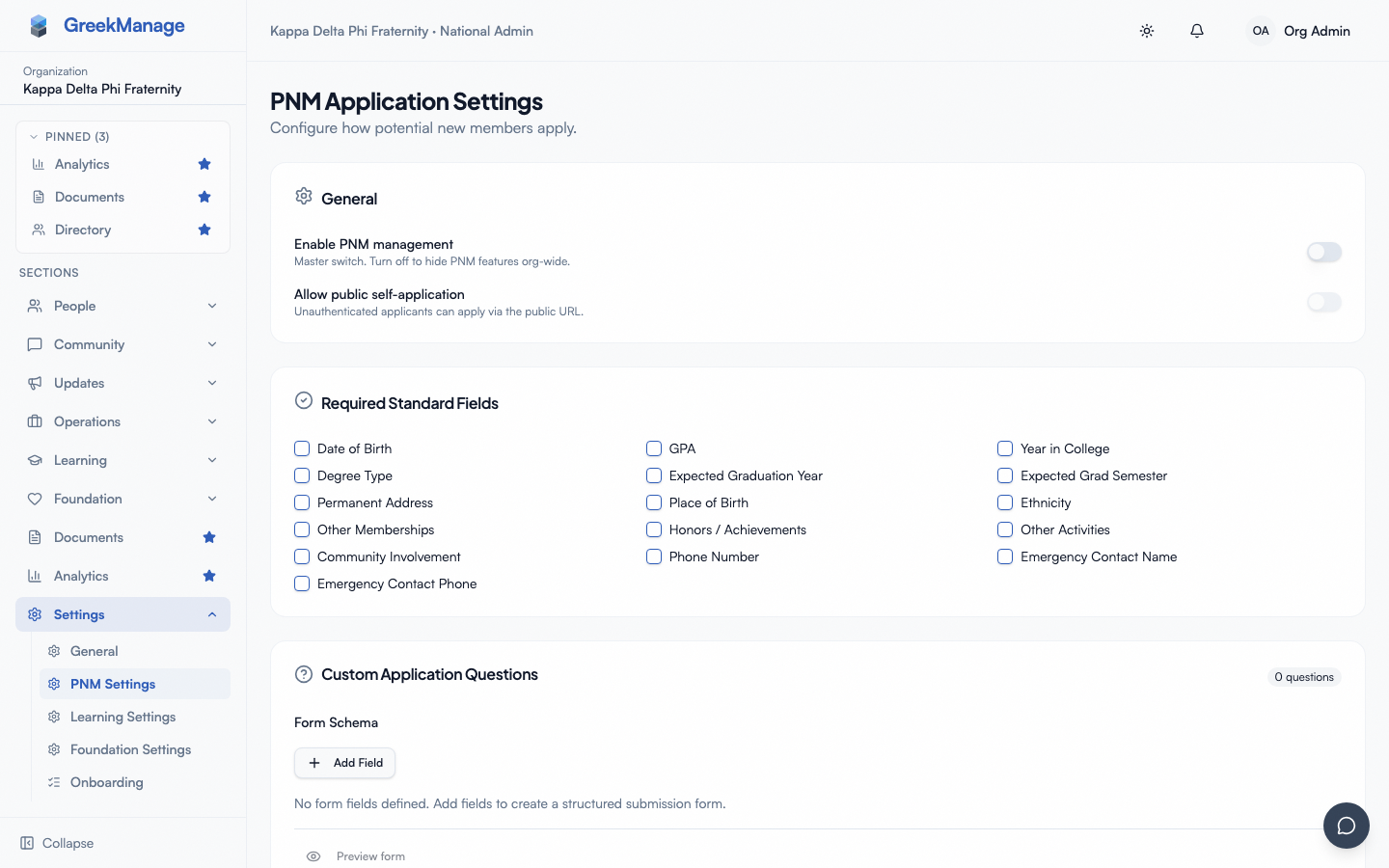
Still in PNM Settings, open the Required Fields card. Toggle on which of the standard application fields applicants must fill in:
- Birth date, place of birth, address
- Ethnicity, GPA, degree type
- Year in college, expected graduation
- Listed organizations, achievements
Be honest about what you actually use. Required fields that get ignored downstream just create drop-off.
3. Decide on the GPA gate (if you use one)
Open the GPA Gate card. If your org has a minimum GPA, set it here. Applicants below the threshold can still submit, but their record is soft-flagged (auto_flagged = true) so admins know to take a closer look — it doesn't hard-block submission. Skip this card if you don't use a GPA gate.
4. Configure required attachments
Open the Attachments card. Check each type you want applicants to upload during the public flow:
- Resume (PDF / DOC / DOCX, 10 MB max)
- Headshot (JPEG / PNG / WebP, 10 MB max)
- Transcript (PDF / DOC / DOCX, 10 MB max)
- Cover Letter (PDF / DOC / DOCX, 10 MB max)
Every checked type becomes required. Files are validated server-side by magic-byte sniffing (extension spoofing is rejected), and the submission fails cleanly with a 400 if anything is missing or invalid — no dangling records.
Save.
5. Pick your consent templates
Open the Consents card. Pick which org-wide Consent Templates applicants must accept (privacy notice, data sharing, age verification, etc.). If you haven't authored consent templates yet, open Org → Settings → Consent Templates, create the ones you need, and come back here. Applicants can't submit without ticking these.
6. Confirm email verification
Open the Email Verification card. Decide:
- Off — applicants submit and immediately land in the chapter queue
- On — applicants get a verification email, must click the link within 48 hours, then the submission lands in the chapter queue
On is the safer default — it screens out bot submissions and typo'd emails. Turn it off only if you have a specific reason (e.g., a controlled in-person event where you're handing out the URL).
7. Create a PNM period
Settings define what the form looks like. A period is the recruitment window. Without an active period, the apply page renders the form but submissions are rejected.
Open Org → PNM → Periods → New period:
- Academic year — e.g., 2026
- Semester — Fall, Spring, or Summer
- Open date / Close date — bound the window
- Status — set to Active
- Closed message (markdown) — shown on the public apply page outside the open/close window
The combination of (organization, academic year, semester) is unique. Periods are always org-wide; all chapters under your org rush together.
8. Smoke-test the public apply page
This is the most important step. Open your apply URL in a private/incognito window:
https://[your-app-domain]/apply/[your-org-slug]
You should see your header, intro markdown, and the form rendered from your settings. Submit a real-looking fake application end-to-end:
- Fill out the form
- Upload any required attachments
- Tick all consents
- Submit
- If email verification is on, check the inbox you used and click the verification link
- Confirm the submission shows up under the chapter's PNM queue (and your Name approvals queue if your org policy routes through you)
- Open the PNM record and confirm the attachments downloaded correctly, consents are recorded, and the data matches what you entered
Delete the test record (or mark it rejected) once you're satisfied.
The second pass — defer these to day two
Once the critical path works, come back for:
- Custom Questions — add org-specific free-form questions
- Reference Letters — require 1–5 reference letters per applicant. The system mints single-use magic-link tokens (7-day expiry; only a sha256 hash of each token is persisted, so a leaked DB cannot replay the link), emails referrers, accepts their submitted letters, and surfaces the letters in plaintext on the PNM detail page for review. See the PNM program reference for the full flow before turning this on — referrers experience it as a separate email-based portal.
- Intake Rules — what chapter / region tier approves what
- Notification Routing — per-application emails to chapter officers, plus the national admin daily digest (v0.58)
- General Configuration — defaults that get inherited by new periods
Day-one ops you should expect
Once applications start coming in:
- Name approvals queue — open Org → PNM → Name approvals. Most orgs run "chapter approves first, then org admin reviews names" — pending names land here with the chapter's notes. Review and Approve or Decline.
- Lifecycle states — every PNM record progresses through
not_started → approved → in_progress → completed (crossed), or terminallyrejected. The chapter does most of this movement; you're typically the final approver on names. - Rejection — sets
intake_status = rejected, stampsrejected_at, and triggers a notification. Admin notes stay private.
What's not built today
Worth knowing before you commit to a workflow:
- No dedicated bid-management surface. No "Bidded" intake state, no bid acceptance page surfaced to PNMs. Coordinate bids outside the platform and move PNMs through approved → in_progress → completed as their real-world lifecycle progresses.
- No reusable disqualification reason picker. Free-form notes only when rejecting.
- No custom domain for the apply page. The URL is always under your GreekManage host with your org slug.
What's next
- PNM program reference — full settings reference including reference letters, notification routing, intake rules
- Public applicant onboarding — what your applicants experience on the other side
- Consent templates — how to author the consents you require at apply time
- Compliance program — PNM intake can produce compliance requirements (e.g., "submit name list by date X")
Last verified against v0.62.1 (2026-05-10).