PNM attachments
The Attachments card under Org → PNM → Settings lets you require applicants to upload supporting files during the public apply flow. Every file is validated server-side before the PNM record is created, so a broken or oversized upload never produces a half-finished application.
Supported attachment types
Four attachment types are available, each with its own accepted file shape and a uniform 10 MB cap:
| Type | Accepted formats | Typical use |
|---|---|---|
| Resume | PDF, DOC, DOCX | Work and leadership history |
| Headshot | JPEG, PNG, WebP | Identification photo for the chapter roster |
| Transcript | PDF, DOC, DOCX | Academic record (often unofficial at apply time) |
| Cover letter | PDF, DOC, DOCX | Free-form narrative of interest in the org |
These four are the complete set. There is no way to define a fifth custom attachment type on the card today; if you need an applicant to upload an additional file (a portfolio, a recommendation packet, a national-organization form), model it as a file-upload custom question on the Application questions card instead.
Enable an attachment
- Open Org → PNM → Settings → Attachments.
- Check each type you want applicants to provide.
- Click Save in the sticky bar.
Every checked type becomes required on the public apply page from the next pageload. Unchecked types don't appear — there's no "optional attachment" state for the four standard types.
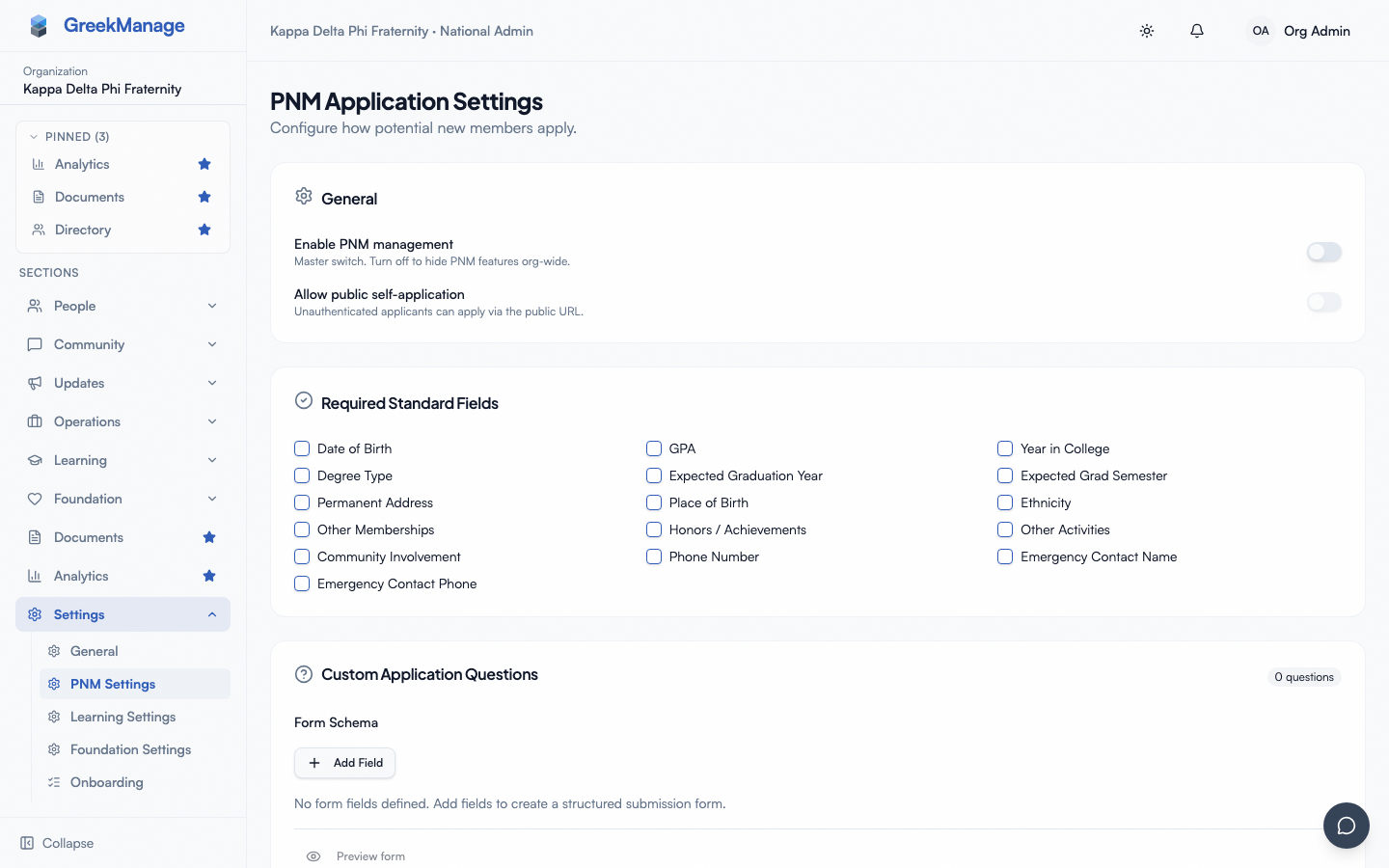 PNM settings - Attachments card with checkboxes
What applicants see
For each enabled attachment, the public apply page renders a labelled drag-and-drop uploader. Applicants can drag a file in, click to browse, or paste a file from the clipboard. The uploader shows:
- A placeholder describing accepted formats and the 10 MB cap
- A spinner while the file is read
- An inline error if the file is the wrong type, too large, or unreadable
- A replace control to swap in a different file
- A remove control to clear the slot (which makes the submit button revert to disabled, since the attachment is required)
Files are not uploaded to the server until the applicant clicks Submit. Until then they live in the browser, so closing the tab loses them.
Validation that runs at submit time
When the applicant clicks Submit, the server applies four layers of validation to each file before creating the PNM record: required-presence (every enabled type has a file), size (10 MB max), magic-byte content-type sniffing (the first kilobytes of the file are inspected — a .pdf that's actually a .zip rename is rejected even if the client-declared content type says PDF), and filename extension match (.pdf / .doc / .docx for documents; .jpg / .jpeg / .png / .webp for headshots). All four checks happen before any rows are written, so a submission with one bad attachment fails cleanly — no dangling half-created PNM records.
Reviewing attachments
The PNM detail page (chapter or org view) renders an Attachments section listing every upload. Each row shows:
- Attachment type (Resume, Headshot, Transcript, Cover Letter)
- Original filename
- Size in human-readable units
- Uploader (the applicant for files uploaded at apply time; the named admin for files uploaded later)
- Upload timestamp
- A Download action
Admins and the original uploader can also delete an attachment from this list. Chapter officers can delete only files they themselves uploaded — they cannot delete files the applicant submitted or files an org admin uploaded.
Uploading after the fact
Applicants and chapter officers commonly need to add a file after the original application — a transcript wasn't ready at apply time, a better headshot becomes available, a chapter officer scans a paper recommendation, and so on. The PNM detail page exposes an Add attachment control that opens the same uploader as the public flow, with the same 10 MB cap, magic-byte check, and extension allowlist.
A few rules apply to the post-apply upload path:
- The attachment type must still be one of the four standard types — you cannot retro-attach an arbitrary file under a fifth label.
- Multiple attachments of the same type are allowed. Adding a second transcript doesn't replace the first; both appear in the list. Use the delete action to remove the stale one.
- The post-apply upload is authenticated: the uploader (applicant, chapter officer, or admin) must be logged in. There's no token-based magic link for re-upload as there is for reference letters.
Notification side-effects
Adding an attachment after the application is submitted does not re-trigger the new-application notifications described in PNM notification routing. Officers and admins will see the new file the next time they open the PNM detail page; if you need them to know about a particular file urgently, send them a direct message or note.
Storage and retention
Uploaded files are stored on whatever storage backend your org has configured (see Storage configuration). The default is the platform-managed bucket; orgs that have configured their own S3 credentials get their files in their own bucket. Either way, attachments persist for the lifetime of the PNM record — they are not auto-purged at the end of a period.
When you delete an attachment from the detail page, the underlying file is removed from storage as well. Deletes are immediate; there is no soft-delete grace period.
Common gotchas
A scanned image saved as a PDF still passes — the magic-byte check inspects the container, not the contents, so a PDF wrapping a JPEG scan is a valid transcript. Word exports that declare a generic application/octet-stream content type still pass because the client-declared type is ignored in favor of the magic-byte signature. iOS Photos exports HEIC by default; HEIC is not on the headshot allowlist, so applicants need to convert to JPEG or PNG before uploading.
Related
- PNM admin onboarding — first-hour walkthrough
- PNM application questions — model additional file uploads beyond the four standard types as file-upload custom questions
- PNM reference letters — separate magic-link flow for referrer-submitted letters
- Storage configuration — where uploaded files live
- Applying as a PNM — public-side experience
Last verified against v0.62.1 (2026-05-10).