PNM attachments
The Attachments card under Org → PNM → Settings lets you require applicants to upload supporting files during the public apply flow. Every file is validated server-side before the PNM record is created, so a broken or oversized upload never produces a half-finished application.
Standard attachment types
Four built-in types are available, each with its own accepted file shape and a uniform 10 MB cap:
| Type | Accepted formats | Typical use |
|---|---|---|
| Resume | PDF, DOC, DOCX | Work and leadership history |
| Headshot | JPEG, PNG, WebP | Identification photo for the chapter roster |
| Transcript | PDF, DOC, DOCX | Academic record (often unofficial at apply time) |
| Cover letter | PDF, DOC, DOCX | Free-form narrative of interest in the org |
- Open Org → PNM → Settings → Attachments.
- Check each type you want applicants to provide.
- Click Save in the sticky bar.
Every checked type becomes required on the public apply page from the next pageload. Unchecked types don’t appear — there’s no “optional attachment” state for the four standard types.
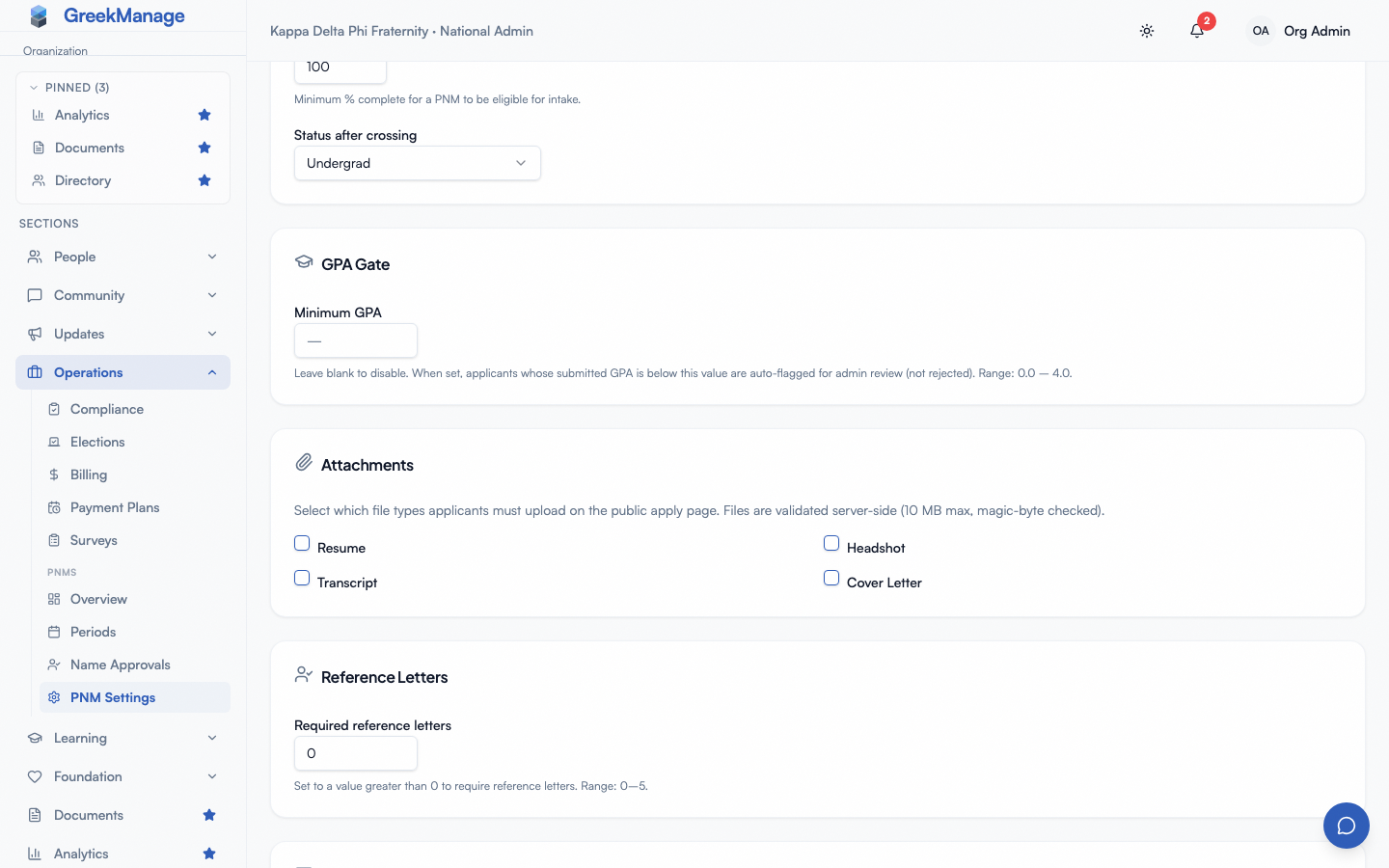 PNM settings - Attachments card with checkboxes
Custom documents
Need something the four standard types don’t cover — a letter of recommendation, proof of enrollment, a national HQ form? The Custom documents section, right below the standard checkboxes, lets you define any number of additional document requirements with your own labels.
- In the Custom documents section, click Add document.
- Type the label applicants will see (e.g. “Letter of Recommendation”).
- Toggle Required on or off — unlike the four standard types, a custom document can be optional.
- Reorder with the up/down arrows, or remove a row with the trash icon.
- Click Save in the sticky bar.
Each custom document becomes its own upload slot on the public apply page, alongside the standard types, labelled exactly as you typed it. Up to 10 custom documents are allowed per org.
Custom documents accept a broader range of files than the standard types — PDF, DOC, DOCX, JPEG, PNG, or WebP — since a document you name yourself has no single expected shape. The same 10 MB cap and magic-byte content-sniffing apply.
You can add, rename, reorder, or remove custom documents at any time, including mid-recruitment-cycle — the same as the standard types and application questions. Renaming a document’s label updates how it displays on every past upload; removing one doesn’t delete files already uploaded against it (see Reviewing attachments below), it just stops offering that upload slot to new applicants.
What applicants see
For each enabled attachment, the public apply page renders a labelled drag-and-drop uploader. Applicants can drag a file in, click to browse, or paste a file from the clipboard. The uploader shows:
- A placeholder describing accepted formats and the 10 MB cap
- A spinner while the file is read
- An inline error if the file is the wrong type, too large, or unreadable
- A replace control to swap in a different file
- A remove control to clear the slot (which makes the submit button revert to disabled, since the attachment is required)
Files are not uploaded to the server until the applicant clicks Submit. Until then they live in the browser, so closing the tab loses them.
Validation that runs at submit time
When the applicant clicks Submit, the server applies four layers of validation to each file before creating the PNM record: required-presence (every required type has a file), size (10 MB max), magic-byte content-type sniffing (the first kilobytes of the file are inspected — a .pdf that’s actually a .zip rename is rejected even if the client-declared content type says PDF), and filename extension match. The four standard types each check against their own accepted formats (.pdf / .doc / .docx for documents; .jpg / .jpeg / .png / .webp for headshots); a custom document checks against the broader combined allowlist, since it has no single expected shape of its own. All checks happen before any rows are written, so a submission with one bad attachment fails cleanly — no dangling half-created PNM records.
Reviewing attachments
The PNM detail page (chapter or org view) renders an Attachments section listing every upload. Each row shows:
- Attachment type — one of the 4 standard labels, or your custom document’s current label
- Original filename
- Size in human-readable units
- Uploader (the applicant for files uploaded at apply time; the named admin for files uploaded later)
- Upload timestamp
- A Download action
Admins and the original uploader can also delete an attachment from this list. Chapter officers can delete only files they themselves uploaded — they cannot delete files the applicant submitted or files an org admin uploaded.
Only officers of the applicant’s chapter and regional and national admins get the Download action — the same people who can see the applicant’s date of birth and address. The applicant can download a file they upload themselves. Other chapter members don’t see the Attachments section, and the server gives them no download link.
Uploading after the fact
Applicants and chapter officers commonly need to add a file after the original application — a transcript wasn’t ready at apply time, a better headshot becomes available, a chapter officer scans a paper recommendation, and so on. The PNM detail page exposes an Add attachment control that opens the same uploader as the public flow, with the same 10 MB cap, magic-byte check, and extension allowlist.
A few rules apply to the post-apply upload path:
- The attachment type must be one of the four standard types, or one of the org’s currently-defined custom documents — an id that isn’t currently configured is rejected, so you can’t stamp an arbitrary fifth label onto a record.
- Multiple attachments of the same type are allowed. Adding a second transcript doesn’t replace the first; both appear in the list. Use the delete action to remove the stale one.
- The post-apply upload is authenticated: the uploader (applicant, chapter officer, or admin) must be logged in. There’s no token-based magic link for re-upload as there is for reference letters.
Notification side-effects
Adding an attachment after the application is submitted does not re-trigger the new-application notifications described in PNM notification routing. Officers and admins will see the new file the next time they open the PNM detail page; if you need them to know about a particular file urgently, send them a direct message or note.
Storage and retention
Uploaded files are stored on whatever storage backend your org has configured (see Storage configuration). The default is the platform-managed bucket; orgs that have configured their own S3 credentials get their files in their own bucket. Either way, attachments persist for the lifetime of the PNM record — they are not auto-purged at the end of a period.
When you delete an attachment from the detail page, the underlying file is removed from storage as well. Deletes are immediate; there is no soft-delete grace period.
Common gotchas
A scanned image saved as a PDF still passes — the magic-byte check inspects the container, not the contents, so a PDF wrapping a JPEG scan is a valid transcript (or a valid custom document). Word exports that declare a generic application/octet-stream content type still pass because the client-declared type is ignored in favor of the magic-byte signature. iOS Photos exports HEIC by default; HEIC is on neither the headshot nor the custom-document allowlist, so applicants need to convert to JPEG or PNG before uploading.
A custom document’s label is free text, but it becomes part of the public apply page’s copy verbatim — write it the way you’d want an applicant to read it (“Letter of Recommendation”, not “letter_of_rec”).
Related
- PNM admin onboarding — first-hour walkthrough
- PNM application questions — structured Q&A instead of a file upload
- PNM reference letters — separate magic-link flow for referrer-submitted letters
- Storage configuration — where uploaded files live
- Applying as a PNM — public-side experience
Last verified against v0.82.0 (2026-09-07).