PNM consents
The Required Consents card under Org → PNM → Settings lets you pick which consent items applicants must accept before they can submit. Two kinds of consents live side by side on the card: platform-wide ones (privacy policy, terms of service) authored centrally, and org-specific ones (anti-hazing acknowledgement, code of conduct, photo release, and anything else you've authored) drawn from your consent templates.
Every accepted consent is recorded as a versioned acceptance row tied to the applicant, so you have a durable audit trail of who agreed to what at what version.
Two consent sources, one card
The Required Consents card is split into two clearly labelled sections:
- Platform consents —
Privacy PolicyandTerms of Service. These are mandatory in spirit for any user-facing flow that creates an account, but checking them here makes them explicit at apply time. The text is authored centrally by the platform and is not edited per-org. - Org-specific consents — every active org consent template you've authored under Org → Settings → Consent Templates. Each entry shows the template's title in human-readable form. If you haven't authored any org templates yet, this section is empty with a link to the templates page.
Within each section, every entry is a checkbox. Check it to require that consent at apply time; leave it unchecked to skip it.
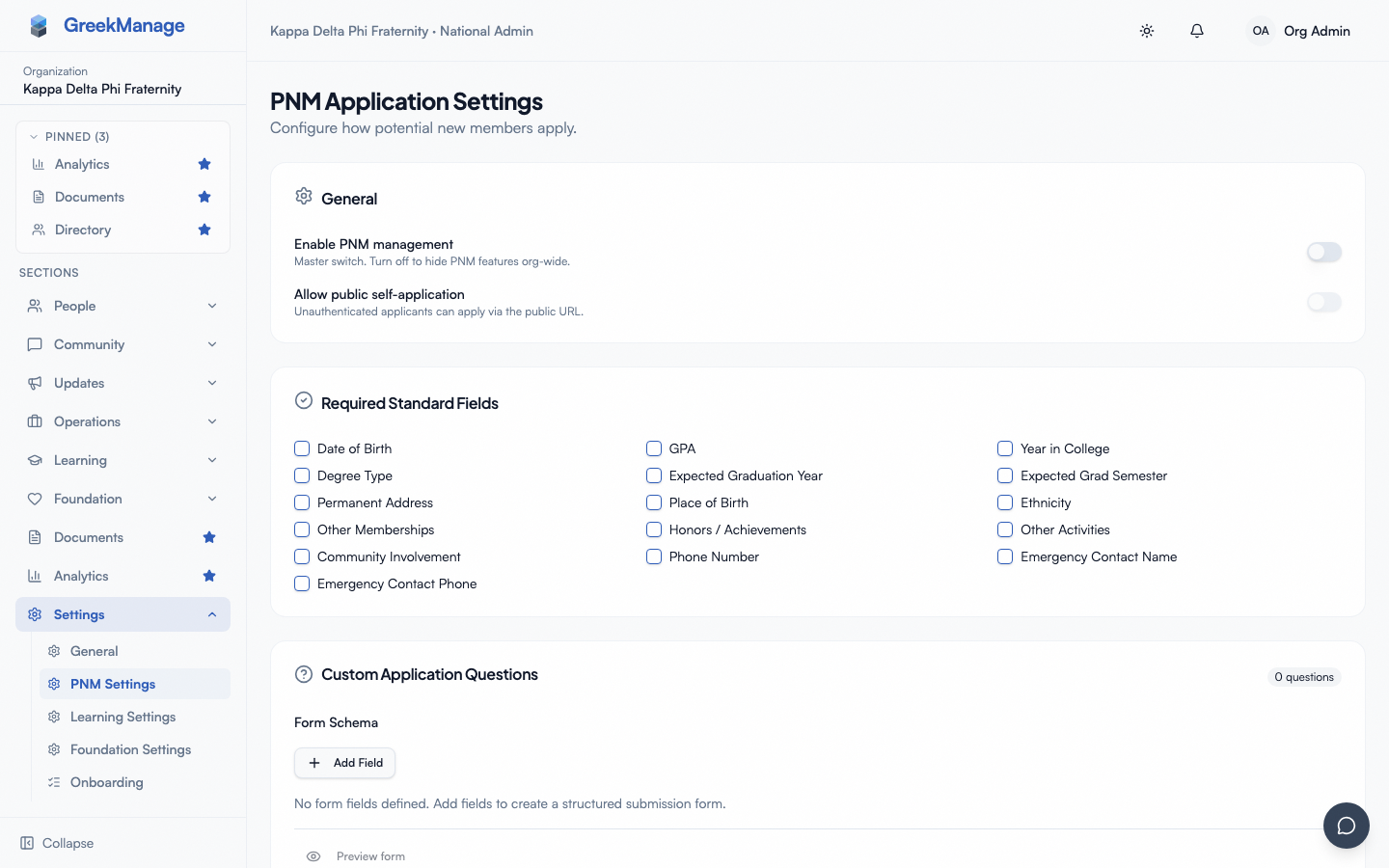 PNM settings - Required Consents card with platform and org sections
How consents render on the public apply page
Every required consent renders as its own section on the public apply form:
- A title (the template's title, or the platform name)
- A scrollable Markdown body (the template's body for org consents; the platform's standard body for platform consents)
- A single checkbox — "I accept" — that the applicant must tick
The applicant cannot submit until every required-consent checkbox is ticked. Unchecked consents show an inline error near the offending row.
If you've listed an org-specific consent type whose template you later deactivated or never authored, the public page renders a placeholder with the consent type's name and an empty body. This is a clear sign your configuration is out of sync — either author the missing template or remove the requirement from this card.
The versioning model
Org consent templates carry an explicit version string that the org admin sets on each authored template (e.g., "1.0", "2.0", "2026.01"). When an applicant accepts a consent, the version they accepted is stamped on the acceptance record alongside the template identifier. This is the durable audit trail.
A few implications:
- Publishing a new version is a deliberate act. Editing an existing template updates the same version; bumping the version requires creating a new active template under the same consent type. Most orgs treat the version field as the source of truth and bump it only when the legal text changes meaningfully.
- Acceptances are immutable. If you bump from
1.0to2.0and an applicant has already accepted1.0, their acceptance record still reads1.0. New applicants from that point on accept2.0. You can see both populations side by side on the consent acceptance reports. - Active vs. inactive templates. Only templates marked active appear on the consent card and on the public apply page. Deactivating a template removes it from new submissions but does not retroactively invalidate prior acceptances.
What gets recorded on each acceptance
Each accepted consent on a public submission produces a UserConsent record on the applicant's user account capturing:
- Which user accepted
- Which consent type and version
- The client IP address at the moment of acceptance
- A link back to the org consent template (for org-specific consents) so the exact text accepted is recoverable even after template edits
If the public submission later fails for any reason — failed turnstile, missing attachment, validation error — no consent records are written. The acceptance fan-out is part of the same atomic transaction as the PNM record creation.
How required-consent gating works at submit time
When the applicant clicks Submit, the server checks that the submitted payload's consent list includes every consent type listed in your Required Consents configuration. If any are missing, the submission fails with a 400 response and a clear message listing the missing types — the applicant sees an inline error and can correct without losing other field state.
The client-side form mirrors this check by keeping the submit button disabled until every required consent is ticked, so the 400 path is rarely hit in practice. It exists as a defense against tampered submissions.
Picking the right consents
A reasonable baseline checks Privacy Policy and Terms of Service under platform, plus an anti-hazing acknowledgement under org-specific (required by most national orgs), and optionally a photo / media release if your org publishes recruitment photos and a data-sharing notice if you share applicant data with a national HQ. A code of conduct is more commonly required at intake start than at apply. Rule of thumb: include consents you'd want a paper trail for in a later dispute; leave the rest for the intake stage.
Editing the card
- Open Org → PNM → Settings → Required Consents.
- Tick or untick boxes in the Platform and Org-specific sections.
- To author a new org-specific template, click Manage templates in the section header — this opens Consent templates. Author the template, mark it active, and return; the new entry will appear in the Required Consents card.
- Save the PNM Settings page.
Changes take effect on the next pageload of the public apply form. Applicants mid-form see the version they originally loaded.
What's not configurable
A few things you cannot change on this card:
- The order consents render in. Platform consents always render before org-specific ones; within each section, the order matches the order they appear in the card. There is no drag-to-reorder.
- Per-chapter consent lists. The required consents apply to every applicant across the org, regardless of which chapter they selected.
- Conditional consents. You cannot say "require this consent only if the applicant ticks X custom question." Required consents are required for all applicants.
If you need per-chapter or conditional consent capture, model the extra acceptance as a custom application question (a yes/no required question with the consent text in the prompt).
Related
- Consent templates — author and version the org-specific consent text
- PNM admin onboarding — first-hour walkthrough
- Applying as a PNM — public-side experience
- Privacy & GDPR — how consent records are stored and surfaced for compliance requests
Last verified against v0.62.1 (2026-05-10).