PNM general configuration
The General card under Org → PNM → Settings holds the two master switches that decide whether PNM management is active at all and whether unauthenticated visitors can reach the public apply page. Every other PNM setting on this page is downstream of these two toggles.
There is a third switch above both of them that you do not control: the Operations license. Recruitment is part of Operations and has no module slug of its own, so if Operations is off for your org this card is unreachable — the PNM rows are hidden from the sidebar, the settings page is blocked, and the public apply URL is closed regardless of what these two toggles say. Ask a platform admin to enable Operations first (see Module enablement).
What's on the General card
Two toggles, in this order:
- Enable PNM management — the org-wide master switch. When off, the PNM tab disappears from sidebars, the public apply URL stops responding, and admins cannot create periods. When on, everything else under PNM Settings becomes editable. New orgs ship with this off; flip it on as soon as you're ready to start configuring.
- Allow public self-application — gates the unauthenticated apply flow. When off, the apply URL returns a not-found response even when PNM management itself is enabled. Leave this off while you're tuning required fields, attachments, and consents; flip it on the day you want applications to start landing.
The second toggle is disabled in the UI until the first one is on, so the only valid combinations are off/off, on/off, and on/on.
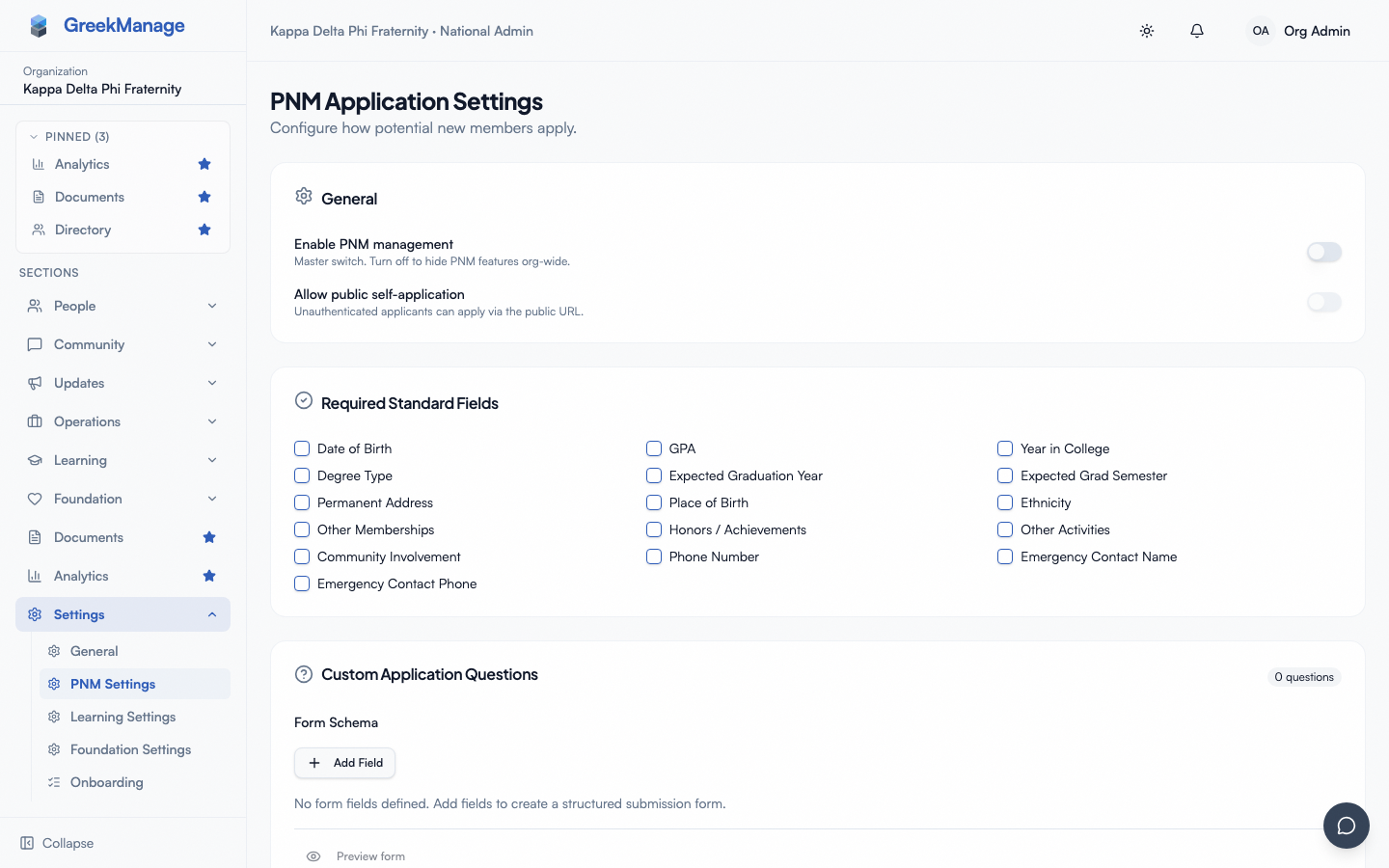 PNM settings - General card with both toggles
When to use each combination
Both off. The factory default. No applicant traffic, no admin surfaces.
Master on, self-application off. Useful in two scenarios. First, while you're still tuning the form — admins can create periods and seed test data, but no real applicants can submit yet. Second, if your org runs a closed-door recruitment where applications come through a staff-mediated process rather than a public link.
Both on. Live recruiting. The public apply URL is reachable, applicants can submit, and chapter officers see new PNMs in their queue.
You can drop self-application back to off mid-cycle without losing data — existing PNM records stay intact, and any in-flight reference letters or email-verification tokens still resolve. Flipping the master switch off, however, hides the whole PNM surface from the navigation; admins lose access to their queues until you turn it back on. (Losing the Operations license has the same visible effect, but it is not the same switch and you cannot fix it from this card.)
How this interacts with other settings
A few non-obvious dependencies are worth knowing before you flip the public switch:
- No active period means no submissions. Even with both toggles on, the apply page renders only an org-wide closed message when there is no period in
Activestatus whose open/close window contains the current time. Create and activate a period before you publish the URL. See PNM periods for the lifecycle. - Required attachments and reference letters apply immediately. If you turn on self-application while the Attachments card has, say, a transcript requirement checked and a referrer-count of three, every submission from that moment forward must satisfy those rules. There is no "soft launch" — the rules you save are the rules applicants face. See PNM attachments and PNM reference letters.
- Required consents must exist as templates. If you list a consent type in Required consents but haven't authored the matching consent template yet, applicants will see a placeholder with an empty body. Author templates first under Org → Settings → Consent Templates (Consent templates) and then attach them.
The org slug and the public apply URL
The General card itself doesn't expose your org slug — that lives on the Public page card — but it's worth flagging here because the two are inseparable. Your apply URL is always shaped:
https://[your-app-domain]/apply/[your-org-slug]
The slug is set once per org and is shared across the platform (it's the same slug used for any public surface that needs a stable per-org identifier). Changing it later breaks every link people have already shared, including emails sent to PNMs mid-cycle, so treat the choice as durable from the start.
Notification email field
There is no separate "admin notification email" field on the General card. Per-application emails and the daily digest go to recipients resolved from your existing role assignments — chapter officers, regional admins, and national admins of the org — not to an org-level mailbox. To control who receives what, see PNM notification routing.
Locale and timezone
The PNM apply page renders timestamps in the applicant's browser locale; the admin surfaces render them in the admin's browser locale. There is no per-org locale override in the General card today. Periods are stored as UTC timestamps internally, and the daily digest's send hour is configured as a UTC integer on the Notification routing card, so a digest set to 13:00 UTC lands at the same wall-clock moment for every recipient regardless of where they live.
If you operate primarily on a single timezone (most orgs do), pick a digest hour that maps to a sensible local morning for your headquarters and document the conversion in your internal runbook. UTC 13:00 is roughly 9 AM Eastern in standard time; UTC 14:00 is 9 AM Eastern in daylight time.
Save behavior
The General toggles save through the sticky bar at the bottom of the PNM Settings page along with the rest of the form. There is no immediate side-effect when you toggle either switch — the master switch only takes effect on Save. This means you can experiment with combinations during a sitting and back out by closing the page without committing.
If you save the master switch from on to off, in-flight applicants who have already started filling out the public form will hit a not-found response on submit. There is no graceful "applications just closed" interstitial for that mid-form scenario. If you need to close intake cleanly mid-period, prefer transitioning the active period to Closed (which displays your configured closed message) over flipping the master switch.
Related
- PNM program — module overview
- PNM admin onboarding — first-hour walkthrough
- PNM public page — slug, welcome markdown, thank-you markdown
- PNM periods — recruitment windows
- Permissions matrix — who can edit PNM settings
Last verified against v0.62.1 (2026-05-10).