PNM public apply page
The Public Application Page card under Org → PNM → Settings is where you set the URL applicants visit to apply, the welcome content they see when they arrive, and the thank-you message they see after submitting. This is the most visible piece of PNM configuration — the URL ends up on flyers, in Instagram captions, and in chapter outreach emails.
The apply URL
Your org’s public apply URL has the shape:
https://[your-app-domain]/apply/[your-org-slug]The host portion is your GreekManage app domain (the same domain you use to log in). The path portion is /apply/ followed by your org’s slug. There is no custom-domain support today — the apply page lives under your GreekManage host, not under a domain you control.
The slug is set on this card. The full URL is displayed read-only at the top of the card with a one-click Copy action so you can paste it into outreach materials without typing it.
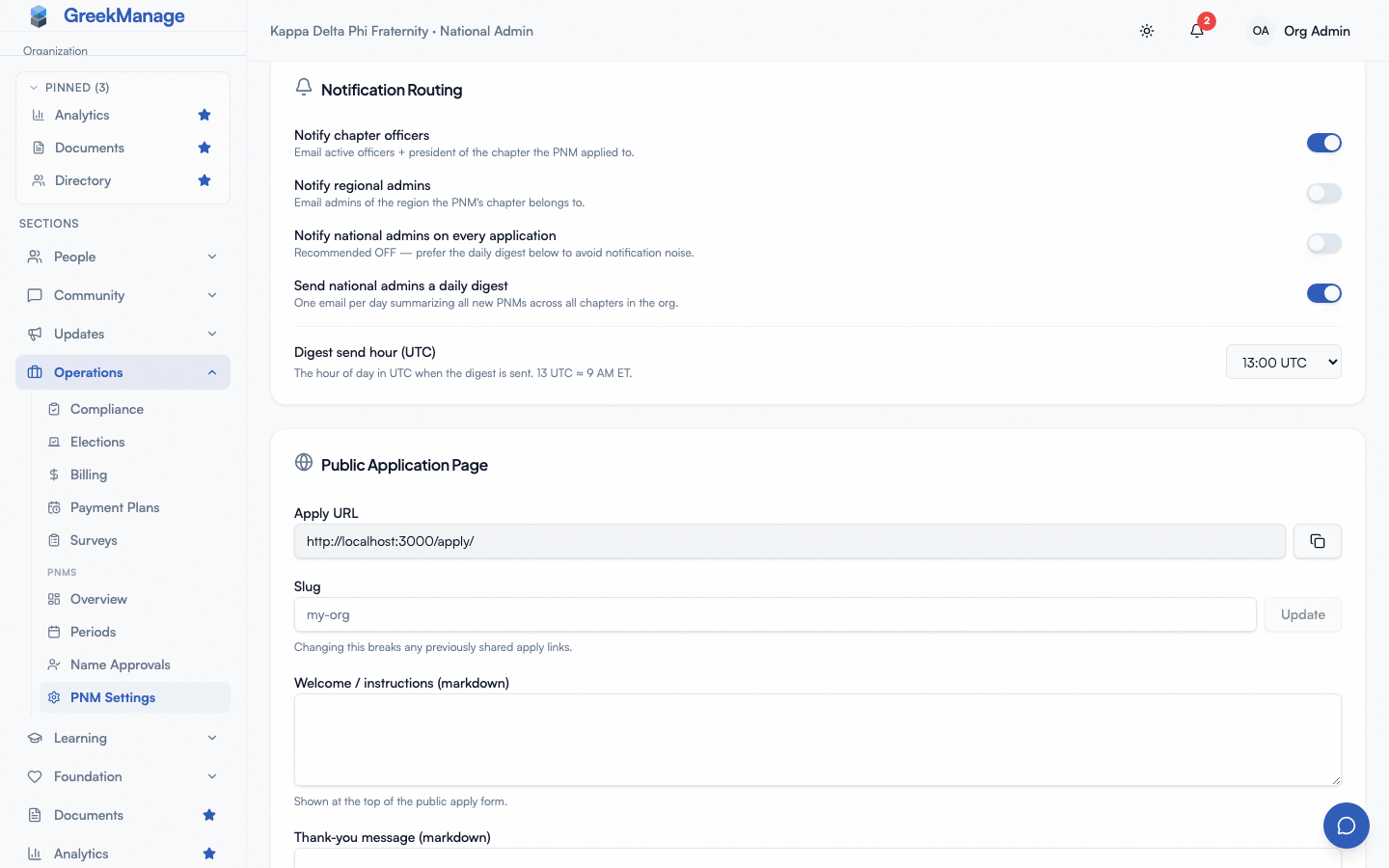 PNM settings - Public Page card with copy button
Setting the slug
The slug is a short, URL-safe identifier — lowercase letters, numbers, and hyphens. Common picks: your chapter or org name in kebab-case (sigma-phi, alpha-chi-omega), an abbreviation (apo, dst), or the historical Greek-letter shorthand.
To set or change the slug:
- Open Org → PNM → Settings → Public Application Page.
- Edit the Slug field.
- Click Update.
The slug is validated server-side for uniqueness across the platform — two orgs cannot share a slug. If you pick a slug that’s already taken, the field returns an error and the change is not saved. Try a different value.
The slug is the same slug used by other public surfaces in your org (any future public page that needs a stable per-org identifier reuses it). Changing it changes those URLs too, not just the apply URL.
Why changing the slug is a big deal
Once your apply URL is in the wild, changing the slug breaks every link people have — printed flyers, outreach emails, social captions, and saved bookmarks all stop resolving. Reference letter invitations already in flight still work, since those use their own token-based URLs, but everything else breaks. Pick a durable slug and keep it. The least bad time to change is at the start of a recruitment cycle before you’ve publicized the URL; the worst time is mid-cycle. If you absolutely must rename mid-cycle, plan to repost the URL everywhere the same day.
Welcome markdown
The Welcome / instructions Markdown field renders above the application form on the public page. Standard Markdown — headings, paragraphs, bold and italic, lists, links, blockquotes — renders correctly. Embedded HTML beyond the basics, images, and tables are not rendered and are treated as raw text.
A good welcome message answers, in three to five lines, who you are, what recruitment looks like at your org this cycle, what the applicant should expect after submitting, and where to ask questions if they run into trouble. Keep it short — applicants drop off long welcome blocks.
Thank-you markdown
The Thank-you message Markdown field renders on the success screen after a successful submission. Same Markdown rules as the welcome message.
A good thank-you message:
- Confirms that the submission succeeded (the applicant just clicked Submit, so this is reassuring)
- Tells them what happens next (“A chapter officer will reach out within 5 business days”)
- If email verification is on, mentions the next step (“Check your email for a verification link”)
- If reference letters are required, mentions that referrers will receive emails shortly
The thank-you message is shown only on the success screen. The applicant’s confirmation email uses a separate template; don’t try to put email-only content in the thank-you markdown.
When the applicant’s email belongs to another organization
A person belongs to one organization on GreekManage. When someone applies through your public page with an email address that already has an account tied to a different organization, the page shows them the ordinary thank-you screen — the same response a brand-new applicant gets — and no application is created. Nothing appears in your PNM list for that submission.
The address’s owner is emailed instead, telling them that someone applied to your organization with their address and that their account is tied to another one. If that person genuinely wants to join you, an administrator on your side invites them directly; an account can be moved, but not by the public form.
This is deliberate. The public apply page is unauthenticated, so refusing out loud — “this person already belongs to another organization” — would let anyone test any email address and learn whether it belongs to some organization on GreekManage. The explicit refusal is still what a logged-in officer or admin sees when they add a member or a PNM by hand, because they need an answer they can act on.
The practical consequence for you: a submission that never arrives is not always a bug. If an applicant insists they applied and you cannot find them, a cross-organization account is one explanation, and the applicant will not have been told.
Checking whether your page is live
A banner at the top of PNM → Settings tells you whether your public apply page is live (applicants see the form right now) or closed (they see a closed notice). It uses the same rule as the public page itself, so it reads “live” only when every one of these holds:
- PNM is enabled and Allow public self-application is on
- Your org has the Operations module licensed
- Your newest
Activerecruitment period — the firstActiveone listed under PNM → Periods — has reached its open date and not passed its close date (a blank date sets no limit on that side)
If that period’s close date has passed, or its open date is still ahead, the banner reads closed — even when an older period is also Active and today falls inside the older period’s dates. Only the newest Active period is ever checked; see Multiple concurrent periods. The banner reflects your saved settings, so toggle changes show once you save. It links to Manage recruitment periods, where you open or close a period. It tells you whether the page is live, not which of the conditions above is closing it.
How a closed period renders
When your org has no open period — every period is in Draft or Closed, or the current time is outside the open/close window of your newest Active period (an older Active period never keeps the page open) — the public apply page renders a closed state instead of the form.
The closed state shows:
- Your org name, logo, and primary color from your branding
- The configured welcome Markdown
- A closed message drawn from the most recently closed period’s
closed_message_markdownfield (set when you configured the period) - No form, no submit button
If you’ve never created a period, or the most recent closed period has no closed message configured, the visitor sees a “Recruitment isn’t currently open” notice reading “This organization isn’t accepting applications right now. Please check back later.” Set the closed message field on each period as you close it (or in advance) to give applicants useful context — when the next period will open, who to contact, where to follow your org for updates.
How a not-yet-opened period renders
If your newest Active period’s open date is in the future, it is treated as not-yet-open: the public apply page renders the same closed state described above. The applicant cannot submit, even though there is an active period configured.
Setting up next term’s period early can’t close the current cycle’s page: while the current period is Active, PNM → Periods refuses to make another period Active. Leave next term’s period in Draft and make it Active after you close the current one.
To go live, the period you want applicants to land in must be your newest Active period, with an open date in the past (or no open date, which means “open whenever the period is active”). See PNM periods for the lifecycle.
How an unlicensed org renders
The branded closed states above assume your org can serve the page at all. Recruitment is part of the Operations module, so if Operations is not licensed the apply URL never reaches your branding: the visitor gets a plain “Recruitment isn’t currently open” page with no org name, no logo, and no closed message. The email-verification and reference-letter links answer the same way.
That page is deliberately identical to the one an unknown org slug produces, and to the one you get with Allow public self-application turned off. All three cases return the same response, so an anonymous visitor walking slugs cannot tell which orgs exist on the platform or which of them are licensed. The trade-off is that the public page cannot tell you which case you’re in either. The Settings banner tells you whether the page is live, though not which cause closed it — if you expected the form and got the bare closed page, check the Operations license first, then the self-application toggle, then the slug.
Custom domain support
There is no custom-domain support for the apply page today. The URL is always https://[your-app-domain]/apply/[your-org-slug]. If your org wants to publish a branded URL like apply.yourorg.org, the only path is a redirect at your DNS or web layer that points to the GreekManage URL — outside the platform.
This is on the planned list for a future release. There is no committed timeline.
What’s on the page beyond your configuration
Beyond the welcome Markdown and the form, the public apply page renders your org name and logo (from Branding), the chapter selector listing every active chapter in alphabetical order, attachment uploaders, reference letter referrer slots, consent sections, a Cloudflare Turnstile bot-detection challenge if your platform admin has configured one, and the submit button. None of these are individually configurable beyond what their respective settings cards expose. The order is fixed.
Brand and styling
The apply page picks up your org’s logo, primary color, and other branding from the org-level branding settings (Branding). There is no separate apply-page-only theme. If you want the apply page to look different from the in-product experience, change the org-level brand color — that’s the only customization knob.
Related
- PNM general configuration — master switches for the module
- PNM periods — the active period determines whether the form renders or the closed state does
- PNM consents, PNM attachments, PNM reference letters, PNM required fields, PNM application questions — everything else that affects what the public page shows
- Branding — the logo and primary color the apply page picks up
- Applying as a PNM — what an applicant experiences end to end
Last verified against v0.62.1 (2026-05-10). Settings live/closed banner added 2026-10-08. Recruitment-period rule corrected 2026-10-11. Second Active period refused from 2026-10-12.