Profile completeness configuration
Profile completeness is a per-member score from 0 to 100 that represents how filled-in a member's profile is. The score drives a dashboard card and a one-click nudge campaign that sends profile-completion reminders to members who are below 100%.
The eight fields that contribute to the score, and how much each one is worth, are configurable per organization. This page walks through what the eight fields are, how to set weights, and how the nudge notification flow works in practice.
The eight fields
Every member's profile is evaluated against eight binary checks. Each check is either "met" or "not met" — there's no partial credit on a single field. The score for the member is the sum of the weights of the fields they've met.
| Field key | What it checks |
|---|---|
| Profile photo | The member has a profile picture uploaded (or imported from LinkedIn) |
| Current work | At least one work-history entry with no end date — i.e., a current job |
| Past work | At least one work-history entry with an end date — i.e., a previous job |
| Education | At least one degree on the member profile |
| Location | Both the city and state fields filled in on the profile |
| Skills | At least three skills added (not one, not two — three is the threshold) |
| LinkedIn linked | The member has connected their LinkedIn account via OAuth |
| Affiliations | At least one organizational affiliation entry on the member profile |
These eight checks are the only inputs to the score. The platform does not currently include phone number, emergency contact, social handles, or other profile fields in the completeness calculation — even though those fields exist on the member profile schema. If your org cares about getting a specific field filled out and it's not on this list, completeness is not the lever for driving that — direct messaging or a custom field with a required flag is.
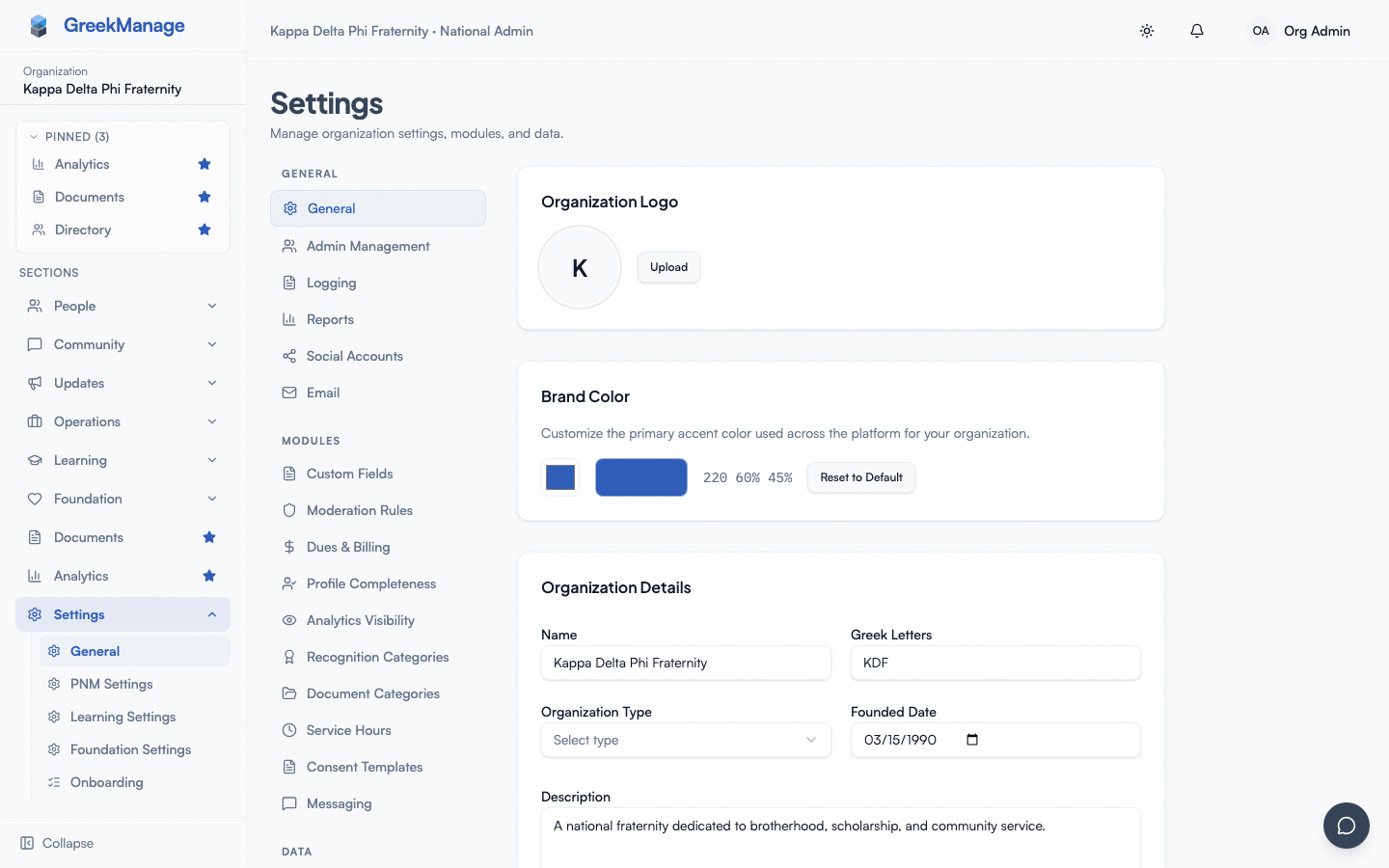 the radial gauge profile completeness card on the org dashboard with the per-chapter breakdown expanded
Default weights
When you've never opened the configuration, the eight fields use the platform default weights. They sum to 100:
| Field | Default weight |
|---|---|
| Profile photo | 10 |
| Current work | 15 |
| Past work | 10 |
| Education | 15 |
| Location | 10 |
| Skills | 15 |
| LinkedIn linked | 15 |
| Affiliations | 10 |
| Total | 100 |
The defaults reflect a "career-context-heavy" posture — current work, education, skills, and LinkedIn together are worth 60 points. Adjust if your organization values different signals.
Setting custom weights
From the org settings, open the Profile Completeness card. You'll see all eight fields with a number input next to each. Adjust the numbers; a running total at the bottom shows the current sum.
The rule the platform enforces: the eight weights must sum to exactly 100. Save is disabled until the total hits 100. If you set Skills to 30, you have to drop other fields by a total of 15 elsewhere.
You can set any field to 0 if you don't want it contributing — a member who never fills in their location will still score 100 if Location is weighted 0. This is the way to effectively turn off a field without removing it from the calculation.
When you click Save, the platform records your custom configuration as is_custom: true. On every read after that, the system uses your weights. If you click Reset to Defaults, your weights are replaced with the platform defaults, the is_custom flag flips back to false, and the configuration goes away (the platform falls back to the in-code defaults).
The completeness card on the dashboard
The radial gauge card on the dashboard shows the organization average — the mean of every active member's completeness score, rounded to one decimal place. Below the gauge, an optional drawer expands to show the per-chapter averages.
- A member counts toward the org average if they have any active membership status (new member, active, intent-to-renew). Alumni statuses are excluded.
- A member with no profile data at all scores zero (every check evaluates to "not met").
- The card refreshes on each page load; it doesn't poll for live updates.
The per-chapter breakdown is sorted by chapter name. Each chapter row shows the chapter's average score and a small progress bar. Use this to identify chapters that are lagging on member onboarding completeness.
The card is visible only to org admins — it lives on the org dashboard, not on the chapter dashboards. Members see their own individual completeness card on their personal profile/dashboard view.
The nudge notification
Next to the radial gauge is a Send Nudge button. Clicking it opens a confirmation dialog; confirming triggers a batch job that does the following:
- For each active member in the organization, compute their current completeness score.
- Skip members who already score 100. Nudging fully-complete members would be noise.
- Skip members who have opted out of the profile-nudge event type in their notification preferences.
- For everyone remaining, create an in-app notification: title "Complete your profile," body "Your organization admin has requested you complete your profile," with a target URL pointing to the member's profile page.
The Send Nudge button shows a count of how many members were notified once the job completes.
The 7-day org-wide cooldown
After a nudge is sent, the entire organization is locked out of sending another nudge for the org's configured cooldown window (default 7 days; v0.63.28 added ProfileCompletenessConfig.nudge_cooldown_days IntegerField). The cooldown is set against the org, not per admin — any admin who tries to nudge during the window gets a "Cooldown active" response and the button is disabled. The button label changes to "Cooldown" until the lock expires.
Practical implications:
- One nudge campaign per week, period — no "first-of-the-month" plus "ad-hoc pledge onboarding" stacking.
- If your org has multiple admins, coordinate before clicking — once one nudges, the others are locked out.
- The cooldown is org-wide, not per-member. A member who joined yesterday with zero completeness will be nudged on the next available campaign just like anyone else.
- The cooldown window is configurable per org via
ProfileCompletenessConfig.nudge_cooldown_days(v0.63.28). Set it through the Settings UI's "Nudge cooldown (days)" input. Platform admins can also clear the cache for emergencies.
Per-member opt-out
Members have a notification preferences page with a Profile completion nudges toggle. When off, nudge runs skip them — they're still counted in the org average, but the notification never delivers. The Send Nudge result distinguishes "nudged count" from "skipped (opted out)" so you can see how many have opted out.
What members see when nudged
A nudged member sees a standard in-app notification — title "Complete your profile," body "Your organization admin has requested you complete your profile," routing to /profile. There is no email companion — in-app only. The message is generic and cannot be personalized per campaign. If you want a stronger push or specific content, send a bulletin first and use the nudge as a secondary reminder.
Bulk-driving completeness
The completeness card is the scoreboard, but the levers that drive scores up are:
- LinkedIn import. Members who connect their LinkedIn account get current work, past work, skills (often 3+), and a profile photo populated in one OAuth flow. This typically takes a member from 30% to 80% with a single click. Highlight this in onboarding.
- Don't confuse custom fields with completeness. Chapter-specific custom fields are NOT part of the eight checks. The eight inputs are the only ones that count.
- Officer outreach. Chapter officers see their chapter's average in the per-chapter breakdown. Low-scoring chapters typically respond to officer-led outreach better than to a generic admin nudge.
When the score changes
The score recomputes on every read — not cached, not scheduled. A field filled in now reflects in the score on the next dashboard load. There's no historical trend chart today; what you see is always the current state. To demonstrate improvement to a board, screenshot the org-average gauge at intervals.
Related
- Member CSV import — bulk-load profile fields to drive completeness up
- Mentorship matching — completeness is the upstream lever for match quality
- Custom fields — separate from completeness, for org-specific data capture
- Permissions matrix
Last verified against v0.63.39 (2026-06-26). Per-org nudge cooldown configurability shipped v0.63.28.