Recognition categories (admin)
Recognition (also called shoutouts) is a lightweight way for officers and admins to call out individual members — Member of the Week, MVP, Most Improved, that sort of thing. Each recognition is attached to a member, has a short message, and shows up on the member's profile recognition wall and on the org/chapter recognition feed. As an admin, your main job is to define the categories that recognitions can be posted into.
What a recognition is
Each recognition record carries:
- An organization (always your org).
- An optional chapter assignment, so recognitions can be filtered down to one chapter's feed.
- A recipient — the membership receiving the recognition.
- A given_by user — the officer or admin who posted it.
- An optional category — a reference to one of the categories you configure.
- A message — free-text body, typically a sentence or two.
- An is_public flag (true by default) that controls whether the recognition appears on the recipient's profile wall.
- A soft-delete timestamp for when an admin or the original poster removes it.
A category, in turn, carries:
- A name (unique per org).
- An optional description.
- An icon — a single emoji that renders next to recognitions in that category.
- An active flag — inactive categories disappear from the posting dropdown but existing recognitions tagged with them keep displaying.
- A display order that controls how categories sort in the dropdown.
Open the categories manager
Org → Settings → Recognition Categories. The page lists every category attached to your org, sorted by display order. Each row shows the emoji icon, the name, the description (if set), an Inactive pill if the category is deactivated, and edit / delete actions.
A grip-handle icon on each row supports drag-to-reorder (v0.63.28). Drag a row up or down to change its position; the new order saves immediately via a bulk reorder endpoint (POST /api/members/recognition/categories/reorder/). The dropdown reflects the new order on the next render — no page refresh needed.
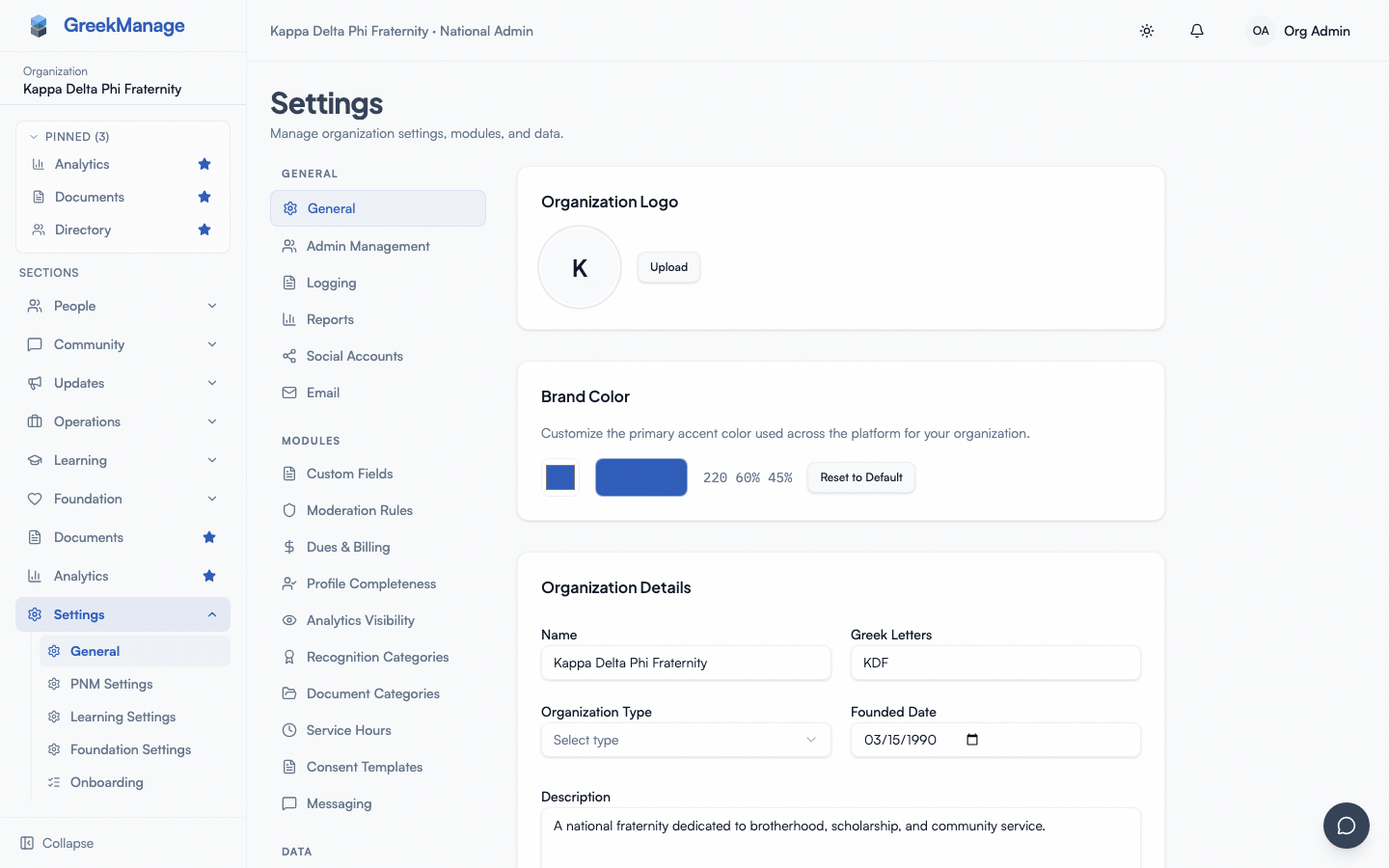 Recognition Categories manager showing seeded categories with icons, names, and edit/delete actions
Seeded defaults
When your org is created, the platform seeds a default set of recognition categories so admins don't have to start from zero. Typical seeds include Member of the Week, Brother of the Month / Sister of the Month, Academic Excellence, Service Star, and similar. You can:
- Rename any seeded category.
- Change the icon to a different emoji.
- Deactivate a category you don't want to use.
- Delete a category outright if no recognitions reference it.
Renaming a category changes how it displays everywhere — historical recognitions also pick up the new name.
Add a category
- Click Add Category in the top-right of the manager.
- Fill in:
- Icon (emoji) — type or paste a single emoji. The default is the trophy emoji.
- Name (required) — short, title-case ("MVP", "Sibling of the Month").
- Description (optional) — one line explaining what the category is for. Officers see this when they pick a category to post into.
- Active — leave on for new categories.
- Click Create.
The new category appears at the bottom of the list and immediately becomes selectable in the post-recognition dropdown for everyone with permission to post.
Edit a category
Click the pencil icon on a row. The dialog opens pre-filled with the existing values. Edit any field and click Save.
If you deactivate a category, it drops out of the posting dropdown but existing recognitions tagged with it keep showing the icon and name on the feed and on profile walls. This is the cleaner way to retire a category — delete is destructive.
Delete a category
Click the trash icon on a row. A confirm prompt asks if you really want to delete. If you confirm and no recognitions reference that category, it's gone. If recognitions reference it, they keep the recognition record but the category reference becomes null and the recognition displays as "Recognition" (generic) with the default trophy icon.
In practice, prefer deactivate over delete — it preserves the category name on historical recognitions.
Who can post recognitions
Posting a recognition (the action members see as "give a shoutout") is open to:
- National admins.
- Chapter officers and presidents — they can post on behalf of their chapter, choosing a member from their chapter as the recipient.
Regular members cannot post recognitions. The Post Recognition button does not render on a regular member's recognition page. This is by design — recognitions are intended to be officer- or admin-curated callouts, not peer reactions. A member who wants to celebrate another member can use bulletins, forum posts, or messages.
To post a recognition yourself as a national admin:
- Go to Org → Recognition (or Chapter → Recognition for a chapter-scoped post).
- Click Post Recognition.
- In the dialog, pick the recipient (a member from the dropdown), the category, and write the message.
- Click Post.
The recognition is published immediately to the org or chapter feed and to the recipient's profile wall. The recipient receives a notification.
How members see recognitions
There are two member-facing surfaces:
- The recognition feed at Org → Recognition and Chapter → Recognition — the running list of every recognition in scope, newest-first.
- The recognition wall on a member's profile — the recognitions that member has received, shown as a compact list.
The wall on profiles is capped at 5 items by default. A member with more than five recognitions does not see the older ones on their wall — only the five most recent. There is no "view all recognitions for this member" link in v0.62.1; to see the full history, an admin can filter the recognition feed by recipient (out-of-band) or query the API directly. Expanding the cap or surfacing a full member-recognition history is on the backlog.
Members can see recognitions they received and recognitions of others on the feeds. They cannot post one or delete one. The only deletion path is:
- The original poster can delete their own recognition.
- A national admin can delete any recognition in the org.
Mobile differences
The categories manager works on phones but is dense — adding a category from a phone is doable, but creating several at once is best on desktop. The post-recognition dialog and the recognition feed are mobile-friendly; the wall on a profile page stacks vertically into the same compact card layout as desktop.
What chapter officers see that you don't
Chapter officers see the recognition feeds (org and chapter) and the recognition wall on each profile, the same as you. They can post a recognition for a member of their own chapter, choosing from the categories you've configured. They cannot:
- Create, edit, deactivate, or delete categories.
- Delete a recognition posted by someone else (only their own, plus you as admin can delete anyone's).
- Post a recognition for a member in another chapter.
If an officer asks you to add a new category, that's an admin job — they can't do it themselves from the chapter view.
Errors and edge cases
- "Name already exists." Category names are unique per org. Pick a different name or rename the existing one first.
- Deleted categories leave orphan recognitions. Historical recognitions tagged with a deleted category lose the category reference and display as a generic "Recognition" with the default trophy icon. Prefer deactivation.
- The drag-handle icon on each row works. Drag a row to reorder (v0.63.28); the new order saves immediately. If a drag doesn't take, check the browser console — the bulk-reorder endpoint may have returned an error.
- An officer says they can't see a member in the recipient dropdown. The dropdown only includes members of the officer's chapter. To post a cross-chapter recognition, sign in as a national admin.
Troubleshooting
- "A category we deactivated still shows up in the feed." That's expected — deactivation only hides the category from the posting dropdown; existing recognitions tagged with it continue to display. Edit the existing recognitions or accept the legacy display.
- "I see fewer recognitions on a member's profile than I expected." The wall caps at 5. The member has received more, but the wall surface doesn't render them.
- "I can't delete a category." The delete button shows a confirm prompt. If you confirm and the delete fails silently, refresh the page — the row may already be removed.
- "A regular member is asking why they can't post a recognition." They can't — recognitions are officer- and admin-only. Direct them to bulletins, forum posts, or DMs if they want to call someone out informally.
What's deliberately not built
- No member-posted recognitions. By design.
- No expandable wall — the per-profile cap is fixed at 5 items.
- No "view all my recognitions" archive surface for members.
- No reaction / like / comment on recognitions. They are one-way callouts.
- No quotas (you can post as many recognitions per week as you want).
- No automatic recognitions for milestones (birthdays, member-of-the-week rotation). Every recognition is manually posted.
Related
Last verified against v0.63.39 (2026-06-26). Drag-to-reorder shipped v0.63.28.