Region detail (admin view)
Regions are the middle tier between the national org and individual chapters. From a national admin's view, regions are configuration: which chapters belong to which region, who staffs the region, and what scope of action regional admins get. This page walks the region detail surface from that admin perspective.
To open a region detail page, go to Regions in your sidebar and click any region row. The page header shows the region's name and description; below it sits a stats row, then two stacked sections — Chapters and Regional Staff.
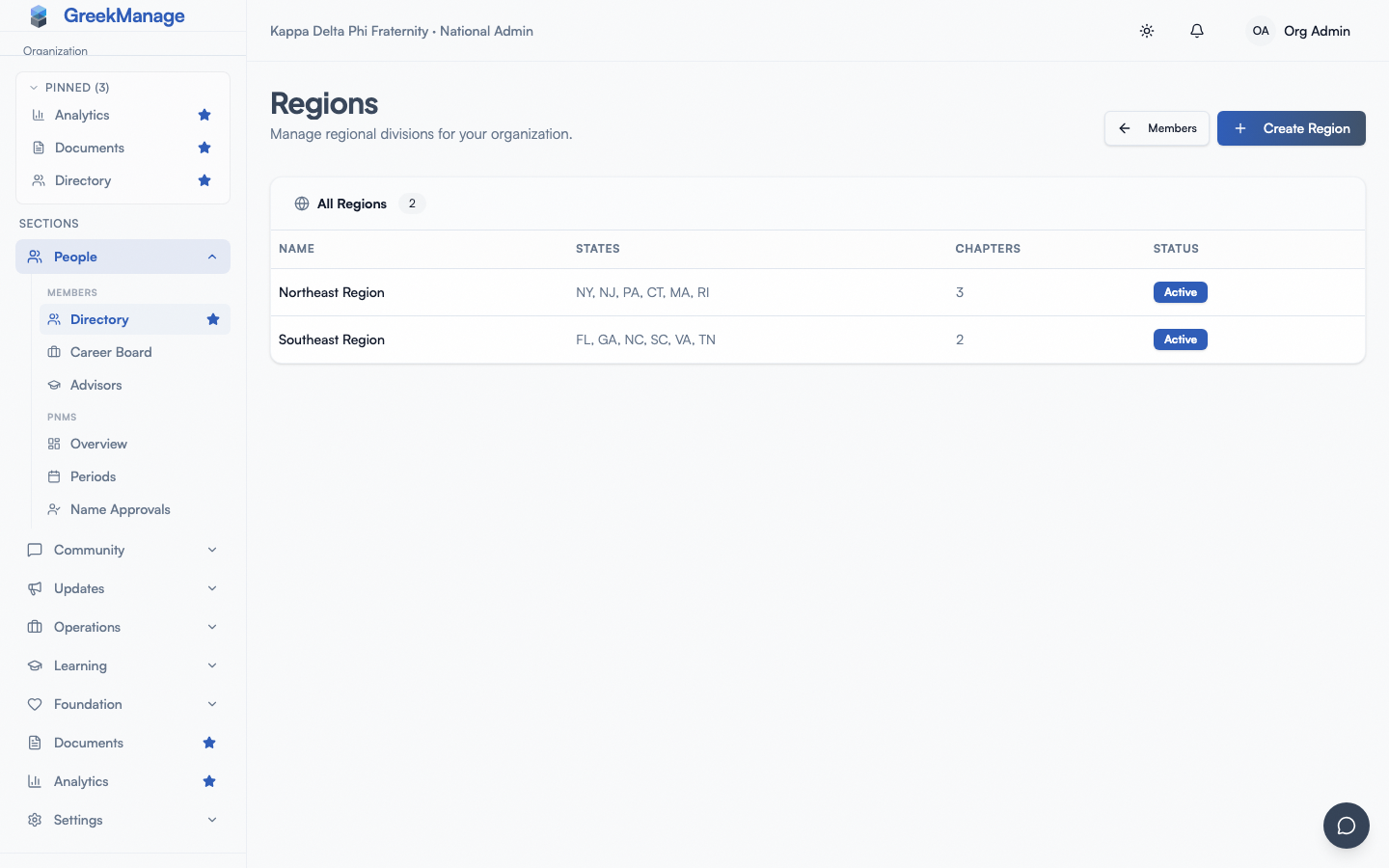 region detail header with region name, description, and stats row
What you see
The stats row shows three live counts:
- Chapters — number of chapters currently assigned to this region
- Active Members — sum of active members across all chapters in the region
- Regional Staff — number of staff records attached to this region
Below the stats, two sections with their own management controls:
- Chapters — the chapters currently assigned to this region, with an Add Chapters button (admin only) to assign more
- Regional Staff — the people assigned regional admin roles for this region, with an Add Staff button (admin only)
Chapter assignment
The Chapters section lists every chapter currently in this region with columns for Designation, Name, University, and Status. Status badges follow the standard chapter status colors (active green, inactive grey, suspended red).
To assign a chapter to the region, click Add Chapters. The dialog shows every chapter in your org that isn't already assigned to a region — chapters can belong to at most one region at a time. Check the chapters you want to add and click Add Selected (N).
To remove a chapter from the region, hover the chapter row and click the X icon in the action column. The chapter becomes unassigned (it does not belong to a region until you assign it again — chapters without a region are legal in the data model).
Removing a chapter from a region has implications:
- The chapter no longer appears in this region's chapter list
- Regional admins of this region lose access to the chapter
- Approvals that were pending at the regional tier for this chapter may need re-routing
- The chapter's roster, history, and configuration are otherwise untouched — only the region pointer changes
If you want to move a chapter to a different region, remove it from its current region and then assign it to the new one (or assign it from the new region's detail page directly — same dialog, same result).
There is no "suspend a region" or "deactivate a region" workflow. Regions are simple containers. If a region is no longer in use, remove its chapters and let the empty region sit; or delete it from the regions list.
Regional staff and the three roles
The Regional Staff section shows every person granted a regional admin role for this region. Each staff record has:
- Name — the user's name (the user must already exist in your org)
- Email — their primary email
- Role — one of three values: Regional Director, Coordinator, Advisor
- Title — free-text descriptor (e.g. "Northeast Regional Director", "District 5 Coordinator")
To add staff, click Add Staff. The dialog asks for:
- Member — a searchable picker over your org's user roster (v0.63.17 replaced the raw UUID field with a typeahead). Start typing the user's name or email and pick from the dropdown.
- Role — pick from the three roles below.
- Title — your descriptor for what they do.
The three regional roles all grant the same in-platform permissions; the distinction is descriptive rather than functional. Use them to communicate seniority and ownership inside your regional staff:
- Regional Director — the senior person; typically owns the region end-to-end and is the main point of contact for the national admins
- Coordinator — a regional staffer who handles operational work (approvals, compliance review, member-level support)
- Advisor — a regional staffer with an advisory or consultative role; often a former director or a volunteer
All three appear in the approvals queue at the regional tier and have the same access to chapters in the region.
To remove staff, hover their row and click the trash icon. The user's account is untouched — only the regional admin assignment is removed. They may still be a regular member of a chapter or hold other roles elsewhere.
What regional admins can do (the middle-tier scope)
When you assign someone as a regional admin for this region, they get access to a region-scoped sidebar with the following capabilities for chapters in the region:
They can:
- View every chapter, member, and module surface within the region
- Read and edit chapter advisor records for any chapter in the region
- Read member profiles and edit member data on behalf of members in the region
- Submit member-add requests, which then route to a national admin for final approval
- Approve or decline items routed to the regional tier — Big-Little proposals, status change escalations, compliance submissions at the pending_regional step, new-member add requests where org policy routes through regions
- Post to regional Engage forums, regional bulletins, the regional feed
- Create regional events
- Run regional Engage moderation (flag review for the chapters in their region)
- View regional reports — retention analytics (Analytics → Retention tab) rolled up across their chapters, region-scoped compliance dashboards
They can't:
- Create, edit, suspend, or reactivate chapters — that's national-admin work
- Reassign chapters between regions — national admin only
- Change dues rates, compliance program structure, custom fields, or consent templates — these are org-wide settings
- Toggle modules on or off
- Manage other regional admins or assign national admins
- Run the bulk member XLSX import
- Configure storage, branding, or AI providers
The split is intentional: regions are an operational middle tier, not a configuration tier. Anything that changes how the org itself works is org-wide and only national admins can touch it.
For the full regional onboarding experience and what their day-one view looks like, see the regional admin onboarding guide.
What regional admins see
When a regional admin opens this same region detail page:
- They see the stats and the Chapters and Regional Staff sections as read-only
- The Add Chapters button is not shown to them
- The Add Staff button is not shown to them
- They cannot remove chapters from the region or remove other regional staff
- They can drill into each chapter from the list and operate inside that chapter normally with regional-admin scope
In short, the region detail page is configuration for national admins and reference for regional admins.
Mobile differences
The page is responsive. The stat cards stack to a single column on phones. The chapter and staff tables become horizontally scrollable to preserve the data without wrapping. The Add Chapters and Add Staff dialogs render full-screen on phones; their checkboxes and dropdowns are native-feeling. There are no biometric prompts for the admin actions — standard authenticated session is enough.
Errors and edge cases
- The Add Chapters dialog shows "All chapters are already assigned to a region." Every chapter in your org belongs to some region. To assign a chapter to this region, remove it from its current region first.
- The Add Staff member picker doesn't show someone you expect. The picker is scoped to active users in your org. If the person is in a different org, or their account is disabled, they won't appear. Confirm their
is_active=Trueand they're in the correct organization. - A regional staff member can't see a chapter they expect to see. Confirm the chapter is actually assigned to their region. Removing a chapter from a region immediately revokes regional-admin access; assignments take effect on their next page load.
- A regional admin has more than one region. That's allowed — assign them as staff on each region. Their sidebar shows the combined scope.
- Stats look stale after a chapter move. The stats reflect the current chapter assignments. Refresh the page after assigning or removing chapters to see updated counts.
Troubleshooting
- A new regional admin can't sign in. Confirm their underlying user account is active, that they have a valid primary email, and that they signed in at least once before being given the regional admin role. The role addition does not provision a new account.
- A regional admin reports they "see chapters they shouldn't." Confirm the regional admin assignment is scoped to the right region, and that the chapter in question is actually assigned to a different region. A chapter without a region assignment is sometimes accidentally visible at the org level — assign it to the correct region to fix.
- Approvals are not routing to the regional tier for a particular chapter. Some approval flows skip the regional tier by org policy. Check the compliance program configuration and any per-template approval cascade overrides — not every requirement goes through every tier.
- You want to set a region's "states covered" or other metadata. Edit the region (national admin only) and use the States multi-select (v0.63.28) to mark every state covered by the region. Backed by
frontend/src/lib/us-states.ts; the field saves as a JSON list onRegion.states.
Related
- Regional admin onboarding — day-one walkthrough for a new regional admin
- Chapters and regions — creating regions and the broader chapter / region structure
- Inviting admins — how to invite a national or regional admin
- Approvals queue — the multi-tier approval workflow that includes the regional tier
- Permissions matrix — full role and capability matrix
Last verified against v0.65.23 (2026-07-05). Retain merged into Analytics (Retention tab), Surveys split into a standalone nav item, v0.65.0. Add-staff member picker shipped v0.63.17; states multi-select v0.63.28.