Regional Admin — onboarding
You've been assigned as a Regional Admin over a region — a named group of chapters within your org. This walkthrough is the first hour after gaining access: what you'll see, where you fit in the approval chain, and what's intentionally out of scope.
Where you fit
GreekManage runs three admin tiers:
National Admin (org-wide)
        ↑
Regional Admin (you — one or more regions)
        ↑
Chapter Officer / President (one chapter)
You're the middle tier. Chapter officers report into you for things like Big-Little approvals and compliance review; you in turn escalate the things you can't sign off on to the national admin. The system enforces this through a multi-tier approval cascade you'll see in the Approvals queue and Compliance views.
The first 30 minutes
1. Sign in and confirm the region sidebar
Sign in. The sidebar header should now show Region with your region's name and the parent org. If you have multiple roles (e.g., you're also a chapter member somewhere), you'll be able to switch contexts; pick Region to start.
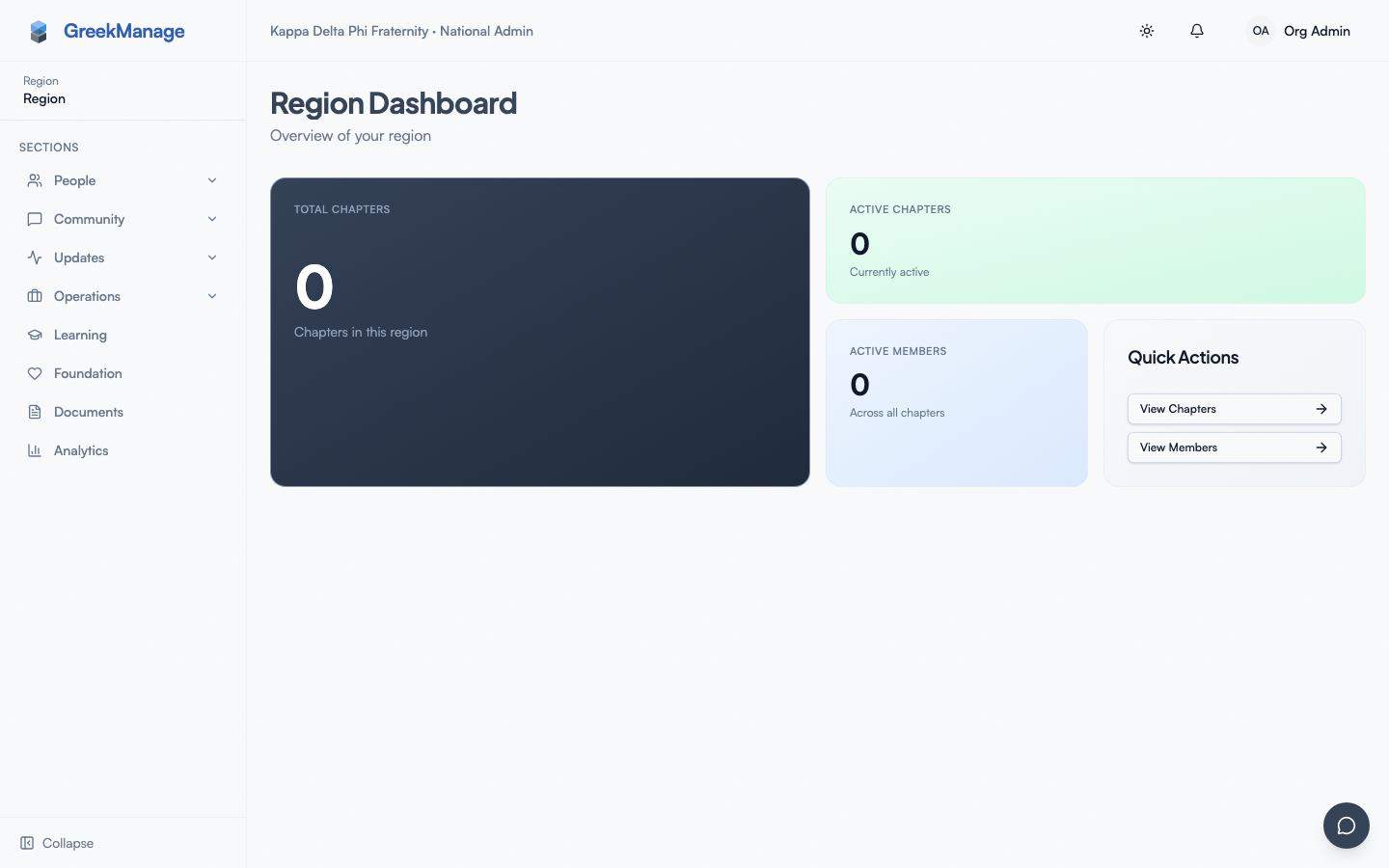 region sidebar header with region name
2. Open the Regional Dashboard
Click Dashboard. You'll see KPIs for your region:
- Total Chapters — every chapter assigned to your region
- Active Chapters — chapters in Active status (not suspended or inactive)
- Active Members — sum across your region
- Recent activity and any org bulletins
If a chapter you expected to be in your region isn't there, the chapter-region assignment is wrong; ask a national admin to fix it.
3. Walk the Chapters list
Click Chapters. You'll see every chapter in your region with status, member count, and a link into the chapter detail view. Open one to confirm you can see:
- Roster
- Officers
- Compliance status
- Advisors
- Recent activity
You can view all of this. You generally cannot create or suspend chapters from here — that's a national admin action.
4. Check the Approvals queue
Click Approvals. This is the queue of items waiting on you. The most common entries are:
- Big-Little (lineage) proposals that have cleared chapter officer review and need regional sign-off
- Member status change requests that were escalated to your tier
- New-member add requests awaiting regional approval (if your org's policy routes them through regions)
For each item: review the underlying record, then Approve or Decline with a note. Approved items move forward in the cascade (most often to the national admin for final sign-off; some terminal-on-approval). Declined items return to the chapter for revision.
5. Check Compliance
Click Operations → Compliance (if the Operations module is enabled). Compliance requirements move through:
not_started → in_progress → submitted →
  pending_chapter → pending_regional → pending_org →
  approved | rejected
You're the pending_regional tier. When a chapter submits and clears their own chapter review, the requirement lands in your queue with the chapter's notes attached. You can approve, reject (which kicks it back to the chapter), or pass it up — once you approve, it moves to pending_org for the national admin.
Filter the page by Pending Regional Review to see only what's waiting on you. Your review captures who reviewed it (you), when, and any notes you leave.
6. Sample the other surfaces
Quick tour, no action required:
- Members — region-wide member roster with search and filters
- Engage — regional-level forums, posts, and the catalog
- Photos, Recognition, Feed, Events — community surfaces filtered to your region
- Elections — any region-scoped elections in flight
- Analytics → Retention tab — retention analytics rolled up across your chapters
- Family Tree — Big-Little relationships across all chapters in your region
- Documents, Learning, Foundation, Messages — these only appear if the corresponding module is enabled for your org
You see all of these scoped to your region. You can usually post and contribute the same way a national admin can within that scope, but you cannot edit org-wide settings or push content outside your region.
What you can and can't do
You can:
- View every chapter, member, and surface within your region
- Approve / decline items routed to your tier (compliance, lineage, member changes, new-member adds)
- Post to regional Engage forums, the regional feed, and regional bulletins
- Create regional events
- Run regional Engage moderation
You can't:
- Create, edit, suspend, or reactivate chapters (national admin only)
- Reassign chapters between regions (national admin only)
- Change dues rates, compliance program structure, custom fields, or consent templates (org-wide settings)
- Toggle modules on or off
- Manage other regional admins or invite national admins
- Bulk-import members via CSV
- Configure org-wide storage, branding, or AI providers
If you find yourself wanting to do any of these, that's a sign you need to ask a national admin rather than hunt for a hidden button — the buttons aren't there because the permission isn't there.
What you can defer
- Engage — you don't need to read every forum on day one; subscribe to the region forum and let notifications surface what matters
- Analytics → Retention — only meaningful once you have a few weeks of data
- Photos / Recognition / Feed — community surfaces; engage when you have time, no urgency
- Notification tuning — defaults are fine; tune after you see what your actual daily volume looks like
When something looks wrong
Common day-one surprises that aren't bugs:
- You see fewer chapters than you expected. Confirm the chapter-region assignment with a national admin.
- An item didn't appear in your approvals queue. Some approval flows skip the regional tier by org policy. Ask the national admin if your tier is in the cascade for that requirement type.
- You can't open a chapter detail page. Verify the chapter is in your region — regional admins can only access chapters assigned to a region they administer.
What's next
- Compliance program — full multi-tier approval cascade and what each tier captures
- Approvals queue (officer view) — what your chapter officers see on the other end
- Chapters and regions — how regions are structured and what governs chapter assignment
- Your role explained — the role taxonomy across the whole platform
Last verified against v0.65.23 (2026-07-05). Retain merged into Analytics (Retention tab), Surveys split into a standalone nav item, v0.65.0.