Reports dashboard
GreekManage generates AI-assisted narrative summaries — quarterly chapter reports, annual org reports, membership/compliance/financial overviews — from your own data plus the org’s configured AI provider. They live on the AI Reports tab of Org → Analytics (/org/analytics?tab=ai-reports). There is no separate Reports page or sidebar entry any more: the old address, /org/reports, opens Analytics on its Overview tab.
Most module-level numbers and tables stay inside the module they belong to. This page is the index of everything reporting-related you can reach as a national admin.
The AI Reports tab
What you see
Open Analytics in the org sidebar and select the AI Reports tab. It has two parts:
- Generate Report. Pick a report type, optionally constrain it to a date range, and click Generate Report.
- Report History. Every previously requested report, newest first. Each row shows status (Pending, Processing, Completed, Failed), who requested it, when, and a download/view button once it finishes.
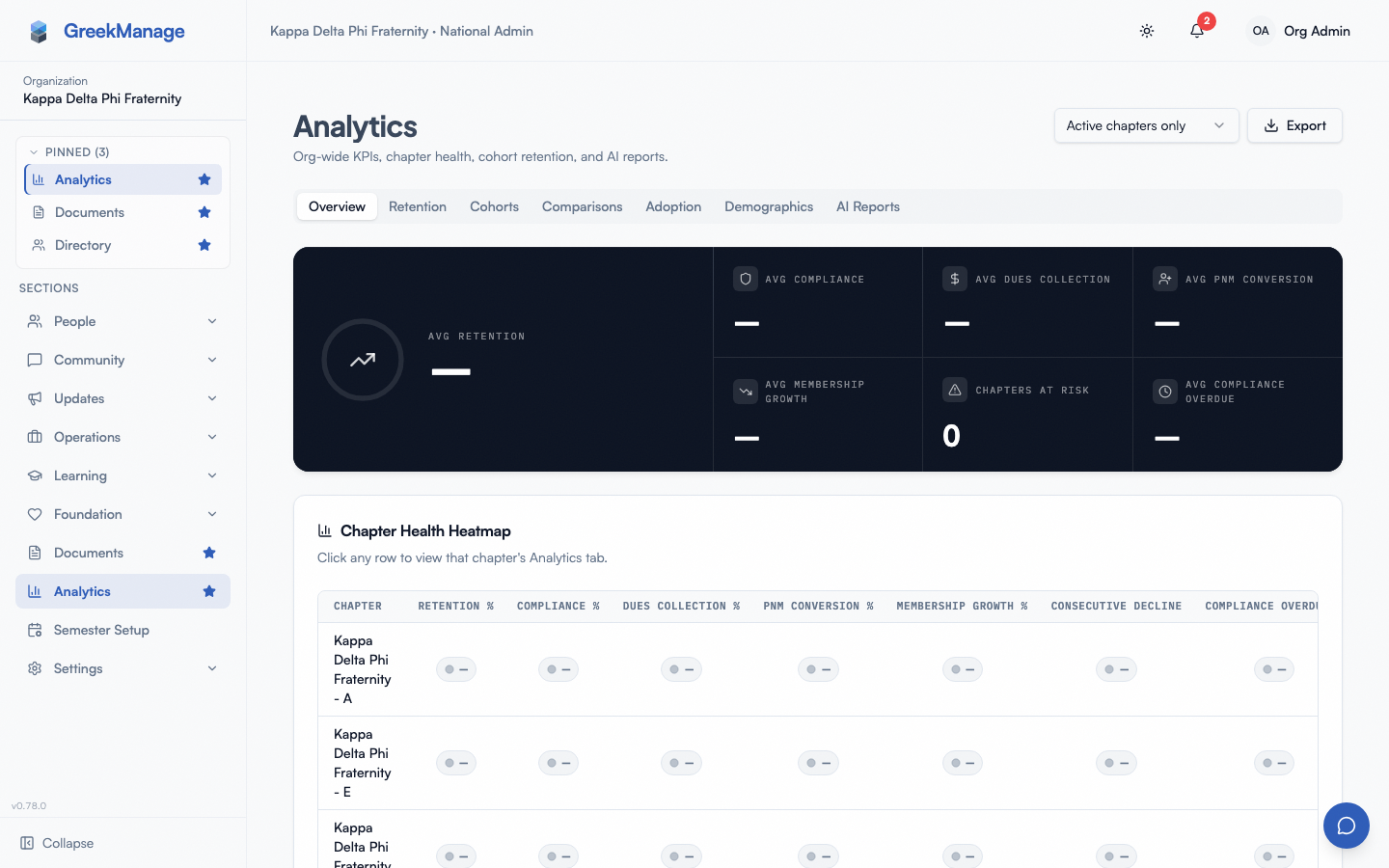 the org Analytics page — /org/reports now redirects here; AI Reports is a tab alongside Overview, Retention, Cohorts, Comparisons, Adoption and Demographics
Report types
The dropdown offers exactly five report types in v0.62.1:
| Type | What it covers |
|---|---|
| Membership Overview | Total, active and new members by chapter. Totals leave out PNMs, disaffiliated members and transferred records, the same as the dashboards |
| Quarterly Chapter Report | Chapter-by-chapter performance for a given quarter (date range matters here) |
| Annual Organization Report | Full-year summary across the org |
| Compliance Summary | Compliance status across all requirements |
| Financial Summary | Invoice and payment status overview |
There are no other types in the UI. If you need something not in this list, the closest workflow is to export raw data from the relevant module and analyze externally.
Step-by-step: generate a report
- Choose a report type from the dropdown.
- (Optional) Set a Start Date and End Date. For Quarterly and Annual reports this is required for meaningful output; for Membership Overview and Compliance Summary it’s optional and defaults to “current state.”
- Click Generate Report. The card appears at the top of Report History with status Processing.
- Wait. Generation runs in the background; the page polls and updates the status automatically. Typical generation time is a few seconds to a minute depending on org size and AI provider latency.
- When the status changes to Completed, two buttons appear: View Report (expands the report inline) and Download (saves it as a
.mdMarkdown file named<report_type>-<date>.md).
Errors and edge cases
| Status | What it means | What to do |
|---|---|---|
| Pending | The job is queued but not yet picked up by the worker. | Wait. If it sits for more than a minute or two, see the AI configuration callout above. |
| Processing | Currently running. | Wait. |
| Failed | An error occurred — the error message is shown in red on the card. | Common causes: AI key not configured, AI key invalid, AI provider rate-limited, no data in the requested date range. Read the error text and act accordingly. |
| Completed but empty body | The AI provider returned nothing meaningful (often a date range with no underlying data). | Widen the date range or pick a different report type. |
Per-module reporting surfaces
The AI Reports tab is one of several reporting surfaces. Some modules ship their own richer reports tabs; some surface data inline on the module’s main page; some only expose CSV/XLSX export.
| Module | Where | What’s there |
|---|---|---|
| Members | Org → Members | Directory listings, search, saved views, custom-field summaries; CSV/XLSX export |
| Foundation | Org → Foundation → Reports | Campaign performance, donations, donor giving, tax receipts. This is a separate, full-featured dashboard — see Foundation overview |
| Compliance | Org → Compliance | On-time rates, per-chapter status, per-requirement performance; per-chapter dashboards |
| Elections | Org → Elections → results | Vote totals per position, winners; XLSX export |
| Learning | Org → Learning | Course completion and enrollment dashboards |
| Retention | Org → Analytics → Retention tab | Retention snapshots, alerts |
| Analytics | Org → Analytics / Region → Analytics | Org/region KPI overview, Chapter Health Heatmap, cohort retention, chapter comparisons, CSV/XLSX export — see Analytics dashboard |
| Surveys | Org → Operations → Surveys | Survey list, deploy status, and aggregated results |
| Billing | Org → Billing / Org → Settings → Dues & Billing | Per-chapter invoices, rate history, payment records |
Not every module ships a dedicated “Reports” tab in the UI. Many surface reporting inline on the module’s main page rather than as a separate route. If you’re looking for a particular metric and can’t find it, check the main page of the module first.
What officers and regional admins see that you don’t (and vice versa)
- Chapter officers have no AI Reports tab: the chapter Analytics page shows chapter analytics only. They have access to their own chapter’s compliance dashboards, billing detail, election results for their chapter, and learning completion — all scoped to their chapter.
- Regional admins see most of the same per-module surfaces you do, scoped to chapters in their region. Their Region → Analytics page has no AI Reports tab.
- Only org / national admins can generate or read AI reports. The reports API refuses everyone else.
Mobile differences
The AI Reports tab works on mobile via the iOS and Android apps, but the experience is awkward — the inline report viewer expects a wider viewport and Markdown rendering is plain <pre> text. For anything beyond glancing at a recent report’s status, generate on desktop, then download the Markdown file.
Per-module surfaces vary: Members and Compliance render well on mobile; the Foundation Reports dashboard’s charts are desktop-first.
Troubleshooting
“AI provider not configured” or similar. Open Org → Settings → Admin Management and check the AI Assistant Configuration card: confirm a provider is set up and verified. See AI Services — provider config.
I can’t find the Reports page. It is the AI Reports tab of Analytics now; there is no separate Reports entry in the sidebar. Old links and shortcuts to /org/reports, and the Open Reports Dashboard button under Settings → Reports, open Analytics on its Overview tab. Select AI Reports from there.
The report mentions chapters or numbers that look wrong. AI reports occasionally hallucinate. Always cross-check the underlying data in the relevant module before forwarding a report externally — these are summaries, not authoritative reports.
A previously generated report is missing from history. Report History is paged, newest first: older reports are on later pages (Next). It lists every report your organization has generated, whoever requested it. A report is kept when the person who requested it is removed; its card then shows no requester name.
Related
- AI Services — provider config — sets the provider used by the Reports dashboard
- AI Services — content scope toggles — controls what data the AI can access
- Foundation overview — the Foundation module’s own Reports dashboard
- Reports, exports & audit logs — the broader exports + audit log index
Last verified against v0.65.23 (2026-07-05). Retain merged into Analytics (Retention tab), Surveys split into a standalone nav item, v0.65.0. Reports sidebar entry shipped v0.63.28.