Retention snapshots and alerts
Every night, the platform takes a snapshot of every active chapter in your organization and computes a small set of membership numbers — active count, graduating count, new members, and the projected end-of-year count. When those numbers add up to a chapter shrinking, an alert fires. Org admins triage the alerts the same way they triage any other workflow item: acknowledge it now, resolve it later.
This page describes what the snapshot captures, when alerts fire, the two severity levels, and the action verbs you’ll use to work through your alert queue.
What the nightly snapshot captures
Once a day, the platform writes a RetentionSnapshot row for every active chapter in every org that has the Operations module enabled. Each snapshot is one row per chapter per date, so historical trends are queryable directly.
For each chapter, the snapshot computes:
| Number | Definition |
|---|---|
| Active member count | Members currently in one of the active statuses (new member, active, intent-to-renew) |
| Graduating count | Active members whose graduation year matches the current academic year |
| New member count | Active members with a join date on or after August 1 of the current academic year |
| Projected EOY count | Active count minus graduating count (no recruitment assumption) |
| Net delta | New members minus graduating — the rough year-over-year direction |
| Academic year | The ending year of the current academic year (August → July) |
The “academic year” rule is: if today is August or later, the academic year is “next calendar year.” So a snapshot taken in October 2026 has academic year 2027 and counts new members joining after August 1, 2026.
Snapshots are idempotent for the same chapter on the same date — if a worker re-runs the task, it overwrites that day’s numbers rather than creating duplicates. The 30-day trend on the chapter retention dashboard reads from these snapshots directly.
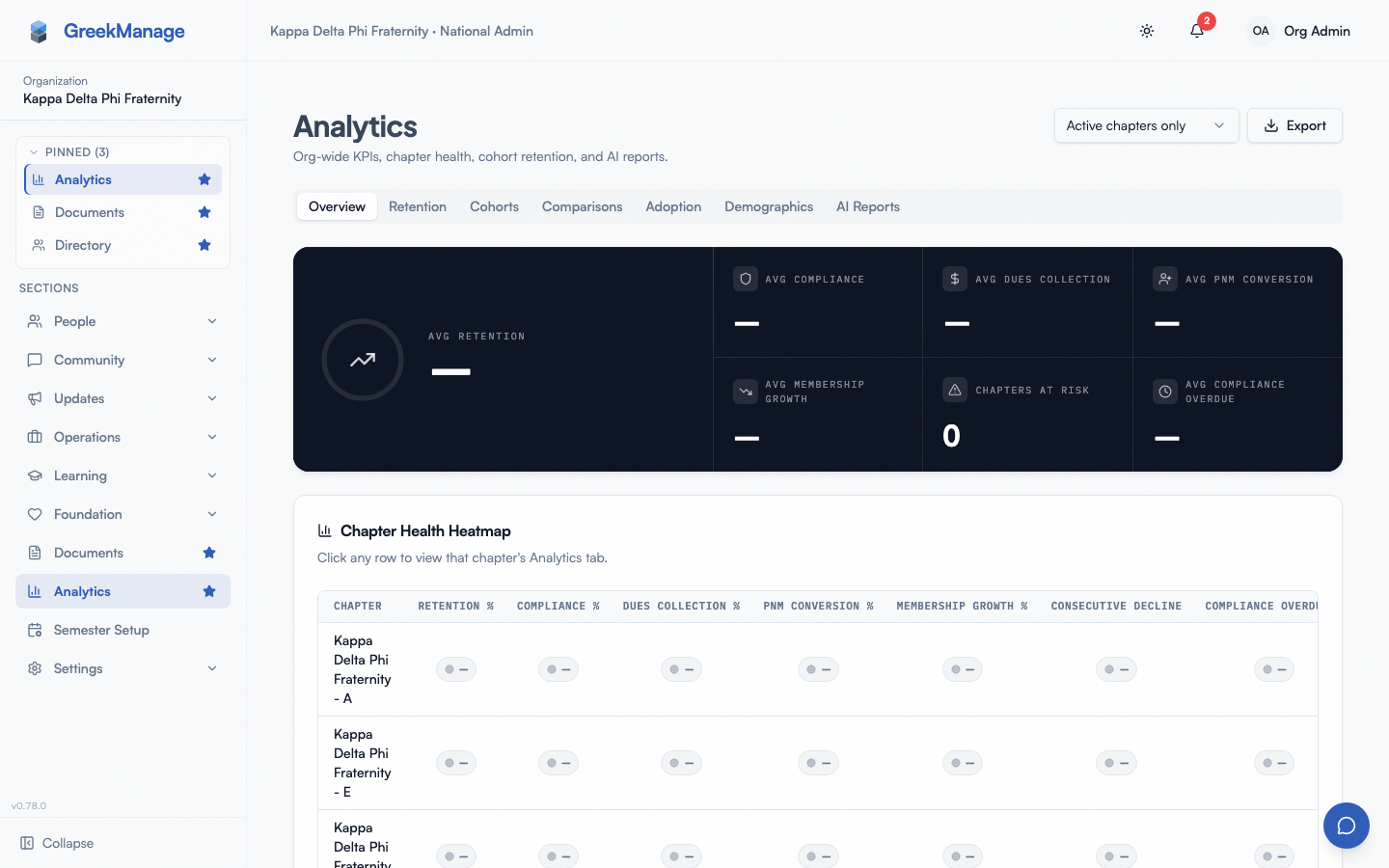 the org Analytics page — /org/chapters/retain now redirects here, with Retention as one of its tabs
When an alert fires
There is one alert shape in this module: “membership declining.” The check is simple:
If a chapter’s graduating count is greater than its new-member count, fire an alert.
That’s the entire rule. Chapters losing more members than they’re gaining trigger an alert; chapters that are flat or growing do not. The platform does not currently emit alerts for low engagement, missing officers, dues delinquency, or any other signal — those are out of scope for retention scoring today.
Severity
When the rule fires, the platform picks between two severity levels:
- Critical — the chapter’s projected end-of-year count is less than half its current active count, OR the deficit (graduating minus new) is at least 5.
- Warning — the chapter is declining, but neither of the critical thresholds is hit. A chapter losing 1-4 net members where the EOY projection is still healthy lands here.
The alert title includes the chapter designation and severity (“Critical: Beta Phi membership declining”). The message body lists the three numbers that triggered it: graduating count, new member count, projected end-of-year count.
Duplicate suppression
The platform will NOT create a second open alert of the same severity for the same chapter. If a critical alert is already Open or Acknowledged when the nightly task runs, no new critical alert is created — you see the alert once instead of getting it spammed daily.
Once resolved, the chapter is eligible for a fresh alert if the rule re-trips on a later night — that’s how you find out the situation came back.
The flip side: if a Warning is already open and the chapter slips into Critical territory, a Critical alert WILL be created (different severity, not suppressed). You’ll see two open alerts for the same chapter.
Action verbs
Org admins have two actions on an alert: Acknowledge and Resolve. There is no “Dismiss.”
Acknowledge
Acknowledging an alert means “I’ve seen this, I’m thinking about it.” The alert stays visible on the chapter dashboard and in the org alerts list. The status flips from Open to Acknowledged, and the platform stamps your name and the timestamp onto the record. The chapter, regional admin, and other org admins can see who’s looking at it, which prevents two admins from working the same alert in parallel.
Use this when the alert lands and you need a day or two to gather context — pull the chapter’s recruitment numbers, talk to the chapter president, look at the historical trend — before deciding what to do.
Resolve
Resolving an alert means “the work is done.” You typically resolve an alert with a short note in the Resolution notes field — what action was taken, what the outcome was. The status flips to Resolved, and the platform stamps your name and the timestamp if it wasn’t already (acknowledging stamps too, but resolving without acknowledging first will still capture you as the actor).
The resolution notes are visible on the alert detail. They become the audit trail of how this chapter’s retention story was handled.
Recurrence after resolve: once an alert is resolved, the duplicate-suppression rule no longer applies. The next nightly task can create a fresh alert if the chapter is still declining. So “resolving” an alert doesn’t make the underlying problem go away — it just closes out the current ticket and resets the platform’s ability to surface it again. Plan resolution to coincide with actual action.
Notifications
When an alert is created, the platform notifies every active org admin via in-app notification and email. The notification title and body are the same as the alert title and message — “Critical: Beta Phi membership declining” with the three counts.
Chapter officers and regional admins do not receive direct email notifications when an alert fires. They see the alert on their respective chapter or region Analytics → Retention tab when they next log in. If you want them aware sooner, follow up with them out-of-band.
Notification delivery is gated on the Operations module being enabled for the org. If you disable the module, snapshots stop running for that org and existing alerts stop generating new notifications.
The alerts list
From the org sidebar, open Analytics → Retention. It lands on the chapters health table. The “Open alerts” column shows a count per chapter. Click into any chapter to see the chapter retention dashboard with its individual alerts, severity, and acknowledge/resolve buttons.
For an org-wide view of every active alert across every chapter, the chapter health table is the entry point — sort by alert count, scan for the chapters that need attention, and click in.
Alerts can be filtered by status (Open, Acknowledged, Resolved) and severity (Warning, Critical) via the API; the UI surfaces the status filter most prominently.
What happens when the rule trips, in plain English
- Nightly task runs. For every chapter in every org with Operations enabled, it computes the four numbers above and writes a snapshot.
- Same task evaluates the rule. If graduating > new and no same-severity open alert exists, a fresh alert is created and a notification queued.
- Org admins get email + in-app notifications.
- An admin opens the alert, reads it, and acknowledges. Status flips; other admins now see “Acknowledged by {name}”.
- Days or weeks later, after action is taken, the admin resolves the alert with notes. The audit trail is complete.
- If the chapter declines again later, the cycle repeats with a fresh alert.
What the snapshot does NOT do
The retention snapshot system is intentionally narrow. It does not:
- Track non-membership signals (event attendance, dues paid, forum engagement).
- Run anything more sophisticated than graduating-vs-new. No machine learning — just the deterministic rule.
- Predict recruitment. The projected EOY count assumes zero new members between today and year-end.
- Configure thresholds. The “deficit ≥ 5” and “EOY less than half” rules are hard-coded.
- Snapshot inactive chapters. Only chapters in Active status are evaluated.
If your organization needs a more sophisticated retention model, surveys are the place to capture the qualitative side — see Survey authoring.
Related
- Survey authoring — qualitative feedback collection that pairs with quantitative snapshots
- Module enablement — the Operations module gates the snapshot task and alert delivery
- Permissions matrix
Last verified against v0.65.23 (2026-07-05). Retain merged into Analytics (Retention tab), Surveys split into a standalone nav item, v0.65.0.