Service hours settings
Members log their own community service hours and officers review them; this page is where you set the requirement they’re logging against — the default hours per semester, any per-status exceptions, and the categories members pick from.
Open Service Hours settings
Settings → Service Hours (tab icon: Clock). The tab only appears when the Operations module is enabled for your org.
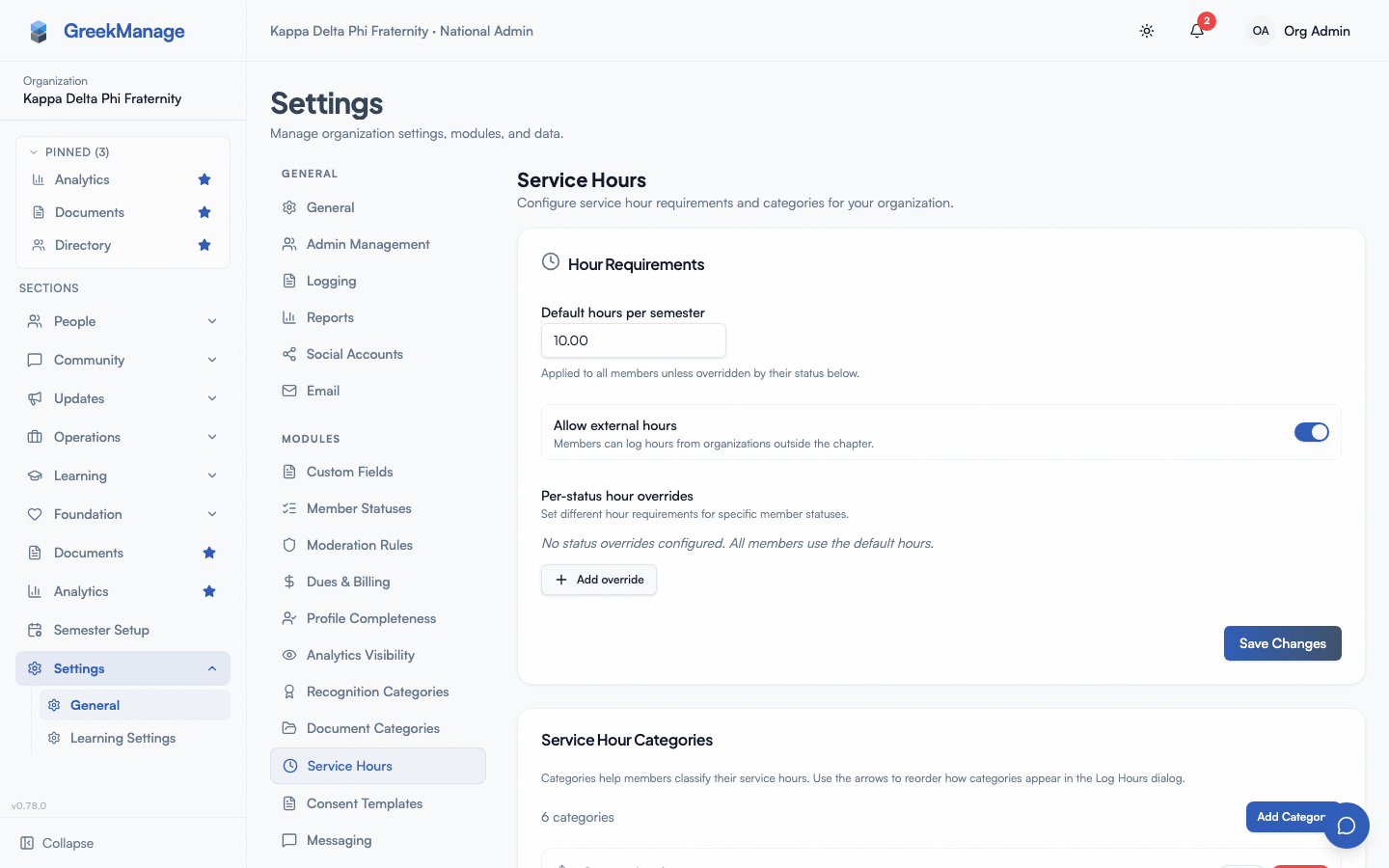 Service Hours settings: Hour Requirements and Categories.
Hour Requirements
The Hour Requirements card has three parts:
- Default hours per semester — a number input (0.5-hour increments). Applied to every member unless their status has an override below. This is the number that drives the “Required” stat and progress ring on the member Service Hours page.
- Allow external hours — a toggle, described in the UI as “Members can log hours from organizations outside the chapter.” When off, a member who enters an organization name on the Log Hours form without linking a service-eligible chapter event sees a warning that the entry will be rejected — and submitting it is a hard block: the API rejects the request outright (an error, no entry created), rather than accepting it and flagging it for officers to reject later. When on, external hours are accepted without that restriction.
- Per-status hour overrides — a table (columns: Member Status, Required Hours) for setting a different requirement than the default for specific membership statuses. Click Add override to add a row, then type a status value (matching a
Membershipstatus such asundergrad,associate,alumni,active_alumni,lifetime_alumni,pnm,disaffiliated, orinactive) and a hours value; the trash icon on a row removes it. This is a free-text field, not a dropdown — a typo won’t match any member and that status will silently fall back to the default. With no overrides configured, the table shows: “No status overrides configured. All members use the default hours.”
Click Save Changes to persist all three settings together. There’s no per-field save — editing the default hours, the toggle, and the overrides table all save in one request.
Service Hour Categories
The Service Hour Categories card lists every category members can pick from on the Log Hours form’s optional Category field. Each row shows the category name, its description (if any), and an Active / Inactive badge.
- Reordering — up/down arrow buttons on each row change display order, which is the order categories appear in the Log Hours dialog’s Category dropdown.
- Edit — opens an Edit Category dialog with the same fields as creation (see below); click Save.
- Delete — click Delete, then confirm the browser dialog. See Errors and edge cases for the exact warning text and what actually happens to existing entries.
- Add Category — click Add Category to open a New Category dialog with three fields: Name (required), Description (optional), and an Active toggle (on by default). Click Create to save.
If your org has zero categories, the Category field is simply hidden on the member Log Hours form — categories are optional, not required for members to log hours. The card itself shows: “No categories configured. Categories help members classify their service hours.”
The national approval queue
Service hours runs on the platform’s shared approval chain. By default every organization’s chain is chapter only — nothing changes here unless you configure otherwise — but Service hours is the one surface where the National tier is optional to add rather than mandatory, and it can be ticked from Settings → Approval Chains alongside every other surface.
Ticking National creates a real gap the platform did not have a screen for before: every pre-existing service-hours page is scoped to one chapter (Review Submissions on a chapter’s own page), so there was nowhere for a national admin to act once a chapter’s chain deferred to them. The Service Hours tab of the Approvals page (profile menu → Approvals; requires the Operations module) is that queue. It was a separate top-level sidebar item until it was folded into Approvals.
Nobody approves their own hours here either. A national admin who is also a chapter member and logged an entry sees its Approve disabled with “Another officer must approve your hours”, and Approve all awaiting national review skips it with that reason. Reject stays available.
What the queue shows
The queue lists entries whose chain has reached the national tier — either because the org’s policy names national directly on this surface, or because every earlier tier the org did configure has already signed off or been skipped. Entries flagged for unusually high single-day hours are ordered first, then oldest first, applied by the server across the whole queue, not just the page in front of you.
It also lists entries that have nothing left to wait for. For example, if you remove National from the chain, entries your chapters had already approved stay here until you Approve or Reject them. Removing National never approves them for you.
A chapter filter narrows the list to one chapter’s entries, and each row also names its own chapter directly. Per-row actions are the same as a chapter officer’s: Approve, or Reject with a required note.
Approve all awaiting national review
Approve all awaiting national review, optionally scoped by the same chapter filter, approves every entry currently sitting at the national tier in one action. The result panel afterwards reports four numbers, not just one:
- Approved — entries this action actually granted.
- Advanced (still pending) — entries this national admin does hold a tier for, but which have another tier still ahead of them in their own chain; they moved forward one step and remain in review.
- Skipped — entries this admin’s action could not touch at all, each with a reason. A record the reviewer cannot action is reported, never silently dropped from the batch.
- Still awaiting a national decision — the organization-wide count after this run, which can be non-zero even on a clean run if the scan hit its own limit; the queue tells you when that happened rather than implying it cleared everything.
Entries flagged for high hours are reported through the same skip mechanism rather than silently excluded from the batch, so a bulk run never looks cleaner than it was. One audit entry is written per bulk action, naming the chapter filter and the counts above — not one per record.
Each row names its own chapter (light follow-up, 2026-09-13), so running this queue unfiltered across many chapters no longer loses track of which chapter an entry came from. The chapter filter narrows the list; the per-row chapter name is what lets you read an unfiltered view at all.
Track service hours in Compliance
To see across chapters who has met the service-hour goal, link the term’s goal to a compliance requirement. Each chapter’s progress on that requirement then becomes the percentage of its members who have met their goal this term, calculated from approved hours, and it shows on the compliance dashboard like any other requirement.
- In Compliance, give the term a requirement with tracking type Numeric and target unit %. Its target is the percentage of members who must meet the goal for the chapter to be compliant: 100 means everyone, 80 means four in five. It cannot be above 100.
- Open Semester Setup, pick the term, and go to the Service Hours step.
- Under Track in Compliance, choose the requirement and click Save service-hour goal.
How the percentage is worked out:
- Each member’s goal is this term’s default hours, or the override for their member status. Only members with a goal above 0 count, so a status you set to 0 (alumni, say) neither helps nor hurts a chapter.
- A member has met the goal when their approved hours dated inside the term add up to it. Pending and rejected hours don’t count. Hours logged at a previous chapter before a transfer do.
- The chapter is Approved for the requirement once the percentage reaches the target, and goes back to In Progress if it drops below (an entry rejected or deleted, a goal raised). Past the due date and short of it, the chapter is Overdue. A per-chapter target override, set with Overrides in Manage Requirements, applies here too.
- It updates within moments of an officer approving hours, and again every night. Chapters can no longer type a value in for the requirement or submit evidence against it; their page explains where the number comes from.
- Exempt chapters stay exempt, and a closed compliance term stays as it was.
The link belongs to the term, so set it again each term (each term has its own requirement). The Organization defaults on this settings page still supply the goal for a term that has none of its own.
Errors and edge cases
- Deleting a category that has existing entries. The confirmation dialog reads: “Delete this category? Existing entries in this category will keep their record but lose the category label.” This is accurate — deleting a category does not delete or orphan the hour entries logged under it; those entries simply stop showing a category badge on the member’s history and in exports.
- Entering an invalid or misspelled status in a per-status override. The field accepts any text, so a typo (e.g.
actveinstead ofactive) saves without error but never matches a real member — that status quietly falls back to the default hours. Double-check spelling against your organization’s actual membership statuses. - Disabling the Operations module. The Service Hours settings tab, and the member/officer pages, disappear entirely — existing requirement and category data is preserved and reappears if the module is re-enabled later.
Related
- Service hours (members) — what members see when they log hours and track progress against the requirement you set here
- Service hours approvals (officers) — how officers review submissions at the chapter tier
- Approval chains — configuring the chain this surface runs on, including the national tier
- Module: Operations
Last verified against v0.65.23 (2026-07-05). Service Hours shipped v0.63.42. Corrected external-hours submission-block description (hard block at submit time, not a later officer-review flag). National approval queue added — see The national approval queue.