SSO — OAuth & OIDC identity providers
OAuth 2.0 / OIDC is the most common way to wire an enterprise sign-in into GreekManage. If your org is already using Google Workspace or Microsoft 365, the defaults are pre-baked — you only need to register a client and paste two values. Okta works too, but requires you to fill in the URLs by hand since its endpoints are tenant-specific.
Choose your provider
GreekManage supports three OAuth providers as first-class options:
| Provider | Defaults | When to use |
|---|---|---|
| Google Workspace | Pre-baked authorization, token, and userinfo URLs | Your org email runs on Google Workspace (custom Gmail domain) |
| Microsoft 365 | Pre-baked common-tenant URLs (works for any Azure AD tenant) | Your org runs on Microsoft 365 / Entra ID |
| Okta | None — you provide the URLs | Your org uses Okta as its IdP, including for non-Google/Microsoft accounts |
For all three, the OAuth flow is the same; only the URLs differ.
Create the identity provider
- Open Org → Settings → Identity Providers.
- Click Add Provider.
- Fill out:
- Name — a human label ("Acme Google", "Department IT Microsoft 365", "Okta — engineering").
- Type — choose OAuth.
- Slug — a short, globally unique, URL-safe identifier. It appears in the redirect URI you'll register with your provider. Pick something stable — changing it later breaks every active client config.
- Allowed Domain (optional) — restrict sign-in to a specific email domain (e.g.,
example.edu). If a user signs in successfully at the IdP but their email is on a different domain, GreekManage rejects the sign-in. Leave blank to accept any verified email the IdP returns.
- Click Create. The provider starts in the inactive state.
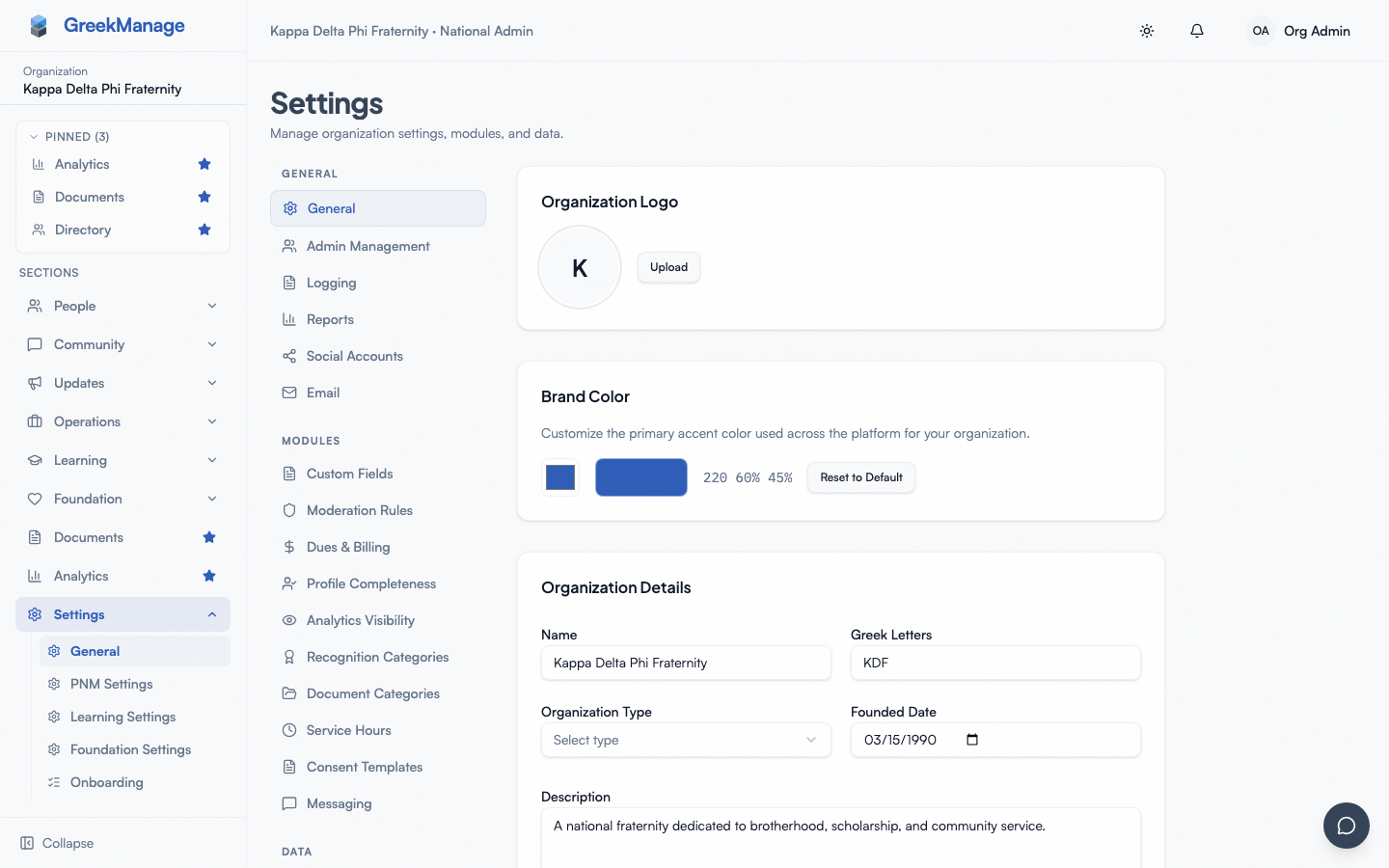 Add Identity Provider dialog with Type=OAuth
Register a client with your provider
Before pasting credentials into GreekManage, register an OAuth client on the provider side. The registration step asks for two things from you:
- Authorized redirect URI:
https://[your-app-domain]/api/auth/sso/oauth/[slug]/callback/— replace[slug]with the slug you picked. - Scopes:
openid,email,profile. These are the defaults GreekManage requests; no extra scopes are needed for basic sign-in.
Where you register the client depends on the provider:
- Google Workspace — Google Cloud Console → APIs & Services → Credentials → Create OAuth 2.0 Client ID (Web application). Add the redirect URI under "Authorized redirect URIs".
- Microsoft 365 / Entra ID — Azure Portal → Entra ID → App Registrations → New registration. Add a Web platform redirect URI.
- Okta — Okta Admin → Applications → Create App Integration → OIDC — Web Application. Add the redirect URI under "Sign-in redirect URIs".
After registration, your provider gives you a Client ID and a Client Secret. Hang onto both — the secret is shown once.
Paste credentials into GreekManage
Back in Identity Providers, find the new OAuth provider and click the pencil icon. Fill in:
- Provider — Google Workspace, Microsoft 365, or Okta.
- Client ID — from the provider.
- Client Secret — from the provider. Stored encrypted at rest. If you re-edit the config later, leave this field blank to keep the existing secret; paste a new value only when rotating.
- Scopes — leave at
openid email profileunless your provider requires more.
For Google Workspace and Microsoft 365, you can leave the three URL fields (Authorization URL, Token URL, Userinfo URL) blank — GreekManage uses the provider defaults:
| Provider | Authorization URL | Token URL | Userinfo URL |
|---|---|---|---|
| Google Workspace | https://accounts.google.com/o/oauth2/v2/auth | https://oauth2.googleapis.com/token | https://openidconnect.googleapis.com/v1/userinfo |
| Microsoft 365 | https://login.microsoftonline.com/common/oauth2/v2.0/authorize | https://login.microsoftonline.com/common/oauth2/v2.0/token | https://graph.microsoft.com/oidc/userinfo |
For Okta, you must fill in all three. They look like:
- Authorization:
https://[your-okta-domain]/oauth2/default/v1/authorize - Token:
https://[your-okta-domain]/oauth2/default/v1/token - Userinfo:
https://[your-okta-domain]/oauth2/default/v1/userinfo
(Replace [your-okta-domain] with your Okta tenant URL. If you use a custom authorization server, swap default for its ID.)
Click Save OAuth Configuration.
Test the connection
Click the test tube icon next to the provider in the list. GreekManage checks that:
- The OAuth config record exists
- Both Client ID and Client Secret are set
This is a static config check, not a live flow test. To verify the real flow, flip the provider to active (the toggle next to its name), open a private/incognito browser window, click your provider's button on the sign-in page, complete authentication at the provider, and confirm you land on the GreekManage dashboard.
What the sign-in flow does, end to end
When a member clicks the provider button:
- GreekManage generates a one-time state token (CSRF defense) and stores it in cache for 10 minutes.
- The member's browser is redirected to your provider's authorization URL with the state token and the requested scopes.
- The member authenticates at the provider (and consents to the requested scopes the first time).
- The provider redirects back to
…/api/auth/sso/oauth/[slug]/callback/with an authorization code and the state token. - GreekManage validates the state token, exchanges the code with the provider's token endpoint for an access token, then calls the userinfo endpoint to fetch the user's email and name.
- If you set an Allowed Domain, GreekManage rejects the sign-in if the returned email doesn't match.
- GreekManage looks up an existing user by email. By default, no Membership is created — the user must already exist in your organization. New members get accounts through the normal onboarding or PNM intake flows. The Auto-provisioning toggle (below) opts your IdP into creating a Membership on first sign-in.
- On match, GreekManage mints a JWT for the user, sets the auth cookies, and redirects them into the app.
The whole sequence takes one or two seconds in practice.
Auto-provisioning (optional, v0.63.37+)
OAuth and SAML share the same auto-provisioning policy surface — fields live on the IdP parent record, so the controls are identical to those documented for SAML. Open the IdP edit form and configure:
- Auto-provision enabled — turn on.
- Default chapter — the chapter newly-provisioned members are dropped into. Required when auto-provision is on.
- Default role — typically
member. - Default status — typically
undergrador your org's default active status.
First-time OAuth sign-in with auto-provisioning enabled creates a Membership in your org for the resolved user. An AuditLog row (operation="sso_auto_provision") records the action.
Cross-org email collision block (v0.63.37+)
A guardrail always on, regardless of the toggle: if the resolved email already maps to a user whose existing Membership is in a different organization, the OAuth sign-in is rejected with HTTP 409 and a clear message. This prevents a stolen Google / Microsoft credential from pivoting an existing user into your org. Use the regular member onboarding flow with explicit consent for cross-org transfers.
See the SAML page for the same auto-provisioning fields and constraints — the policy is shared.
Domain-based sign-in discovery
Members don't need to know which IdP your org uses. On the public sign-in page they enter their email. The frontend hits a discovery endpoint that looks up active identity providers and matches by Allowed Domain. If a match is found, the right provider button appears under the email field. This means a member with an @acme.edu email automatically sees the Acme IdP, while another member with an @partner.org email sees a different one — without your support team explaining it.
If you didn't set an Allowed Domain on a provider, it appears in the picker for everyone in your org.
Disabling and rotating
- Disable temporarily: toggle Active off on the provider. The button disappears from the sign-in page. Existing users fall back to their other sign-in methods (password, passkey, other IdPs).
- Rotate the client secret: generate a new secret on the provider side, paste it into the Client Secret field, save. The old secret stops working immediately on the provider side; do this during a maintenance window if you have heavy sign-in traffic.
- Delete the provider: removes the IdP wiring. User accounts are not deleted.
Related
- SSO — SAML identity providers — for Okta SAML, Shibboleth, ADFS, and other SAML-only IdPs
- Approvals queue (org admin) — account requests from members who sign in via SSO but don't yet have an account
- Permissions matrix — who can configure IdPs
- Glossary — OAuth 2.0, OIDC, SSO
Last verified against v0.65.5 (2026-07-02). Auto-provisioning + cross-org collision block shipped v0.63.37; auto-provisioning UI (enable toggle + default chapter/role/status pickers) mounted next to each IdP's config v0.65.5.