SSO — OAuth & OIDC identity providers
OAuth 2.0 / OIDC is the most common way to wire an enterprise sign-in into GreekManage. If your org is already using Google Workspace or Microsoft 365, the defaults are pre-baked — you only need to register a client and paste two values. Okta works too, but requires you to fill in the URLs by hand since its endpoints are tenant-specific.
Choose your provider
GreekManage supports three OAuth providers as first-class options:
| Provider | Defaults | When to use |
|---|---|---|
| Google Workspace | Pre-baked authorization, token, and userinfo URLs | Your org email runs on Google Workspace (custom Gmail domain) |
| Microsoft 365 | Pre-baked common-tenant URLs (works for any Azure AD tenant) | Your org runs on Microsoft 365 / Entra ID |
| Okta | None — you provide the URLs | Your org uses Okta as its IdP, including for non-Google/Microsoft accounts |
For all three, the OAuth flow is the same; only the URLs differ.
Create the identity provider
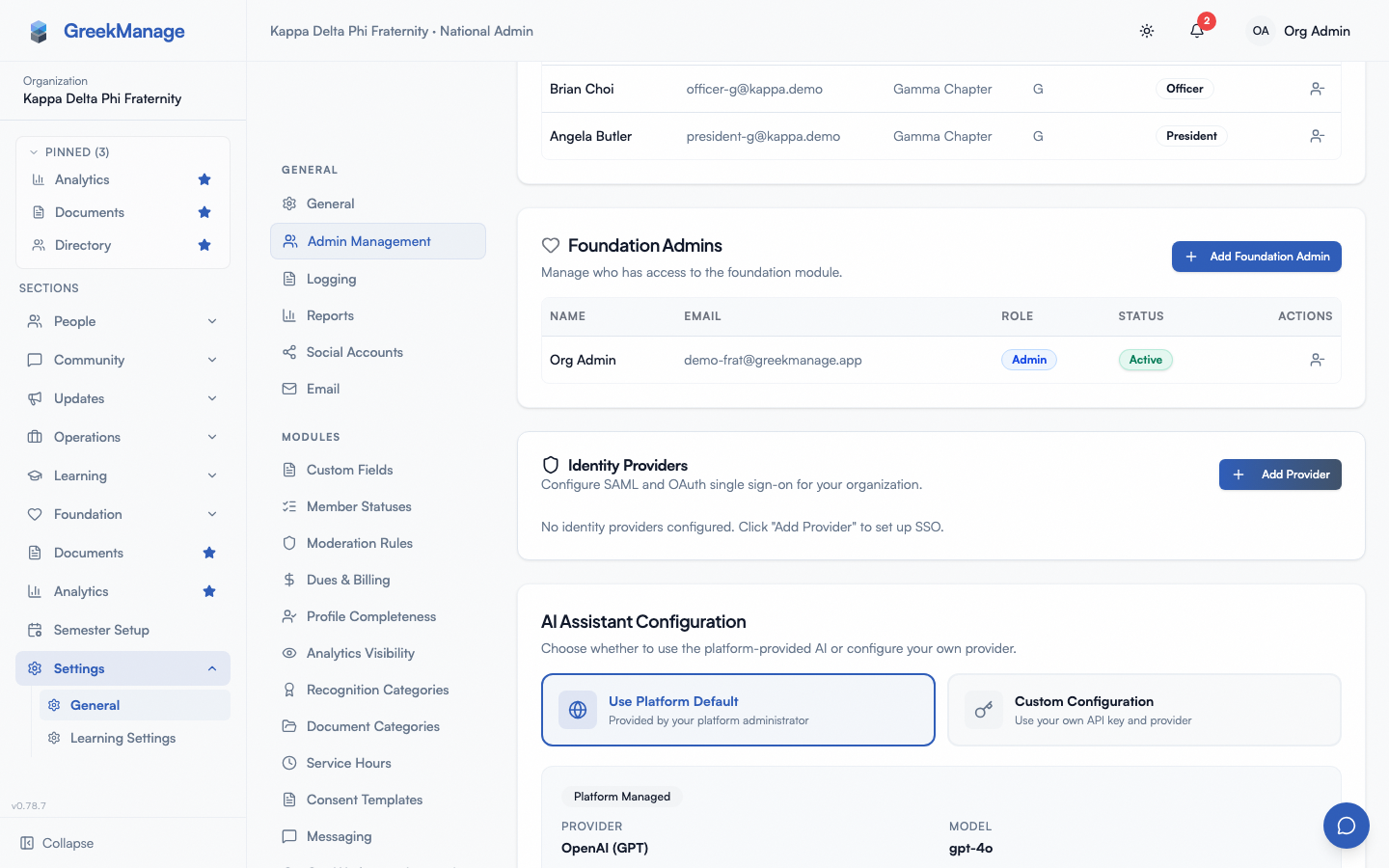
- Open Org → Settings → Identity Providers.
- Click Add Provider.
- Fill out:
- Name — a human label (“Acme Google”, “Department IT Microsoft 365”, “Okta — engineering”).
- Type — choose OAuth.
- Slug — a short, globally unique, URL-safe identifier. It appears in the redirect URI you’ll register with your provider. Pick something stable — changing it later breaks every active client config.
- Allowed Domain (optional) — restrict sign-in to a specific email domain (e.g.,
example.edu). If a user signs in successfully at the IdP but their email is on a different domain, GreekManage rejects the sign-in. Leave blank to accept any verified email the IdP returns.
- Click Create. The provider starts in the inactive state. Switching it on is a platform administrator action — you can create and configure providers, but not activate them (and not create one already active).
 Add Identity Provider dialog with Type=OAuth
Register a client with your provider
Before pasting credentials into GreekManage, register an OAuth client on the provider side. The registration step asks for two things from you:
- Authorized redirect URI:
https://[your-app-domain]/api/auth/sso/oauth/[slug]/callback/— replace[slug]with the slug you picked. - Scopes:
openid,email,profile. These are the defaults GreekManage requests; no extra scopes are needed for basic sign-in.
Where you register the client depends on the provider:
- Google Workspace — Google Cloud Console → APIs & Services → Credentials → Create OAuth 2.0 Client ID (Web application). Add the redirect URI under “Authorized redirect URIs”.
- Microsoft 365 / Entra ID — Azure Portal → Entra ID → App Registrations → New registration. Add a Web platform redirect URI.
- Okta — Okta Admin → Applications → Create App Integration → OIDC — Web Application. Add the redirect URI under “Sign-in redirect URIs”.
After registration, your provider gives you a Client ID and a Client Secret. Hang onto both — the secret is shown once.
Paste credentials into GreekManage
Back in Identity Providers, find the new OAuth provider and click the pencil icon. Fill in:
- Provider — Google Workspace, Microsoft 365, or Okta.
- Client ID — from the provider.
- Client Secret — from the provider. Stored encrypted at rest. If you re-edit the config later, leave this field blank to keep the existing secret; paste a new value only when rotating.
- Scopes — leave at
openid email profileunless your provider requires more.
For Google Workspace and Microsoft 365, you can leave the three URL fields (Authorization URL, Token URL, Userinfo URL) blank — GreekManage uses the provider defaults:
| Provider | Authorization URL | Token URL | Userinfo URL |
|---|---|---|---|
| Google Workspace | https://accounts.google.com/o/oauth2/v2/auth | https://oauth2.googleapis.com/token | https://openidconnect.googleapis.com/v1/userinfo |
| Microsoft 365 | https://login.microsoftonline.com/common/oauth2/v2.0/authorize | https://login.microsoftonline.com/common/oauth2/v2.0/token | https://graph.microsoft.com/oidc/userinfo |
For Okta, you must fill in all three. They look like:
- Authorization:
https://[your-okta-domain]/oauth2/default/v1/authorize - Token:
https://[your-okta-domain]/oauth2/default/v1/token - Userinfo:
https://[your-okta-domain]/oauth2/default/v1/userinfo
(Replace [your-okta-domain] with your Okta tenant URL. If you use a custom authorization server, swap default for its ID.)
Click Save OAuth Configuration.
Test the connection
Click the test tube icon next to the provider in the list. GreekManage checks that:
- The OAuth config record exists
- Both Client ID and Client Secret are set
This is a static config check, not a live flow test. To verify the real flow, have a platform administrator activate the provider (the toggle next to its name; an org admin attempting it gets a 403), then open a private/incognito browser window, click your provider’s button on the sign-in page, complete authentication at the provider, and confirm you land on the GreekManage dashboard. Switching the provider back off stays with you.
What the sign-in flow does, end to end
When a member clicks the provider button:
- GreekManage generates a one-time state token (CSRF defense) and stores it in cache for 10 minutes.
- The member’s browser is redirected to your provider’s authorization URL with the state token and the requested scopes.
- The member authenticates at the provider (and consents to the requested scopes the first time).
- The provider redirects back to
…/api/auth/sso/oauth/[slug]/callback/with an authorization code and the state token. - GreekManage validates the state token, exchanges the code with the provider’s token endpoint for an access token, then calls the userinfo endpoint to fetch the user’s email and name.
- If you set an Allowed Domain, GreekManage rejects the sign-in if the returned email doesn’t match.
- GreekManage looks up an existing user by email. By default, no Membership is created — the user must already exist in your organization. New members get accounts through the normal onboarding or PNM intake flows. The Auto-provisioning toggle (below) opts your IdP into creating a Membership on first sign-in.
- On match, GreekManage mints a JWT for the user, sets the auth cookies, and redirects them into the app.
The whole sequence takes one or two seconds in practice.
Auto-provisioning (optional, v0.63.37+)
OAuth and SAML share the same auto-provisioning policy surface — fields live on the IdP parent record, so the controls are identical to those documented for SAML. Open the IdP edit form and configure:
- Auto-provision enabled — turn on.
- Default chapter — the chapter newly-provisioned members are dropped into. Required when auto-provision is on.
- Default role — typically
member. - Default status — typically
undergrador your org’s default active status.
First-time OAuth sign-in with auto-provisioning enabled creates a Membership in your org for the resolved user. An AuditLog row (operation="sso_auto_provision") records the action.
With auto-provisioning off, your IdP cannot create accounts
An asserted address with no GreekManage account behind it is refused (HTTP 409) rather than turned into an account with no membership. People already on your roster are unaffected; onboarding someone new means enabling auto-provisioning with a default chapter, or adding them as a member first. See the SAML page for why — the policy is shared.
Cross-org email collision block (v0.63.37+)
A guardrail always on, regardless of the toggle: if the resolved email already maps to a user whose existing Membership is in a different organization, the OAuth sign-in is rejected with HTTP 409 and a clear message. This prevents a stolen Google / Microsoft credential from pivoting an existing user into your org. Use the regular member onboarding flow with explicit consent for cross-org transfers.
The same refusal covers accounts that hold a role rather than a Membership: platform admins and staff, and national or regional admins of another organization, cannot be signed in by your IdP. Since you configure the provider’s endpoints, your IdP controls which email an assertion carries, so the check is applied to the resolved account. Allowed Domain does not serve this purpose — it is optional, enforced only when set, and unverified.
See the SAML page for the same auto-provisioning fields and constraints — the policy is shared.
Domain-based sign-in discovery
Members don’t need to know which IdP your org uses. On the public sign-in page they enter their email. The frontend hits a discovery endpoint that looks up active identity providers and matches by Allowed Domain. If a match is found, the right provider button appears under the email field. This means a member with an @acme.edu email automatically sees the Acme IdP, while another member with an @partner.org email sees a different one — without your support team explaining it.
If you didn’t set an Allowed Domain on a provider, it appears in the picker for everyone in your org.
Disabling and rotating
- Disable temporarily: toggle Active off on the provider. The button disappears from the sign-in page. Existing users fall back to their other sign-in methods (password, passkey, other IdPs).
- Rotate the client secret: generate a new secret on the provider side, paste it into the Client Secret field, save. The old secret stops working immediately on the provider side; do this during a maintenance window if you have heavy sign-in traffic.
- Delete the provider: removes the IdP wiring. User accounts are not deleted.
Related
- SSO — SAML identity providers — for Okta SAML, Shibboleth, ADFS, and other SAML-only IdPs
- Approvals queue (org admin) — account requests from members who sign in via SSO but don’t yet have an account
- Permissions matrix — who can configure IdPs
- Glossary — OAuth 2.0, OIDC, SSO
Last verified against v0.65.5 (2026-07-02). Auto-provisioning + cross-org collision block shipped v0.63.37; auto-provisioning UI (enable toggle + default chapter/role/status pickers) mounted next to each IdP’s config v0.65.5.