Storage configuration
GreekManage stores files (photos, documents, attachments) in object storage. Each org can have its own storage configuration — typically MinIO (platform default), AWS S3, Cloudflare R2, or another S3-compatible service. Configuring it is a platform-admin action; org admins get a read-only status view of what's currently set up.
View your storage status
Org → Settings → Storage.
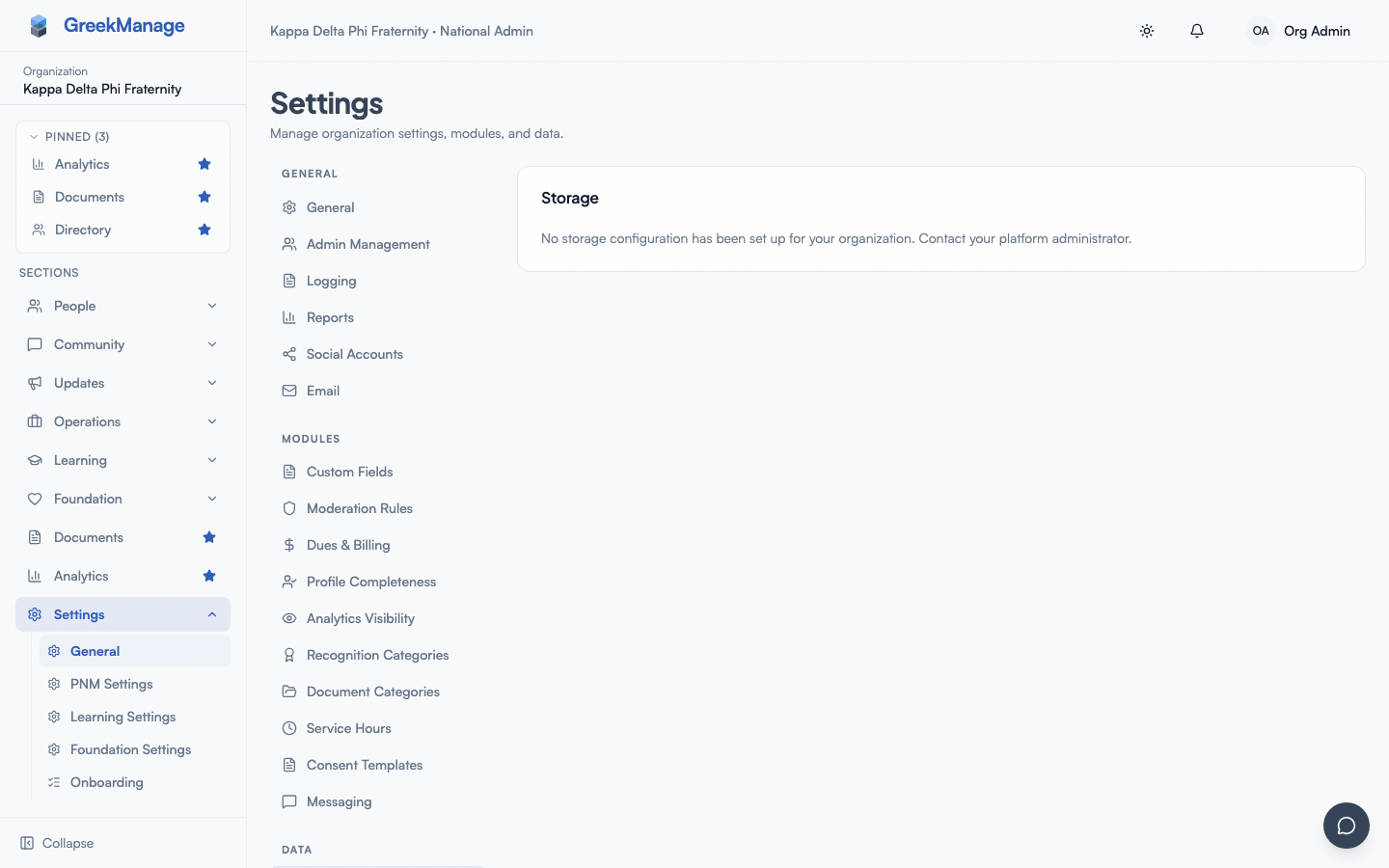 The storage status card. If your org has no dedicated storage configured, it shows this message and files fall back to the platform-managed default.
If your platform admin has configured dedicated storage for your org, this card instead shows:
- Provider — MinIO, AWS S3, or S3-Compatible
- Bucket name
- Region
- Active / Inactive badge
- Verified / Unverified badge
There's no Save, Test connection, or Migrate control on this page — those live on the platform-admin side (see below). If you need a new bucket, different credentials, or a provider migration, contact your platform administrator.
Providers your platform admin can configure
Three provider types are supported on StorageConfig:
| Provider key | Label | Notes |
|---|---|---|
minio | MinIO | Self-hosted MinIO; works on-prem or as a managed install |
aws_s3 | AWS S3 | Amazon S3 in any region; endpoint is implicit |
s3_compatible | S3-Compatible | Cloudflare R2, Backblaze B2, Wasabi, etc. — anything S3-compatible. Set endpoint_url explicitly. |
If no StorageConfig exists for your org yet, uploads fall back to the platform-managed default until your platform admin sets one up.
Requesting your own bucket
If you want your org's files in a bucket you control (rather than the platform-managed default), gather this before contacting your platform administrator:
- A dedicated bucket, in a region close to your members
- An IAM user scoped to that bucket with
s3:GetObject,s3:PutObject,s3:DeleteObject,s3:ListBucket - The access key ID and secret
- For MinIO or another S3-compatible provider: the endpoint URL, and whether the provider needs force-path-style addressing
Your platform admin enters these on the platform-admin side, runs a connection test, saves, and — if you're moving from an existing provider — triggers a background file migration to copy your existing files over. Full steps live in Per-org storage configuration (platform admin).
What's stored
- Photos in albums
- Document library uploads
- Attachment files in Engage and Messages
- Profile photos
- Compliance evidence files
Database content (text, structured data) is stored separately in PostgreSQL — not in your S3 bucket.
Security
- Files are stored with per-object access control — public files (e.g., chapter logos) are public; member content is presigned-URL-only.
- All transfers use TLS.
- Files at rest are encrypted by your provider (server-side encryption enabled by default).
- Your platform admin never sees your bucket's secret access key in plaintext after it's saved — it's encrypted at rest and displayed only as a placeholder.
Tips
- If you're bringing your own bucket, use a region close to your largest member base. Cuts upload latency dramatically — pass this along when you request the change.
- Don't share bucket credentials outside your platform admin. Create a dedicated IAM user just for GreekManage, and hand off the key through a secure channel.
- Large existing libraries take time to migrate. If you're switching providers, ask your platform admin to schedule the migration for a low-traffic window — the app stays usable during migration, but it can take hours for large libraries.
Related
- Per-org storage configuration (platform admin)
- Reports & exports
- Branding — logo upload uses your storage
Last verified against v0.65.23 (2026-07-05). Org self-service storage config removed, now platform-admin-only, v0.65.7.