Survey authoring
Surveys are GreekManage’s way of asking members questions at scale — exit interviews, retention check-ins, satisfaction polls. National admins draft a survey, deploy it to the organization, and watch responses roll in on the same page.
This guide covers who can author surveys, the four question types, the lifecycle from draft to closed, how target-role filtering works, and why survey responses are attributed by design (so you don’t accidentally promise anonymity you can’t deliver).
Getting to surveys
From the org sidebar, open Operations → Surveys. You’ll see a list of every survey ever created for this organization, with a status badge on each one (Draft, Active, or Closed). New surveys start from the Create Survey button.
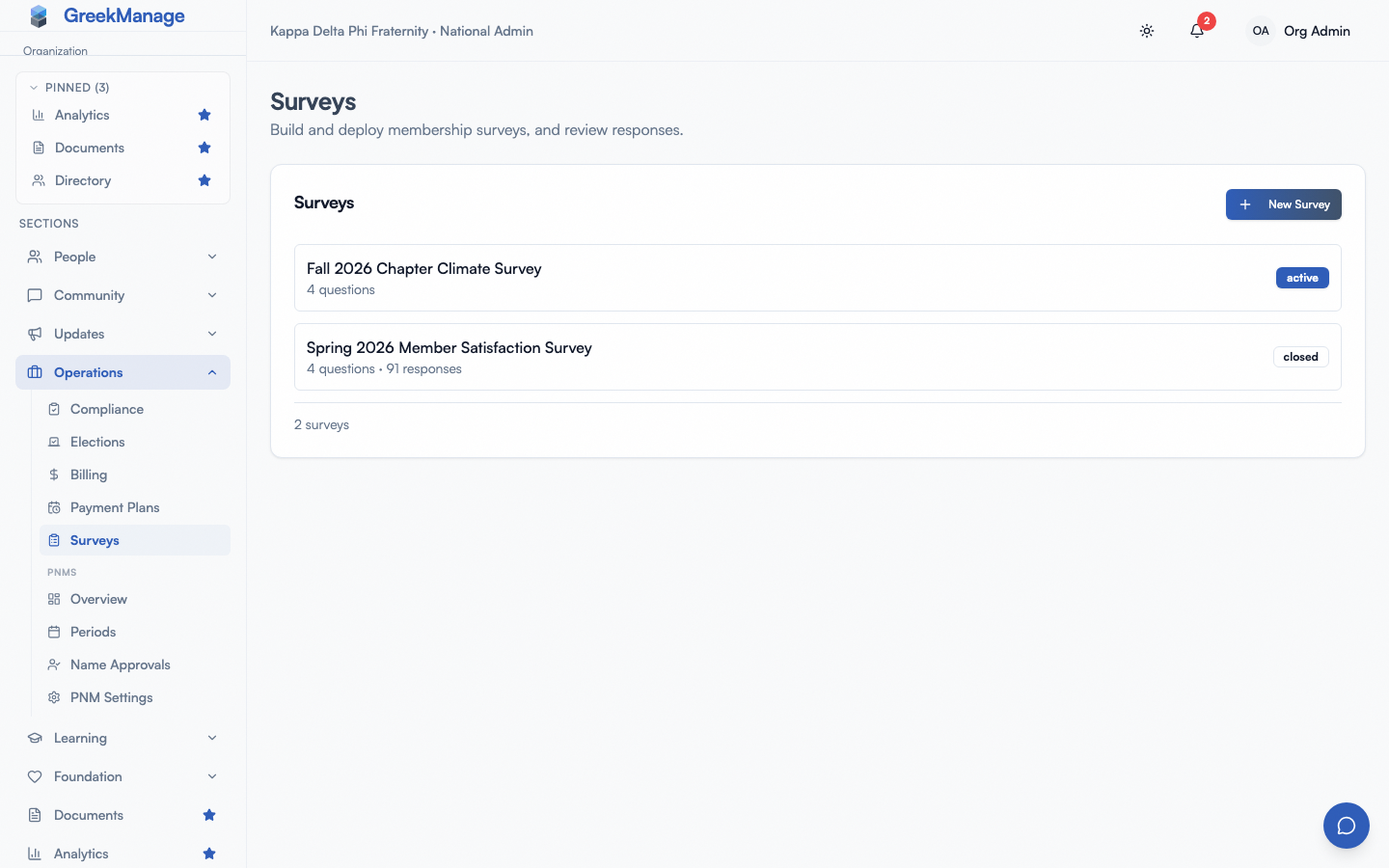 Surveys list with status badges and the Create Survey button.
Author a new survey
The survey builder has two sections: top-level details, and a list of questions.
Survey details
- Title — required. Shows up in member notifications and on the response page.
- Description — optional. A short blurb explaining why you’re sending this survey. Members see it before they start answering.
- Target role — optional. Filters who can see the survey when it’s deployed. Choices are: All members, Officers, Presidents, Members. If you leave this empty, every member of every chapter gets the survey.
- Close date — optional. After this date, the survey stops accepting responses and the status auto-flips to Closed (v0.63.32 — the computed
effective_statusserializer field returns Closed whenstatus==Active AND closes_at <= now(), so the badge updates without a cron run). Leave it blank and the survey stays open until you manually close it. - Anonymous — toggle (v0.63.31). When on, responses save with
respondent=NULL(no traceability), members see an anonymity banner on the response form, and the survey is re-takeable since dedupe is skipped. Drafts are blocked on anonymous surveys. See Attribution vs anonymity below.
Question types
Add as many questions as you need. Each question has a type that determines how members answer and how results aggregate.
| Type | What members see | What you see in results |
|---|---|---|
| Text | A free-form text field | All responses listed verbatim |
| Rating (1-5) | A 1-to-5 numeric scale | Average rating + response count |
| Multiple choice | A radio-button list of choices you defined | Count per choice |
| Yes / No | Two buttons | Yes count + No count |
For multiple choice, you type the options one per line. The order you enter them is the order members see them.
Each question can be marked Required (members can’t submit without answering) or optional. Drag-handle reordering exists in the UI; the order you arrange questions in is the order members see them.
the survey builder with two questions added showing the type dropdown
Deploy a survey
A survey stays in Draft until you explicitly deploy it. While in draft, you can edit anything — title, target role, questions, close date — without consequence.
When you’re ready, open the survey and click Deploy. Two things happen:
- Status flips to Active. The survey is now visible to eligible members.
- Notifications fire. Every member who matches the target role gets an in-app notification (“New survey: {title}”) and an email with the survey title and description.
The notification goes only to active members of chapters in your org. If you set a target role, members whose membership role doesn’t match are skipped. Members are not notified about surveys they’re not eligible for.
Validation before deploy
The platform refuses to deploy a survey with zero questions. Add at least one before clicking Deploy. You also can’t re-deploy a survey that’s already Active or Closed — it’s a one-way transition from Draft.
If you didn’t set a Start Date, the deploy timestamp becomes the start date automatically.
Watch responses come in
Once a survey is Active, the survey detail page shows live response counts and aggregated results.
- Rating questions show the average across all complete responses.
- Multiple choice shows a count per choice.
- Yes / No shows the Yes count and No count.
- Text questions show the written answers verbatim, ten to a page, with a pager that reports the total. The corpus is fetched separately from the aggregate rather than embedded in it, because free text grows one entry per respondent — an org-wide survey produces thousands.
Only complete responses are counted in aggregates. Partial responses (currently impossible to create from the member side — members submit answers in one shot — but the schema allows for it) are excluded.
Each member can only respond once per survey. The platform enforces this on submit, returning an error if they try again.
Close a survey
A survey closes one of two ways:
- Close date passes. Members who try to submit after the close timestamp get an error, and the admin list badge auto-flips to Closed (v0.63.32) since the serializer now computes
effective_statusfromcloses_atrather than relying on a cron job. - You delete the survey. From the survey detail page, click Delete. This removes the survey and all responses permanently. There is no recovery — if you need the data, export results before deleting.
There’s no explicit “Close now” button at the moment. If you want to stop responses early without deleting the survey, the workaround is to edit the close date to a past timestamp.
Attribution vs anonymity
Every survey is either attributed or anonymous; the Anonymous toggle on the create form picks which.
Attributed surveys (default)
Every response is recorded against the user who submitted it. Use this for follow-up coaching, attendance-tied check-ins, and longitudinal retention scoring — all of which need to know who said what.
- The survey detail page aggregates results at the organization level — averages, choice counts, and verbatim text — without showing names on the dashboard.
- Individual response rows include the respondent’s identity and are visible to org admins and platform admins.
Anonymous surveys (v0.63.31+)
When you flip Anonymous on at create time, the platform:
- Saves each response with
respondent=NULL— no database-level traceability. Org admins and the platform team cannot pull a list of who submitted. - Renders an anonymity banner at the top of the response form so members know.
- Tags the survey detail view with an Anonymous badge to prevent admins from mistakenly treating it as attributed data.
- Skips dedupe — the survey stays available after submission so members can re-take it (each submission is a separate row).
- Blocks autosave drafts — partial answers aren’t persisted because a draft row could be linked back to the user.
What this means for your survey copy:
- Attributed survey: “your response is visible to your org admin” or “your answers are reviewed only in aggregate on the dashboard” both work.
- Anonymous survey: call out anonymity clearly on the description, and remind members that anonymous surveys can’t save drafts so they should finish in one sitting.
Use anonymous mode for sensitive topics (mental health check-ins, harassment reports, climate surveys). Use attributed mode for retention follow-up where you need to act on specific members.
Deploying to specific roles
Target role filtering is role-name match against active membership. The choices in the dropdown — officer, president, member — correspond to the role field on the membership record, not to broader categories.
A few practical notes:
- All members means everyone in the org with any platform-access membership status (new member, active, intent-to-renew). Alumni statuses are excluded from notifications because the survey is delivered via active-member notification pipelines.
- Officers means just the role
officer— NOT presidents. - Presidents means just the role
president— NOT all officers. - If you want both officers and presidents, you have to either deploy two surveys or use “All members” and accept the broader audience.
There is no chapter-level targeting. Surveys are organization-wide; you cannot scope them to a specific chapter or region. If you need chapter-specific feedback, you’ll need to filter responses by chapter in your own analysis after they come in (each response carries a chapter ID).
Editing a deployed survey
Once a survey is Active, you cannot edit its questions, target role, or core configuration. Members are already responding to a specific version of the survey, and mutating it mid-flight would invalidate their responses.
If you find a typo or need to reword a question after deploy, the practical options are:
- Delete the survey and start over. You’ll lose existing responses.
- Live with the typo. Note the correction in a follow-up bulletin or chapter announcement.
This is intentional. Survey integrity matters more than fixing a typo on the fly.
Related
- Retention snapshot configuration — how the membership-declining alerts are generated alongside surveys
- Module enablement — the Operations module must be on for an org before surveys appear
- Permissions matrix
Last verified against v0.65.23 (2026-07-05). Retain merged into Analytics (Retention tab), Surveys split into a standalone nav item, v0.65.0. Anonymous surveys + computed effective_status shipped v0.63.31 / v0.63.32; autosave drafts v0.63.27.