Creating a new organization
When a new fraternity or sorority signs up, you provision their tenant. This is platform-admin work — it's how a new customer goes from contract signed to first sign-in.
The actual provisioning step is one short form. Most of the work on this page is what happens around that form: licensing the right modules, getting the first admin in, agreeing on branding, and handing the keys over without anything missing.
What you'll touch
| Where | What it controls |
|---|---|
| Platform → Organizations | The list of all tenants |
| New organization form | Org name, type, optional metadata, auto-generated slug |
| Platform → Admins → Organization Admins | The very first national admin for the new org |
| The org's detail page → Module Licensing | Which optional modules are turned on |
| The org's detail page → Storage Configuration | Whether the org uses platform-default storage or its own bucket |
| Org → Settings (handed to the org admin) | Logo, primary color, dues, AI, SSO, etc. |
You never need to touch the database directly. Everything is form-driven.
Open the platform admin dashboard
Sign in as a platform admin. You'll land at /platform/dashboard with cross-tenant counts (organizations, chapters, members, platform admins, per-module adoption).
In the sidebar: Organizations.
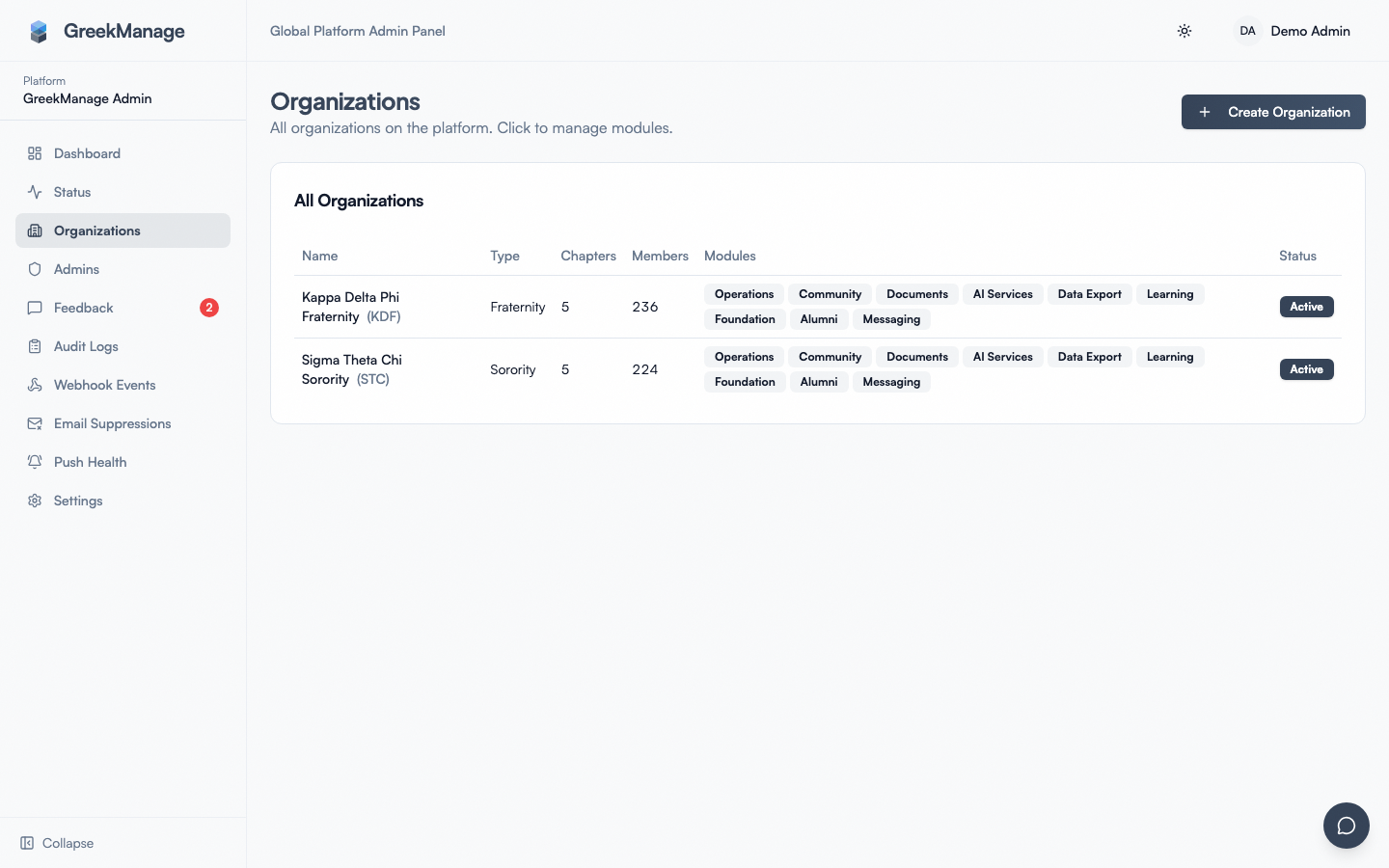 platform organizations list with the New organization button highlighted
The list shows every tenant on the platform with name, Greek letters, type, an active badge, chapter and member counts, and which optional modules are licensed.
Step-by-step: create the organization
- Click New organization (or Create Organization from the Admins page).
- Fill in:
- Name (required) — e.g., "Phi Beta Kappa". Must be unique platform-wide.
- Greek letters — e.g., "ΦΒΚ". Free text, optional.
- Type (required) — Fraternity, Sorority, or Co-Ed.
- Description — short blurb, optional.
- Website — optional.
- Click Create.
That's the entire form. You will not see a slug field, a primary-contact field, a founded-date field, or a "sandbox vs production" toggle — those either aren't part of the form, are auto-generated, or don't exist.
What GreekManage does on create
In one transaction it:
- Creates the organization record with
is_active = true. - Auto-generates a URL-safe slug from the name (lowercased, hyphenated, max 64 chars). Used in public URLs like
apply.greekmanage.com/[slug]. Collisions are resolved by appending-2,-3, etc. - Validates the slug against a reserved-slug list (so a customer can't accidentally claim
platform,admin,api, etc.). - Creates one
OrganizationModulerow per optional module — all disabled by default. This means the org detail page immediately shows toggles for every module without you having to seed anything. - Applies row-level security so the new tenant's data is isolated from every other tenant.
What you don't get out of the box
- No "primary contact" field on the org. Use the first national admin's email and title as the contact of record.
- No founded-date capture in the create form. It can be set later by the org admin in Settings → General if it matters for branding or directories.
- No sandbox/test/production flag. All tenants are real tenants. If you need a sandbox, create a separately-named org (e.g., "Acme Test"); there is no built-in environment switch.
Initial state of the modules
Every optional module is shipped off on a new org:
- Operations
- Community
- Documents
- AI Services
- Data Export
- Learning
- Foundation
- Alumni
- Messaging
This is by design. Most contracts cover a subset. Flip on only what's licensed.
Core surfaces — chapters, regions, members, settings — are always on and not represented as modules. Members and chapters work the moment the first admin signs in, even with every optional module disabled.
First-time module-enable considerations
- Operations gates PNM apply pages, dues billing, and events. If the org will use the public apply page or dues, enable Operations early so the org admin can configure it before launch.
- Community gates forums, social feed, and bulletins. Best left off until the org admin has decided on moderation policy and forum structure.
- AI Services costs token spend. Don't toggle on unless the contract includes it; once it's on, members get a GreekManageAI chat option in the unified messaging/AI panel and embedding jobs begin running on the configured embedding cadence.
- Foundation is high-touch. It requires a Stripe processor, a Foundation Admin assignment, and donor data setup. Enable when the customer is ready, not on day one.
- Data Export gates the per-org export endpoint. Enable it before offboarding day so the customer can pull their data.
Module toggles take effect immediately — the per-org module cache invalidates on every flip, so the org admin sees the change on their next page load without re-signing-in. Only platform admins can change module state; org admins cannot self-enable additional modules.
Step-by-step: add the first national admin
The first national admin is the customer's main contact who will configure the org once they sign in.
- Stay on Platform → Admins (or open it from the sidebar).
- Scroll to Organization Admins.
- Pick the new org from the dropdown.
- Click Add Org Admin.
- In the Search User by Email field, type at least 2 characters of their email.
- If they already have a GreekManage account, they'll appear in the result list — pick them.
- If they're new, the Create New User button appears under the search results. Click it, fill in Email, First name, Last name, optionally a Password (leave blank to auto-generate a random one).
- Optionally set a Title (e.g., "Executive Director").
- Click Add Admin.
The new admin is active immediately. If they were created in step 5, they'll need to request a password reset on first sign-in unless you set a password and shared it securely. The platform email backend must be active for self-serve password reset to work — see Email config.
Why "search before create"
The search-first flow exists because users on the platform can hold roles across multiple orgs (e.g., a board member who advises two chapters under different nationals). Always search by email first; only create a new user if no record exists.
Automated welcome email (v0.63.30+)
When you add an org admin via the Add Org Admin form, the system automatically enqueues apps.platform.tasks.send_org_admin_welcome_email after the create succeeds. The email is rendered from templates/platform/org_admin_welcome_email.{txt,html} with the user's first name, the org name, and a dashboard link.
If a Celery broker outage prevents enqueueing, the create response still succeeds (the email send is wrapped in defensive try/except) — but the welcome won't go out, so you'll need to send the manual version below.
If you need to send a manual follow-up — e.g., the templated welcome covers basics but you want to add license-specific guidance — include:
- Their sign-in URL
- Their email of record
- How to set or reset their password (if no password was set on create)
- A pointer to the org admin docs
- The list of modules you've licensed for their org
Step-by-step: license modules
Decide which modules are licensed to this org based on their contract.
- From the Organizations list, click the new org.
- Scroll to Module Licensing.
- Toggle each licensed module on.
- Use Enable all / Disable all only when it matches the contract — there's no undo prompt.
Each toggle records who enabled it. Toggling immediately invalidates the per-org module cache so the change is visible to the org's users without a page refresh delay.
There is no quota, no per-module seat count, and no contract-end auto-disable. Module state is purely a manual on/off switch.
Slug uniqueness and rename (v0.63.30+)
The slug is auto-generated from the name on creation and shows up in:
- Public PNM apply page URLs:
apply.greekmanage.com/[slug] - Public foundation donate pages:
donate.greekmanage.com/[slug] - Public account-request URLs
Renaming a slug
The platform org-detail page now has a URL Slug card with inline edit. Click the slug, type a new value, and Save. The backend normalizes the input (lowercased, hyphenated) and validates against the same RegexValidator + reserved-slug list + uniqueness check the model enforces. Conflicts return a 400 with the conflict reason; IntegrityErrors map to a clear UI message rather than a generic 500.
What rename does not do:
- No automatic redirect. Old slug URLs (already-printed QR codes, marketing emails) start returning 404 the moment you save. Coordinate with the customer before changing the slug, and re-emit any printed materials.
- No history. The previous slug isn't retained.
If two orgs would resolve to the same slug, GreekManage appends -2, -3, etc. on creation. The rename UI rejects conflicts outright, so you can't accidentally collide with another tenant.
Sandbox / test orgs
There is no built-in sandbox concept. If you need a place to demo or test, create an org with an obvious name (e.g., "Acme Test", "GreekManage Demo") and prefix it consistently. All data lives in the same database as production tenants — be careful not to enter real PII into demo orgs.
For seed data inside a demo org, the seed_demo_data management command can populate a tenant with fake members, chapters, and module activity. That is run from the backend container, not from the UI, and is intended for engineering demo use.
Storage configuration
By default, new orgs use the platform's default storage (the bucket configured for the platform itself). If the contract specifies a dedicated storage provider — for example, the customer wants their files in their own S3 bucket for compliance reasons — open the org's detail page → Storage Configuration.
The platform admin sets the bucket, region, endpoint URL (for S3-compatible providers), and access keys. A connection test runs a small probe file upload-then-delete to verify connectivity, and on success flips is_verified to true on the storage config.
If files were already uploaded to the default storage and you're switching to a dedicated bucket, ask the platform engineering team to run the migration task before flipping over — direct cutover without migration will leave existing files pointing at the old bucket.
→ Org admins only see a read-only status view of this configuration: Storage status (org admin view).
Brand setup
Most platform admins handle the initial logo upload and primary color in collaboration with the customer. The actual screens live under the org admin's Settings → General — you can sign in as a platform admin (which bypasses org-admin permission checks) and configure it for them, then hand off.
- Open the org → Settings → General.
- Upload their logo.
- Set their primary color (HSL string).
- Save.
→ More on branding: Branding.
Email config check
Confirm the platform email backend is active before the new org starts inviting members. If email isn't configured, password resets won't deliver, account-request approvals won't notify, and members will think the platform is broken.
→ Email config.
Test the apply page
If the org will use PNM intake:
- Make sure the Operations module is enabled.
- Have the org admin configure the apply page (or do it for them under their org context).
- Submit a test application end-to-end with a throwaway email.
- Verify the application reaches the chapter approval queue.
- Decline or delete the test application before launch.
This is the single most common pre-launch miss. The apply page can look fine and still fail silently if email isn't delivering, the consent template is missing, or the chapter routing isn't set.
Hand off to the org admin
A clean handoff:
- Email the org admin with their welcome and sign-in URL.
- Schedule a 30-minute training session focused on the modules you've licensed.
- Walk them through: chapters, regions, members, dues, the modules they have, branding.
- Point them at the org admin section of these docs.
- Confirm they can complete a no-op admin action (e.g., add a test chapter, then archive it) so you know permissions are working.
Errors and edge cases
"A user with this email already exists." The Create New User form rejects duplicate emails. The user you're trying to onboard already has a GreekManage account — go back to the search step, find them, and assign them as the first admin.
"User is already an admin for this organization." The user is already listed as a national admin of this org. Check the existing Organization Admins table — they may simply be inactive. Click the Power icon on their row to reactivate them instead of creating a duplicate.
Slug shows -2 or -3 suffix. Two orgs have the same name slug. This is the system protecting against collisions. If the customer wants a clean slug, ask them to rename the org slightly, or get engineering involved to swap slugs (rare).
Module toggle doesn't take effect. The per-org module cache should invalidate immediately, but if a user's session is held by an old worker, ask them to hard-refresh. If it persists, check the org's detail page for the module toggle — it may have failed to save (rare).
Offboarding an organization
Suspend / Activate (v0.63.27+)
The platform org-detail page now has Suspend and Activate buttons (platform admin only). Suspending an org:
- Flips
Organization.is_active=False. - Routes all org-scoped traffic through
OrganizationSuspendedMiddleware, which returns HTTP 403 with a clear message. Members and org admins of the suspended tenant see an error page on every page load. - Leaves
/api/auth/,/api/platform/, and platform admin sessions exempt — so the customer's admin can still sign in to discuss the suspension, and platform admins retain full access for support.
Activate flips it back; access returns immediately. Both actions emit AuditLog rows with the actor and timestamp.
Use Suspend for contract disputes, payment failures, or any reason you'd want an immediate, reversible lockout. Use the longer offboarding workflow below for permanent decommission.
Long-form offboarding
For permanent decommission (contract ended, no plans to return), prefer this sequence over a Suspend:
- Generate an export first — never delete or restrict before pulling a clean copy. See Backups & export.
- Revoke module access by toggling all optional modules off on the org detail page. Members lose access to gated features but core navigation still loads.
- Deactivate organization admins from the Platform → Admins → Organization Admins section — open the org, click Remove on each admin. The sole-admin guard prevents removing the last active admin; remove others first, then the last one is the final lockout.
- Coordinate with the customer's IT lead before any deletion.
For longer "scheduled archival + sign-in banner" workflows, the Suspend → Activate cycle is the closest tool today.
Hard delete
Hard deletion is a database operation, not a UI action. Engage engineering for tenant deletion, and only after:
- A signed-off export is in customer hands.
- 30+ days have elapsed since deactivation, in case the customer changes their mind.
- The platform admin who approved deletion has a written record.
Tips
- Never delete an org without an export in hand. Deletion is permanent and customers always come back asking for data, sometimes years later.
- Document the customer's setup choices. Keep notes on storage choices, enabled modules, branding decisions, and SSO config — useful for support and renewals.
- Test the apply page yourself before turning the org loose. Catch misconfigurations before the customer's recruitment chair does.
- Add yourself as a platform admin in your sign-off checklist. During provisioning you may need to act as the org admin to set things up; doing so as a platform admin (which bypasses org checks) is cleaner than temporarily granting yourself an org admin role.
Troubleshooting
| Symptom | Likely cause | Where to look |
|---|---|---|
| Sign-in fails for the new admin | Email backend not active, password reset email not delivered | Email config, provider console |
| Org admin says "I can't see Operations / Forums / etc." | Module not licensed | Org detail → Module Licensing |
| Apply page returns 404 | Slug is wrong, or Operations module is off | Org detail → check slug; verify Operations enabled |
| Logo / branding doesn't show up | Storage config not verified, file upload failed | Org detail → Storage Configuration; check is_verified |
| Customer says they want their old slug back | URL Slug card supports rename, but no automatic redirect | Edit the slug back; re-emit any marketing materials that used the new one |
What's not built today
- Scheduled archival + sign-in banner. Suspend → 403 is the closest tool today; a richer "we're working on your account" banner is not yet built.
- Sandbox/test org flag. No built-in environment switch.
- Per-module quotas or seat counts. Modules are on or off, full stop.
- Module bundles / preset packages. Each module is toggled individually.
- Audit retention defaults at create time. New orgs get the 180-day default; configurable per-org afterwards under audit retention.
Related
- Managing platform admins
- First-time bootstrap
- Email config
- Audit logs
- Backups & export
- Storage status (org admin view)
- Branding (org admin)
Last verified against v0.63.39 (2026-06-26). Suspend/Activate shipped v0.63.27; URL slug rename UI + automated org-admin welcome email v0.63.30. The old dedicated AI-only floating panel was replaced by the unified messaging+AI panel, v0.65.23 (2026-07-05).