Email configuration
GreekManage sends a lot of email: sign-up invites, password resets, dues reminders, election notifications, foundation donation receipts, PNM acknowledgments, approval notifications, and the digest emails members rely on. Without working email, the platform looks broken to anyone trying to onboard or recover their account.
The platform has a platform-wide default email backend configured here, and orgs can optionally override the sender identity — and, if needed, route through their own SMTP transport — for their own outbound mail via Org Settings → Email. Anything an org doesn't override falls back to the platform-wide default. See The "From" identity for exactly what a per-org override can and can't do.
How email works under the hood
There is one configuration row — a singleton model — that stores the provider choice, From identity, and the encrypted credentials for whichever provider is selected. On every outbound message the platform email backend consults that row and:
- If the row is present and
is_active = true, it sends through the selected provider. - If the row is absent or inactive, it falls back to environment-variable SMTP settings (the
EMAIL_HOST,EMAIL_HOST_USER, etc. set on the container). - If neither database config nor env-var SMTP is available, it prints emails to the container's stdout via the Django console backend.
This fallback chain is intentional. It means a development environment without DB config still produces visible output for testing, and a misconfigured production deployment fails loudly (no delivery) rather than silently (queued forever).
The active configuration is cached for 5 minutes in Redis. Saving a change invalidates the cache immediately so the next message uses the new config.
Open email settings
Platform → Settings → Email.
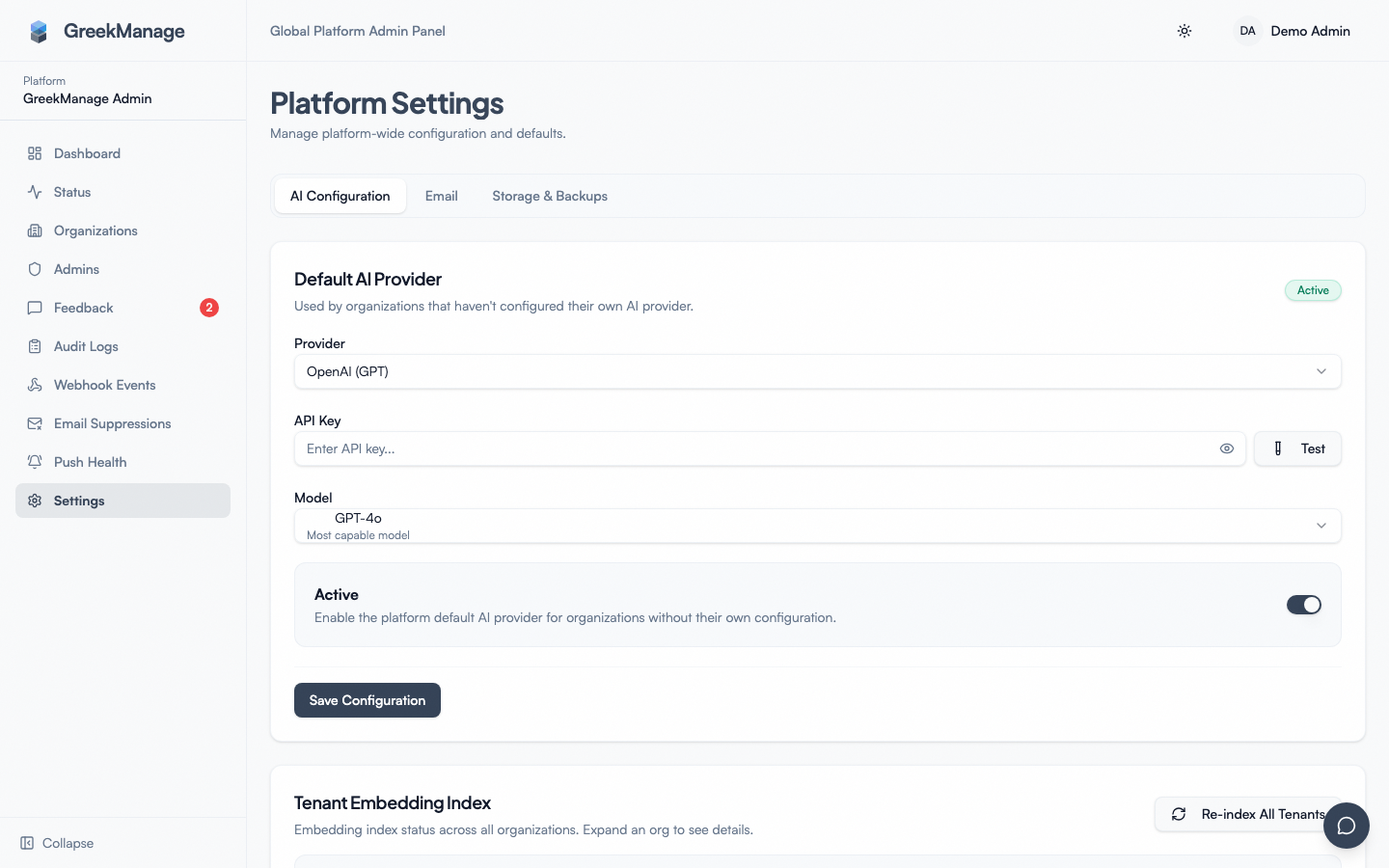 the platform email config screen with the provider selector and From fields
You'll see:
- A Provider selector
- From email and From name
- An optional Reply-to address
- Provider-specific credential fields
- An Active toggle
- A Verified indicator (read-only — set automatically when the test email succeeds)
Saving a change to any credential or provider field automatically resets the is_verified flag to false. The badge updates to "Unverified" and the next test will re-prove delivery.
Pick a provider
GreekManage supports four delivery providers:
| Provider | Best for | Watch out for |
|---|---|---|
| AWS SES | High-volume orgs, AWS-native operators, cost-sensitive deployments | Domain verification setup; sandbox mode by default; regional configuration |
| SMTP | Postmark, Mailgun, custom SMTP relays, hosted SMTP at your university | Reputation depends entirely on the upstream; fewer observability hooks |
| SendGrid | Operators who want best-in-class deliverability tooling | Higher cost; account setup includes domain verification |
| Workspace customers, small platforms, low-volume needs | Workspace daily-send limits; app password required for SMTP relay |
Pick one. There is no failover chain across providers — if SES is down, mail does not auto-fail over to SMTP. (See What's not built today.)
Step-by-step: configure AWS SES
You'll need:
- An AWS account with SES set up.
- A verified sender domain in SES (DKIM and SPF records added to your DNS).
- Permission to call
ses:SendEmailandses:SendRawEmail— see the credentials note below. - Production access for SES (request it through the AWS console). Without production access, you're stuck in sandbox mode and can only send to addresses you've individually verified, which means your tenants' members won't receive anything.
Steps in GreekManage:
- Provider → Amazon SES.
- Fill in:
- AWS region (e.g.,
us-east-1) - AWS access key ID and AWS secret access key — see below; leave both blank when running on AWS
- From email (e.g.,
notifications@yourdomain.com) — must be a verified identity in SES - From name (e.g.,
GreekManage) - Reply-to (optional)
- AWS region (e.g.,
- Toggle Active on.
- Click Save.
- Click Send test email. You'll receive a one-off message to your own admin email address. On success, the Verified badge flips to true and a
verified_attimestamp is recorded.
If the test fails, the response message says why — most commonly an IAM permissions issue, a wrong region, or an unverified From identity.
Leave the credential fields blank when you run on AWS
If GreekManage is deployed on AWS (ECS/EC2/EKS), don't create an IAM user or paste an access key. Leave both credential fields empty and grant ses:SendEmail/ses:SendRawEmail to the task or instance role instead — the app detects the blank fields and authenticates as that role, using short-lived credentials AWS rotates for you. Nothing long-lived is stored, and there's no key for you to rotate or leak.
Grant it to every role that sends mail, not just the web one. Some email is sent inline during a request (password resets, account verification) and some from background workers (digests, reminders, notifications) — grant only the web role and the background half silently stops sending.
Access keys are still the right answer when there's no role to fall back on — self-hosted, on-prem, or another cloud. In that case fill both fields in normally and rotate the key on your own schedule.
The fields must be genuinely empty, not whitespace or a placeholder. A non-empty value is treated as a real credential and used as-is.
SES sandbox is the #1 launch-day footgun
Confirm in the SES console that you've moved out of sandbox mode. In sandbox, SES will accept sends to your own admin email (so the test email succeeds) but reject sends to anyone whose email you haven't individually verified — which is every actual user. The test passes; real delivery fails. Always confirm sandbox status in AWS before declaring the integration done.
Step-by-step: configure SMTP
Generic SMTP works with Postmark, Mailgun, your university's mail relay, a self-hosted Postfix, or any other RFC-compliant SMTP server.
- From your provider, collect:
- SMTP host (e.g.,
smtp.postmarkapp.com) - Port (587 for STARTTLS, 465 for SSL — most modern providers use 587)
- Username
- Password / API token
- SMTP host (e.g.,
- In GreekManage:
- Provider → SMTP.
- Fill in SMTP host, Port, Username, Password.
- Set Use TLS on (you should always use TLS).
- From email + From name.
- Toggle Active on.
- Click Save.
- Click Send test email.
Credentials are encrypted at rest. When reading the config back the credential fields are masked with bullets — you can't read them in plain text from the API or the UI once saved. When updating, leave a credential field empty to keep the existing value, or paste a new value to replace it.
Step-by-step: configure SendGrid
- Create or sign in to a SendGrid account.
- Verify your sender domain in SendGrid (DKIM, SPF records).
- Create an API key with Mail Send scope at minimum.
- In GreekManage:
- Provider → SendGrid.
- Paste the API key into SendGrid API key.
- Fill From email, From name, optionally Reply-to.
- Toggle Active on, Save, then Send test email.
SendGrid's own dashboard is still the right place for deliverability analytics (bounce rate, complaint rate over time). GreekManage does ingest SendGrid's bounce/complaint events for automatic suppression — see Bounce, complaint, and deliverability monitoring — but that's a suppression list, not a dashboard.
Step-by-step: configure Google
For Google Workspace or a personal Gmail with an app password:
- In Google Workspace, create an app password for the sending account (Account → Security → App passwords). For Workspace SMTP relay, configure the relay service for your domain and use the relay credentials.
- In GreekManage:
- Provider → Google.
- From email — the Gmail/Workspace address you'll send as.
- Paste the app password into Google credentials.
- From name as you'd like it displayed.
- Toggle Active on, Save, Send test email.
The Google provider uses smtp.gmail.com:587 with TLS under the hood. Watch the Workspace daily send limit — it's around 2,000/day for Workspace, much lower for personal Gmail. If you anticipate higher volume, SES or SendGrid is a better fit.
Switching providers
You can switch providers freely. To switch:
- Choose a new Provider in the dropdown.
- Fill in the credentials for the new provider.
- Click Save.
- Click Send test email to verify the new provider.
The old provider's credentials remain in the encrypted credential fields (so you can switch back without re-entering keys), but only the currently-selected provider's fields are used to send. The Verified flag resets to false on every save, even when you're switching providers, so re-test after every switch.
The test email action
There is a single Send test email action. It sends a short, hard-coded message — subject "GreekManage Email Test", body confirming the configuration is working — to the email address of the currently signed-in admin (i.e., you). You cannot configure who receives the test message; it always goes to yourself, by design, so the credentials test doesn't accidentally email a customer.
On success:
- The Verified badge flips to true.
- A
verified_attimestamp is recorded. - The response says "Test email sent successfully."
On failure:
- The badge stays at "Unverified".
- The error message explains what went wrong (auth failure, network error, region mismatch, etc.).
- The 400 response is propagated to the UI as a toast.
If the test passes but real users say they're not getting mail, the issue is almost always: (a) sandbox/sender-reputation issue on the provider side, or (b) the mail is being delivered but landing in spam.
The "From" identity
The platform configuration has one From email, one From name, and one optional Reply-to — the default identity used when an org hasn't set its own override.
When a message has no explicit From set by the code path that originated it (the common case), and no active org-level override applies (see below), the platform email backend stamps "<From name> <from_email>" on it before handing to the provider. If the message has a Reply-to from reply_to, that's set too.
Per-org override (v0.65.12)
Org admins can override the sender identity for their own org's mail — and optionally route it through a completely separate SMTP transport — from Org Settings → Email (the "Email Delivery" card). This is available to national admins of that specific org; it isn't exposed to officers or chapter-level admins.
The override supports:
- From email, From name, Reply-to — always available. Setting these alone changes the sender identity while the message still ships through whichever provider the platform-wide config above is using.
- An optional Custom SMTP section (host, port, username, password, TLS) — when a host is configured here, that org's outbound mail is sent through its own SMTP connection instead of the platform's provider entirely.
- An Active toggle and a Send Test Email action, mirroring the platform-level config.
If an org's override is absent or inactive, its mail falls back to the platform-wide default configured at the top of this page — the fallback is automatic, not something an org admin has to request.
This is fine for "GreekManage" as a brand-forward delivery — many customers are okay being seen as "the GreekManage platform sent this on behalf of Phi Beta Kappa." Orgs that need the from-line to read notifications@theirdomain.com can now set that themselves.
Scope caveat: as of v0.65.12, the org override is wired into four sender groups — PNM communications, dues/invoice emails, notification digests, and org bulletins. Attachment-bearing receipts and account-level mail (password resets, sign-up invites, etc.) intentionally still go out under the platform default; that's documented behavior, not a gap to chase down.
Templates
Email templates are baked into the codebase as Django templates. There is no template editor UI, no rich-text email designer, and org admins cannot rewrite template bodies for their own org. Updating a template requires an engineering change and a deploy.
Notification emails currently do not inject the per-org logo or brand color — they go out under the GreekManage brand. The org-side branding pipeline (Settings → General → Branding) drives the in-app surface only; it doesn't feed the email layer. See Branding → What's not built today for the full list of branding surfaces that don't carry into email yet.
Bounce, complaint, and deliverability monitoring
GreekManage ingests bounce and complaint webhooks from four providers — SES (via SNS notifications), SendGrid (signed Event Webhook), Postmark, and Mailgun — and maintains a platform-wide address suppression list (v0.65.14).
Note that this webhook-provider list is different from the four sending providers configured above (SES, SMTP, SendGrid, Google). Only SES and SendGrid are both a sending option and a webhook source. Postmark and Mailgun can feed bounce/complaint data in, but aren't available as a sending provider in this platform. And if your platform's active sending provider is SMTP or Google, there's currently no automated feedback loop for that traffic — plain SMTP relays and Gmail/Workspace don't expose a webhook mechanism, so bounces there won't auto-suppress anything.
Only permanent signals trigger suppression: hard/permanent bounces and complaints. Soft or transient bounces (mailbox full, temporary deferral) are ignored by design, so a passing outage on the recipient's end doesn't take a working address off the list.
When a bounce or complaint webhook is received and its signature verified, the address is added to a single, platform-wide suppression list — it isn't scoped per org, since an address that hard-bounces for one org is genuinely undeliverable for all of them. From then on, sends to a suppressed address are automatically dropped before the message is even built. If the suppression check itself errors, the platform fails open and sends anyway rather than blocking mail on an internal fault.
:::warning Webhook delivery is not guaranteed on its own SNS gives an HTTPS endpoint only a short retry budget — 3 attempts, 20 seconds apart — before it discards a notification permanently. If your deployment is ever unreachable for longer than that (a restart is fine; a maintenance window or a scale-to-zero schedule is not), those bounces and complaints are gone, the addresses are never suppressed, and your bounce rate climbs toward the threshold AWS suspends accounts over.
If your deployment isn't up 24/7, subscribe an SQS queue to the same SNS topics alongside the webhook and let drain_ses_notification_queue (Celery Beat, hourly) replay it. The queue holds messages for 14 days, so nothing is lost across an outage. Processing a notification twice is harmless — suppression upserts on the address.
:::
Manage the list at Platform → Email Suppressions (/platform/email-suppressions, platform-admin only). It lists each suppressed email with its reason (bounce, complaint, unsubscribe, or manual), source provider, suppression date, and notes, with search plus reason/provider filters. You can manually add an address (e.g., a known-bad address reported outside the webhook flow) or delete an entry to resume sending to it.
There is no aggregate deliverability dashboard — no bounce-rate chart, no send-volume report, no reputation trend. The suppression list is the extent of in-product deliverability tooling today; for aggregate metrics, keep using your provider's own dashboard:
- SES: CloudWatch metrics, SES dashboard, optional configuration sets for fine-grained event publication.
- SMTP / Postmark / Mailgun: provider's own dashboard.
- SendGrid: SendGrid Activity, Stats, and Suppression dashboards.
- Google / Gmail: Google Postmaster Tools (requires DNS verification).
Set a recurring calendar reminder — weekly is reasonable — to glance at bounce rate, complaint rate, and recent reputation on your active sending provider's dashboard. The in-product suppression list tells you who got suppressed and why, but not the trend — a creeping bounce rate is the early warning of bigger deliverability problems, and you'll only catch that on the provider side.
Fallback behavior in detail
The email backend's priority chain:
- Active DB config — uses the selected provider with the saved credentials.
- Env-var SMTP — if
EMAIL_HOSTis set in the container's environment, falls back to that SMTP server usingEMAIL_PORT,EMAIL_HOST_USER,EMAIL_HOST_PASSWORD,EMAIL_USE_TLS. - Console — last resort, prints the email to the container's stdout.
For local development with no DB config, you'll see messages in the docker-compose logs. For staging, set env-var SMTP to a test mailbox provider (e.g., Mailpit) so emails are captured locally without delivering to real addresses. For production, always use DB config so credential rotation can happen from the UI without a redeploy.
Errors and edge cases
Test email returns "Email configuration is not active." The DB config exists but is_active = false. Toggle Active on, save, and retry.
Test email succeeds but real users get nothing. Check the provider's own dashboard for the actual delivery attempt. Common culprits:
- SES is still in sandbox mode (most common).
- The destination domain has DMARC/SPF policies that reject mail from your sending domain because DNS isn't fully set up.
- The destination email is landing in spam.
Saved credentials show as bullets. That's the masking — credential reads always return ••••••. You can't unmask them through the UI. If you've lost the originals, regenerate at the provider and paste the new ones in.
Provider switch keeps using the old provider. The 5-minute cache invalidates on save automatically, but if a worker process is holding an old in-memory reference for very long-running jobs, you may need to restart the worker pool. In practice this rarely matters.
Test email never arrives, no error shown. The test will return an error if the send fails synchronously. If it returns success but the email never appears, check the provider's dashboard for a queued/deferred state; some providers accept the message and defer for minutes.
Troubleshooting
| Symptom | Likely cause | Where to look |
|---|---|---|
| Test passes, real sends fail | SES sandbox mode, or DNS issue at the destination domain | AWS SES console; provider dashboard |
| All sends bounce | Sender domain DKIM/SPF not set up | DNS records; provider's domain verification page |
| Authentication failure on send | Stale credentials (key rotated upstream) | Regenerate at the provider, paste here |
| Mail lands in spam | Sending domain has no DMARC, or is too new | Set up DMARC; warm up the sending domain |
| Workspace sends mysteriously drop | Daily send limit hit | Provider dashboard; switch to SES or SendGrid for volume |
What's not built today
- Template editor UI. Templates are code; rewriting them is an engineering change.
- Brand injection (logo, primary color) into emails. Templates are platform-branded only, even for orgs with a per-org From override.
- Deliverability dashboard in-product. The suppression list (v0.65.14) shows individual suppressed addresses, but there's no bounce-rate chart, send-volume report, or reputation trend — that still lives in each provider's own dashboard.
- Daily send-volume reporting in-product. Provider dashboards only.
- Provider failover chain. A single active provider, no automatic failover.
- Configurable test-email recipient. Always sent to the signed-in admin.
- Bounce/complaint feedback loop for SMTP and Google sends. The v0.65.14 webhook ingester covers SES, SendGrid, Postmark, and Mailgun — not the generic SMTP or Google sending providers, which have no webhook mechanism to ingest from.
- Org-level provider selection. The per-org override (v0.65.12) can point at a custom SMTP relay, but can't pick SES/SendGrid/Google as the org's own provider the way the platform-wide config can.
Tips
- Verify your sender domain with DKIM and SPF before launch. Without them, deliverability is materially worse and ramping a fresh domain is slow.
- Don't use a free email domain (
gmail.com,yahoo.com) as the From address. It flags as spam. - Confirm sandbox status on SES before going live.
- Watch your provider console weekly. GreekManage's suppression list shows individual bounced/complained addresses, but bounce-rate trends and aggregate stats only surface in the provider's own console.
- Re-test after credential rotation. Saving any credential change resets
is_verifiedto false; resend the test to confirm. - Use a dedicated subdomain for transactional mail (e.g.,
mail.yourdomain.com) so your transactional reputation doesn't tangle with marketing or human-to-human mail.
Related
- Creating a new organization — email is required for the first admin's password reset
- Audit logs — every email config change writes an audit entry
- Backups & export
- Branding (org admin) — for the in-app branding surface
Last verified against v0.65.23 (2026-07-05). Per-org From/SMTP override shipped v0.65.12; bounce/complaint webhooks + suppression list shipped v0.65.14.