Per-org storage configuration
Every tenant org stores its own uploads — chapter logos, member avatars, forum attachments, photo albums, exported JSON, learning artifacts — in an object-storage bucket. Most tenants point at their own AWS S3, MinIO, or S3-compatible bucket so they own their data, encryption keys, and lifecycle. As the platform admin you can view, set, override, and test that configuration on a tenant's behalf — useful for onboarding, migration, and incident recovery.
When the platform admin sets storage
Configuring storage is exclusively a platform-admin action — org admins cannot do it themselves. You'll typically do this when:
- Onboarding a new tenant — the org's admins want help wiring up credentials the first time
- Recovering a misconfigured tenant — they saved bad credentials, can't authenticate anymore, and you need to fix the value
- Provisioning shared platform-default storage — the tenant doesn't have their own bucket and you're putting them on the platform-default MinIO/S3 with a path prefix
- Migrating a tenant between providers — set the new credentials, run a connectivity test, then trigger a storage migration to copy files across
If a tenant has neither their own storage config nor an explicit assignment from you, the application falls back to the platform-default storage configured at the platform level.
Open per-org storage
Platform → Organizations, pick the tenant, then Storage in the per-org navigation.
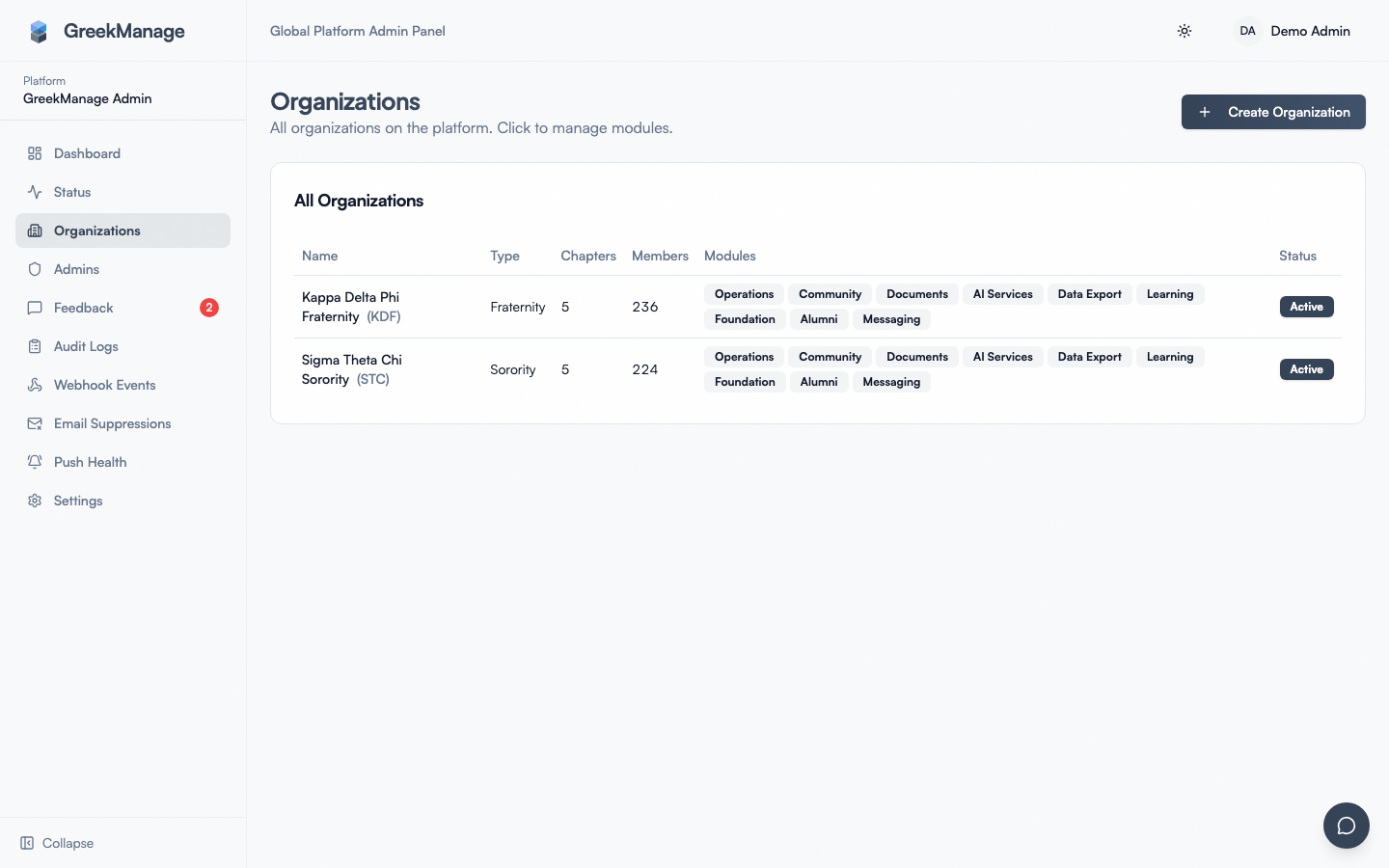 Platform per-org Storage tab with provider, bucket, region, and credential fields.
You'll see (if any config exists):
- Provider — MinIO, AWS S3, or S3-compatible
- Endpoint URL — required for MinIO and S3-compatible; blank for AWS S3
- Bucket name — must already exist for manual setup (except when you use automated provisioning below, which creates it for you)
- Access key ID — IAM credential ID
- Secret access key — encrypted at rest; displayed only as a placeholder once saved
- Region — defaults to
us-east-1 - Custom domain — optional CDN/CloudFront hostname for public asset URLs
- Use SSL — keep on
- Path prefix — optional; useful when multiple orgs share one bucket (e.g.,
orgs/alpha/) - Querystring auth — toggles signed-URL auth vs. public-read for assets. Leave it on for any bucket that blocks public access — which includes every automatically provisioned bucket. An unsigned URL into one of those is a guaranteed 403 on download, even though the upload that produced the file succeeded, so the symptom is files that save fine and then won't open
- Is active — turn off to fall back to platform-default without deleting the config
- Is verified — read-only; flips to true after a successful connection test
If no config exists for the tenant, the form is empty and saving creates a new record.
Provision an AWS bucket automatically
For AWS S3 tenants you don't have to create the bucket and IAM user by hand. When you select AWS S3 as the provider on an org that has no storage config yet, a Provision AWS Bucket card appears:
- Click Preview Provisioning. This is a dry run — it shows exactly what would be created (an instance-agnostic bucket named
greekmanage-org-<org-id>, its region, the least-privilege IAM user, the permissions boundary that user will be capped by, public-access-block, and default AES256 encryption) without touching AWS. - Click Confirm & Create Bucket. The platform creates the bucket (public access blocked, default encryption on), creates a least-privilege IAM user + access key scoped to only that bucket, writes the encrypted
StorageConfig, and runs the same connectivity probe as Test connection — so the config comes back already verified.
The bucket name uses the org's UUID (not its name or environment), so it stays portable if the org is ever moved to another deployment.
The permissions boundary
Every provisioned IAM user is created under an IAM permissions boundary — a hard ceiling that keeps the user inside the greekmanage-org-* bucket namespace no matter what policy is attached to it. The boundary is what makes it safe to let the application hold a credential that can create IAM users at all: the provisioning role's iam:CreateUser grant is conditioned on it.
The practical consequence: AWS_PROVISIONING_PERMISSIONS_BOUNDARY_ARN must be set to the boundary policy's ARN. If it isn't, provisioning fails closed with AccessDenied instead of quietly creating an uncapped user — and Preview warns you before you click Confirm. The Terraform stack wires this automatically when enable_org_storage_provisioning = true; see terraform/policies/README.md for the policy documents and for applying them to an account managed outside that stack.
Two instances in one AWS account
app.greekmanage.com (prod, on ECS) and the minipc dev instance share a single AWS account, so each one provisions into its own bucket namespace — greekmanage-org-* for prod, greekmanage-dev-org-* for dev — with its own permissions boundary and its own provisioning credential. Prod uses the backend's ECS task role; the minipc isn't in AWS, so it uses a dedicated greekmanage-dev-provisioner IAM user and a static key.
Keeping the prefixes distinct is a correctness requirement, not a convention. Bucket names are derived from the org's UUID, and a restore only ever targets an org with the same UUID — so after a prod→dev database restore both instances would otherwise compute the identical bucket name and quietly share one bucket. As a second line of defence each bucket is tagged with the instance that created it (AWS_PROVISIONING_INSTANCE_ID), and provisioning refuses to adopt a bucket tagged for a different instance.
The Provision card only appears for an org that has no storage config yet, so the UI won't overwrite one you entered by hand — if the org already has a config and you want it provisioned, remove it first.
Re-provisioning an org is safe and repeatable. It issues a fresh access key and revokes the one it replaces (AWS allows only two keys per user, so the old key has to go), and it rewrites every field the new bucket's behaviour depends on rather than only the ones that changed. That matters when the org is being moved off another provider: leaving the previous provider's endpoint, custom domain or path prefix in place would point the org's file URLs at a host that no longer serves them, and because uploads would keep succeeding, the first sign of trouble would be files that won't open.
It happens automatically for new organizations
When provisioning is enabled, creating an organization dispatches a background job that stands up its bucket — you don't have to click anything. This matters because an org without a verified storage config falls back to the shared platform bucket, so an org left unprovisioned would be mixing its files in with platform-level content.
The job runs in the background rather than during org creation, and retries if needed. AWS IAM is eventually consistent: a newly created access key sometimes isn't usable for a few seconds, which would otherwise leave a perfectly healthy bucket marked unverified. A retry absorbs that. There is a brief window right after creation where the org is still on the shared bucket; if any files were uploaded in that window, use the migration tool below to move them across.
The Provision AWS Bucket button remains for retries, repairs, and orgs that predate automatic provisioning.
What happens when an organization is deleted
Its access key, inline policy and IAM user are removed immediately, so nothing can reach the bucket any more. The bucket and its objects are kept. That's deliberate — the credential is what must stop working, while the data may still have audit or legal value, and an orphaned bucket only costs the storage it uses. Re-provisioning an org against the same bucket restores access, so nothing is lost irreversibly.
Deleting those retained buckets is a manual step, on purpose. Nothing cleans them up on a timer.
Saving credentials
Fields are validated client-side, then sent to the platform API. The secret access key is encrypted at rest with the platform's Fernet key the moment the row is written — it's never stored in plaintext.
Saving sets Is verified = false. The application will not actually use a storage config until it's verified, which means a fresh save always needs the next step.
Connection test
Click Test connection after saving. The platform builds a boto3 client from the saved config, uploads a tiny probe file to .greekmanage-test/<org-id>/connectivity-test.txt, verifies it exists, then deletes it. On success, Is verified flips to true and the storage cache for that org is invalidated so the new config takes effect immediately.
A failed test surfaces a generic "Connection test failed. Check your configuration." message. The detailed reason is logged server-side but kept out of the response intentionally (storage error messages can leak bucket structure). Common failure modes to walk through:
- Wrong region. AWS S3 returns
AuthorizationHeaderMalformedwhen the signing region doesn't match the bucket region. Pick the bucket's actual region (us-east-2,eu-west-1, etc.), not the IAM user's home region. - Signature mismatch. Usually an incorrect or copy-paste-truncated secret access key. Rotate the key in IAM and try again.
- CORS missing or wrong. Direct-from-browser uploads (photo albums, large attachments) need a CORS policy on the bucket that allows
PUT,GET,POST,DELETEandHEADfrom your platform domain. The probe upload doesn't go through the browser so it'll pass even with broken CORS, but live uploads from the app will fail. - Endpoint URL wrong for provider. AWS S3 endpoints look like
https://s3.us-east-1.amazonaws.com; MinIO is your self-hosted URL; Backblaze B2 / Wasabi / DO Spaces all have their own. Leave Endpoint URL blank for AWS S3. - Bucket doesn't exist. Create it in the provider console first; the platform does not auto-create.
- IAM policy too restrictive. The probe needs
s3:PutObject,s3:GetObject,s3:DeleteObject, ands3:ListBucketat minimum. - SSL/TLS issues. Toggle Use SSL to match the endpoint (https → on, http → off). Self-hosted MinIO behind a reverse proxy without TLS needs SSL off.
Until the test succeeds, the storage stays unverified and the app keeps using whatever was active before (often the platform-default fallback).
Switching a tenant from platform-default to their own bucket
This is the migration path used most often during onboarding:
- Tenant creates their bucket and IAM user with the policy above.
- Tenant gives you (or their org admin gives them) the access key and secret.
- Save the credentials on the per-org Storage tab.
- Run Test connection until it succeeds.
- Trigger a storage migration to copy existing assets (chapter logos, member avatars, photo albums, attachments) from the previous storage to the new one.
- Once migration completes, new uploads automatically land in the new bucket — the migration task flips active storage atomically at the end.
The migration runs as a Celery task and records its progress (total_files, files_copied, files_failed, error_log) for audit. A migration that finishes with failures stays in failed status until someone reviews the error log and re-runs.
Encryption
The secret access key is encrypted at rest using the platform's Fernet key, the same encryption that protects payment processor credentials and AI provider keys. Even a database snapshot leak would not expose the value in plaintext — the attacker would also need the Fernet key, which lives in environment configuration.
Rotating the Fernet key is a separate platform operation (see the secrets rotation runbook); after rotation, encrypted fields re-encrypt automatically with the new key.
Caching
The platform caches each org's active storage config in memory to avoid hitting the database on every upload. The cache is invalidated automatically when you save credentials or pass a connection test — no manual cache-flush step needed. If you ever suspect stale caching, restart the backend workers.
What's NOT in the box
- Manual providers need a pre-created bucket. For MinIO / S3-compatible, create the bucket on the provider side first. AWS S3 tenants can use automated provisioning to create it (when enabled).
- IAM policy generator is AWS-provisioning only. Automated AWS provisioning creates a least-privilege IAM user for you; for manual setups the policy is in the storage-config doc — copy it into the IAM console.
- No automatic file-count probe. The connection test verifies access; it does not inventory the bucket.
- No multi-bucket per org. A tenant has exactly one storage config at a time.
- No diff/rollback for storage credentials. Re-saving overwrites the previous credentials (and the secret can never be read back). Keep the prior secret somewhere safe until the new one is verified.
Tips
- Always run Test connection right after saving. An unverified config is silently inert.
- Re-test after changing CORS or the bucket region. Those don't go through the storage-config form and the cached verified state doesn't notice.
- Use a path prefix when sharing a bucket across tenants. Even if you don't think you'll share, it's free insurance.
- Document the IAM user per tenant. "Which IAM user is currently signed in to GreekManage for Alpha Tau Omega?" is a question that comes up during incident response; the platform doesn't track it for you.
Related
Last verified against v0.65.81 (2026-07-25).